

To stop distracting banners during gameplay, go to Settings > Notifications on your console and toggle off Pop-up Notifications (Tecnobits). This blocks overlay prompts across all games while keeping transaction receipts and account changes visible inside your system menus.
Few things ruin a tense boss encounter or an emotional cutscene faster than a system banner sliding across your screen. Out of the box, PlayStation firmware defaults to maximum urgency—serving up download confirmations, party invites, and store prompts the second they happen. Reclaiming your screen takes only a few deliberate toggle adjustments.
PlayStation Network Card (ID)
The QoS Profile: Recommended Configuration for Focus
If you want zero interruptions during gameplay without cutting off critical system feedback, apply this baseline setup. You do not have to mute everything globally; tailoring delivery channels per category protects your gaming flow while leaving logs intact.
- Head into console Settings from the top-right corner of the dashboard.
- Open the Notifications menu.
- Turn off Pop-up Notifications entirely if you want a clean display across the board (Tecnobits).
- If you still want specific cues, leave pop-ups enabled globally and step down into individual sub-categories.
- Adjust sound, vibration, and visual banners for alerts such as game invitations, messages, and updates (Tecnobits).
Here is how individual toggles compare across common scenarios:
| Setting Category | Recommended Toggle | Implementation Impact | Reference Image |
|---|---|---|---|
| Pop-up Notifications | Disable / Off | Blocks all floating banner overlays across active sessions | 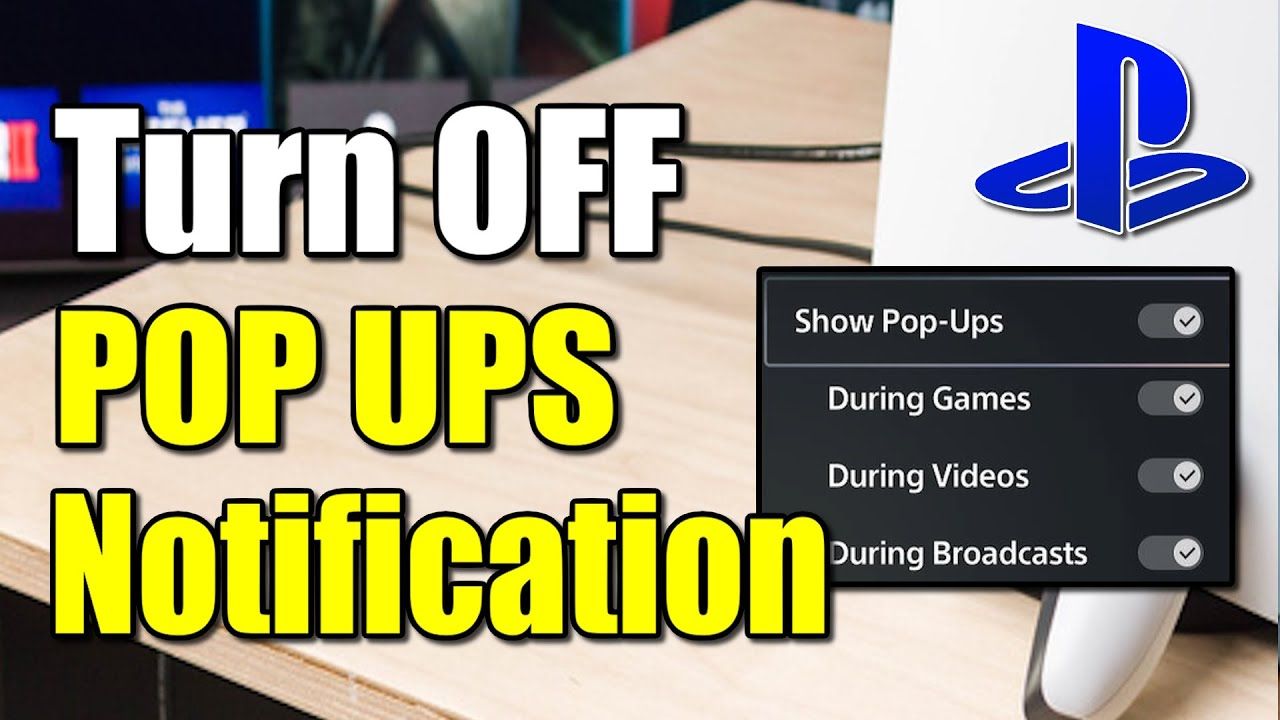 |
| Trophy Notifications | Uncheck toggle box | Stops trophy unlock visual banners during cinematics and play |  |
| Per-Category Preferences | Custom (Sound/Vibration/Display) | Granular adjustments for messages, game invitations, and downloads |  |
| Video Playback Alerts | Temporarily silence | Halts alert interruptions specifically while streaming video |  |
Reference data sourced from Tecnobits: How to Customize Your Notification Settings on PlayStation and Tecnobits: How to Change PlayStation Notification Settings.
When should you deviate from this setup? Keep message or party alerts enabled if you play competitive multiplayer titles where coordinating with a squad on the fly matters more than screen cleanliness.
How to Silence Trophy Unlock Alerts Specifically
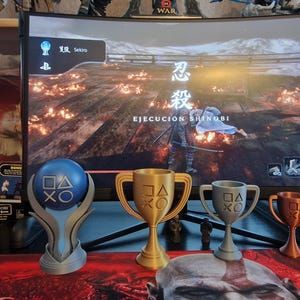
Trophy alerts bring a distinct audio chime and banner that can fracture the atmosphere of narrative-focused games. You do not need to silence friend requests or patches just to eliminate trophy banners.
Open Settings > Notifications > Trophies. From there, uncheck the Trophy notifications box (Tecnobits). Your trophies will still register to your account profile as normal, but the overlay chime and pop-up will remain completely suppressed during gameplay.
Silencing Alerts on the Fly During Video Playback
Streaming movies and shows comes with its own quick-mute shortcut. Skip digging through the primary dashboard settings entirely whenever a film is already rolling.
While playing a video, press the Options button on your controller. Select Settings from the media playback overlay, scroll down to Notifications, and pick the option to temporarily silence them (Tecnobits). This mutes interruptions for the duration of your media session without forcing you to reconfigure your standard gaming preferences afterward.
Mobile Companion Push Alerts vs. Console Pop-Ups
Silencing your console screen does not automatically silence your phone if you use the PlayStation mobile companion app. The companion app manages push alerts on an independent track (PlayStation App Dog).
| Alert Channel | Console Overlay Behavior | PlayStation Mobile App Behavior | Source |
|---|---|---|---|
| System & Gameplay Pop-ups | Controlled via console Settings > Notifications | Inactive on mobile; strictly local to television/monitor | Tecnobits Guide |
| Party Chats & Messages | Toggled per category or silenced globally | Controlled via app push permissions; notifies phone independently | PlayStation App Dog |
| Store Wishlist Sales | Silent on console unless Store alerts are active | Dedicated push alerts triggered whenever wishlisted items drop in price | PlayStation App Dog |
If you want deals without on-screen pop-ups while playing, let the mobile app handle your wishlist sale alerts instead of cluttering your console interface.
Avoiding Payment Pop-Ups and Card Errors
Another culprit behind sudden banners: recurring billing hiccups. Expired cards, failed subscription renewals, and authorization errors routinely bypass standard focus controls, cutting straight through your gameplay.
For Indonesian account holders, topping up via a prepaid PlayStation Network Card (ID) offers an easy workaround. These vouchers deliver a 12-digit code redeemable on PS5, PS4, or web through PlayStation Store > Redeem Codes. Loading your balance directly via prepaid vouchers ensures you do not get unexpected renewal warnings or billing-authorization flags mid-game.
Resetting Your Profile to Factory Defaults
If you customized your alerts heavily and lost track of which categories are active, you can wipe the slate clean. Go to your console's Notifications menu, select Reset Settings, and confirm the prompt (Tecnobits). This restores factory defaults across vibration, sound, and visual prompts, letting you rebuild your notification preferences from scratch.
Frequently Asked Questions
How do you silence PlayStation notifications while playing videos or streaming?
Press the Options button on your controller during video playback, open the on-screen Settings menu, scroll down to Notifications, and select the option to temporarily silence them (Tecnobits).
Can you disable trophy notifications without muting friend messages?
Yes. Open Settings > Notifications > Trophies and uncheck the Trophy notifications box. Categories like Messages, Downloads, and Game Invitations remain customizable independently (Tecnobits).
How do you reset all PlayStation notification settings back to default?
Open your console's Notifications menu, select Reset Settings, and confirm the prompt to restore all default alert behaviors (Tecnobits).
Follow NXPGame for more PlayStation Network Card (ID) news~

Community
Comments