

To access the code redemption screen on your Xbox Series X dashboard, open the Microsoft Store app, press the View button (the two overlapping squares on your controller) to open the side menu, and scroll down to select Redeem at the bottom of the list. This opens the on-screen keyboard window where you can submit your 25-character digital gift card, subscription token, or game code to credit your active account immediately (Mirror).
Xbox Live Gift Card (AE)
Locating the Redemption Screen on the Console Interface
Console owners often look across the primary dashboard tiles or system settings without finding an explicit redemption button. The redemption interface is built directly into the Microsoft Store application rather than the top-level home screen.
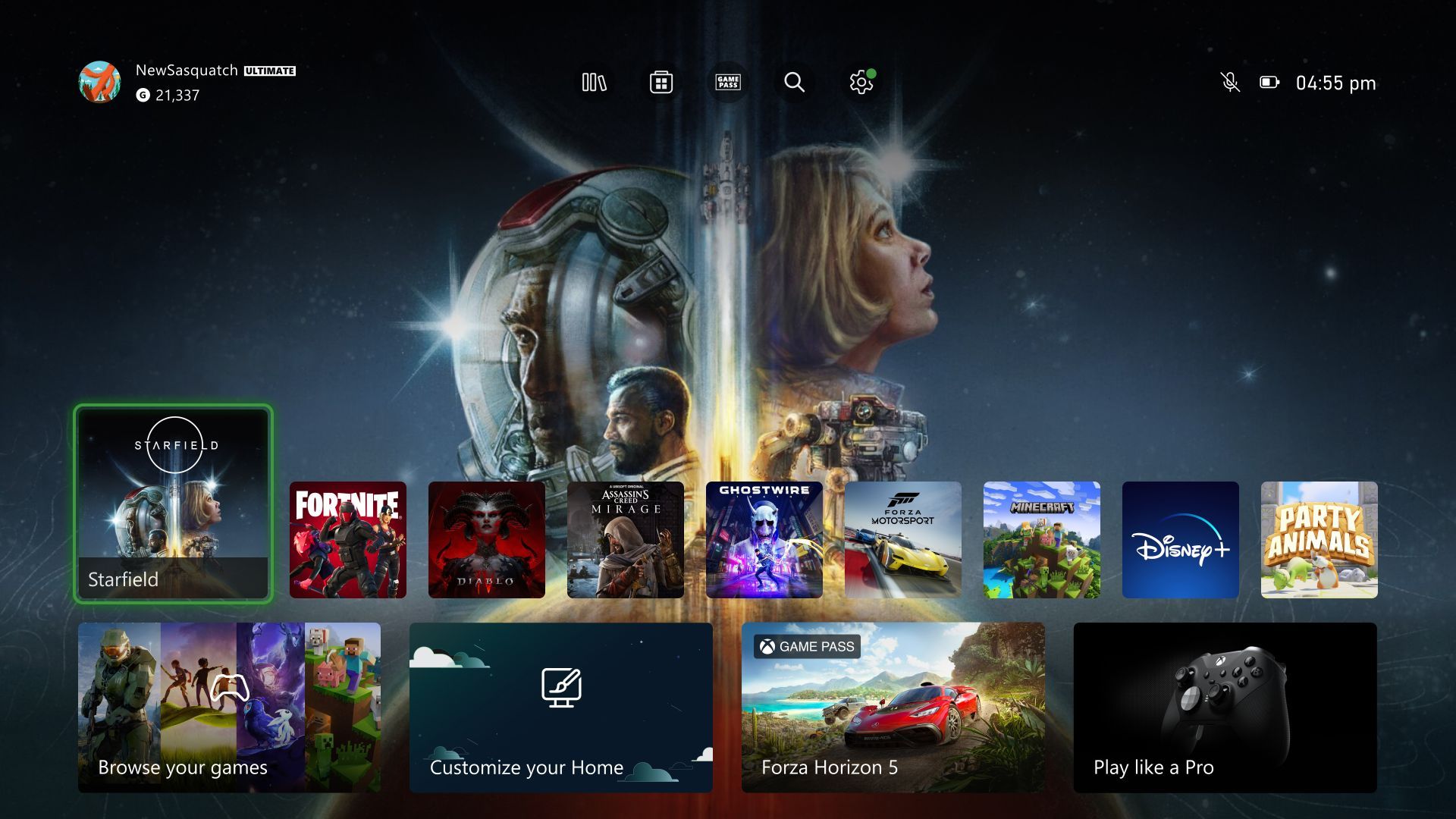
Two routes lead to the redemption prompt: the sidebar shortcut or the profile menu.
The Store Sidebar Route (View Button)
- Press the Xbox button on your controller to summon the guide overlay, then choose Store (or scroll down to the third dashboard tier below Home and Game Pass and launch the Store app, per IGN).
- Once inside the Store app, press the View button (represented by two interlocking squares) or push the left analog stick fully to the left to pull out the navigation sidebar.
- Scroll to the bottom of the vertical menu and select Redeem.
- Input the 25-character voucher code using the on-screen keyboard, then select Next to preview the credited item or balance before confirming (Mirror).
The Profile Avatar Route
To navigate entirely through on-screen menus rather than controller shortcuts:
- Open the Microsoft Store app from your dashboard or guide.
- Push the left stick upward to highlight your profile icon in the top-right corner of the Store display.
- Click your avatar and select Redeem code or gift cards from the drop-down menu (MyGiftCardSupply).
- Enter the 25-character code and confirm.
Confirming which gamertag is active before finishing this step is essential. Digital balances attach permanently to the signed-in profile at the moment of redemption and cannot be transferred to a secondary account on the same console (MyGiftCardSupply).
Supported Code Entry Paths Across Devices
Different Xbox access points handle voucher redemption through separate menus, while some official apps omit the feature entirely.
| Redemption Method | Visual Reference | UI Menu Path | Documented Limitations & Rules |
|---|---|---|---|
| Xbox Series X/S Sidebar | 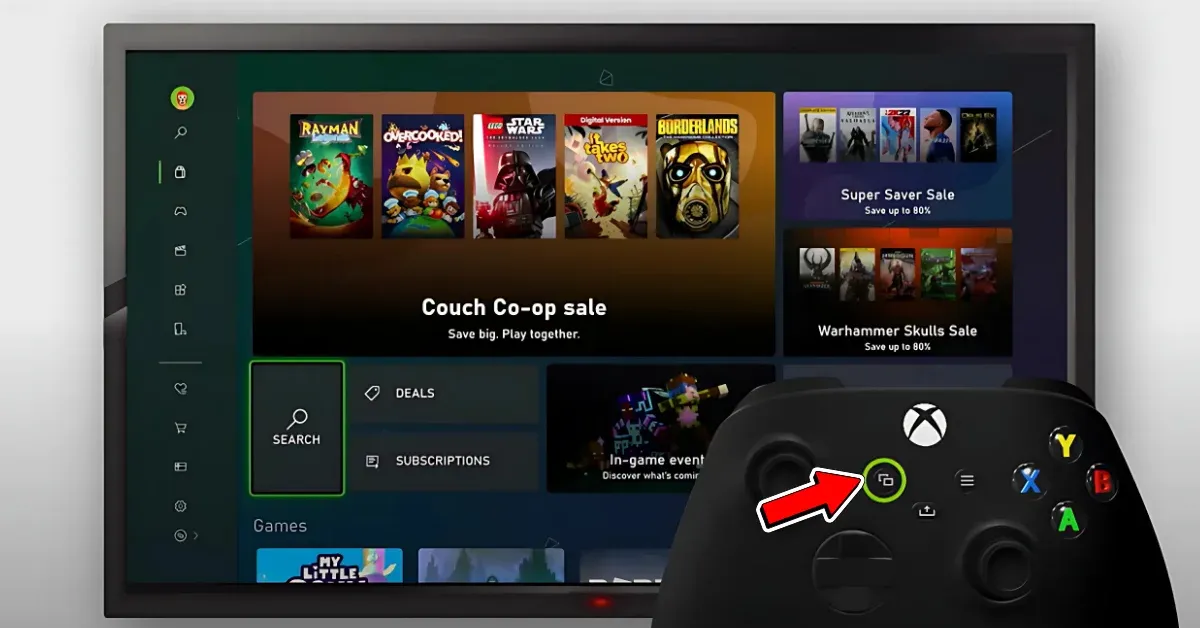 | Store App > Press 'View' Button > Select 'Redeem' | Requires typing 25 characters via the Xbox controller keyboard (Mirror). |
| Xbox Series X/S Profile | 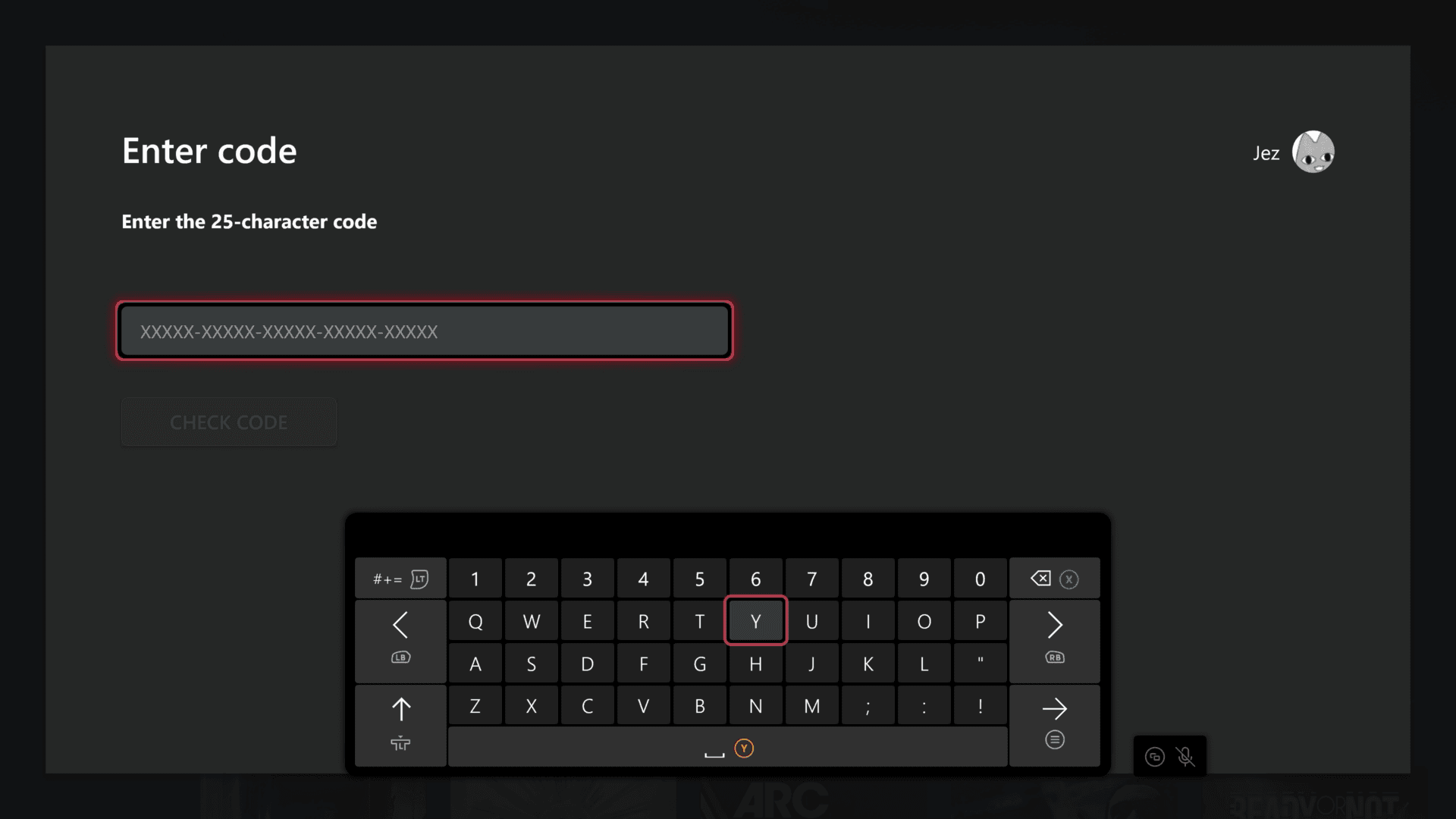 | Store App > Top-Right Profile Icon > 'Redeem code or gift cards' | Balance locks permanently to whichever gamertag is signed in (MyGiftCardSupply). |
| Web Browser (Mobile / PC) | 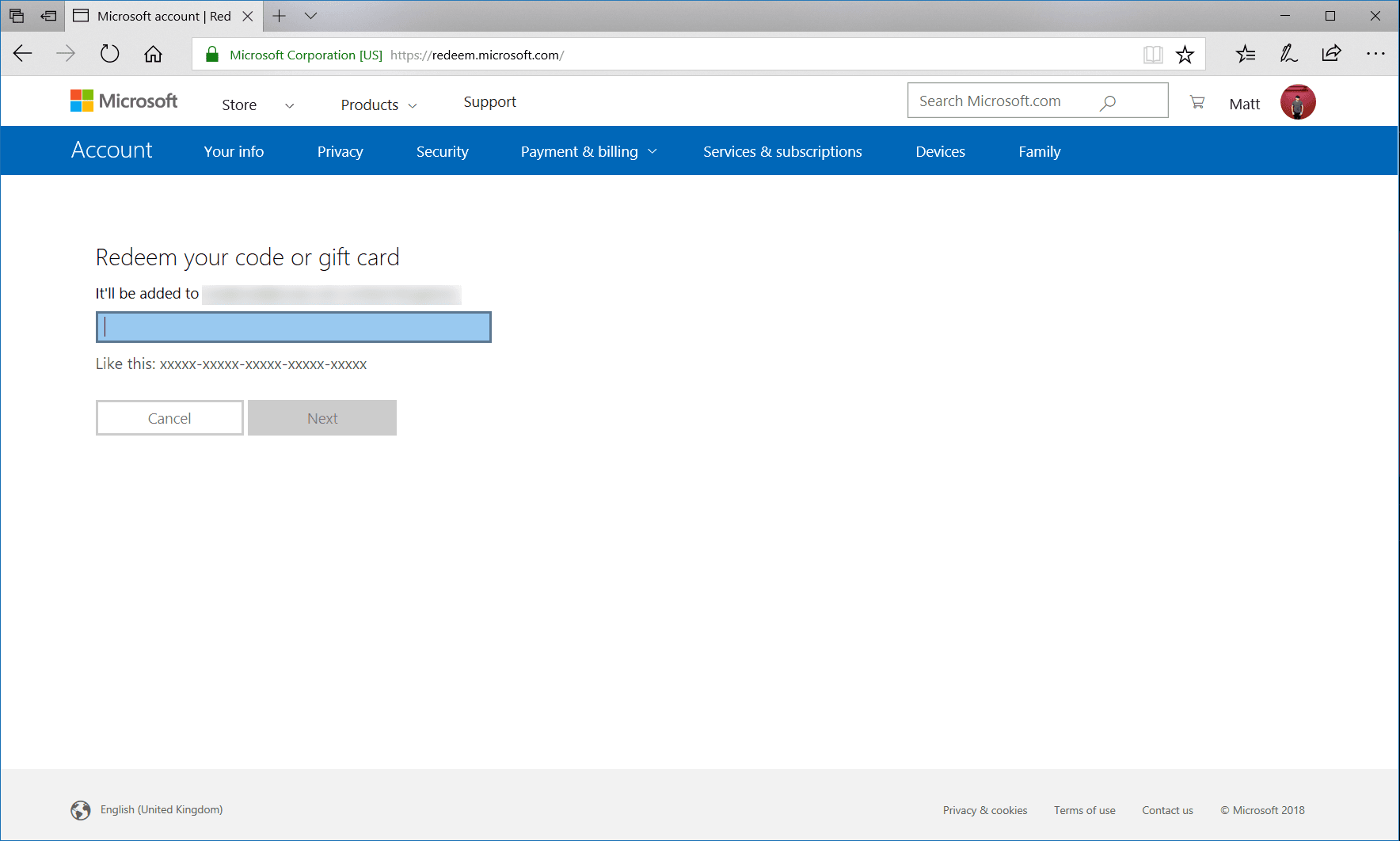 | redeem.microsoft.com > Sign in > Enter code | Supports copy-pasting to avoid controller typing errors (Microsoft Support). |
| Xbox App on Windows | 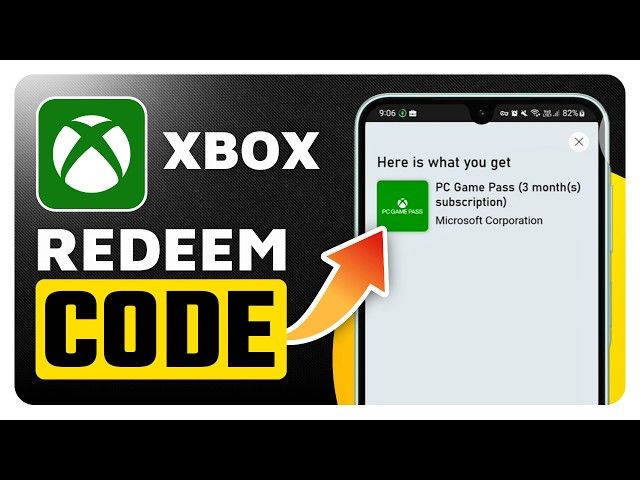 | Gamerpic > Settings > 'Redeem' under Redeem a code | Requires Windows PC running the official Xbox app (Mirror). |
| Xbox Mobile App (iOS / Android) |  | Not Supported | 25-character code redemption is not available inside the app (Mirror). |
Checking Your Credited Account Balance on the Console
Once the system accepts your code, verify that the funds reached your wallet before purchasing content.
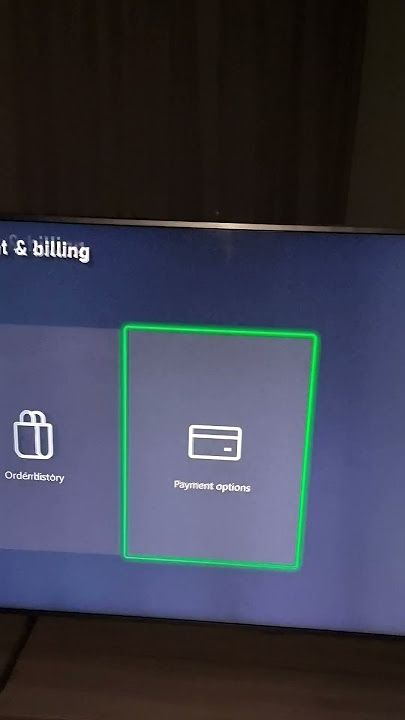
You can verify the balance through two built-in locations:
- Via System Settings: Press the Xbox button on your controller to open the guide. Select Profile & system, open Settings, select Account, and click Payment & billing. Your total Microsoft account balance appears on this overview (Playbite).
- Via the Store App: Launch the Store application from your dashboard. Your active currency balance is visible in the top-right corner next to your profile picture (Playbite).
You can also verify the credited balance outside the console by opening account.microsoft.com/billing/payments in any web browser.
Handling Regional Restrictions and Error XBOS3004
Xbox gift cards are country- and currency-specific. If you attempt to enter an Xbox Live Gift Card (AE) on an account registered to a different country, the console rejects the transaction with error code XBOS3004 ("Wrong region"), even if you are physically connected from that location (MyGiftCardSupply).
Microsoft inspects your account's base region during code processing. An AE voucher requires an Xbox Live or Microsoft profile registered in the United Arab Emirates (NXPGame). The card adds local UAE dirham credit without demanding a linked credit card or active recurring membership.
There is a critical operational distinction between adjusting your hardware location and modifying your billing country:
| Setting Category | Where to Change | Enforced Cooldown | Impact on Gift Card Redemption |
|---|---|---|---|
| Console System Location | Settings > System > Language & location | None | Switches store pricing display and local catalogue without changing underlying account country. Will not bypass error XBOS3004 (Eneba). |
Altering the console's system location changes only the catalog and local currency display. To redeem a foreign-currency voucher, the underlying Microsoft account profile itself must be registered in the matching country.
Alternative Code Entry Options Beyond the Console
Typing 25 alphanumeric characters with an Xbox controller thumbstick is slow. You can bypass the on-screen console keyboard by entering codes through a browser or the Windows desktop app instead.
Web Browser Entry
Open a desktop or mobile browser and go to redeem.microsoft.com. Sign in to the identical Microsoft profile assigned to your console, paste or type the 25-character key into the single input field, and confirm. The credit updates across your console instantly.
Mobile Application Limitations
The official Xbox mobile application available for iOS and Android devices does not support 25-character digital code redemption (Mirror). If you are on a smartphone, do not search the mobile app settings; launch Chrome, Safari, or another mobile browser and use redeem.microsoft.com instead.
Windows PC Xbox App
If you have a Windows PC, open the desktop Xbox app. Click your gamerpic in the upper-left or upper-right menu area, open Settings, and select the Redeem option positioned under the "Redeem a code" section to apply the key to your Microsoft account (Mirror; MyGiftCardSupply).

Community
Comments