

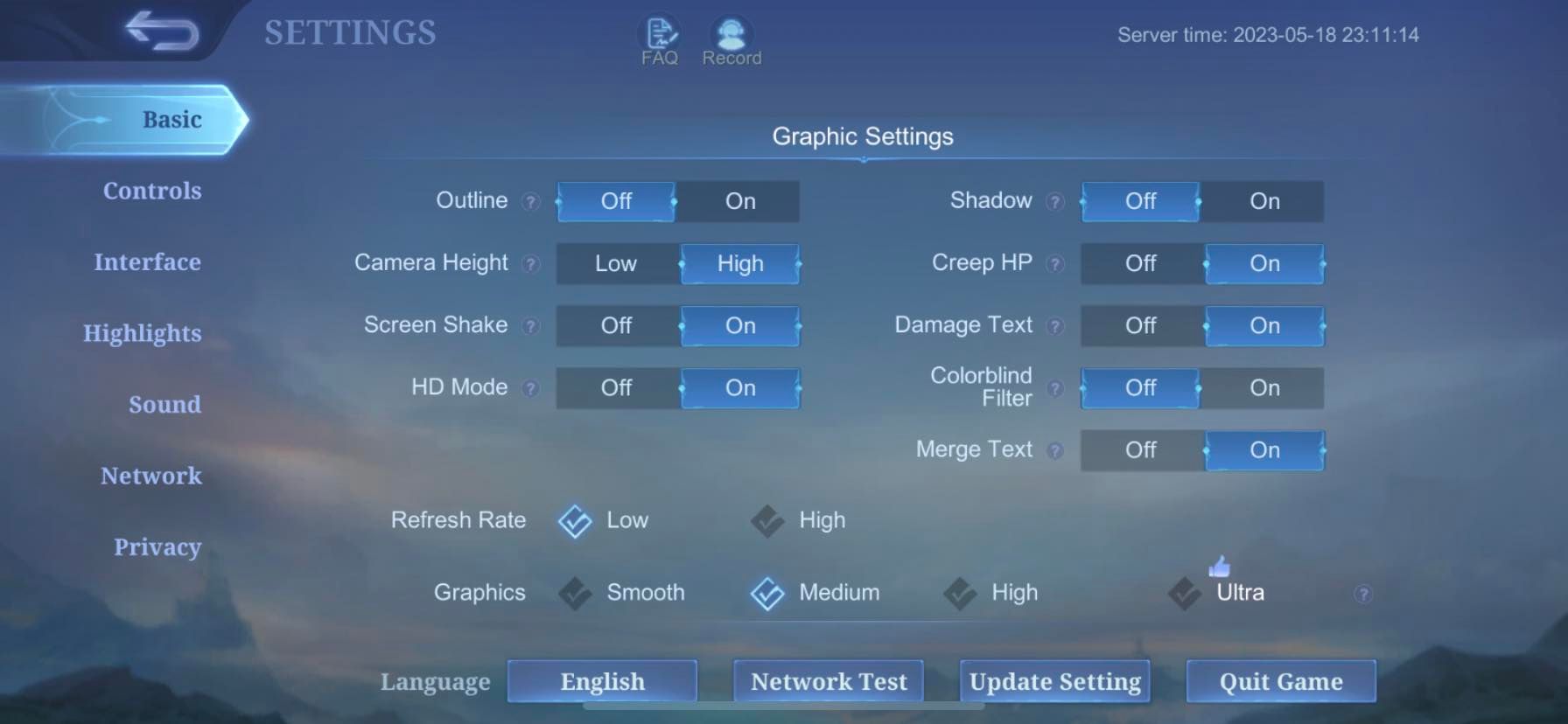
To maximize competitive performance and stop overheating in Mobile Legends: Bang Bang, prioritize frame rate over visual quality. Setting your graphics quality to Medium while locking the frame rate to High delivers a stable 60 FPS on mid-range phones, whereas pushing both toggles high causes severe thermal throttling and frame drops during intense 5v5 teamfights.
Input latency determines who lands crowd control first. Running an unfluctuating 60 FPS at Medium graphics registers touches faster and visualizes skill animations clearer than running High or Ultra graphics that swing erratically between 30 and 45 FPS (MLBB Hub). Pretty visuals mean nothing if your screen locks up during Lord contests.

Mobile Legends Bang Bang(RUSSIA)PIN
- -70%
2371+474 Diamonds
Buy NowUSD 54.65
USD 92.91
- -70%
1581 + 300 Diamonds
Buy NowUSD 36.47
USD 62.00
- -70%
1500 + 224 Diamonds
Buy NowUSD 27.30
USD 46.41
- -70%
791 + 142 Diamonds
Buy NowUSD 18.19
USD 30.92
- -70%
633 + 101 Diamonds
Buy NowUSD 14.58
USD 24.78
- -70%
250 + 25 Diamonds
Buy NowUSD 5.77
USD 9.81
- -70%
239 + 25 Diamonds
Buy NowUSD 5.48
USD 9.31
- -70%
150 + 15 Diamonds
Buy NowUSD 3.45
USD 5.86
- -70%
120 + 12 Diamonds
Buy NowUSD 2.73
USD 4.65
- -70%
80 + 8 Diamonds
Buy NowUSD 1.83
USD 3.10
- -70%
50 + 5 Diamonds
Buy NowUSD 1.15
USD 1.95
The Real Culprits: Which Settings Tank FPS and Heat Your Phone?
Not every visual toggle in the MLBB settings menu affects hardware equally. Some features demand extreme GPU power for minimal cosmetic returns.
- Shadow: The single largest cause of frame drops in MLBB (MLBB Hub). Turn this off immediately on any non-flagship device.
- HD Mode: Increases asset resolutions across the map. On mid-range hardware, this extra texture overhead degrades frame stability without improving your tactical awareness.
- Outline: Adds a subtle border around hero models. Disabling this helps lower-end hardware maintain steady frame pacing without sacrificing gameplay clarity.
- Screen Shake: Adds artificial camera shake to heavy ultimate abilities. It offers zero competitive value, strains rendering slightly, and actively obscures target visibility.
- High FPS Mode paired with High Graphics: Running these two toggles simultaneously overwhelms mobile chipsets below 2024 flagships, creating stuttering and fast heat spikes.
Recommended Settings by Hardware Tier
Your optimal configuration depends directly on your device's System on Chip (SoC) and available RAM. Use this breakdown to configure your client.
| Hardware Tier | Recommended In-Game Settings | Expected Result |
|---|---|---|
| Low-End Tier (2-4GB RAM, Helio G85, Snapdragon 4xx/6xx) | Graphics: Low Frame Rate: Low or Medium Shadows: Off HD Mode: Off Outline: Off | Consistent 30 FPS target; eliminates 20-40 FPS spikes (MLBB Hub) |
| Mid-Range Tier (4-6GB RAM, Dimensity 810, Snapdragon 7xx) | Graphics: Medium Frame Rate: High Shadows: Off HD Mode: Off Smooth Mode: Optional | Locked 60 FPS in teamfights; controlled battery drain (MLBB Hub) |
| Flagship Tier (8GB+ RAM, Snapdragon 8 Gen 2+, Dimensity 9200+) | Graphics: Smooth or Balanced Frame Rate: Ultra or Ultra Max Shadows: Off (for strict competition) | Sustained 90-120 FPS; reduces thermal throttling (Esports.net) |
Budget devices running 2 to 4GB of RAM need an aggressive baseline. Do not chase 60 FPS on a Helio G85. A rock-solid 30 FPS prevents unexpected stuttering during teamfights far better than an unstable setup swinging wildly between 20 and 40 FPS.
If you play on a mid-tier phone with a Dimensity 810 or Snapdragon 7-series chip, Medium graphics combined with High frame rate hits the sweet spot. You preserve stable 60 FPS teamfight output without demanding heavy power draw from the battery.
The Cost of Ultra: 120 FPS and Battery Consumption
High-refresh-rate displays are common, but running MLBB at 120 FPS comes with major trade-offs. Rendering twice as many frames per second roughly doubles processing load, accelerating power drain and generating significant heat (Esports.net).
When your phone gets hot, the operating system intervenes. Internal thermal throttling automatically slashes CPU and GPU clock speeds to cool the hardware down. This drops your frame rate sharply in the middle of a match—regardless of whether your phone is a flagship.
To sustain 120 FPS during heavy skill casting, Esports.net recommends setting Graphics Quality down to Smooth or Balanced while turning Shadows off. Flagships can technically display Ultra graphics alongside Ultra refresh rates, but pairing them creates frame time fluctuations when teamfights explode with particle effects.

Players upgrading cosmetic setups or grabbing tournament passes can load their accounts via Mobile Legends Bang Bang (RUSSIA) PIN top-ups on Russia server accounts without altering device performance settings.
Step-by-Step Fixes for Missing High FPS Toggles
If your phone features a 120Hz display but the MLBB client only displays 60 FPS options, system-level battery settings are likely interfering.
- Turn off OS-level battery saver modes: Android and iOS power-saving profiles actively limit display hardware to 60Hz and instruct the game client to hide higher frame rate tiers (Esports.net).
- Verify display refresh rate in system settings: Open your phone settings, find the Display menu, and confirm the refresh rate is set to 120Hz or Standard/High rather than an auto-switch mode that defaults down to conserve power.
- Switch phone power profiles to Performance: Some manufacturer skins require selecting a dedicated gaming or performance power mode to uncap frame rate access inside gaming clients.
- Restart the MLBB client: Force-close Mobile Legends from your recent apps list and reopen it so the game engine reads the updated hardware profile.
- Cool the phone down before launching: If the phone is already warm from fast-charging or background tasks, the system may prevent high-refresh rendering on boot.
Sources disagree slightly on in-game labels: Esports.net treats the client's Ultra setting as a direct 120 FPS target, whereas MLBB Hub maps High to 60 FPS, Ultra to 90 FPS, and Ultra Max to 115/120 FPS. If your client offers Ultra Max, select that for true 120Hz panels.
Frequently Asked Questions
Why does enabling battery saver make MLBB feel sluggish?
Operating system power-saving profiles force displays to run at 60Hz or lower and restrict processing output. This removes high frame rate options inside the MLBB settings menu and can introduce input lag during gameplay.
What should I disable first if teamfights cause lag?
Turn off Shadow first. Sourced performance tests indicate it is the heaviest single frame rate drain in the game client. Turn off HD Mode next to relieve texture memory overhead.
Can budget phones safely run High frame rate mode?
Budget chips like the Helio G85 or Snapdragon 400 series generally lack the sustained GPU capability to hold 60 FPS. Setting them to Low graphics with Low or Medium refresh rate prevents erratic frame spikes between 20 and 40 FPS.

Community
Comments