

Locate your Keep account number on iOS instantly. Here is the exact path to copy your numeric profile ID and verify your active fitness membership status.
iOS updates routinely shuffle profile menus, burying core account credentials under achievement badges and workout summaries. On Keep CN, you cannot use your public screen nickname or an email address to verify your account.
You need the raw numeric Keep User ID to bind third-party subscriptions, confirm VIP status, or link external services. Here is how to find and copy those digits in thirty seconds.

Keep Premium Member Top up (CN)
Where to Find Keep User ID on iPhone Step-by-Step
Open the app and look at the bottom navigation bar. Tap the Me tab in the lower-right corner (labeled as 我 in the Chinese interface) to open your personal dashboard, bypassing workout feeds and social channels.
Ignore your running mileage, medal count, and workout history. Look directly at the top banner where your profile picture and nickname appear.
Tap your avatar or username. This opens your profile details screen. On current iOS releases, your identifier sits right under your display name, marked as "Keep ID" followed by a numeric sequence.
Touch and hold the number for one second until the iOS copy prompt appears, then tap Copy. If the long-press gesture fails on your build, tap the Settings gear in the top-right corner of the Me tab, open Account & Security, and find your assigned user number listed next to your bound mobile number.
You need this exact string when purchasing a Keep Premium Member Top up (CN) package. Entering a nickname instead of the numeric ID routes your payment into nowhere.
Copying Your Keep CN User Number Without Interface Confusion
Do not confuse Keep CN with similarly named apps. Google Keep, for example, is a note-taking utility that manages API access through OAuth2 client credentials across 12 distinct enterprise administrative endpoints (updated through 2026-07-22). It never assigns a standalone numeric membership ID to end users.
Keep CN, however, structures its entire backend around a permanent numeric user ID. Cloud databases rely on 1 or 2 primary keys to index your profile, linking your training records, hardware telemetry, and VIP entitlement flags.
Keep these details in mind when verifying your string:
- Confirm the ID contains only numeric characters rather than an alphanumeric custom handle.
- Do not confuse your public display nickname with your internal user ID.
- Ensure you are viewing your own profile screen rather than a shared training club card.
- Avoid logging into guest profiles, which generate temporary session hashes instead of permanent IDs.
- Verify that your current iOS app version matches recent client releases to prevent legacy UI bugs.
If your screen displays a handle like "Runner_8821" or a masked mobile number, you are looking at vanity or privacy aliases. Only the digits labeled "Keep ID" represent your permanent database record.
Resolving Membership Status and Apple ID Receipt Blindspots
Apple's privacy model blinds third-party developers from your personal App Store purchase receipts and Apple ID billing emails.
When you complete an in-app transaction, Apple validates the charge and passes a cryptographic token to the app. The developer never sees your Apple ID email or billing identity. If a subscription desyncs, customer support cannot locate your purchase with an Apple email address. They can only query their database using your internal platform ID.
The same limitation applies when processing an authorized Keep CN account renewal. External fulfilment systems target your database row directly using that numeric string to inject VIP flags and extend expiration dates.
Double-check every digit before submitting an order. Transposing numbers binds the subscription to someone else's account, leaving you stuck waiting on manual support tickets.
Account Settings and Data Sync Across Fitness Platforms
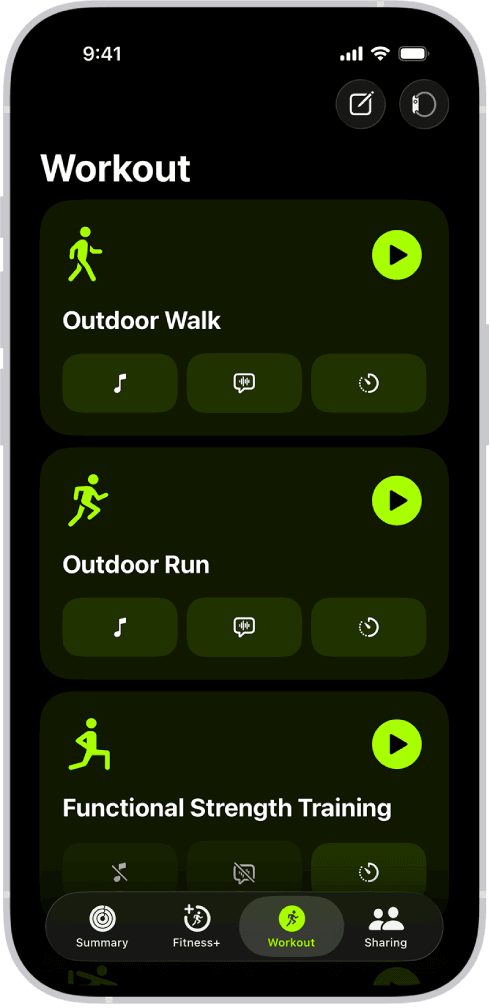
Fitness apps on iOS mirror each other's account architecture. Apple Fitness parks account details under the top-right avatar on the Summary dashboard; Keep does the same inside the Me tab, housing hardware links, sync toggles, and client version diagnostics in that single menu.
Keep's framework can pair up to 110 hardware accessories and third-party partner connections—including spin bikes, jump ropes, heart-rate monitors, and running pods. Every connected device maps sensor telemetry back to your root user ID.
The app also exports workouts across 10 linked sports channels to services like Apple Health and Strava. If your account token expires or desyncs, that pipeline stalls. Treadmill runs and mat routines stop syncing to Apple Health, leaving your daily activity rings frozen.
To check the sync status, open Keep, go to Me, tap the Settings gear, and select Third-Party Services. Confirm that Apple Health is toggled on. If the panel throws an error, your session token has expired; log out and log back in to reset the connection.
Subscription Pricing Tiers and Ecosystem Membership Costs
Subscription rates across iOS fitness tracking apps reflect their underlying training focus—from basic weight-room loggers to dynamic cycling suites and video class catalogs.
The following table outlines standard monthly subscription rates across leading mobile fitness applications to demonstrate industry-wide billing standards.
| Platform / Tier | Monthly Cost | Ecosystem Note |
|---|---|---|
| Hevy Pro | $2.99 / month | Lowest entry-tier subscription among specialized fitness tracking apps |
| Wahoo Core | $4.99 / month | Provides dimensional training load, 3DP/4DP profiles, and single-discipline analytics |
| Strong Pro | $4.99 / month | Specialized strength tracking tool focused on routine routines and progression |
| Apple Fitness+ | $9.99 / month | Includes full video catalog and family sharing for up to five Apple IDs ($79.99/yr) |
| Strava Premium | $11.99 / month | Includes live beacon tracking, route planning, and competitive leaderboards |
| Specialized Training Apps | $15.49 / month | Mid-tier subscription category featuring adaptive aerobic schedules |
| Wahoo Pro | $17.99 / month | Unlocks full SYSTM structured workout library and guided daily recommendations |
| Premium Coaching Tiers | $19.99 - $25.00 / mo | Upper pricing ceiling for algorithmic athletic coaching subscriptions |
Subscription rates reflect standardized entry and premium mobile service tiers observed across iOS platforms.
Single-discipline tools like Hevy ($2.99/mo) anchor the lower end, while cycling platforms like Wahoo scale from a $4.99 Core tier up to a $17.99 Pro tier. Apple Fitness+ charges $9.99 monthly ($79.99 annually) and bundles access for up to five family members via Family Sharing. For Keep CN users, acquiring membership credit for Keep provides access to premium training programs and structured video coaching at competitive recurring costs.
Managing Cached Sessions and Multi-Device Credentials on iOS
Managing multiple accounts on one iPhone often leads to cached credential conflicts. When iOS stores session tokens locally, the client can get stuck on a previous user's profile, hiding your true numeric ID.
Local session caching can persist across 3 or 4 account switches. While legacy authentication used 16-digit passcodes (under historical schema versions 11 and 4.0), current systems use cross-platform identity tokens (schemas 4.4 and 19) to sync session consent across iOS, Android, and web interfaces.
The following table details how authentication mechanisms, token specifications, and migration routines operate across mobile devices.
| Authentication System | Metric Specification | Operational Impact |
|---|---|---|
| Legacy App Passcode | 16 digits (v11, v4.0) | Authorizes apps lacking modern platform token handshakes |
| Cross-Platform Tokens | Schema 4.4, Token 19 | Retains persistent sign-in verification across iOS and alternate operating systems |
| Device Migration Protocol | Indices 17, 8, 9, 15, 30 | Governs local credential transfer and QR pairing during phone upgrades |
| Identity Session Cache | 3 profiles, 2.4 days limit | Caches active credentials locally, potentially masking updated account IDs |
| Backend ID Mapping | 1 or 2 Primary Keys | Unique database strings ensuring cross-device profile synchronization |
Authentication benchmarks illustrate how underlying security tokens govern account visibility and profile access on iOS devices.
When transferring data to a new iPhone, iOS device migration protocols use indices 17, 8, 9, 15, and 30 during QR pairing routines. If Keep opens on your new phone with blank ID fields, the cached session failed the handshake. Log out completely and sign back in to re-fetch your credentials.
Membership Management Across Native iOS and Third-Party Profiles
Your subscription billing route dictates where you verify active membership. Native App Store billing lives inside iOS system menus, while third-party credits and direct activations display exclusively within the app itself.
For App Store subscriptions, open iPhone Settings, tap your Apple ID name at the top, and tap Subscriptions. Alternatively, open Apple Fitness, tap your avatar in the upper-right corner of Summary, and select your account name to audit renewal cycles (tracked under service indices 10, 80, and 38).
The table below contrasts how iOS native settings and third-party fitness profiles handle subscription management.
| Verification Pathway | Account Scope | System Requirement |
|---|---|---|
| Native iOS Subscriptions | Private Apple ID Account | 100% blinded to third-party app developers; managed via iOS Settings |
| App Account Status Menu | Internal Keep CN Profile | Accessed via 3 taps: Me tab -> Avatar -> Account Status |
| Apple Fitness+ Family Tier | Up to 5 Shared Apple IDs | Requires Family Sharing configuration at $9.99/mo or $79.99/yr |
| External Platform Sync | 10 Linked Sports Channels | Bridges metrics to Apple Health and Strava using primary User ID |
| App Version Diagnostics | Versions 5.0, 4, 2 | Technical inspection menu located under avatar settings to audit client build |
System pathways separate operating-system-level billing controls from in-app profile verification menus.
In Keep CN, check your status directly on the Me tab. Look for the VIP badge located right beneath your avatar and Keep ID. Tapping that badge opens the Membership Center, showing your plan tier, expiration date, and access entitlements.
Ecosystem rules change periodically. Apple Fitness originally required an Apple Watch to close activity rings, but iOS 16 removed that hardware lock for iPhone users. Keeping your apps updated ensures menus and permission requirements match current platform standards.
Troubleshooting Missing ID Fields and Profile Desyncs
If your Keep ID appears as dashes, stays blank, or throws a network timeout on the Me screen, your local client has desynced from the authentication servers.
Run through these five fixes to restore your ID string:
- Force Close and Relaunch: Swipe up from the bottom edge of your screen into the App Switcher and flick Keep upward. Relaunching forces a new API handshake.
- Clear App Cache: In Keep, tap Me, select the Settings gear, and tap Clear Cache. This clears corrupted image and layout caches while preserving workout logs.
- Audit Network Permissions: Open iOS Settings > Keep, and verify that both Cellular Data and Local Network are enabled. Users outside mainland China need uninterrupted connections to reach Keep's domestic CDN servers without packet drops.
- Check Client Version: In Keep's Settings, tap About Keep. If your build is running an older branch (such as legacy 4.x or early 5.0), update through the App Store to resolve known profile rendering bugs.
- Sign Out and Re-authenticate: Scroll to the bottom of Keep's Settings and tap Log Out. Re-authenticating forces the app to rebuild its local SQLite profile cache from scratch.
Once the client completes a clean handshake, your numeric Keep ID will populate immediately beneath your avatar.
FAQ
Where is the profile or account menu generally located in iOS fitness apps?
Tap the profile avatar icon located in the upper-right corner or the dedicated Me tab on the app's main dashboard. This section houses personal metrics, account configurations, and membership status options.
Why is my active fitness membership not registering inside my iOS app?
Check whether the account signed into your iPhone matches the account originally used for the transaction. Third-party developers cannot view your private Apple ID details due to privacy barriers and depend strictly on matching store receipts or assigned user IDs.
How can I inspect or cancel an app subscription directly on iOS?
Open your iPhone Settings, tap your Apple ID profile at the top of the menu, and select Subscriptions. From that screen, you can inspect active service tiers, view renewal dates, or terminate recurring billing.
Does Google Keep provide a personal numeric User ID for membership benefits?
No, Google Keep does not use a standalone numeric membership User ID. Access and API integrations are managed strictly through linked Google accounts and OAuth2 cloud credentials.
What should I do if an app remains logged into the wrong account profile?
Log out directly from the app's internal profile settings, or clear the app's cached credentials. Cached account sessions can prevent newly linked subscription IDs from syncing properly.
Can fitness app subscriptions be shared across different user accounts?
Only services that explicitly support Apple Family Sharing or designated multi-user tiers permit cross-profile access. Standalone single-login apps require each individual to maintain their own registered credentials and unique user ID.
How long does it take to find and copy my Keep User ID on an iPhone?
The process takes under thirty seconds. Simply open the app, tap the Me tab in the lower-right corner, select your profile avatar at the top of the screen, and copy the numeric Keep ID displayed beneath your nickname.
Final Verdict on Keep Account Identification
Screen nicknames and phone numbers change or hide behind privacy asterisks. Your numeric Keep User ID is the only permanent anchor tying your account to training history, hardware telemetry, and VIP entitlements.
Locate it through the Me tab, copy it to a secure note, and verify it whenever renewing access. Using that exact string prevents failed top-ups and keeps your workout data syncing without interruption.

Community
Comments