

Learn how to turn off app store rating popups on your iPhone and iPad so intrusive review prompts never interrupt your boss fights or gaming sessions again.
Nothing ruins a clutch moment faster than a modal dialog hijacking your display. You are two inputs away from clearing a high-tier dungeon or dodging a sniper, and the screen dims. A modal pops up: "Enjoying the Game? Tap a star to rate it on the App Store." Your character stops moving. Your input buffer clears. By the time you dismiss the overlay, your character is dead on the floor.
Apple introduced native in-app review prompts to stop games from booting players directly into the store storefront. While that framework solved early app-switching headaches, it introduced a new frustration: prompts during active menus and level transitions. A single toggle in Settings silences these calls permanently.
Silencing Prompts: The Recommended iOS Settings Profile
Disabling native prompts across iOS drops review requests before they reach your screen. It will not block manual ratings, break cloud saves, or stop app updates.
Here is how to set up the ideal quiet profile on your device:
- Open the Settings app on your iPhone or iPad.
- Scroll down the main settings list and tap App Store.
- Scroll past the automatic download toggles until you find In-App Ratings & Reviews.
- Slide the toggle to the Off position (grey).
[Settings Menu]
 └── App Store
      ├── Automatic Downloads (Configured to preference)
      ├── App Downloads (Always Allow)
      └── In-App Ratings & Reviews ──> [ OFF ]
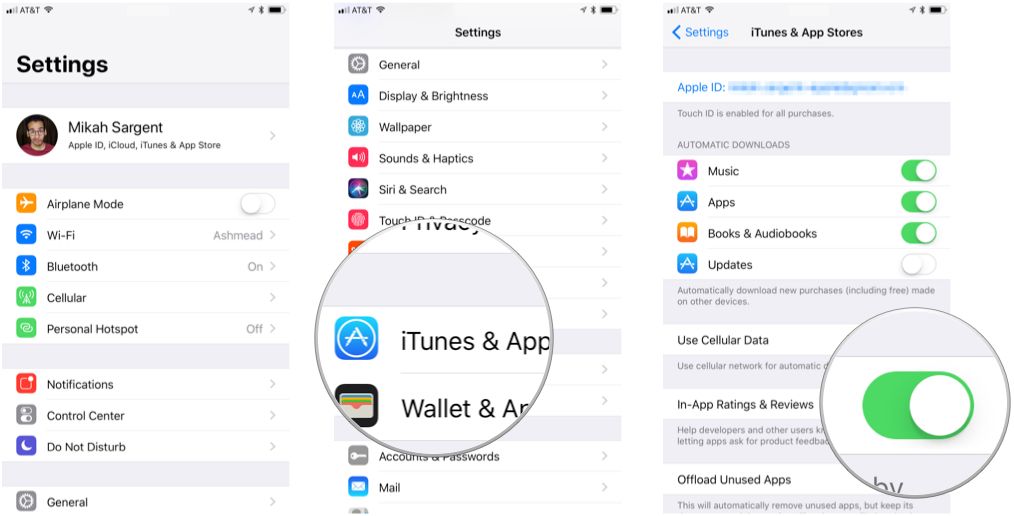
Leaving the toggle on only benefits players who actively test indie betas and want quick star ratings. For everyone else—especially those managing balances with an iTunes Gift Card (US) on foreign storefronts—shutting it off ensures clean gameplay.
The Mechanics of StoreKit: How Apple Restricts Prompts
Apple introduced the SKStoreReviewController API in iOS 10.3 to replace intrusive developer alerts that pulled players into the App Store. In iOS 14, Apple tied these review requests directly to the active UIWindowScene, making the prompt a child window of the active game. Even with these visual guardrails, Apple limits developer access through quotas enforced by the StoreKit daemon.
The table below outlines the core rules enforced by Apple's review framework:
| Mechanism | System Rule / Threshold | Impact on Player Experience |
|---|---|---|
| Global OS Toggle | In-App Ratings & Reviews set to disabled | Operating system automatically drops all incoming requestReview calls without alerting the app. |
| Frequency Ceiling | Maximum 3 prompts per 365-day window | Prevents any single compliant game from asking more than three times a year, even if the toggle stays on. |
| Developer Callbacks | Zero data returned to the app | Studios cannot detect whether a prompt displayed, if you dismissed it, or what star rating you selected. |
| TestFlight Builds | 100% suppressed by default | Beta versions run through TestFlight never trigger native StoreKit rating popups. |
| Direct Store Linking | Fallback URL parameter ?action=write-review | Allows developers to place a manual review button in an options menu that deep-links to the store. |
Whenever a game invokes the review controller, iOS checks the toggle, then the 365-day frequency cap. If either check fails, the system drops the request silently. Developers receive no callback or error state, so games cannot penalize you for disabling the feature.
Rogue Prompts and Policy Violations
You can turn off the toggle and still run into dialogs asking: "Having fun? Rate us 5 stars!" That happens when developers build custom alerts rather than calling Apple's official SKStoreReviewController.
These custom dialogs act as rating filters. Tapping five stars routes you to the App Store using the ?action=write-review parameter. Tapping a lower score diverts you to an internal customer feedback form or dismisses the prompt. This routes positive scores to the public store while burying negative feedback.
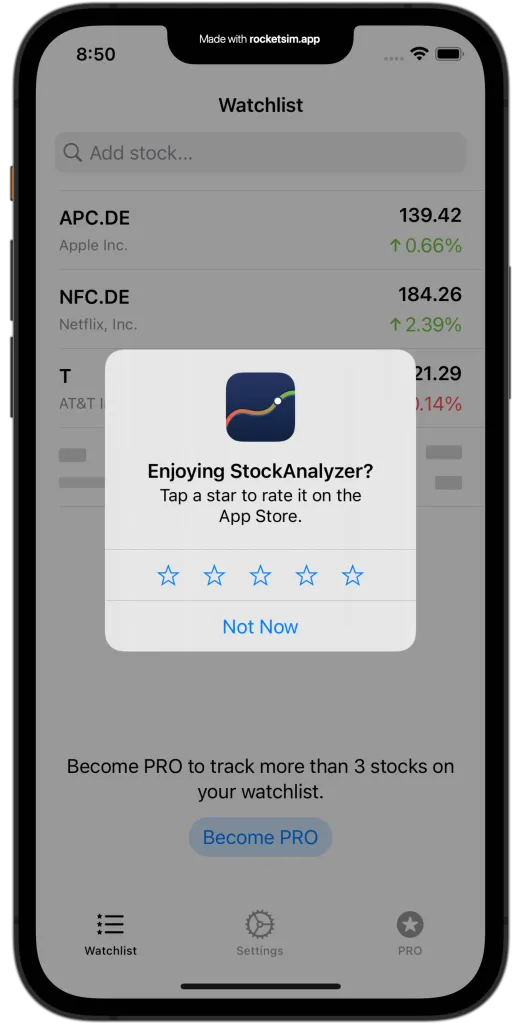
App Store Review Guidelines forbid custom review interception. Apple mandates SKStoreReviewController specifically so the OS toggle retains authority. While studios risk store rejection for deploying custom prompts, the OS toggle cannot intercept non-StoreKit UI code. Tapping "No" remains the only way to clear them.
Cross-Platform Differences Across Apple Hardware
StoreKit rating behavior varies across Apple hardware, with distinct rules for review input and prompt suppression.
The following table highlights how review interactions differ across Apple's platforms:
| Device / OS | Review Prompts Suppressed via Settings | Written Text Reviews Allowed | Numerical Star Ratings Allowed | Notes on Store Behavior |
|---|---|---|---|---|
| iOS (iPhone) | Yes (Settings > App Store) | Yes | Yes | Supports scene-specific UIWindowScene prompts since iOS 14. |
| iPadOS (iPad) | Yes (Settings > App Store) | Yes | Yes | Shares the exact mobile StoreKit implementation as iOS. |
| macOS | Yes (App Store > Settings) | Yes | Yes | Displays native rating sheets; respects system-level App Store preferences. |
| tvOS (Apple TV) | Not applicable | No | Yes | tvOS supports star ratings only; users cannot submit written text reviews. |
| visionOS | Yes (Settings > App Store) | Yes | Yes | Uses spatial window-anchored StoreKit dialogs; filterable in store analytics. |
On tvOS, Apple limits feedback to numerical stars, avoiding keyboard popups. Touchscreens on iPhone and iPad, however, risk pulling up the on-screen keyboard mid-match if you tap a star by mistake. Toggling the setting off on handhelds eliminates that hazard.
Pruning Your Past History: Managing Submitted App Store Reviews
When game updates fix bugs or break mechanics, you may want to revise or delete past reviews. Apple alerts you via push notification and email when a developer replies in App Store Connect, providing a prompt to update your rating.
Older guides still point users to Settings > iTunes & App Store, a menu Apple deprecated years ago. Current versions of iOS split review management between your Apple Account settings and the App Store app.
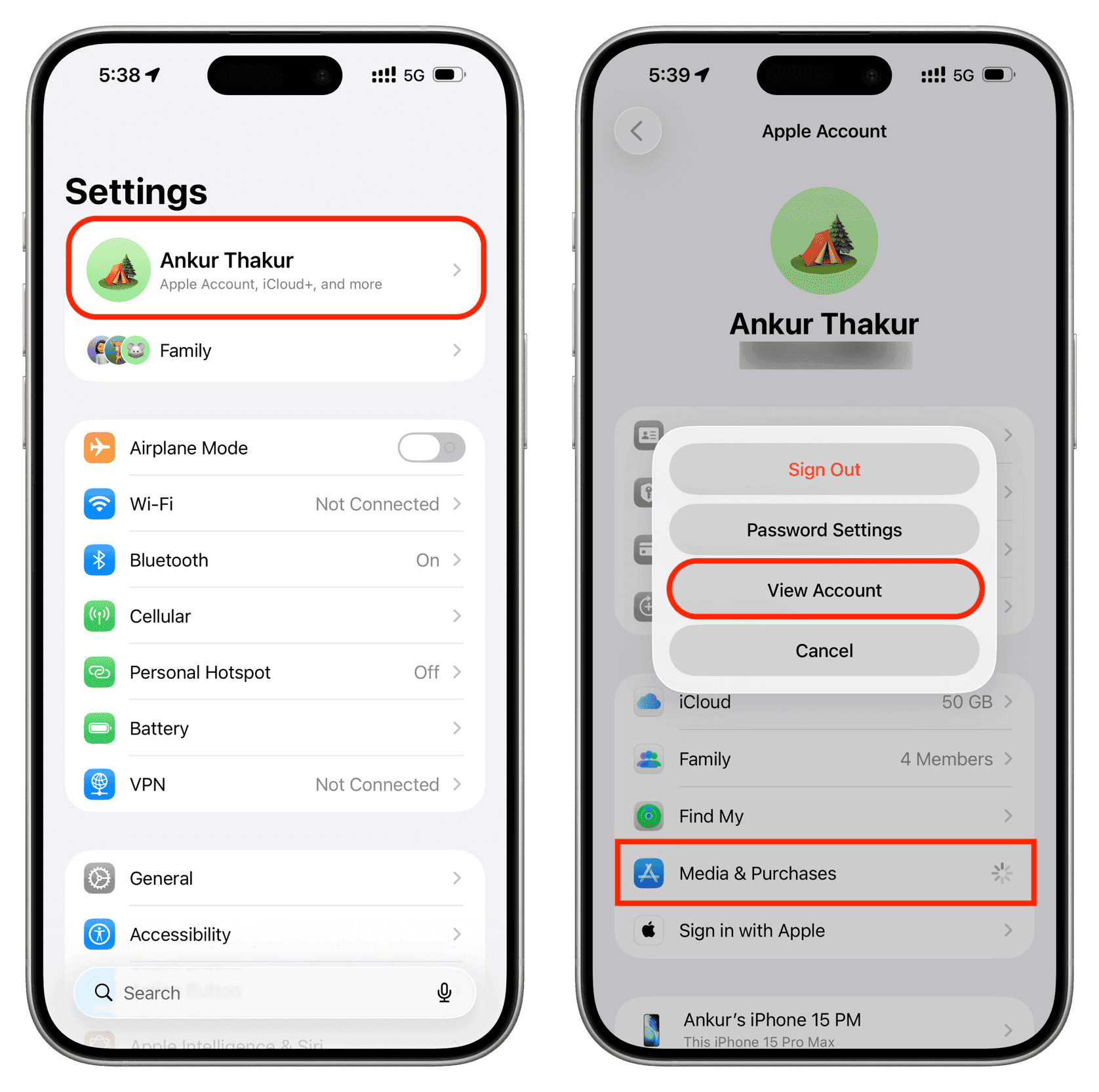
Here is how to locate and remove your historical ratings across both pathways:
Method 1: The iOS Settings Route
- Open Settings and tap your Apple Account banner at the top.
- Tap Media & Purchases, then choose View Account.
- Scroll down and select Ratings and Reviews.
- Locate the specific title, swipe left or tap edit, and select Remove.
Method 2: The Direct App Store Route
- Open the App Store app.
- Tap your Profile icon in the top right corner.
- Tap your Name / Apple ID at the top of the sheet.
- Scroll down and tap Ratings and Reviews.
- Swipe left on any listing and tap Remove to delete the submission.
Removing a review completely purges your public star rating and text from the title's aggregate score. If you later fund an account balance with an iTunes Gift Card (US) on nxpgame to grab premium titles or expansions, your historical ratings will not carry over or restrict your ability to purchase new games.
Coordinating Review Silence with Screen Time Restrictions
Silencing review dialogs stops visual interruptions, but accidental spending requires a separate defense. Pairing the rating toggle with Screen Time locks down in-app purchases without disrupting cloud saves or multiplayer access.
The table below outlines the management paths for silencing interruptions versus locking down payment rails:
| Management Objective | System Navigation Path | Recommended Setting | Operational Outcome |
|---|---|---|---|
| Silence Rating Overlays | Settings > App Store | Toggle In-App Ratings & Reviews OFF | Native StoreKit rating sheets are completely suppressed in all games. |
| Disable Microtransactions | Settings > Screen Time > Content & Privacy Restrictions > iTunes & App Store Purchases | Set In-app Purchases to Don't Allow | Disables real-money purchases and prevents game store currency menus from executing transactions. |
| Require Account Password | Settings > Screen Time > iTunes & App Store Purchases | Set Require Password to Always Require | Requires a manual password entry on every single checkout attempt. |
| Manage Past Submissions | Settings > Apple Account > Media & Purchases > Ratings and Reviews | Remove stale or outdated entries | Deletes historical feedback and recalculates developer review metrics. |
For households running iOS 26 and iPadOS 26, Screen Time includes on-device request management. If you restrict in-app purchases on a managed device, a child can submit an exception request directly to a parent device. This allows you to approve a specific expansion or title without keeping the store rails open indefinitely. When you want to fund accounts cleanly without binding a credit card to an open billing account, picking up a US iTunes Gift Card credit voucher lets you apply a fixed balance directly to the Apple Account.
FAQ
How do I turn off App Store rating popups on my iPhone or iPad?
Open the Settings app, tap App Store, and toggle off In-App Ratings & Reviews. This immediately prevents any compliant app or game from presenting native review prompts.
Why do some games still show rating popups after disabling this setting?
Disabling the setting only suppresses official Apple StoreKit prompts. Custom in-game dialogs created by rogue developers will bypass this toggle unless updated to follow Apple's guidelines.
How many times can an app ask for a review if the setting is on?
Apple limits native prompts to a maximum of three times within a 365-day period per app. Once that limit is hit, iOS will not display any further review dialogs for that application.
Does turning off rating prompts stop me from reviewing games I like?
No, it only blocks unsolicited popups during gameplay. You can still manually search for the game in the App Store and write a review whenever you want.
Can I remove or delete a review I previously submitted?
Yes, you can manage your past submissions by opening Settings, selecting your Apple Account name, tapping Media & Purchases, and choosing Ratings and Reviews. From there, tap Edit to delete any individual entry.
Does disabling rating popups block in-app purchases or game updates?
No, turning off In-App Ratings & Reviews only affects review dialogs. In-app purchases, microtransactions, and automatic game updates continue to function normally.
Verdict: Zero Disruptions for Serious Sessions
Allowing games to break your focus with feedback prompts is an unnecessary compromise. Apple built the In-App Ratings & Reviews toggle specifically to hand control back to the player. Flipping that single switch in your App Store settings takes five seconds and permanently kills native StoreKit dialogs across every game on your device.
Keep the toggle off. If a studio builds an exceptional title that deserves recognition, visit the App Store manually and post feedback on your own schedule. For active sessions, clear the screen, protect your input buffer, and play without interruption.

Community
Comments