

Tired of fat-fingering skills during ranked matches? Master the best Hero GO control layout and sensitivity settings to hit every combo clean in 2026.
Blaming bad teammates or ping is easy when a clutch fight falls apart, but finger mechanics are usually the real culprit. Default controls force your right thumb to juggle camera panning, skill activation, target switching, and dodge inputs simultaneously. The human hand cannot pivot between three cluster buttons in eighty milliseconds. Try it under pressure, and you swipe the camera instead of popping a defensive cooldown—or tap dead glass.
Fixing your mechanics starts with tearing down your display setup. High-tier mobile combat requires immediate execution without taking your eyes off boss tells or enemy movement cues. Whether you play on a phone or an iPad, dialing in your buttons and sensor curves eliminates lost frames and missed triggers.

Hero GO
Why Default Mobile Controls Cost You Matches
Two-thumb setups cluster the primary attack and active skills into a tight fan in the bottom-right corner. That works fine in early tutorials, but it falls apart against aggressive players. The moment your right thumb leaves the screen to tap an ability, camera tracking freezes. If your target dashes across your peripheral vision at that precise instant, your skill flies into empty air.
+-------------------------------------------------------------------+
| [Left Index: Skill 1]                     [Right Index: Attack]   |
|                                                                   |
|                                                                   |
|                                                                   |
| [Left Thumb: Joystick]                    [Right Thumb: Camera]   |
+-------------------------------------------------------------------+
Hardware touch polling compounds the issue. Heavy background overlays and unoptimized touch polling can inject 150 ms to 250 ms of input latency on standard 60 FPS displays. Stack rapid multi-touch combinations into that pipeline, and the operating system simply drops swipe phases.
Default auto-facing makes this worse. When auto-facing couples with target locking, camera orientation constantly wrestles with your thumb inputs during evasive maneuvers. Instead of strafing sideways while scanning an incoming flanker, the camera snaps backward toward neutral targets or lingering hazards. You have to break free from these automated crutches to climb.
The Core HUD Layouts: From Thumbs to Claw
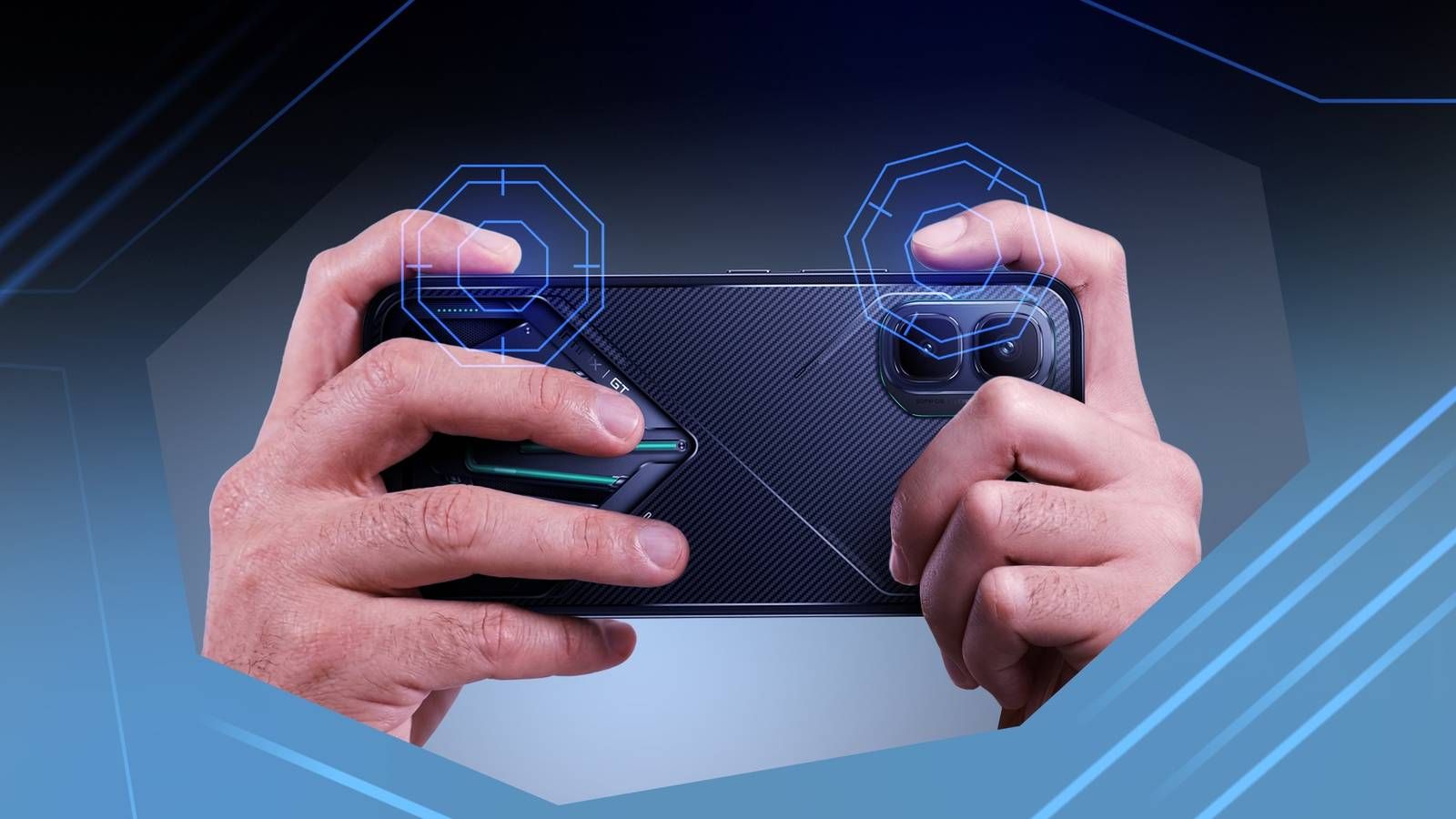
Moving away from a pure thumb layout feels awkward for the first hour. Your hand muscles are not accustomed to resting index fingers along the upper bezel. Once you make the jump, separating movement, aiming, and combat triggers makes every animation cancel feel effortless.
Standardized cloud layout codes allow you to import competitive button schematics instantly without dragging individual coordinates by hand. The table below compares the four foundational configurations running across competitive brackets in 2026.
| Layout Scheme | Preset Import Code | Finger Allocation | Best Use Case |
|---|---|---|---|
| 2-Finger Layout | 6937-0903-0518-5811-333 | Left Thumb (Move), Right Thumb (Aim & All Skills) | Casual grinding, story clearing, low-stress daily tasks |
| 3-Finger Claw | 6916-3084-8580-4664-088 | Left Index (Fire/Cast), Left Thumb (Move), Right Thumb (Aim) | Solid entry point into competitive play without hand strain |
| 4-Finger Claw | 7275-1794-4178-8556-303 | Both Index Fingers (Combat Triggers), Both Thumbs (Pans/Strafing) | Standard tournament baseline for agile combo execution |
| 5-Finger Claw | 7275-2058-0453-0602-607 | 3 Fingers Top/Right, 2 Thumbs Bottom | Extreme mobility archetypes and fast target switching |
Layout codes can be loaded directly through the custom interface menu to overwrite default coordinate grids.
Skip 3-finger setups and go straight to the 4-finger claw layout (7275-1794-4178-8556-303). A 3-finger layout offloads your primary trigger to your top-left index finger, but your right thumb still juggles secondary abilities, camera movement, and evasion at the same time.
Four dedicated quadrants give each finger a clear job. Your left thumb controls the virtual joystick. Your left index taps utility skills and movement dashes. Your right index hits primary attack combos and counters. That leaves your right thumb completely free to steer the camera and adjust trajectory angles. If your progression stalls while tuning these mechanics, Hero GO account top-ups on nxpgame keep your account competitive.
Custom Button Placement: Precision Without Misclicks
Positioning buttons on the glass is only step one; button scaling and visual transparency dictate whether you see incoming threats. Competitive layouts balance touch registration against unobstructed screen awareness.
Enlarge primary combat and defensive buttons by 10% to 20%, but pull the opacity slider down to 40% or 50%. A larger hit-box prevents dead-tapping during adrenaline spikes. Low opacity ensures telegraphed ground markers and enemy windups stay visible underneath your controls.
[System & Patch 1.15.0 / 1.16.0 Key Configs]
├── Long Press vs Short Press: Set Finishers to SHORT PRESS
├── Map Markers: Max 4 active (Extended 60s duration)
├── Consumable Shortcuts: Toggle OFF (Reduces screen clutter)
└── Post-PU/PC Invincibility: Standardized 1-second fixed buffer
Recent game updates introduced toggles that declutter your combat interface. Patch 1.15.0 added a toggle in the Gameplay tab allowing finishing moves and special attacks to execute via a short press instead of a long-press hold, cutting execution delays to instantaneous taps. The same patch extended map marker durations from 30 to 60 seconds and raised the placement limit from 2 to 4 to streamline team coordination.
Patch 1.16.0 introduced per-style custom control profiles. High-mobility melee fighters require a wide joystick radius and instant dash triggers, whereas long-range casters need expanded fine-aiming pads. You no longer need to compromise on a single universal layout. The patch also lets players toggle item shortcut overlays completely off to eliminate visual clutter, while establishing a flat 1-second invincibility window post-activation to stop instant punish combos.
Hero GO Sensitivity Settings: Dialing Your Target Tracking
Even the cleanest HUD fails if your crosshair overshoots fleeing targets. In Hero GO, sensitivity controls how many degrees your perspective pivots relative to swipe distance on the glass. Set it too fast, and you whip past targets; set it too slow, and you cannot react to enemies crossing behind your back.
| Control Parameter | Baseline Value | High-Refresh Adjust (90/120Hz) | Tactical Purpose |
|---|---|---|---|
| Camera Sensitivity (Hip) | 95 | 82 - 88 | General spatial navigation and sweeping checks |
| Precision Aim / Red Dot | 50 Camera / 55 ADS | 44 Camera / 48 ADS | Controlled mid-range tracking without tracking jitter |
| Magnified Zoom (3x Scope) | 26 Camera / 24 ADS | 22 Camera / 20 ADS | Long-range targeting; stops vertical climb drift |
| Lens Acceleration | 120 | 100 - 110 | Allows 180-degree snaps on fast swipes |
| Firing Acceleration | 120 | 96 - 105 | Smooth micro-adjustments during sustained attack chains |
Sensitivities should be balanced between swipe flick distance and stable micro-tracking.
Display refresh rates directly change touch registration. Upgrading your device from 60fps to 90fps or 120fps causes touch sensors to sample input at higher frequencies. A swipe across three centimeters of glass produces more registered movement at 120Hz than at 60Hz. If your crosshair feels floaty or hyper-reactive after moving to higher refresh hardware, lower your base camera and tracking values to offset the faster polling. To bolster your roster while grinding competitive ranks, pick up Hero GO bundles at nxpgame for core character resources.
Turn off "Right Fire Turning" and "Scope Turning" in your combat settings menu. Leaving these enabled causes dragging your thumb across the attack button to rotate the camera simultaneously, introducing severe crosshair drift during sustained trades. Turning them off restricts attack buttons to skill triggers, locking camera tracking exclusively to your aiming thumb.
Recommended Settings Profile for Competitive Play
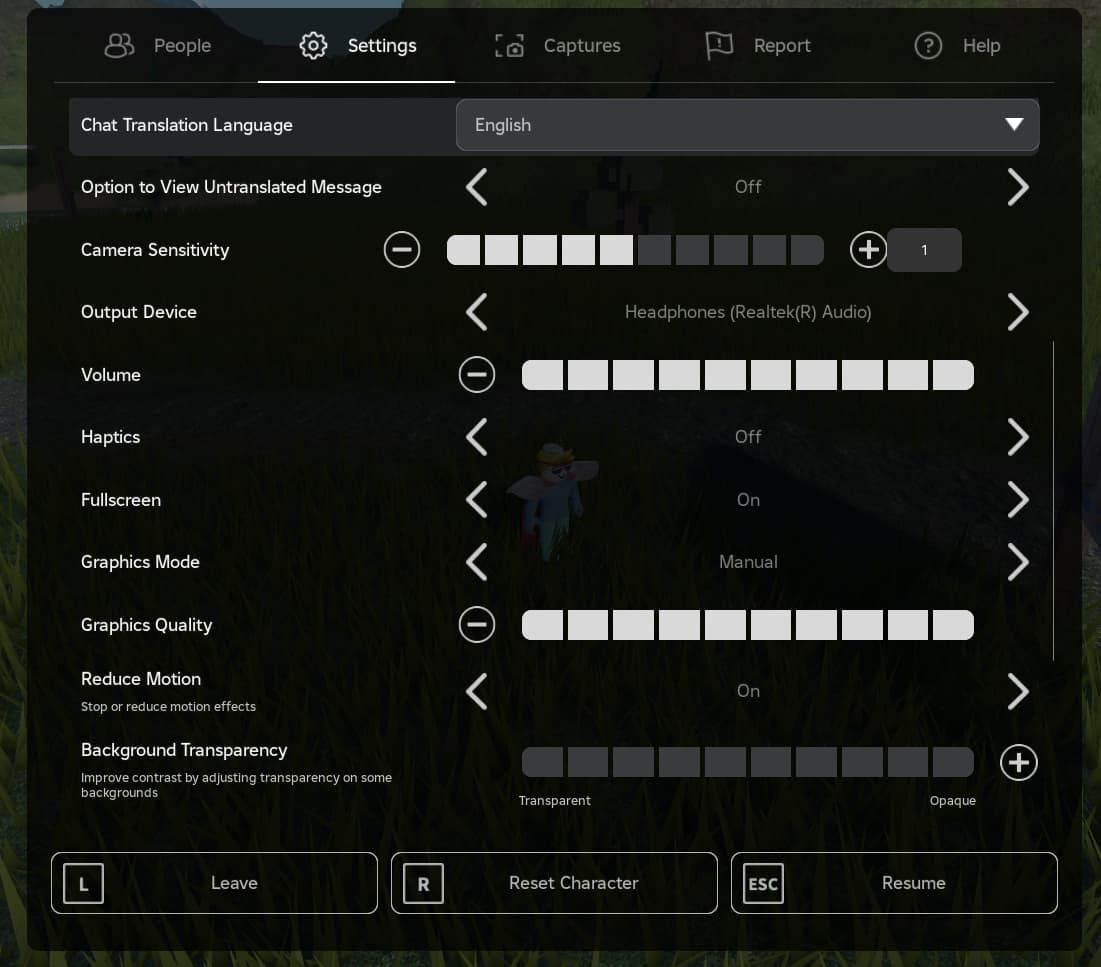
Calibrating your profile works best when done systematically. Avoid tweaking a dozen sliders between games; calibrate on the training field in this order:
- Lock Your Base Sensitivity: Set Hip-Fire Camera Sensitivity to 95, Aim Down Sights (ADS) to 55, and 3x zoom to 24.
- Engage Acceleration: Set Lens Acceleration and Firing Acceleration to 120. If swipes overshoot, step values down to 105, 99, 96, and 75 until 180-degree turns snap cleanly.
- De-link Attack Camera Drag: Toggle Right Fire Turning and Scope Turning to OFF to keep your camera stable during attack sequences.
- Uncouple Auto-Face: Disable Automatic Facing in the target lock menu to keep manual control over your directional tracking.
- Tune Input Mechanics: Set Special Attacks and Finishers to Short Press under the Patch 1.15.0 Gameplay tab.
- Clean the Canvas: Turn Item Shortcut overlays OFF to reduce visual obstruction.
Adjust these baselines based on screen dimensions. Flagship tablets have wider physical travel distances, meaning tablet players should run camera sensitivity in the 75–85 range to prevent hand fatigue. Older phones with lower touch sampling need higher sensitivity values to compensate. Run any new profile through at least 15 matches across training drills and ranked queues before modifying numbers again.
Touch Controls vs Gamepad: What Actually Wins?
Analog sticks offer physical comfort and free up display real estate, but touch controls deliver instantaneous flick targeting with zero mechanical deadzones.
| Feature Matrix | Virtual Touch Controls | Native Gamepad | Screen Keymappers (e.g. Mantis) |
|---|---|---|---|
| Input Latency | Lowest (direct digitizer polling) | Low to Medium (Bluetooth polling) | Medium (software translation layer) |
| Aim Precision | Instant point-and-flick | Restricted by stick deflection arc | Restricted by analog translation curve |
| Screen Real Estate | Fingers obstruct 15–25% of view | 100% unobstructed screen space | 100% unobstructed screen space |
| Setup Complexity | Built-in native settings | Connect via Bluetooth | Requires wireless debugging activation |
| Rule Compliance | Always permitted in tournament play | Occasionally separated by queue | Check specific league guidelines |
Touch interfaces remain unmatched for high-speed flick actions despite ergonomic trade-offs.
For players committed to gamepads, mapping tools like Mantis Gamepad Pro assign virtual touch nodes to Bluetooth controllers via Android wireless debugging without modifying game binaries. Thumbsticks still suffer from mechanical swing delays: swiping a glass screen to turn 180 degrees takes roughly 15 milliseconds, whereas deflecting a physical stick across its deadzone takes considerably longer. For tournament-grade reaction speeds, claw touch remains the faster input method.
[Touch Latency vs. Controller Path]
Touch:     Finger Touch ──────> Digitizer ──────> Action (Instant)
Gamepad:   Stick Deflection ──> Bluetooth ──────> Translation ──> Action (+Delay)
System-Level Device Tweaks to Slash Input Latency
Even an optimal layout stutters if OS power-saving features throttle touch sampling rates.
On Android, activate Game Mode or Performance Mode to lock CPU and GPU clocks to high priority while suppressing background sync tasks. Disable Battery Saver. Lock your screen refresh rate to a fixed 120Hz rather than dynamic mode. If you use a tempered glass screen protector, toggle on "Screen Protector Mode" or "Touch Sensitivity"—a system setting cited by 328,534 optimization guides to maintain digitizer response through protective glass.
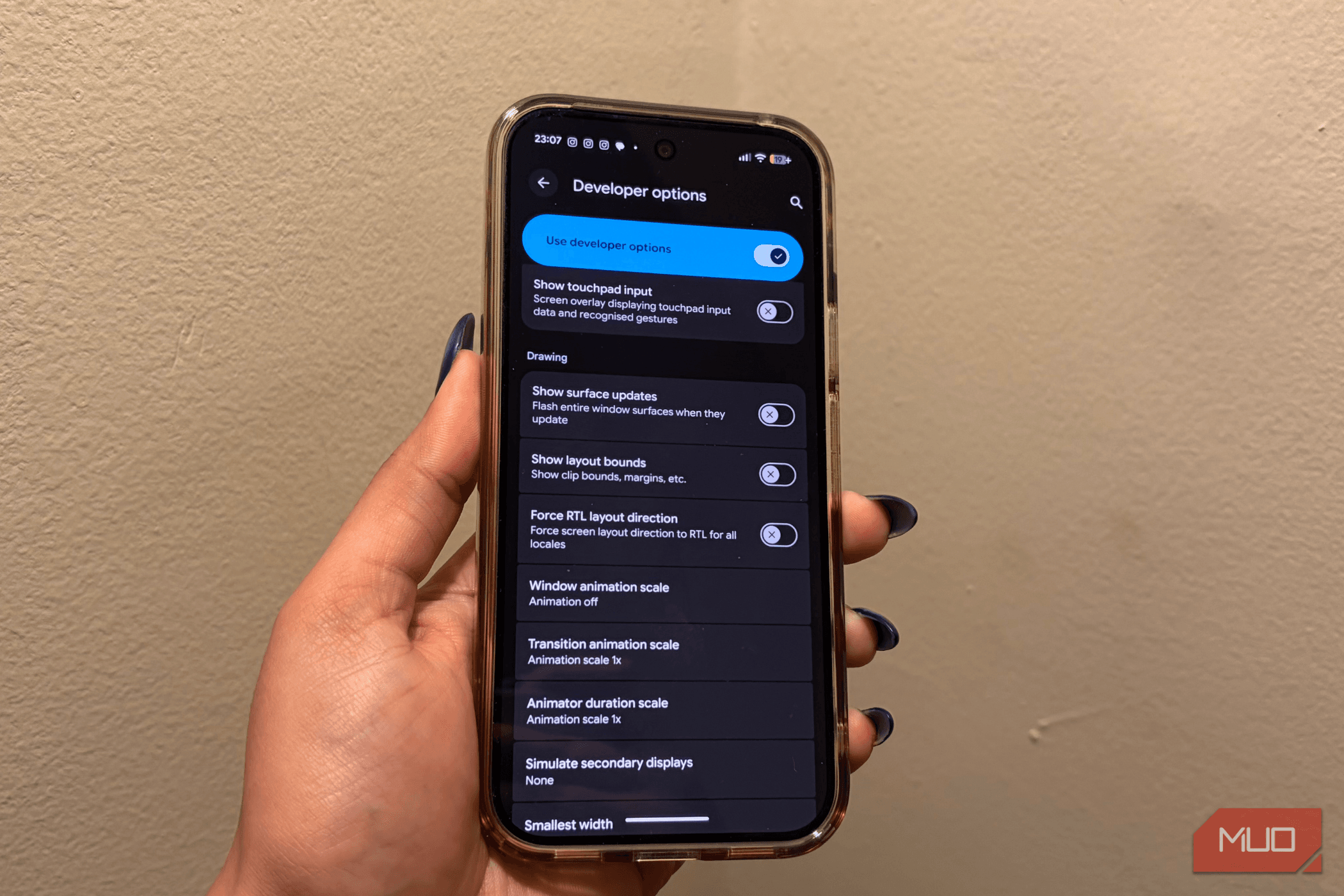
Next, enter Android Developer Options and lower Window Animation Scale, Transition Animation Scale, and Animator Duration Scale from 1.0x to 0.5x. This speeds up window handler transitions and trims system input latency.
On iOS, digitizer polling behavior varies across device generations. Recent flagships achieve stable micro-tracking with sensitivity set between 190 and 200 on the 0–200 internal scale. For older or smaller iOS displays, keep sensitivity between 172 and 190 to avoid crosshair jitter and erratic tracking.
When preparing team builds for competitive matches, the Hero GO catalog on nxpgame provides quick access to required gear and upgrades.
Frequently Asked Questions
What is the best finger claw layout for competitive mobile play?
A 4-finger claw layout is the competitive standard because it assigns movement, aiming, and skill activation to separate fingers. Splitting the display into four distinct zones eliminates thumb congestion and execution delays in fast fights. Import preset code 7275-1794-4178-8556-303 to start with this configuration.
How can I reduce touch input lag on my phone?
Enable Performance Mode and turn off battery-saving features. Set your display refresh rate to a static 120Hz, change system animation scales to 0.5x in Developer Options, and enable Touch Sensitivity mode to compensate for screen protectors. These adjustments bypass background polling delays that produce 150 ms to 250 ms spikes.
Why does my camera move erratically when pressing attack buttons?
Right Fire Turning or Scope Turning is enabled in your settings. When active, thumb travel on the attack button registers as camera movement, throwing off your aim. Disable both toggles so camera rotation remains tied exclusively to your aiming thumb.
How should I set button opacity and size to prevent misclicks?
Increase primary attack, dash, and defensive buttons by 10% to 20% to prevent missed taps under pressure, and drop visual opacity down to 40% or 50%. This keeps button hitboxes generous without blocking telegraphed enemy attacks or ground hazards.
How does upgrading from 60fps to 90fps or 120fps affect sensitivity?
Higher refresh rates sample touch inputs more frequently, causing identical thumb swipes to travel further in-game. As a result, your camera can feel overly sensitive. Lower your camera and ADS sensitivities slightly when moving up to 90fps or 120fps to maintain steady tracking.
Should I use target lock during boss encounters or PvP?
Target lock helps track priority targets, but Automatic Facing should be turned off. Leaving automatic facing active causes the camera to fight your thumb inputs whenever you try to strafe or evade area hazards. Manual camera control ensures directional consistency.
How long should I practice with a new control layout before changing it?
Practice with any new configuration for at least 15 matches across training rooms and ranked matches before adjusting sliders. Muscle memory takes time to settle into new positions, and altering settings after every loss resets that learning curve.
The Verdict on Competitive Control Schemes
Default controls place an artificial cap on your ranking. A two-thumb setup forces input delays and compromises that get exploited by prepared opponents. Switch to the 4-finger claw preset 7275-1794-4178-8556-303, turn off Right Fire Turning, force your display to 120Hz, and run your 15 calibration matches. Once your hands build muscle memory, your animation cancels will land cleaner, your reactions will quicken, and your rank will climb accordingly.

Community
Comments