

SiriusXM app stuttering on Android typically stems from mobile variable-bitrate shifts, Bluetooth transceiver congestion in vehicles, or aggressive system power governors terminating background streaming. You can stabilize playback and lower phone temperature by locking the Bluetooth audio codec to SBC, disabling Wi-Fi auto-connect on car receivers to remove 2.4GHz interference, clearing corrupt cache, and matching playback quality to your data requirements—which range between ~43.2 MB per hour for spoken audio and ~144 MB per hour for high-fidelity music streaming.

Sirius XM Prepaid Card (US)
Sirius XM (US) - US$ 15
Buy NowUSD 15.84
Dial in streaming quality and data consumption
The SiriusXM mobile application alters its bitrates dynamically based on cellular network speeds and data processing overhead, as noted by SiriusXM Audio Quality Help. While Wi-Fi connections generally sustain high bitrate stability, mobile networks fluctuate. When cellular reception drops, the client attempts to renegotiate quality on the fly, which can cause audible stuttering, buffering gaps, and thermal spikes as the cellular modem throttles up.
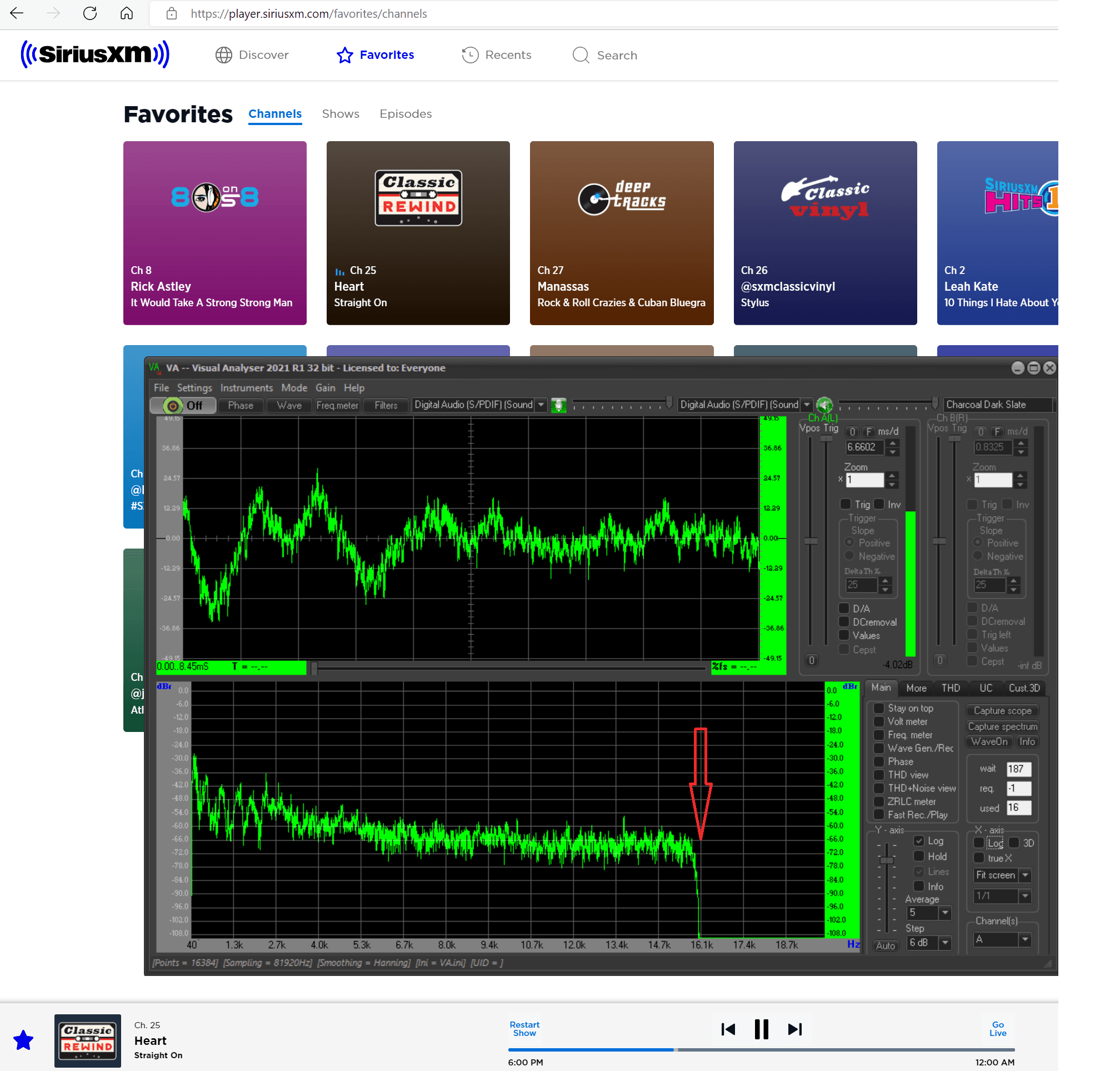
Audio data rates dictate cellular consumption, phone heat, and buffer stability. According to Panda Security mobile streaming research, hourly audio streaming consumes varying amounts of bandwidth depending on the content fidelity:
| Audio Quality Tier | Approximate Data Usage | Target Content | Reference Source | Visual Reference |
|---|---|---|---|---|
| Low-Quality Stream | ~43.2 MB per hour | Talk radio, sports commentary, news, podcasts | Panda Security Analysis | 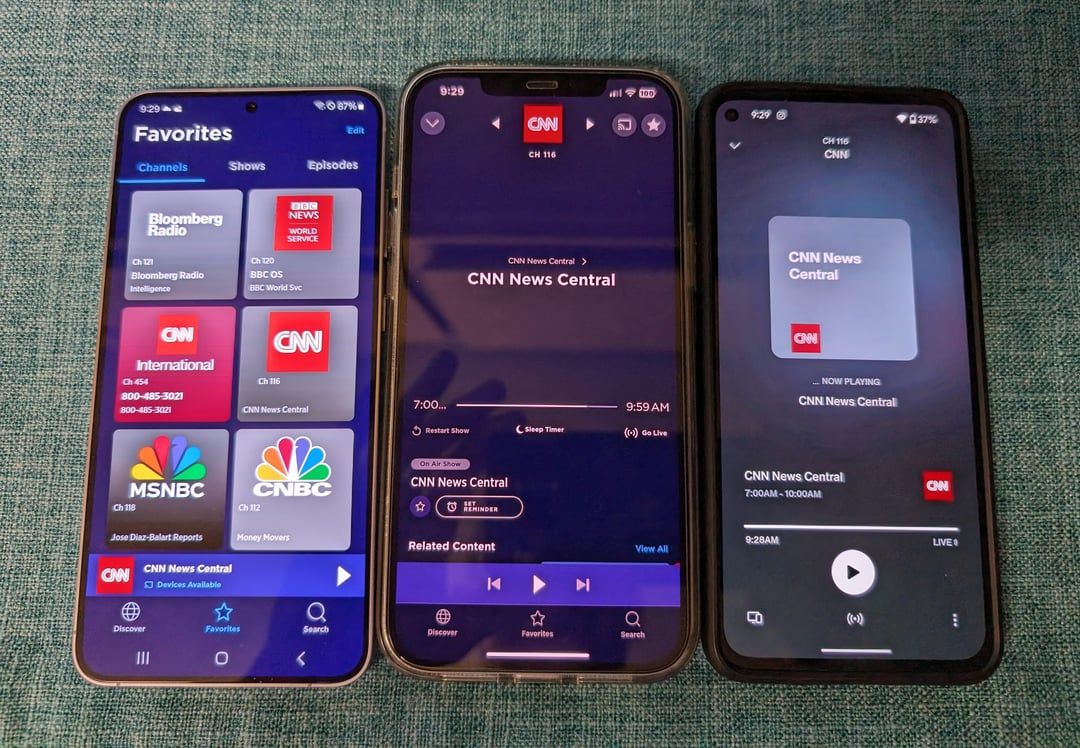 |
| Average-Quality Stream | ~115.2 MB per hour | Standard music listening, general audiobooks | Panda Security Analysis |  |
| High-Quality Stream | ~144 MB per hour | Detailed music playback (~17 hours per 2 GB) | Panda Security Analysis | 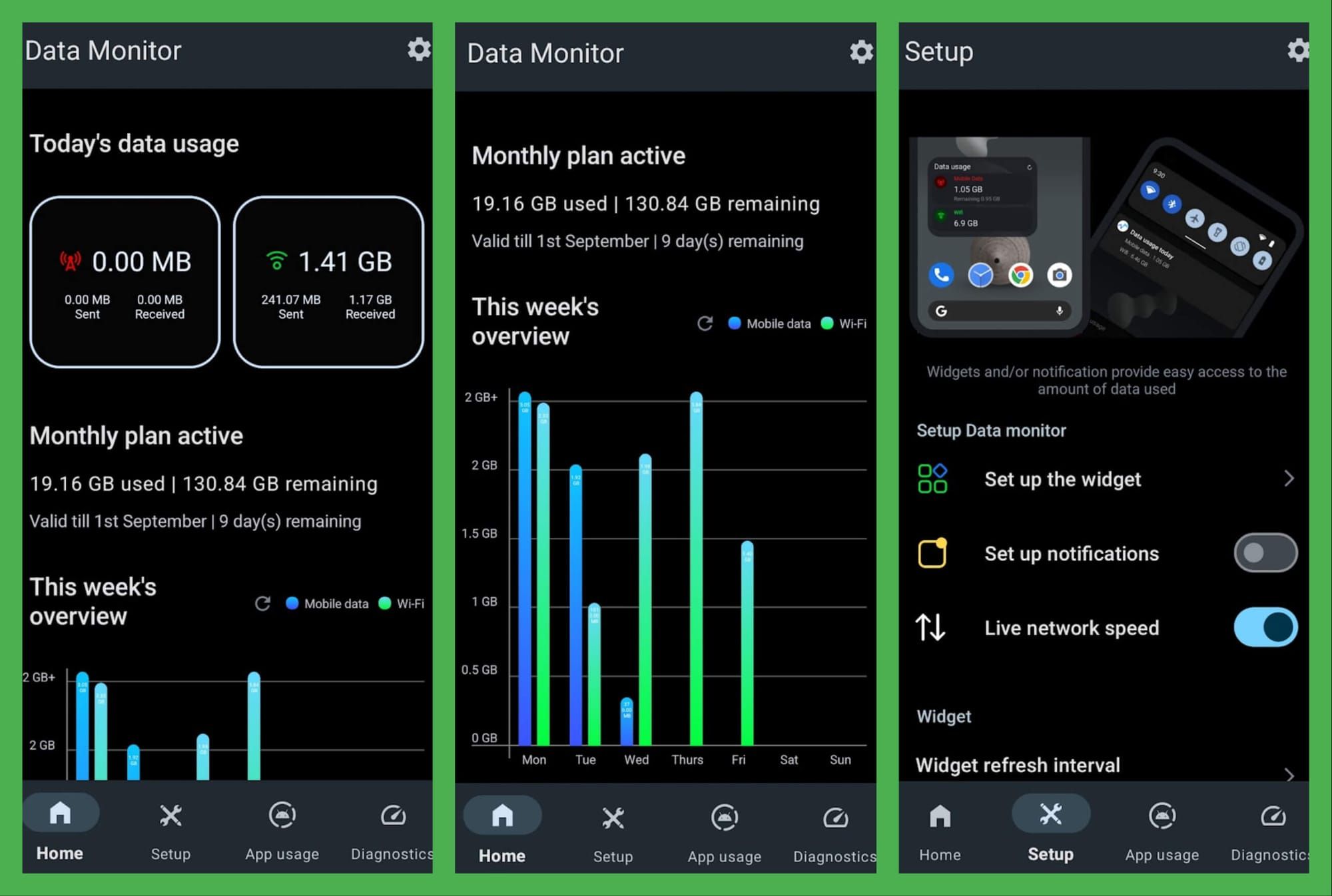 |
For listeners on restricted data allowances, streaming at high quality will exhaust a standard 2 GB mobile plan in approximately 17 hours. Lowering the playback quality tier within the app acts as a practical data saver setting, preventing the client from demanding excessive bandwidth over congested cell towers.
Eliminate in-car Bluetooth stutter and head unit radio contention
Audio dropouts inside vehicles often have nothing to do with cellular reception. Two distinct hardware bottlenecks cause vehicle audio to sputter even when your phone shows full signal bars.
First, many aftermarket car audio receivers combine Bluetooth and Wi-Fi antennas onto a single 2.4GHz chip. When the head unit continually searches for open Wi-Fi networks or car hotspot signals while receiving Bluetooth audio, the shared transceiver creates radio frequency collisions. Per Witson car audio repair documentation, turning off "Auto-Connect Wi-Fi" on the vehicle head unit stops the 2.4GHz scanning loop and resolves roughly 50% of car Bluetooth stutter cases.
Second, vehicle receivers frequently choke on advanced Bluetooth codecs like LDAC or aptX. While these codecs market high-definition throughput, vehicle digital signal processors often cannot handle the packet rate without dropping frames. Forcing your Android phone to transmit over SBC provides a rock-solid link.
| Setting Layer | Target Parameter | Recommended Action | Technical Reason | Source |
|---|---|---|---|---|
| Car Head Unit | Wi-Fi Auto-Connect | Set to Disabled | Stops 2.4GHz radio frequency contention against Bluetooth | Witson Tech Guide |
| Android System | Bluetooth Audio Codec | Force to SBC | Reduces audio packet bitrate to prevent buffer underrun on head units | Witson Tech Guide |
| SiriusXM App | Autoplay / Auto-start | Set to Disabled | Prevents unintended playback triggers and modem wakeups upon pairing | AWC Air Force Guide |
To lock your codec to SBC: 1. Open Android Settings and tap About phone. 2. Tap Build number seven times to enable Developer options. 3. Return to Settings > System > Developer options. 4. Scroll to Bluetooth Audio Codec. 5. Select SBC from the menu.
If you use Android Auto rather than standalone Bluetooth, ensure the vehicle interface client is updated. Google resolved broken menu navigation and interface freezes for the platform starting with Android Auto version 13.4, reported by Android Police.
Stop background playback terminations and cut battery drain
Android power management policies can conflict with continuous audio streaming. While system-level Battery Saver modes are designed to prevent battery drain, aggressive power governors often kill background audio tasks or cut network connectivity as soon as the screen turns off.
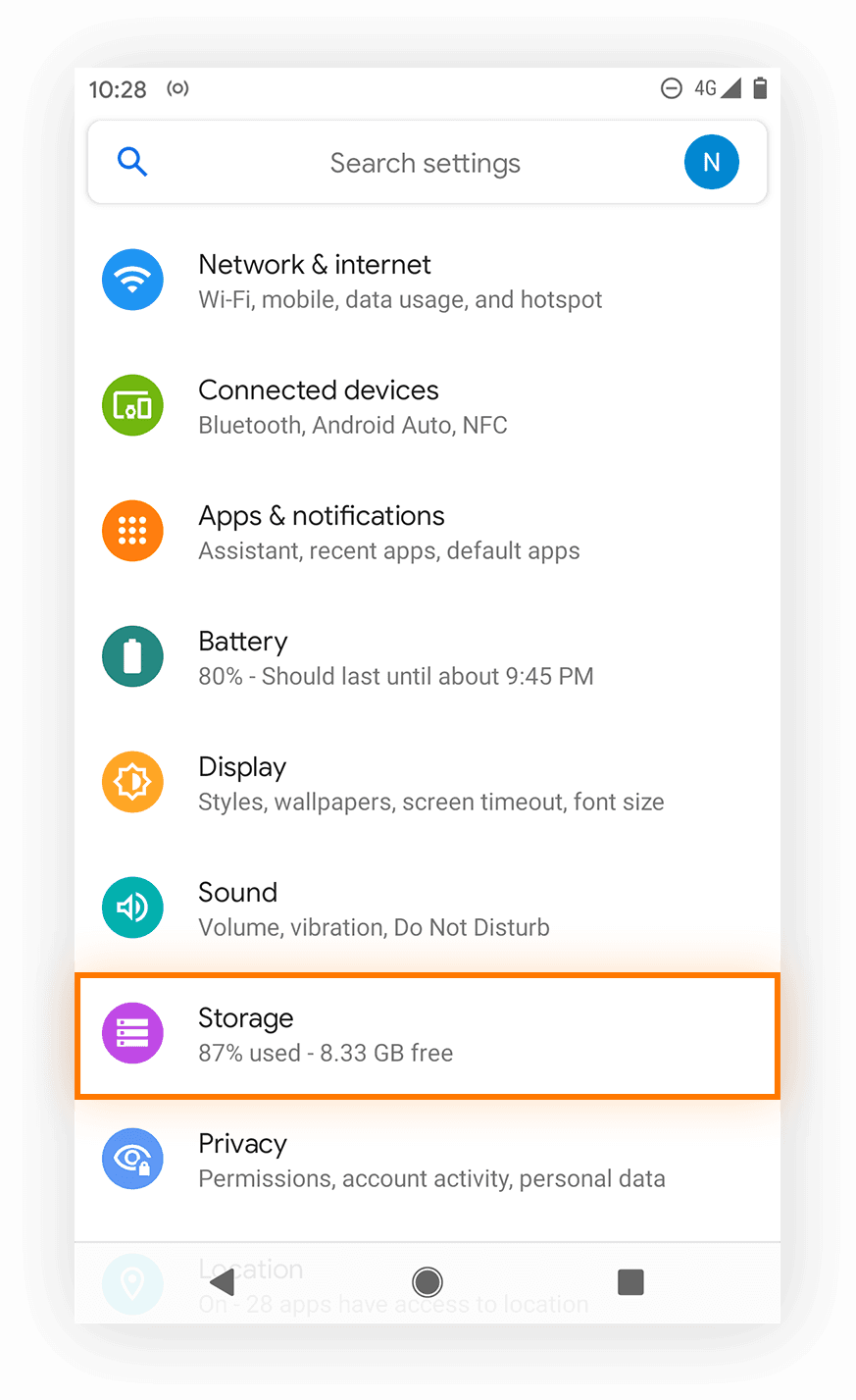
To keep background playback alive without cooking your phone battery, configure these operating system and application switches in order:
Disable autoplay upon Bluetooth connection By default, the SiriusXM application can launch and begin streaming as soon as your phone links to your vehicle. As outlined by AWC Air Force Android tutorials, turning off the autoplay or auto-start toggle inside SiriusXM audio settings prevents unwanted cellular streaming and stops battery depletion before you even select a channel.
2. Manage background data access
Restricting background data prevents SiriusXM from waking cellular modems to fetch background banners or synchronize marketing material when you are not actively using the application, as detailed in AWC Air Force background management research. If you only stream while driving with the app actively open or controlled via your car head unit, restricting background data prevents rogue idle consumption.
Clear temporary playback cache Streaming audio continuously fills local memory with track segments. Extended listening sessions can lead to accumulated data corruption, triggering playback crashes and endless buffering loops. According to Digital Music News troubleshooting data, flushing the cache resolves persistent application crashes: 1. Tap and hold the SiriusXM app icon on your home screen or app drawer. 2. Select App Info (the "i" icon). 3. Tap Storage & cache. 4. Select Clear Cache. 5. Restart the SiriusXM app.
Listeners funding their accounts through third-party vouchers, such as a Sirius XM Prepaid Card (US), access the exact same mobile stream infrastructure as recurring credit card accounts. Account billing tier does not alter the underlying Android application code or bitrate delivery rules.
Satellite receiver versus mobile app stream delivery
Understanding playback architecture helps isolate persistent dropouts. SiriusXM broadcasts over two distinct media: direct satellite signals and cellular network data streams.
| Dimension | Satellite Radio Hardware | Mobile App Client (Android) | Documented Impact |
|---|---|---|---|
| Transmission Medium | Direct satellite broadcast frequencies | Cellular 4G/5G and Wi-Fi networks | Mobile stream quality depends on carrier bandwidth and routing |
| Overhead Interference | Cuts out in tunnels, parking garages, and dense tree canopies | Unaffected by overhead physical obstructions if mobile signal exists | Cellular streams continue in enclosed decks where satellite line-of-sight fails |
| Bitrate Behavior | Fixed broadcast stream unaffected by cellular tower congestion | Variable bit rates adjusted dynamically based on data speed | SiriusXM Quality Help notes quality fluctuations occur on cellular |
| Session Timeout Policy | Plays continuously without interaction prompts | Transmits inactivity warning after 8 continuous hours | SiriusXM Listening Guide terminates unattended stream after 5 minutes |
Satellite receivers provide steady, uncompressed audio independent of cellular towers, but fail instantly under physical overhead blockages. The Android client bypasses overhead blockages entirely, yet introduces variable-bitrate drops and network buffering whenever local cellular towers become congested.
Recommended client profile for stable Android streaming
Apply this configuration profile to balance continuous streaming against device heat and battery life:
- In-App Autoplay: Disabled. Stops automatic audio streaming when connecting to vehicle Bluetooth.
- App Storage Cache: Cleared regularly via Android App Info whenever stuttering appears.
- Bluetooth Audio Codec: Locked to SBC in Android Developer Options for vehicle playback.
- Vehicle Receiver Wi-Fi: Auto-Connect turned off to shield the 2.4GHz antenna from interference.
- Android Auto Client: Running version 13.4 or newer to avoid interface and menu crashes.
Deviate from this baseline only when you are on a high-speed home Wi-Fi network and require maximum fidelity for critical music listening. On cellular networks or standard car head units, SBC audio routing and Wi-Fi scan termination remain the most reliable hedge against audio dropouts.
Frequently asked questions
Why does SiriusXM audio abruptly cut out after hours of listening?
SiriusXM transmits an inactivity alert after 8 hours of uninterrupted playback to prevent unwanted bandwidth use on unattended devices. If you do not interact by selecting "Keep Listening" within 5 minutes of that notification, the player terminates the stream automatically, according to SiriusXM Streaming Help.
How can I stop SiriusXM from auto-playing whenever my phone connects to my car?
Open the audio and playback preferences inside the SiriusXM app settings and turn off the autoplay/auto-start toggle. This prevents the application from initiating streaming audio as soon as a vehicle Bluetooth handshake is registered, as documented by AWC Air Force.
Why does audio stutter over car Bluetooth despite full cellular signal bars?
Car audio stutter with full cellular signal usually stems from 2.4GHz antenna contention or codec mismatch. Many aftermarket head units share a 2.4GHz chip for both Wi-Fi and Bluetooth, causing audio packets to drop when Wi-Fi scans for hotspots. Furthermore, head units often fail to process high-bandwidth codecs; forcing SBC in Android Developer Options and disabling Wi-Fi auto-connect on the head unit resolves the issue, per Witson documentation.

Community
Comments