

Tweak the best Roblox graphics settings PC players rely on to eliminate sudden stutter, bypass engine frame caps, and lock in responsive performance.
Roblox runs on an engine that behaves nothing like standard AAA PC releases. You can load into an experience with a flagship graphics card and still watch your framerate drop into the single digits during dynamic lighting changes or heavy physics simulations. Because the graphics pipeline scales poorly across multi-threaded hardware, players deal with sudden micro-stuttering and input latency during competitive play.
Overcoming these bottlenecks requires manual intervention. Smooth frame delivery depends on setting fixed in-game quality levels, forcing Windows to route draw calls to your discrete GPU, and setting engine flags that bypass post-processing overhead. If you play demanding custom experiences before picking up new cosmetics with Roblox credit on nxpgame, stabilizing frame pacing is the most effective performance upgrade you can make.

ROBLOX Canada
The Single-Core Bottleneck: Why High-End Rigs Drop Frames
Roblox chokes high-end rigs because of CPU thread scheduling, not GPU limits. The proprietary engine channels rendering, physics, and networking through a single primary CPU thread rather than distributing the workload across modern multi-core chips.
Even if your GPU sits idle at twenty percent utilization, a single overloaded CPU thread will choke the entire pipeline.
Background tasks worsen this bottleneck. Web browsers, streaming software, and antivirus scans running on that primary core create thread contention that no hardware upgrade can brute-force. The task scheduler simply queues physics calculations, network replication, and draw calls along that narrow pathway. To stabilize frame times, you must manually minimize draw call strain by stripping out extraneous dynamic lights, complex particle emitters, and distant foliage.
In-Game Sliders: Manual Tuning vs Automatic Defaults
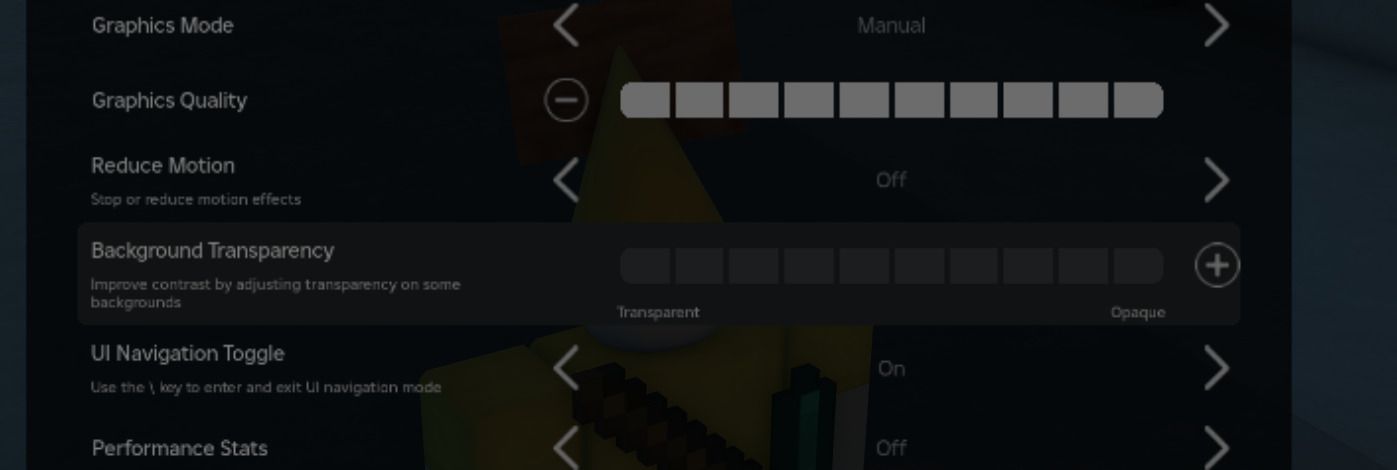
Leaving your graphics configuration on Automatic guarantees uneven frame pacing. The Automatic profile recalculates quality tiers on the fly based on momentary hardware load. The second an explosion triggers or dozens of characters assemble in a hub, the engine downscales rendering passes, generating an unmistakable hitch right during the action.
To lock down your visual profile, open the client menu with Escape, click Settings, and switch Graphics Mode from Automatic to Manual. This unlocks the Graphics Quality slider. Clicking the minus button lowers the slider to a fixed profile, preventing the engine from shifting presets mid-game.
Track the results of your changes in real time by pressing Shift+F5 to display the built-in diagnostic overlay. This readout shows your active framerate, network ping, and render times. Inside Roblox Studio, you can open this same overlay by clicking View, opening Stats, and selecting Summary.
The client menu also includes a Maximum Frame Rate selector. This built-in dropdown supports standard monitor refresh rates directly, removing the need for external software just to surpass the legacy 60 FPS cap. If your monitor runs beyond standard refresh brackets or requires custom frame targets, deeper flag adjustments remain necessary.
Internal Engine Profiles: Mapping FRM Quality Levels
While the in-game menu shows ten visual ticks, the underlying rendering engine does not scale in a straight line. Internally, Roblox relies on discrete Fast Render Manager (FRM) quality profiles numbered 1 through 21. Understanding how UI slider ticks correlate to internal FRM levels explains why certain increments produce massive framerate drops while others cost virtually nothing.
The table below maps the ten-step menu slider to the internal FRM rendering pipeline levels.
| In-Game Slider | Engine FRM Quality Level | Visual Fidelity & Performance Behavior |
|---|---|---|
| Level 1 | FRM Level 3 | Lowest visual fidelity; minimum texture rendering and draw distance |
| Level 2 | FRM Level 2 | Low quality profile with limited environment effects |
| Level 3 | FRM Level 6 | Standard low configuration; balance point for very low-end GPUs |
| Level 4 | FRM Level 7 | Baseline entry for moderate graphics rendering |
| Level 5 | FRM Level 11 | Mid-tier graphic balance incorporating basic lighting passes |
| Level 6 | FRM Level 14 | High fidelity rendering threshold |
| Level 7 | FRM Level 15 | Increased draw distance and foliage rendering enabled |
| Level 8 | FRM Level 17 | Advanced shadow maps and post-processing enabled |
| Level 9 | FRM Level 18 | Near maximum draw distance and complex shader passes |
| Level 10 | FRM Level 21 | Maximum engine visual fidelity; heaviest CPU and GPU load |
Stepping down from Level 2 to Level 1 actually shifts the internal engine from FRM Level 2 to FRM Level 3. Level 1 trades standard asset filtering for an aggressive drop in draw distance, giving struggling systems immediate relief.
Park the slider at Level 3 (FRM Level 6) or Level 5 (FRM Level 11) for competitive play. Level 3 establishes a low-latency baseline for twitch shooters and movement-heavy games. Level 5 introduces basic lighting passes without activating the volumetric shadows and shader pipelines that degrade performance at Level 8 and above.
Windows System Tweaks: Dedicated GPU and Fullscreen Optimization
Windows frequently misallocates hardware resources before Roblox even launches. On laptops featuring hybrid graphics (an integrated Intel or AMD chip paired with a dedicated Nvidia or AMD GPU), the OS routinely defaults Roblox to the low-power integrated chip because it classifies the client as an ordinary desktop application.
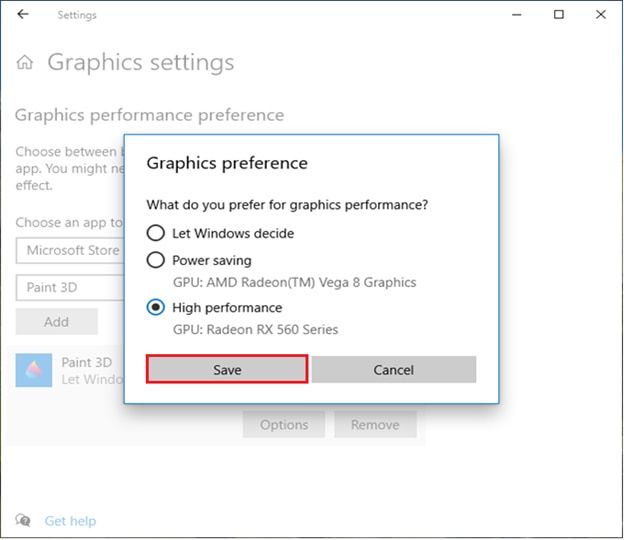
Force Windows to render the client through your dedicated graphics card with these steps:
- Press the Windows Key, type Graphics Settings, and press Enter.
- Under "Custom options for apps," select Desktop app, then click Browse.
- Navigate to the executable directory:
C:\Users\<YourUsername>\AppData\Local\Roblox\Versions\version-<hash>\. - Select RobloxPlayerBeta.exe and click Add.
- Select the newly listed executable, click Options, choose High Performance, and save.
Next, bypass desktop window compositing. Windows applies Fullscreen Optimizations to borderless windows by default. While this eases alt-tabbing, it pushes frames through the Desktop Window Manager (DWM), creating input lag and pacing hitches.
Right-click RobloxPlayerBeta.exe, select Properties, switch to the Compatibility tab, check Disable fullscreen optimizations, and click Apply.
Inside an active server, press Alt+Enter to force true fullscreen mode. Many players rely on F11, but F11 frequently triggers a borderless window that remains tied to DWM buffering. If your keyboard layout remaps function keys, toggle fullscreen using Fn+F11, Shift+F11, or Ctrl+Enter. Exclusive fullscreen via Alt+Enter bypasses the desktop composition queue and cuts input latency.
Client Differences: Desktop Standalone vs Microsoft Store App
Roblox distributes two distinct PC clients, but only one gives you direct control over rendering performance. The web-delivered desktop executable (RobloxPlayerBeta.exe) allows direct operating system overrides, whereas the Universal Windows Platform (UWP) edition from the Microsoft Store runs inside an encrypted sandbox.
The Microsoft Store version suffers from persistent fullscreen display bugs that lock players into a buffered borderless state. Sandboxed permissions also prevent custom driver profiling and bootstrapper flag overrides.
| Technical Feature | Desktop Client (roblox.com) | Microsoft Store Edition (UWP) |
|---|---|---|
| Exclusive Fullscreen (Alt+Enter) | Fully supported; bypasses DWM buffering | Unstable; often locks to borderless window |
| Compatibility Flag Overrides | Full access to executable properties | Blocked by Windows application sandboxing |
| Fast Flag Bootstrapper Access | Compatible with custom engine flags | Incompatible with bootstrapper injection |
| GPU Driver Profiling | Detectable by graphics control panels | Often misidentified or blocked by system |
| Memory Asset Modifications | Accessible local asset directories | Protected container; inaccessible files |
Uninstall the Microsoft Store app and install the standalone client from roblox.com. Operating through the desktop build is mandatory if you intend to modify engine flags, clear texture caches, or manage display buffering.
An unrestricted client is just as critical when you are running obstacle courses as it is when redeeming digital Roblox cards to access graphically intensive custom worlds.
Engine Overrides: Using Fast Flags for Micro-Stutter Fixes
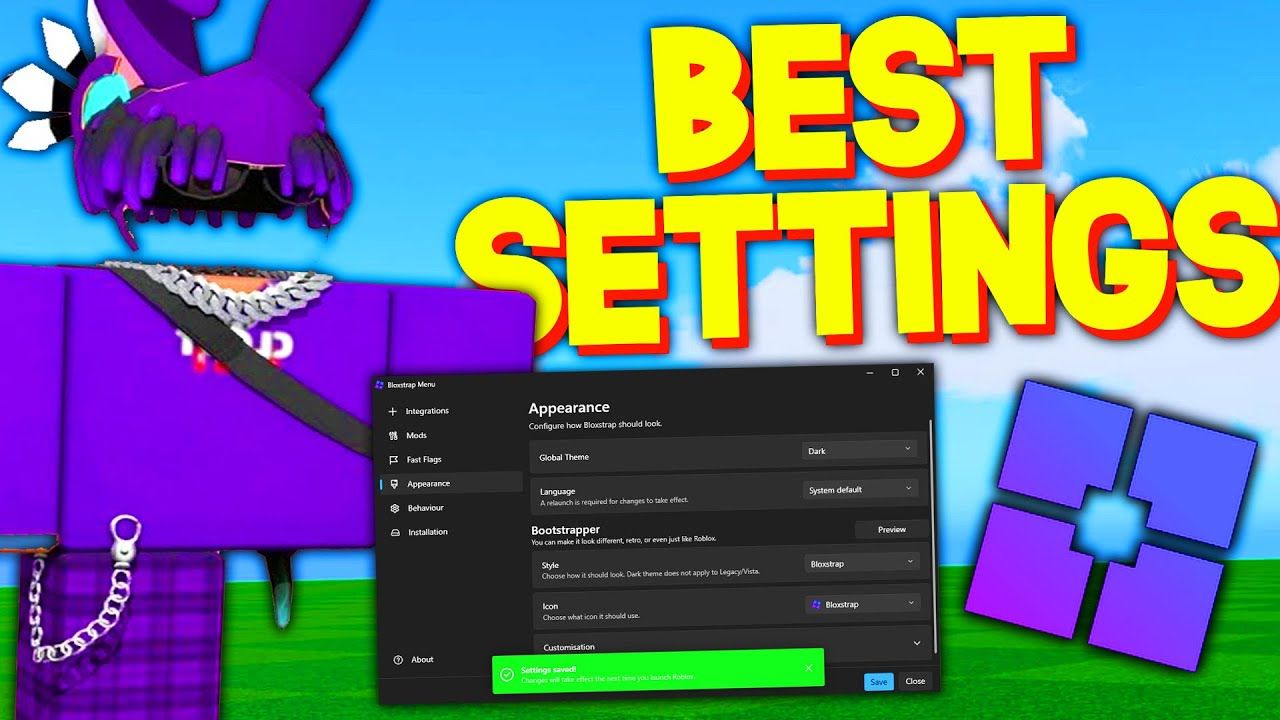
Fast Flags (FFlags) expose the internal engine parameters that Roblox engineers use to test graphics passes and framerate behavior. Through open-source bootstrappers such as Bloxstrap or Voidstrap, players can adjust these variables directly to disable resource-heavy post-processing layers that the standard UI hides.
Using external configuration utilities will not risk your account standing. Roblox leadership confirmed at RDC 2019 that framerate unlocking and engine flag adjustments do not trigger bans. Modern bootstrappers simply modify startup arguments and launch configurations without injecting code into runtime memory.
The following table lists the most effective performance Fast Flags, recommended settings, and their rendering effects.
| Fast Flag Name | Recommended Value | Direct Performance Function |
|---|---|---|
DFIntTaskSchedulerTargetFps | 144, 240, or 9999 | Overrides the engine task scheduler framerate limit |
DFIntDebugFRMQualityLevelOverride | 1 to 21 (e.g., 6 or 11) | Locks client render pipeline directly to a specific discrete level |
DFIntMaxFrameBufferSize | 4 | Tunes internal buffer count to reduce input latency |
FIntRenderShadowIntensity | 0 | Strips dynamic lighting shadow passes to reduce draw calls |
FIntFRMMinGrassDistance | 0 | Suppresses procedural grass generation at minimum range |
FIntFRMMaxGrassDistance | 0 | Disables distant terrain grass rendering entirely |
FFlagDisablePostFx | True | Removes heavy post-processing effects globally |
FFlagDisableBloom | True | Strips bloom shader passes |
FFlagDisableDepthOfField | True | Disables depth of field camera blur calculations |
FFlagDebugGraphicsPreferD3D11 | True | Forces rendering engine to Direct3D 11 backend |
FFlagDebugGraphicsPreferVulkan | True | Forces alternative Vulkan rendering pipeline |
You can also lower memory pressure by pruning the client texture cache. Inside the PC textures folder within your client installation path, removing secondary environment texture folders prevents large asset maps from occupying VRAM.
Keep the sky, water, grass, and base .dds system files intact to avoid rendering errors. Deleting optional secondary texture subdirectories frees memory bandwidth on graphics cards with small frame buffers.
For the graphics API, Direct3D 11 via FFlagDebugGraphicsPreferD3D11 offers the most stable frame pacing on Windows. If your GPU encounters DirectX driver overhead, setting FFlagDebugGraphicsPreferVulkan routes draw calls more efficiently through Vulkan runtimes.
Sequential Troubleshooting Guide for Chronic Frame Drops
If your client suffers from sudden hitching, work through settings in order rather than changing variables at random.
- Check the Shift+F5 Diagnostic Overlay: Press Shift+F5 in an active server to identify whether the issue is network ping or render time. If your ping remains flat while FPS plummets, hardware rendering bottlenecks are the culprit.
- Switch In-Game Mode to Manual (Level 3): Hit Escape, open Settings, set Graphics Mode to Manual, and lower the slider to Level 3. This establishes FRM Level 6 as your performance baseline, disabling high-end shader passes while preserving basic visibility.
- Engage Exclusive Fullscreen via Alt+Enter: Press Alt+Enter to force true fullscreen mode. If your monitor flickers momentarily, the client has bypassed the Windows Desktop Window Manager, eliminating composite buffer latency.
- Assign Dedicated GPU Priority in Windows: Open Windows Graphics Settings and manually add
RobloxPlayerBeta.exewith High Performance assigned. Ensure integrated chips are not handling rendering on multi-GPU systems. - Disable Fullscreen Optimizations: Open the compatibility tab on your executable and check the box to disable fullscreen optimizations. This eliminates frame delivery stutter introduced by Windows display compositing.
- Apply Targeted Fast Flags via Bootstrapper: If stutter persists, configure a bootstrapper with
DFIntMaxFrameBufferSizeset to 4 and bothFIntFRMMinGrassDistanceandFIntFRMMaxGrassDistanceset to 0. This removes procedural terrain foliage generation and tightens frame buffer latency.
Following this progression isolates standard software and display driver conflicts before you modify internal engine parameters.
FAQ
Why is Roblox stuttering even with a high-end graphics card?
Roblox's game engine relies heavily on single-core CPU processing rather than GPU rendering power. Background apps or lower single-thread speeds will bottleneck performance regardless of your graphics card. If a single CPU thread reaches full capacity, the entire render pipeline hitches.
How do I switch Roblox graphics settings to manual?
Press Escape in-game, open the Settings menu, and switch Graphics Mode to Manual. You can then lower the Graphics Quality slider using the minus icon to improve framerates. This stops the engine from dynamically shifting quality tiers during intense gameplay.
How can I check my current FPS in Roblox?
Press Shift+F5 while in-game to toggle the built-in framerate counter. You can also view this in Roblox Studio by clicking View, opening Stats, and selecting Summary. The diagnostic panel displays frame times, memory usage, and ping simultaneously.
Can third-party FPS unlockers cause account bans?
Official Roblox leadership stated at RDC 2019 that players will not be banned for using FPS unlocking tools. Modern tools and native client settings no longer require intrusive DLL injections. Modifying framerate target flags operates safely within standard client launch parameters.
What should I do if F11 does not make Roblox go fullscreen?
Try pressing Fn+F11, Shift+F11, or Alt+Enter on your keyboard. Alt+Enter is preferred because it forces true exclusive fullscreen instead of a borderless window. If issues continue, uninstall the Microsoft Store edition and use the desktop client installer from roblox.com.
How do I make Roblox utilize my dedicated GPU on a laptop?
Open Windows Settings, go to System > Display > Graphics, and add RobloxPlayerBeta.exe. Select Options and choose High Performance to assign your dedicated GPU. This prevents the operating system from defaulting the executable to lower-power integrated graphics.
Setting Your Benchmark for Peak PC Performance
Overcoming Roblox's frame pacing issues comes down to minimizing main-thread CPU overhead. Stacking GPU power will not solve frame drops while the primary CPU thread is bogged down by dynamic shadows, procedural foliage, and OS window compositing.
Stick to the essential baseline: remove the Microsoft Store app, set your in-game slider to Manual Level 3 or Level 5, force true fullscreen with Alt+Enter, and ensure Windows assigns your discrete GPU. When targeting high refresh rates in competitive servers, use Fast Flags to strip out bloom, post-processing, and terrain grass.
With frame pacing stabilized, you can run demanding experiences without input lag spoiling your timing. Once your PC is tuned, you can redeem Roblox balance vouchers and load into complex custom worlds with crisp, consistent frame rates.

Community
Comments