

Controller settings in Sky: Children of the Light are split between the in-game preferences menu and your platform's native system software. You can invert flight controls and camera axes directly inside the game's settings menu, but custom button remapping requires external configuration: Steam Input on PC, system Accessibility menus on PlayStation consoles, Game Controller settings on iOS 13 or newer, or native controller settings on Android OS 9 and above.

Sky: Children of the Light Candles
Adjusting Camera Sensitivity and Flight Inversion In-Game
Sky: Children of the Light provides direct toggles for analog stick behavior inside its main menu. Pressing the Options or Menu button opens the primary interface, where players can scroll to the settings gear. Inside this menu, you can toggle camera inversion along with dedicated flight control inversion (thatgamecompany Support).
Flight inversion significantly impacts how your avatar maneuvers in the air. Flying in Sky is built around two distinct mechanics: Normal (hover) mode and Glide mode (huhulog.net Flight Guide).
- Normal (Hover) Mode: Acts like a parachute or balloon. Pushing the left stick upward lifts your avatar vertically, allowing tight adjustments, sudden stops, and precise landings on narrow footholds such as large dark flowers.
- Glide Mode: Mimics airplane flight. Your avatar tilts forward to build speed and cover long distances efficiently by riding wind currents.
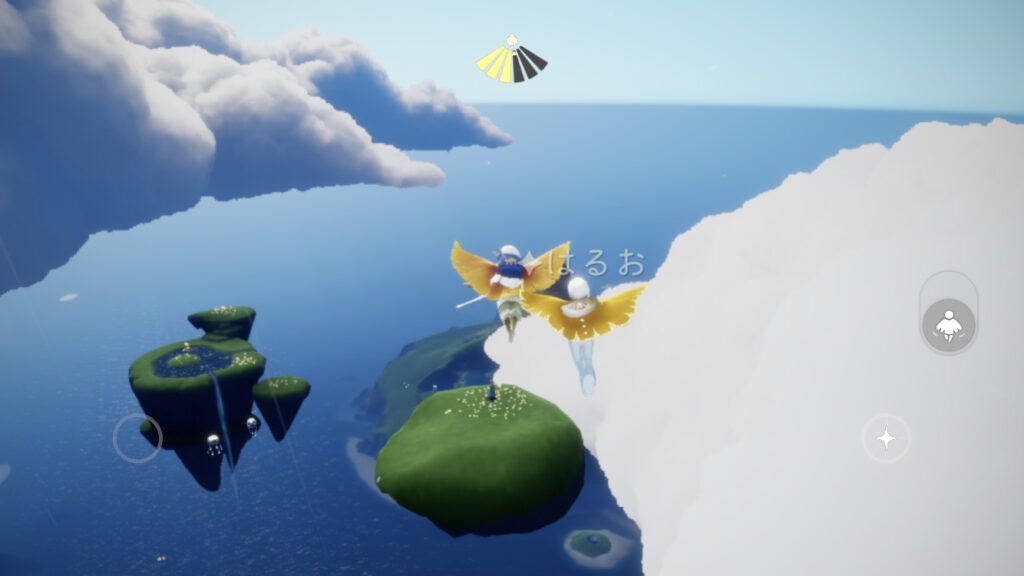
Toggling the in-game flight inversion changes whether pushing forward on the stick causes your avatar to pitch downward (aviation-style) or upward while in Glide mode. If your character consistently dives when you intend to climb, switching this option in the in-game menu resolves the disorientation immediately.
Default Controller Layout and Bindings
Before remapping your gamepad, review the baseline button configurations established by thatgamecompany. The table below lists the standard bindings across major controller families alongside the in-game actions they trigger.
| Input (Xbox / PlayStation) | Primary In-Game Function | Menu & Context Action | Binding Overview | Source Link |
|---|---|---|---|---|
Pressing LB or L1 displays your winged light status and wallet balances. Tapping it again opens the in-game shop. Sky: Children of the Light is an adventure game where Sky: Children of the Light Candles serve as the primary currency for unlocking cosmetic items, expressions, and friendship interactions with spirits.
Note on official documentation: thatgamecompany's mobile support article references a remapping path labeled Settings > Controllers and Sensors > Change Button Mapping. This specific path belongs to the Nintendo Switch system firmware rather than an in-app mobile menu. If you are playing on iOS, Android, or PC, use the platform-level methods detailed below.
Remapping Keybinds Across PC, Mobile, and Consoles
Because the Sky client lacks a full internal remapping menu for gamepad buttons, altering your layout depends entirely on your operating system or launcher software.
| Platform | Remapping Route | Supported Hardware & OS Requirements | Key Remapping Capabilities | Source |
|---|---|---|---|---|
| iOS / iPadOS | Settings > General > Game Controller > Customizations | iOS 13 or newer; PS4, PS5, Xbox One, or MFi controllers | System-level button remapping, dedicated per-game app profiles via "Add app" | Lifehacker Controller Guide |
| Android | Settings > System > Game controllers (or Connected devices) | Android OS 9 or newer; compatible Bluetooth/wired gamepads | Native button swapping between any two inputs, left and right joystick swapping | Google Android Help |
| PlayStation 5 | Settings > Accessibility > Controllers > Custom Button Assignments | DualSense controller on PS5 system software | System-wide button remapping, toggle to swap left and right analog sticks | Lifehacker Controller Guide |
| PlayStation 4 | Settings > Accessibility > Customize Button Assignments | DualShock 4 controller on PS4 system software | System-wide custom button assignments with quick-menu toggle support | Lifehacker Controller Guide |
Customizing Keybinds on PC via Steam Input
Configure your controller layout through the Steam client:
- Open your Steam Library.
- Right-click Sky: Children of the Light and select Properties.
- Navigate to the Controller tab in the sidebar.
- Click the Controller Configuration link to launch the Steam Input interface.
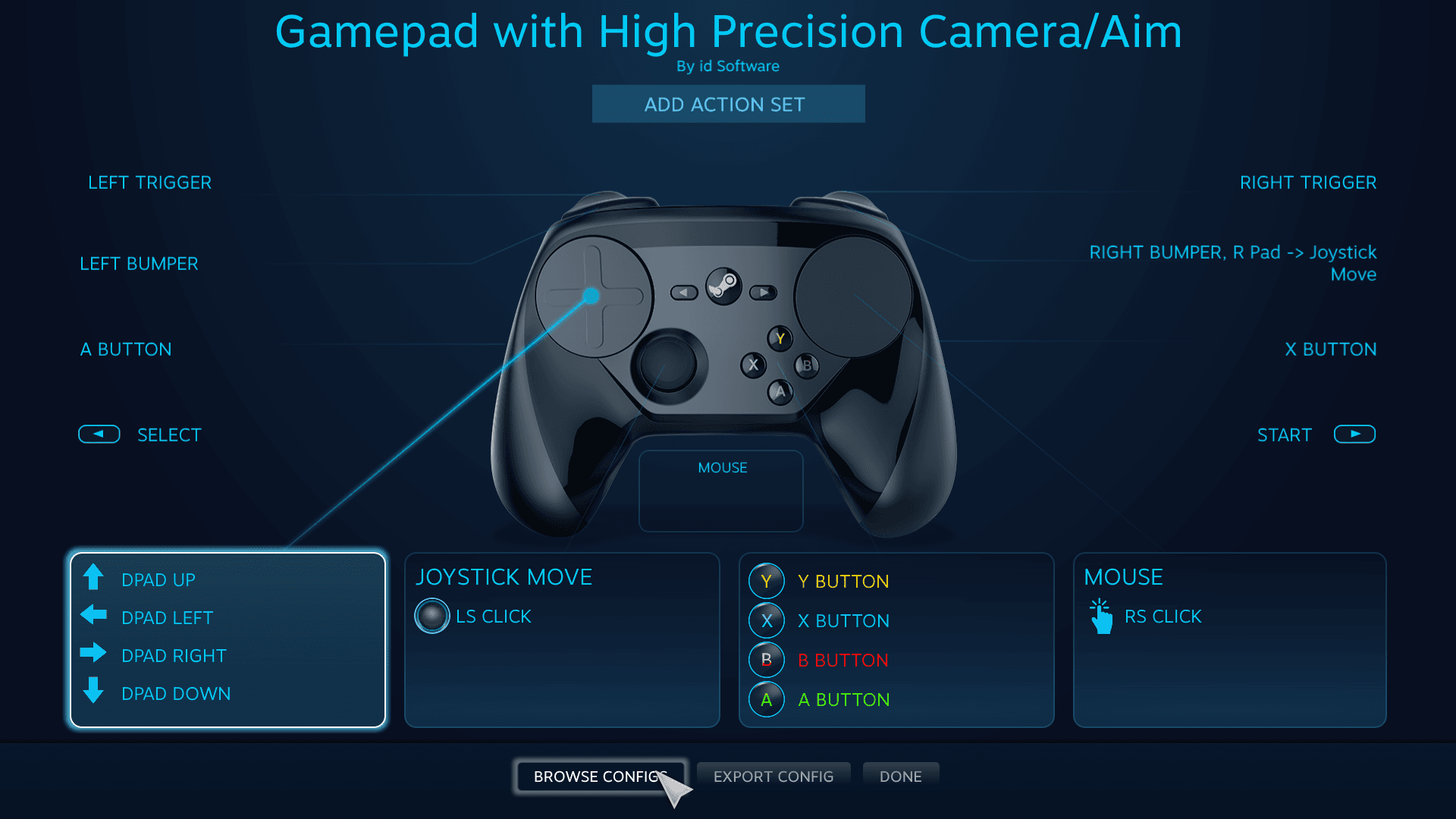
Inside the configurator, you can remap face buttons, invert stick axes if the in-game toggle does not meet your preference, or assign dual-stage trigger behaviors. Steam applies these changes specifically to the Sky executable without disturbing your desktop or other games.
Remapping on Apple Devices (iOS / iPadOS)
Apple introduced system-wide controller profiles starting in iOS 13. This menu lets you configure a tailored profile exclusively for Sky (Lifehacker Controller Remapping Guide):
- Ensure your gamepad (PS4, PS5, Xbox One, or MFi) is paired via Bluetooth.
- Open the device Settings and tap General.
- Select Game Controller, then tap Customizations.
- Toggle on Enable Customizations.
- Scroll down to the bottom of the list and tap Add app.
- Select Sky from the installed applications list.
From this screen, you can swap button functions (such as switching jump and call buttons) without altering the layout for other mobile games on your device.
Remapping on Android
Modern Android versions include native gamepad customization within system settings (Google Android Help). Pair your controller via Bluetooth or USB-C, then navigate to Settings > System > Game controllers (or Settings > Connected devices > Game Controller settings depending on your device brand).
This native menu allows remapping any two inputs or reversing joystick assignments completely, eliminating the need for third-party overlay apps on supported Android builds.
Remapping on PlayStation Consoles
Console players can use system Accessibility tools to adjust bindings:
- On PS5: Go to
Settings > Accessibility > Controllers > Custom Button Assignments. Turn on the toggle, selectCustom Button Assignments, and swap your preferred buttons. You can also selectSwitch the Left and Right Analog Sticksto reverse navigation and camera functions (Lifehacker Controller Remapping Guide). - On PS4: Go to
Settings > Accessibility > Customize Button Assignments. Check the box to enable the feature, change the assignments, and hitConfirmto save.
Note that PlayStation Accessibility remapping is system-wide. It alters button behavior across the home dashboard and other games until toggled off.
Troubleshooting Unresponsive Controllers
When Sky: Children of the Light fails to detect a controller or inputs register incorrectly, follow these diagnostic steps in order.
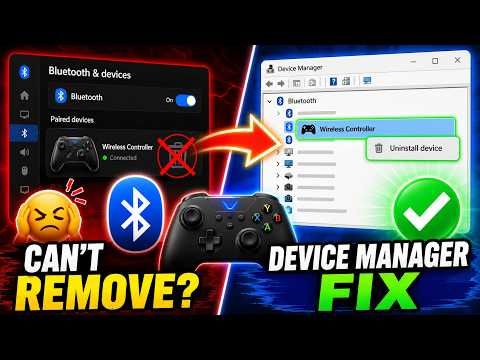
1. Check Operating System Version Requirements
- iOS: Must be running iOS 13 or newer to use DualShock 4, DualSense, Xbox One, or MFi gamepads.
- Android: Must be running Android OS 9 or newer to recognize PlayStation and Xbox controllers reliably. Devices running older operating systems may connect over Bluetooth but fail to pass inputs to the Sky game engine.
2. Verify Hardware Compatibility on Mobile
Not every controller hardware profile works correctly on mobile devices. According to official support documentation, the SteelSeries Nimbus suffers from faulty button mapping on Android and does not work properly with Sky. Conversely, models built specifically for mobile platforms, such as the SteelSeries Stratus XL, function as intended on compatible Android builds.
If you are using a third-party mobile gamepad and face buttons fail to activate in-game actions, check whether your model requires a dedicated firmware update or a hardware switch toggle between X-Input and DirectInput modes.
Resolve Controller Not Working on PC (Steam) If Sky PC fails to recognize your controller: 1. Open Steam's global settings via Steam > Settings > Controller. 2. Ensure the configuration support toggle matching your hardware (e.g., PlayStation Controller Support, Xbox Controller Support, or Generic Controller Support) is enabled. 3. Return to your Steam Library, right-click Sky: Children of the Light, select Properties > Controller, and ensure the dropdown is set to Enable Steam Input rather than Disable Steam Input. 4. Unplug any secondary flight sticks, virtual vJoy adapters, or racing pedals that might claim Player 1 input priority in the Windows device manager.
4. Correct Drifting or Inverted Axes
If your camera spins continuously or moves in unexpected directions: * Check the in-game settings to ensure neither flight inversion nor camera inversion was enabled accidentally. * If using Steam Input, open the Controller Configuration menu for Sky and calibrate your analog deadzones. Expanding the inner deadzone stops minor hardware stick drift from overriding in-game flight stabilization.

Community
Comments