

Learn how to change controls in Tom and Jerry Chase, fix clunky touch HUD buttons, and map custom layouts so you stop missing jumps and cheese pushes.
Nothing stings quite like dropping a clean match because your thumb grazed empty glass instead of the jump icon. You juke a claw strike, scramble toward an open window, tap frantically, and your mouse runs straight into an end table. The default HUD layout packs critical escape inputs into tight clusters that collapse under pressure.
Matches run 8 to 10 minutes (official documentation cites 10 minutes, though regional patch logs list an 8-minute cap), pitting four mice against one cat. Sloppy controls guarantee you won't survive long enough to see the wall crack. Here is how to rebuild your layout from scratch.
Tom and Jerry: Chase Diamond
- -70%
Tom and Jerry: Chase Diamond 60 Diamonds
Buy NowUSD 0.87
USD 1.47
- -70%
Tom and Jerry: Chase Diamond 180 Diamonds
Buy NowUSD 2.53
USD 4.30
- -70%
Tom and Jerry: Chase Diamond 300 Diamonds
Buy NowUSD 4.20
USD 7.14
- -70%
Tom and Jerry: Chase Diamond 600 Diamonds
Buy NowUSD 8.58
USD 14.58
- -70%
Tom and Jerry: Chase Diamond 1200 Diamonds
Buy NowUSD 17.20
USD 29.24
- -70%
Tom and Jerry: Chase Diamond 1800 Diamonds
Buy NowUSD 26.40
USD 44.88
- -70%
Tom and Jerry: Chase Diamond 3000 Diamonds
Buy NowUSD 45.45
USD 77.27
- -70%
Tom and Jerry: Chase Diamond 6000 Diamonds
Buy NowUSD 85.73
USD 145.75
Why Default Touch Controls Ruin Your Run
The factory interface bunches the jump, attack, and environmental interaction buttons into the bottom-right corner. It looks clean on an iPad mini. On an average phone screen, your right thumb covers three distinct inputs at the same time.
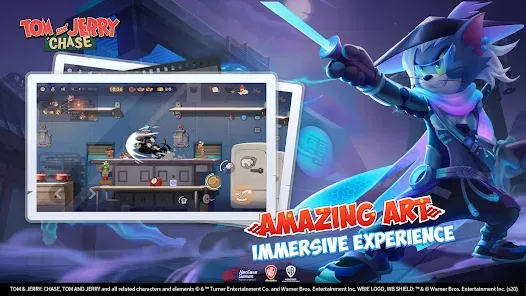
Context errors kill you during pursuits. You intend to hop over a dropped plate, but your thumb clips the basic attack icon. Your runner stalls to throw a bare-fisted swing, loses all momentum, and catches a claw strike. Worse, item pickups, cheese pushes, and window vaults share congested hitboxes. Sprinting past an active cheese wedge with an explosive or a glass bottle often triggers the wrong action on contact.
Scouting suffers immediately. During the opening reconnaissance phase (clocked between 30 seconds and 1 full minute across regional versions), you pilot a robot mouse to map rooms and locate cheese wedges. If your movement pad sticks or drops micro-turns, the cat swats your drone before you even locate the basement.
Step-by-Step: Accessing the In-Game Controls Menu
You can rebind keys and reposition buttons in under a minute from the lobby or mid-match bot pause screen:
- Launch the game and load into the main lobby.
- Tap the Gear icon in the top-right corner to open Settings.
- Select the Controls tab on the left rail.
- Pick your primary movement mode at the top: directional arrow keys or a floating virtual joystick.
- Scroll down to Skill Key Presets to select a template or tap the edit icon to manually reposition HUD elements.
- Reposition and rescale your buttons to match your grip, then hit Save.
If you want to dress up your favorite runners with special skins while tuning your account settings, you can check out Tom and Jerry: Chase Diamond to stock up on in-game cosmetics.
The Four Core Skill Key Presets Explained
The client provides four baseline presets. Beginners usually stick with the default All-in-one layout, which is almost always a mistake.
The table below breaks down the four default skill key presets available in the controls menu:
| Control Preset | Operational Profile | Core Focus & Behavior |
|---|---|---|
| Free Attack | Separated Attack & Skill Layout | Isolates standard swings from character abilities to eliminate accidental swings. |
| All-in-one | Context-Sensitive Unified Layout | Blends multiple interactive cues into dynamic buttons based on nearby items. |
| Free Interaction | Interaction-Prioritized Layout | Positions item pickups, door levers, and vault triggers closer to thumb rest. |
| Free Mode | Full Custom Placement Canvas | Unlocks manual positioning, scale adjustments, and complete placement freedom. |
Takeaway: Free Mode offers the highest competitive ceiling because it allows you to separate overlapping trigger zones completely.
Switch directly to Free Mode. The All-in-one preset attempts to guess your intent, which fails during chaotic scuffles. When a cat charges with a fly swatter, your interaction prompt shouldn't morph from a jump to an item pickup just because you crossed an empty bowl.
Free Attack works well enough if you play aggressive combat mice or Tom, since it isolates primary attacks. But Free Mode lets you build a dedicated three-finger or claw layout that separates jumps entirely from your combat buttons.
Movement Controls: Directional Arrows vs Virtual Joystick
Movement input is your first core choice: fixed left/right directional buttons or a floating virtual stick.
For ground-based mouse play, fixed directional buttons win easily. Tom and Jerry: Chase is a 2D side-scroller. You sprint left, sprint right, climb ropes, and drop through platforms. Arrow buttons give clear binary input: tap right, and your runner hits full sprint instantly. Floating sticks add dead zones, thumb drag, and accidental diagonals that make you grab climbing pipes instead of clearing a hallway.
Flight mechanics override this rule entirely.
Certain characters force the game into a virtual control stick regardless of your menu settings:
- Angel Tom: Activating Flying Free overrides your arrow buttons and brings up an omnidirectional 360-degree virtual stick for airborne movement.
- Wind Chaser Tom: Runs on stick flight permanently from skill level 0 without needing an active ability trigger.
If you main Wind Chaser Tom or spend substantial time on Angel Tom, stick controls are mandatory. Alternating between directional buttons on mice and an involuntary stick on aerial cats degrades muscle memory quickly.
Customizing Your HUD for High-Pressure Evasion
Inside Free Mode, nudge nothing casually. Safe escapes require deliberate spacing so critical inputs never overlap.
Winning as a mouse means pushing 5 cheese wedges into mouse holes and battering down the wall crack so at least 2 runners escape. That demands fast micromanagement: grabbing cheese, tossing ice cubes, dodging traps, and evading swings.
Set up your evasion HUD using these principles:
1. Separate Jump from Action Prompts
Isolate the Jump button in the lower-right corner and upscale it. Never place Attack or Skill keys within a thumb-width of Jump. In a chase, missing a jump means hitting furniture and taking a hit.
2. Isolate the Interact Key
Interactive stage objects require instant activation. Higher-tier maps include props like the Flour Bag, which grants stealth and soundproofing buffs when tapped. If your Interact key overlaps your throw key, you will drop your weapon instead of popping the bag.
3. Clear the Center-Bottom Screen
Keep the center-bottom display completely clear. You need an unobstructed view to spot bear traps, perfume puddles, and broken glass while sprinting at full speed.
4. Create an Upper-Right Auxiliary Zone
On larger phone screens, place secondary active skills and character-specific items near the upper-right edge. Tapping special abilities with your index finger frees your thumb strictly for movement, jumping, and vaulting.
If you want to pick up fresh characters or expand your roster to test these setups, grab your Tom and Jerry: Chase Diamond from the shop to unlock new runners.
Mobile Touch vs PC Emulator Layouts
A native phone screen presents different ergonomic challenges than an Android PC emulator. Mobile play depends on thumb clearance and screen real estate; emulators use dedicated physical keyboard switches.
The table below contrasts how control configurations perform across native mobile and PC emulation environments:
| Control Element | Native Mobile Touchscreen | PC Android Emulation |
|---|---|---|
| Primary Movement | Directional taps or floating stick | Physical WASD or Left/Right keys |
| Precision & Missed Hits | Moderate; thumb slip risks | High; mechanical switches prevent misclicks |
| Environmental Interacts | Contextual single-tap screen zones | Dedicated keybinds (e.g., E, F, Space) |
| Macro & Script Support | Not supported natively | Macro recording supported for repetitive sequences |
| Flight Override Handling | Dynamic screen stick overlay | Mouse-guided direction or stick keymap |
Takeaway: Emulators offer superior input isolation, but mobile setups provide unmatched portability and tactile response if HUD buttons are scaled properly.
On PC emulators, bind horizontal movement to A and D, and ladder climbing to W and S. Put Jump on Spacebar, primary attack on left mouse click or J, and environmental interaction on E or F. This standardizes controls to classic platformer ergonomics, eliminating input friction.
Perk Cards That Fix Sluggish Handling and Input Timings
Sometimes controls feel unresponsive because base character stats lag behind your reaction speed. In Tom and Jerry: Chase, perk cards directly adjust jump clearance, animation recovery, and sprint velocity.
The table below details how key mobility perks impact character responsiveness during chases:
| Perk Card Name | Operational Effect | Numerical Value & Scaling |
|---|---|---|
| Leap | Flat boost to maximum jump height | 5% (Level 1) / 6% (Level 2) / 7% (Level 3) boost |
| Brilliance | Permanent increase to base movement speed | 5% (Level 1) / 6% (Level 2) / 7% (Level 3) boost |
| Bull Rush | Burst sprint speed duration expansion | Extends burst speed duration up to 20 seconds |
| Fairy Touch | Full debuff immunity against control interference | Shields against perfume reversal, debris, and smoke |
Takeaway: Equipping Leap and Fairy Touch removes physical movement constraints, ensuring your custom layout translates cleanly into in-game evasion.
If you clip platform edges, equip Leap. That extra 5% to 7% jump height lets you clear tall furniture and kitchen counters in one bound without needing pixel-perfect edge launches.
Equally critical is Fairy Touch. Walking through perfume clouds inverts directional inputs—tapping left moves you right, and tapping right moves you left. Fairy Touch completely negates perfume reversal, debris slowdowns, and smoke blinds. For input consistency, it is essential.
Stack these with Brilliance for a flat 5% to 7% movement speed bonus, closing the gap between dodging and reaching cover. If you need sustained escape velocity, Bull Rush maintains your sprint burst for up to 20 seconds.
To build out your perk deck and advance your characters faster, you can pick up Tom and Jerry: Chase Diamond to support your progression.
Testing Control Schemes in Practice Courses
Never test a new layout directly in ranked play. Retraining muscle memory takes games, and missing a button against an aggressive cat costs stars. Use the built-in courses instead.
The game offers three structured training environments:
- Basic Course: Unlocked immediately for testing jump clearances, throws, and basic obstacles.
- Advance Course: Unlocks at account level 10, featuring tight evade windows and cat avoidance drills.
- Expert Course: Unlocks at account level 15, adding Flour Bags, hazard zones, and rapid cheese-pushing drills.
Tutorial modules and bot matches take roughly 3 to 5 minutes. Run two bot rounds to practice vaulting air vents—they offer instant escape paths, though cats can still land hits while you transit. Verify that your thumb activates the vent prompt without clipping the jump button.
If your hand cramps after a 5-minute bot session, open the HUD editor and pull the keys closer to your neutral thumb rest.
Troubleshooting Common Control Problems
If controls misbehave after layout changes, check these five failure points:
- Check for Involuntary Stick Overrides: If directional arrows vanish, check character abilities. Angel Tom's flying skill and Wind Chaser Tom automatically force the virtual joystick layout.
- Clean Display Edge Dead Zones: Phones with curved glass or slim bezels often have aggressive palm-rejection filters. If Jump rests on the glass edge, inputs may drop. Pull edge keys inward by at least 10 millimeters.
- Inspect Active Status Debuffs: If your character runs in reverse, you crossed a perfume puddle. Equip the Fairy Touch perk card to ignore control reversal.
- Reset Button Opacity: If you accidentally set HUD elements to zero opacity, revert to Free Mode defaults and re-scale with opacity set to 80% or higher.
- Recalibrate Emulator Keymapping Layers: On PC, confirm your emulator keymap doesn't assign two conflicting physical keystrokes to the exact same screen coordinate.
FAQ
How do I change my controls in Tom and Jerry Chase?
Open the in-game Settings menu from the main lobby or pause screen by tapping the gear icon in the top-right corner, then head to the Controls tab. From there, select a baseline preset or tap Free Mode to manually adjust button positions, sizes, and bindings.
What control presets are available in the game?
The game provides four skill key presets: Free Attack, All-in-one, Free Interaction, and Free Mode. Free Attack separates offensive keys, All-in-one uses contextual multi-use buttons, Free Interaction prioritizes stage items, and Free Mode grants complete customization.
Can I switch between a joystick and directional buttons?
Yes, you can toggle between directional left/right buttons and a virtual control stick in the controls menu. However, flying states such as Angel Tom's Flying Free or Wind Chaser Tom's base flight mechanics will automatically force a virtual stick layout.
Where can I safely test my new control setup without losing rank points?
You can test configurations in the training courses without risking rank points. The Basic Course is open immediately, while the Advance Course unlocks at level 10 and the Expert Course unlocks at level 15, alongside 3-to-5-minute bot practice matches.
Why do my movement controls suddenly change to a joystick during a match?
Activating flight abilities like Angel Tom's skill or playing as Wind Chaser Tom forces the movement interface into a virtual joystick. Once the flight ability concludes on Angel Tom, your control interface reverts to your standard configuration.
How can I play Tom and Jerry Chase with a keyboard on PC?
You can run the game through an Android emulator on your PC and use the emulator's built-in keymapping interface to assign physical keys to on-screen buttons. This setup lets you use standard WASD movement, Spacebar jumping, and dedicated interaction keys.
Can perk cards help fix missed jumps or sluggish movement?
Yes, perk cards directly complement your physical controls by altering character physics. Equipping Leap increases your jump height by up to 7%, Brilliance raises base speed by up to 7%, and Bull Rush extends sprint bursts up to 20 seconds.
Final Call: Dialing In Your Perfect Chase Setup
Default controls drop winnable games. The factory HUD clusters inputs too tightly for high-pressure escapes, especially when an 8-to-10-minute match hinges on cracking a wall crack under cat pressure.
Switch to Free Mode. Pull Jump away from item interactions, lock in directional arrows for floor runners, and keep center-screen visibility clear of button clutter. Pair your layout with Leap and Fairy Touch, test it in the Basic Course, and your escape routes will become clean and reliable.

Community
Comments