

Eliminating late-round frame drops and thermal spikes in Mechabellum requires addressing dynamic GPU downclocking, driver shader eviction, and CPU dispatch bottlenecks during massed army clashes. Independent testing from Rigpod demonstrates that switching NVIDIA Power Management Mode to Prefer maximum performance lowers frame time variance by nearly 15%, while raising the Shader Cache Size to Unlimited and capping framerates slightly below your monitor refresh ceiling stops hitching and prevents runaway GPU heat generation.

Mechabellum
Why Late-Round Mechabellum Battles Choke PC Hardware
Mechabellum begins innocently enough. In the opening rounds, a handful of units clash across an empty desert grid with high, crisp framerates. Five rounds later, the board descends into mechanical chaos.
According to the official product overview on NXPGame, Game River and Paradox Arc built Mechabellum around scaling 1v1 tactical engagements. Formations expand to contain swarms of Crawlers, lines of Marksmen and Sledges, and towering giants like Vulcans, Fortresses, and Melting Points. Mid-battle tech upgrades add cluster missiles, incendiary napalm, and electromagnetic beams.
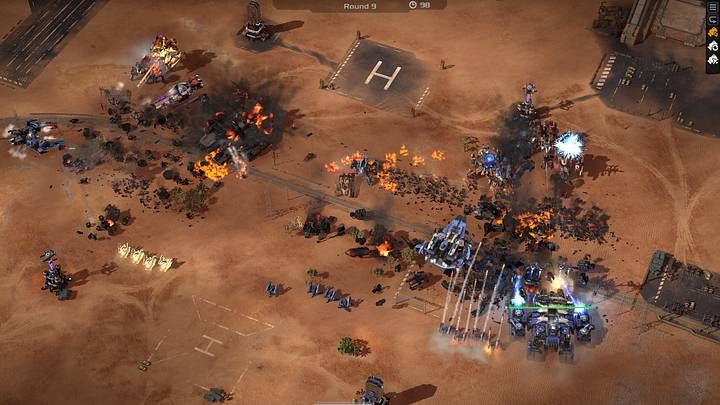
Every single unit projectile, death animation, and passive beam requires immediate draw call handling and pathing math. When hundreds of entities clash at once, the graphics pipeline undergoes sudden, massive demand shifts. If your GPU driver misinterprets a quiet planning phase as permission to clock down, or if the system purges weapon impact shaders mid-volley, your frametime graph will spike aggressively.
The Recommended Driver Profile: Mechabellum Best Graphics Settings for Performance
When optimizing a strategy title handling massive unit volumes, default driver profiles work against you. Windows and graphics drivers frequently try to balance energy efficiency, which works fine until four Melting Points simultaneously melt a frontline.
Use the NVIDIA Control Panel to configure a dedicated 3D profile for the game executable rather than relying on automatic detection.
| Setting | Recommended Value | Visual Reference | Performance Impact & Evidence |
|---|---|---|---|
| Power Management Mode | Prefer maximum performance | 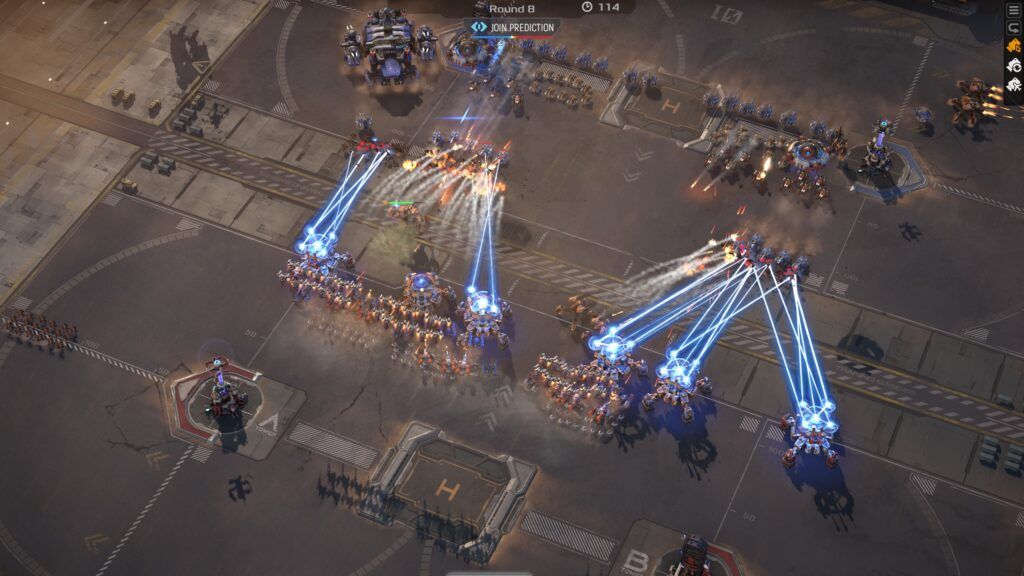 | Lowers frame time variance by nearly 15% by stopping GPU downclocking transitions (Rigpod). |
| Shader Cache Size | Unlimited | 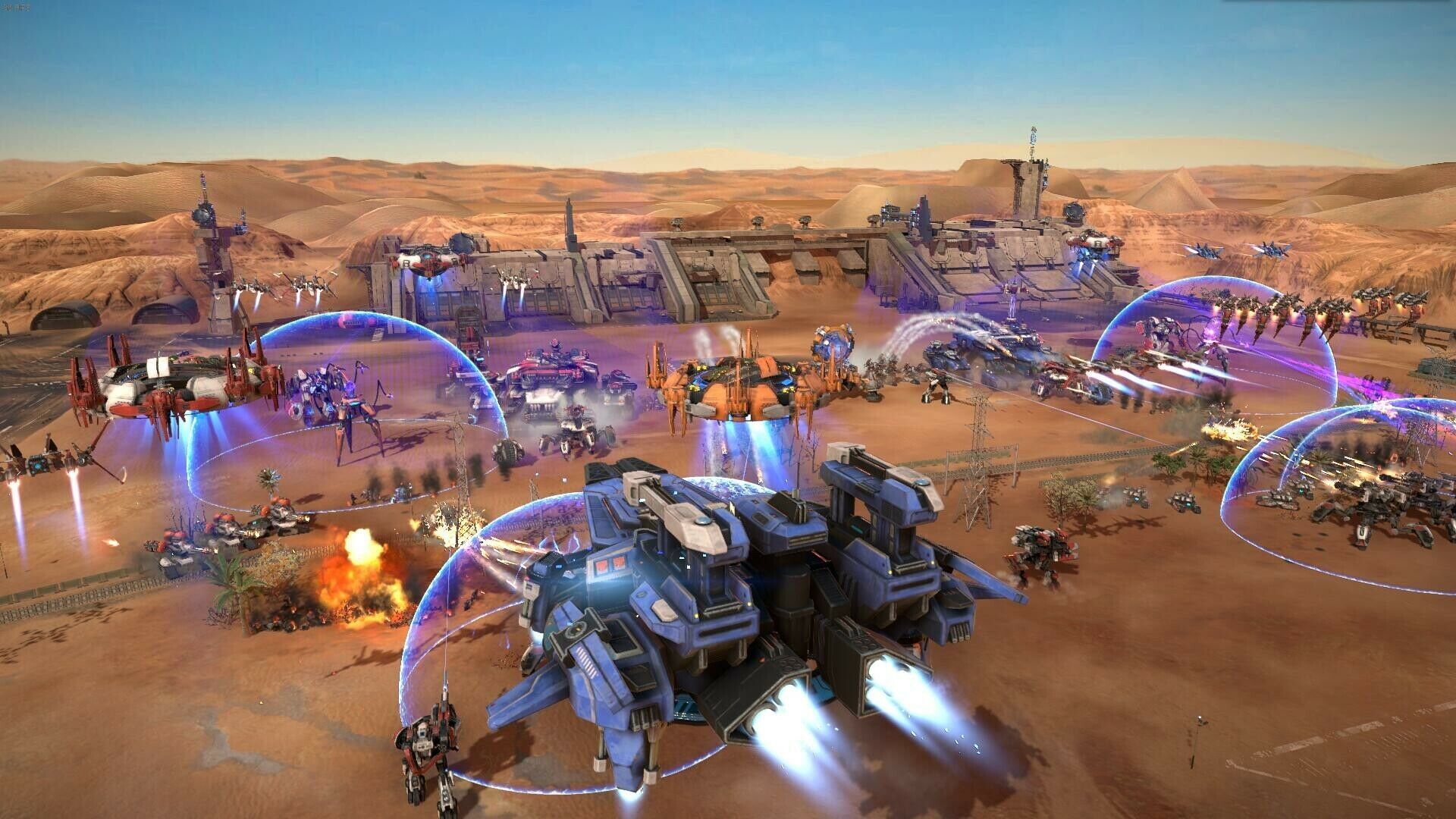 | Halts cache eviction of effect shaders; reserves 2GB to 0GB drive storage (Rigpod). |
| Threaded Optimization | On |  | Bypasses driver autodetection failures to boost multithreaded CPU dispatch by 5% to 8% (Rigpod). |
| Max Frame Rate | 2-3 FPS below refresh rate |  | Prevents GPU rendering surplus frames, curbing excess heat buildup and tearing (Rigpod). |
Step-by-Step Driver Optimization
- Right-click your desktop and open NVIDIA Control Panel.
- Navigate to Manage 3D Settings in the left sidebar and select the Program Settings tab.
- Locate or add
Mechabellum.exe. - Set Power management mode to Prefer maximum performance.
- Change Shader Cache Size from Driver Default to Unlimited.
- Force Threaded optimization to On rather than leaving it on Auto.
- Click Apply in the bottom-right corner.
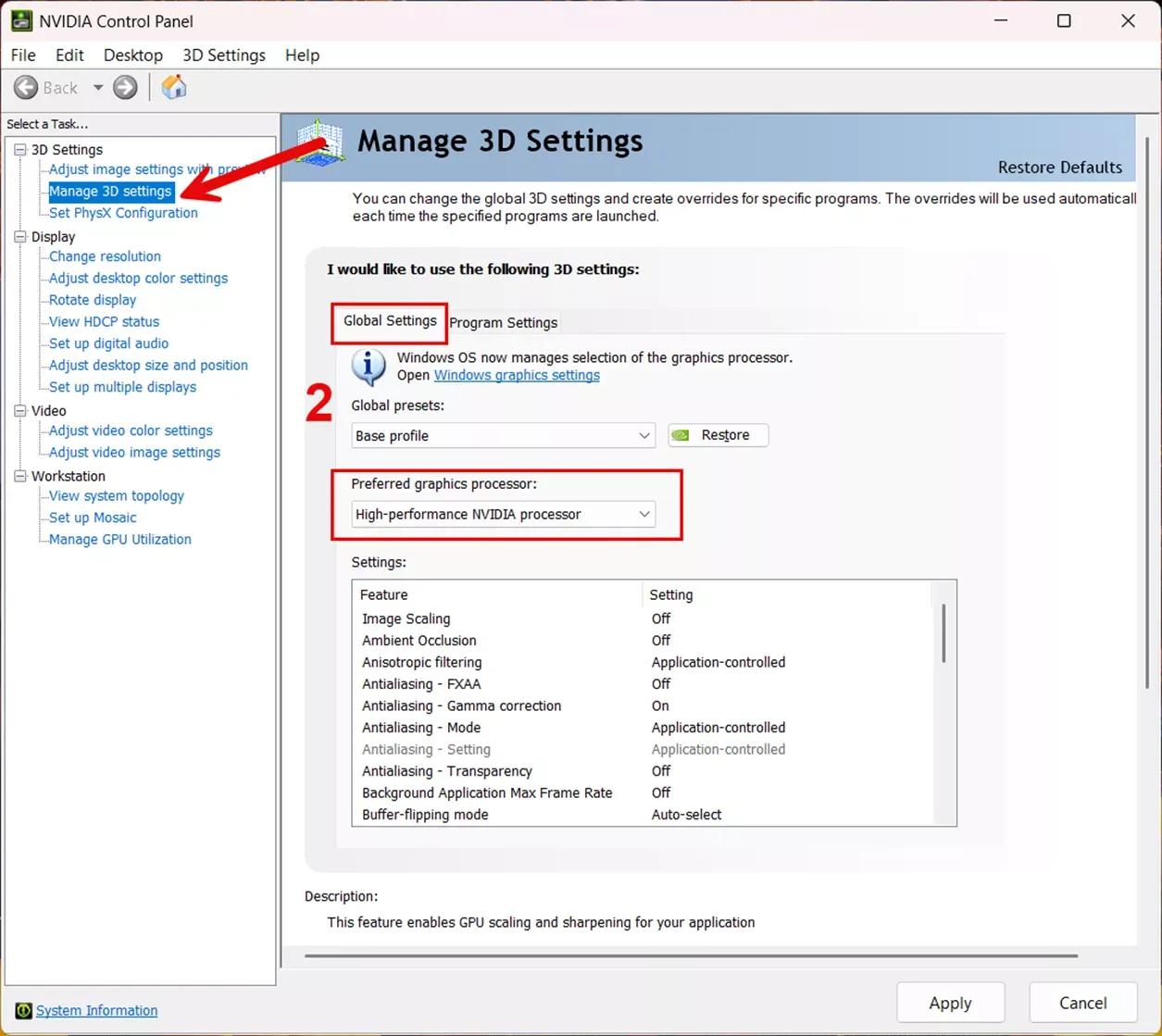
Here is the trade-off: forcing maximum performance keeps your GPU clocks pinned at gaming frequencies. While it eliminates clock-drop stutters during mid-round artillery strikes, your card will consume more power and run warmer when sitting on your Windows desktop.
Purging Corrupted Shader Caches to Fix Persistent Hitching
If you experience sharp stutters every single time a Vulcan lays down a line of fire or an EMP barrage lands, your compiled shader cache may be bloated or corrupt.
As documented by WiseCleaner, corrupt shader caches produce recurring graphical hitches across modern 3D games. You can wipe this folder manually to force a fresh compilation.
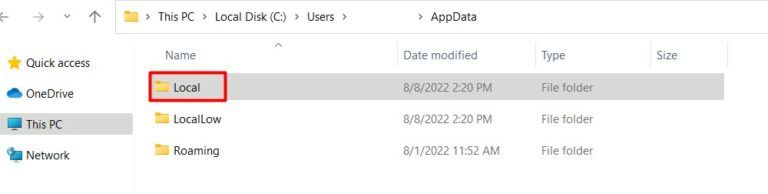
Follow this sequence to flush the pipeline:
- Open NVIDIA Control Panel, head to Manage 3D Settings, and temporarily set Shader Cache Size to Disabled.
- Click Apply to release the driver lock on the cache directory.
- Press
Win + R, paste%localappdata%, and hit Enter. - Open the
NVIDIAfolder and delete the contents insideDXCacheandGLCache. - Check
%localappdata%for any folder namedNV_Cacheand empty it as well. - Return to NVIDIA Control Panel, restore your Shader Cache Size to Unlimited (or Driver Default), click Apply, and restart your PC.
Expect a brief performance penalty right after you do this. As WiseCleaner points out, the driver must recompile shaders from scratch the first time you boot back into battle. Load times might run slightly longer and the opening round might exhibit minor hitches, but late-round particle stability will smooth out once the assets are properly written to storage.
Mechabellum Reduce Heat and CPU Usage: Managing Thermal Limits
High-density auto-battlers place atypical demands on hardware. Because thousands of physics and combat calculations run continuously during round resolution, systems can push straight into thermal limits.
Hardware diagnostics published by Novabench show that when internal hardware exceeds safety thresholds, the CPU or GPU automatically throttles back clock speeds to prevent physical damage. This sudden drop in processor frequency causes immediate framerate collapse right when unit density peaks.
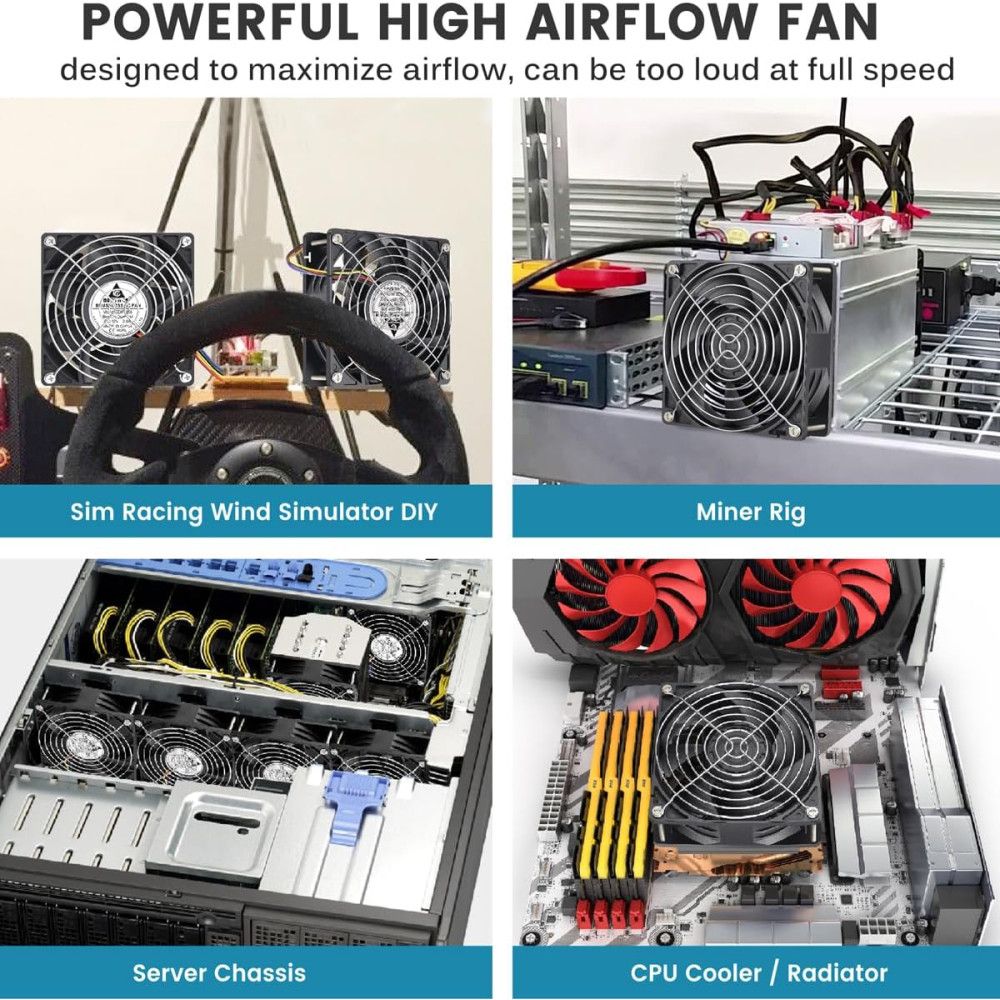
To keep core clocks stable and lower sustained heat:
- Cap your framerate: Uncapped framerates force your graphics card to push 300+ FPS during early deployment phases. That floods your chassis with heat before the real fighting even starts. A strict driver frame cap prevents this cycle.
- Clear air channels: Clear dust buildup from heatsinks and intake filters. If you play on a gaming laptop, keep the chassis elevated on a hard, flat surface rather than soft fabric.
- Refresh thermal paste: If your CPU or GPU spikes past thermal safety thresholds under load, dried or degraded thermal interface material must be replaced.
- Close background processes: Shut down background browser instances and heavy software suites before queuing to free up CPU cores for unit pathing.
Platform-Specific Fixes: AMD Ryzen fTPM and Windows Hooks
Not every performance stutter originates inside the graphics engine. Underlying Windows features and motherboard firmware can disrupt frame pacing.
| Platform Variable | System Diagnosis & Action | Observed Impact | Documented Source |
|---|---|---|---|
| AMD AM4 Motherboards | Flash BIOS to AGESA 1.2.0.7 or later | Fixes system-wide freezes caused by fTPM microcode bugs across 300, 400, and 500-series chipsets | Tom's Hardware |
| Windows Display Pipeline | Check "Disable fullscreen optimizations" on game executable | Bypasses Windows Desktop Window Manager compositor layers to reduce frame pacing conflicts | HDT-Project |
| Sync Technology | Pair driver Vertical Sync "On" with G-Sync and FPS cap | Eliminates screen tearing without input latency penalties; contradicts pure V-Sync Off setups | Rigpod |
The AMD Ryzen fTPM Bug
If your entire operating system hitches for two to three seconds—including audio stuttering—the issue may stem from your motherboard rather than the game client. Tom's Hardware reports that AMD identified a severe intermittent stuttering and freezing bug tied directly to firmware Trusted Platform Module (fTPM) memory transactions on AM4 platforms.
This bug impacts systems running 300, 400, and 500-series motherboards. If you run a Ryzen CPU and suffer sporadic hard freezes, check your motherboard manufacturer's support portal and update your BIOS to a version running AGESA microcode 1.2.0.7 or newer.
Disabling Windows Fullscreen Optimizations
Windows Fullscreen Optimizations sit between games and direct hardware display modes. While meant to enable smooth window overlays, HDT-Project notes that this hybrid presentation mode can introduce frame delivery inconsistency.
To bypass it:
- Locate
Mechabellum.exein your Steam installation directory (steamapps\common\Mechabellum). - Right-click the
.exefile and select Properties. - Open the Compatibility tab.
- Check the box labeled Disable fullscreen optimizations.
- Click Apply and launch the game.
The V-Sync Contradiction: Input Lag vs. Tear-Free Pacing
Tuning sync settings reveals an active debate in PC optimization circles. Traditional competitive guides often insist on keeping Vertical Sync completely off to avoid display latency.
However, testing by Rigpod demonstrates that pairing an adaptive sync display (G-Sync or FreeSync) with driver-level Vertical Sync On and an FPS cap set 2 to 3 FPS below the maximum refresh rate (such as 163 FPS on 5Hz) produces tear-free frame delivery without latency penalties. Because Mechabellum is an auto-battler rather than a twitch shooter, frame pacing consistency and reduced thermal output far outweigh millisecond-level input timing.
Frequently Asked Questions
Will clearing the NVIDIA shader cache cause stutters when first launching the game?
Yes. Deleting your shader cache forces your graphics driver to recompile effects the first time they appear on screen. As documented by WiseCleaner, this causes slightly longer loading times or minor hitching during initial matches before visual delivery stabilizes.
Does setting Power Management Mode to Prefer maximum performance increase PC temperatures?
Yes. Forcing your GPU to lock high clock frequencies eliminates power-state transition stutters during sudden action, but it prevents the GPU from entering low-power idle states. Rigpod notes that your graphics card will consume more wattage and register warmer temperatures while sitting idle on the desktop.
Can motherboard firmware cause severe micro-stutters on AMD Ryzen PCs?
Yes. AMD confirmed that firmware TPM (fTPM) operations on AM4 motherboards caused intermittent system freezes and audio stuttering. According to reporting by Tom's Hardware, updating your motherboard BIOS to microcode version AGESA 1.2.0.7 or later resolves this platform-level issue across 300, 400, and 500-series chipsets.
Our advice: lock your driver frame rate just below your monitor refresh ceiling first. It is the single fastest way to curb chassis heat buildup while your CPU calculates massive late-round formations.
Follow NXPGame for more Mechabellum news~

Community
Comments