

Setting up a Roblox account takes under two minutes, but securing it properly and finding safe, playable experiences requires specific steps. If an account is registered for a player under age 13, Roblox automatically engages COPPA-mandated protections and strict chat filtering, provided you register with an accurate birthdate and a parent-controlled email address according to Security.org parental controls guidance.
Roblox Hong Kong
Account Creation and Core Safety Configurations
Creating a basic account requires only a birthdate, a username, and a password on the official sign-up page. Never include real names, birth years, or school names in the username.
For accounts used by children under 13, register with a parent's email address rather than the child's inbox. This keeps password resets, login notices, and security alerts directly under parental oversight.
Locking Settings with an Account PIN
Children can easily alter settings or spend saved currency if profiles remain unlocked. Roblox provides an administrative lock directly within the platform dashboard.
- Open Settings by clicking the gear icon.
- Head to the Security tab.
- Locate Account PIN and switch it on.
- Enter a secure 4-digit code that is not shared with the player.
Once active, nobody can modify email addresses, change passwords, adjust communication options, or toggle parental restrictions without entering this PIN, as documented by Security.org.
Setting Content Restrictions and Experience Controls
Roblox experiences carry content ratings to help users screen out mature material. In 2024, Roblox updated its Experience Controls system to assign age categories: All Ages, 9+, 13+, and 17+.
To restrict an account to pre-screened content:
- Open Settings and select the Privacy tab.
- Locate Account Restrictions and switch the toggle to On.
When Account Restrictions are active, the platform restricts the user entirely to a curated library of verified experiences rated All Ages or 9+. Games featuring mature themes, intense violence, or unvetted community assets are blocked automatically.
PC and Laptop Controls Reference
Roblox maps basic character movement to standard WASD keys and camera tracking to the right mouse button.
| Action | Input Key / Mouse Command | Context & Recovery |
|---|---|---|
| Move Forward / Back / Left / Right | W / S / A / D | Standard directional walking. |
| Jump / Stand Up | Spacebar | Jumps; also disengages the avatar when stuck sitting in chairs. |
| Sprint | Shift + Move | Active in games that support manual running speed. |
| Crouch | Ctrl | Game-dependent; supported in select action genres. |
| Camera Rotate | Hold Right Mouse Button | Drag mouse while holding right-click to spin view. |
| Zoom Camera In / Out | Mouse Scroll Wheel | Scroll back to exit accidental first-person perspective. |
| Interact / Action | E | Standard trigger for doors, NPCs, and prompt switches. |
| Select Toolbar Items | 1–9 and 0 | Equips items resting in the bottom inventory slots. |
These standard computer controls are documented by HTG George's Roblox Keyboard and Mouse Tutorial.
Fixing Touchscreen Laptops Displaying Mobile Controls
Some Windows touchscreen laptops confuse the Roblox client, causing it to display mobile on-screen thumbsticks instead of clean PC key prompts.
To resolve this conflict according to Microsoft Community troubleshooting documentation:
- Press ESC while inside an active experience to open the settings menu. Change the Movement Mode setting from the touch/thumbstick option to Keyboard.
- If the issue recurs, bypass the Microsoft Store application by downloading the standalone desktop installer directly from the official website.
- Alternatively, open Windows Device Manager, find Touchscreen under Human Interface Devices, and temporarily disable it.
Resolving Xbox Privacy Errors
Console players on Xbox Series X, Series S, or Xbox One can hit a system wall stating: "You cannot see content other people make because of how your account is set up."
This error indicates that Xbox network safety rules are blocking user-generated content. Microsoft Support guidance outlines the required permissions update:
- Log into your Microsoft account at
account.xbox.com/settingsusing the parent or organizer profile if configuring a child account. - Select Xbox/Windows Online Safety.
- Click View details & customize.
- Find the setting labeled You can see and share content and set it to Everybody.
- Save changes and restart the console.
First-Week Progression Plan
Do not jump randomly into the top charts on day one. High-difficulty competitive arenas often lead to immediate frustration. Use this sequential path across your first seven days.
Days 1 to 2: Movement and Orientation
Begin with basic movement mechanics. Speed Run 4 offers short platforming levels that test your jump timing, camera controls, and avatar awareness. If your camera gets caught in first person, roll the mouse wheel backward to re-establish a comfortable third-person perspective.
Days 3 to 4: Low-Stress Simulation and Building
Once moving feels natural, switch over to simulation games like Grow a Garden or Theme Park Tycoon 2. These titles present clear user interfaces and step-by-step building tutorials. There are no sudden time limits or punitive player-versus-player deaths.
Days 5 to 7: Cooperative Play and Social Mechanics
Wrap up the week by exploring cooperative party games like Toilet Tower Defense or social roleplay like Adopt Me!. You will learn how to team up, place units, read trade windows, and manage items in your inventory bar using hotkeys 1 through 9.
Tested Beginner Experiences
The table below covers proven titles suitable for new players, their core genres, and whether they require an entry fee.
| Game Title | Genre / Playstyle | Robux Requirement & Mechanics |
|---|---|---|
| Grow a Garden | Farming simulation | Completely free to play without currency; plant crops, harvest mutations, and raise pets. Source: Lifehacker Family Gaming Guide |
| Toilet Tower Defense | Cooperative tower defense | Free to play; work alongside other players to defend bases across multiple waves. Source: Lifehacker Family Gaming Guide |
| Dress to Impress | Timed fashion showcase | Free to play; dress up according to themes and participate in runway voting. Optional VIP pass exists. Source: Lifehacker Family Gaming Guide |
| Mega Hide and Seek | Party game | Free to play; hide or seek across various rooms. Currency is optional for map selection. Source: Lifehacker Family Gaming Guide |
| Adopt Me! | Social roleplay / Pet care | Free to play; hatch pets, decorate homes, and explore a calm town environment. Source: Beginner-Friendly Roblox Games |
| Theme Park Tycoon 2 | Management simulation | Free to play; build roller coasters and stalls using detailed beginner tutorials. Source: Beginner-Friendly Roblox Games |
| Speed Run 4 | Platformer | Free to play; run and jump across short obstacle courses with straightforward mechanics. Source: Beginner-Friendly Roblox Games |
| Welcome to Bloxburg | Life simulation & building | Paid access; requires a one-time Robux purchase to enter the game. Source: Beginner-Friendly Roblox Games |
Most beginner titles are free to access, but Welcome to Bloxburg requires an upfront Robux fee to unlock.
Customizing Your Avatar for Free
You do not need to spend real money to customize an avatar. The platform catalog includes hundreds of base items released at zero cost.
As explained in wikiHow's guide on getting free items, you can find every complimentary item through the catalog store:
- Open the Avatar Shop (or Marketplace) from the main navigation bar.
- Select a category, such as Clothing, Accessories, or Characters.
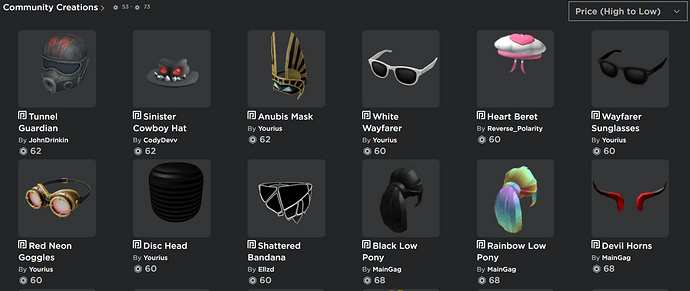
- Open the sorting drop-down menu and choose Price (Low to High).
- The catalog will re-sort, placing every item labeled Free at the very top of the grid.
- Click the item card and select the green Get button to permanently bind it to your inventory.
Beyond the marketplace catalog, promotional codes provide extra accessories. Entering official codes like SPIDERCOLA on the redemption page (roblox.com/redeem) deposits specific accessories directly into your dressing room inventory.
Recognizing Account Scams
Predatory scams target public servers with high traffic. Securing an account requires recognizing the social engineering tactics documented by ITLearner's gaming security report.
Fake Currency Giveaways
Chats frequently feature automated bot accounts pasting messages like "Free Robux giveaway! Click this link to claim!" Any link pointing outside the official domain is a credential harvester designed to steal passwords. Roblox never distributes free platform currency via external links.
Rigged Trades and External Links
Scammers often encourage players to trade rare in-game items, only to use system exploits where the victim's item transfers out while the incoming trade payload cancels out. Never accept unbalanced trades from unverified players.
Be equally wary when players invite you to leave the game and join Discord servers or run code snippets found on YouTube or GitHub. Those files frequently contain session-stealing malware.
Always activate Two-Factor Authentication (2FA) inside your security settings. If a player approaches you with a phishing link or offensive language, click their username and tap Report Abuse immediately.
Account Funding and Regional Options
Robux is optional for core gameplay. For cosmetic items, paid experiences like Welcome to Bloxburg, or VIP passes, prepaid cards manage spending without linking a credit card or bank account directly to the profile.
For accounts set to the Hong Kong region using HKD currency, an official Roblox Hong Kong gift card can be redeemed at roblox.com/redeem. This code deposits regional account credit to pay for Robux, game passes, or Roblox Premium without exposing personal financial details.
Frequently Asked Questions
Can my child bypass parental controls once set?
No, as long as an Account PIN is active under Settings > Security. A child cannot disable chat filters, alter content maturity sliders, or modify linked contact addresses without providing the 4-digit master PIN. Details are confirmed by Security.org.
Does Roblox have built-in daily screen time limits?
Roblox does not feature native daily play clocks. Parents who want hard play-session caps must configure operating-system tools such as Apple Screen Time, Google Family Link, or Microsoft Family Safety.
Why is my avatar stuck sitting in a chair on PC?
In most experiences, pressing the Spacebar forces the avatar to jump, disengaging it immediately from chairs and vehicle seats according to HTG George's keyboard guide.
Can Roblox Hong Kong gift cards be redeemed on accounts set to other regions?
No. Gift cards purchased for the Hong Kong storefront are region-locked to accounts configured for Hong Kong currency (HKD) and cannot be redeemed on profiles registered in other regions, as stated on NXPGame's product page.

Community
Comments