

If your Tantan app keeps crashing on startup on Android, resolve cache bugs, WebView conflicts, and permission lockouts with this proven step-by-step fix.
A startup crash drops you straight back to the home screen the second you tap the icon. The splash screen flickers for a fraction of a second, then vanishes without throwing an error code.
Tantan handles real-time matching, chat feeds, and 4 distinct VIP privileges. When the client fails before initializing its UI, your local session is stuck in a boot loop. Whether you run the international release or the mainland APK, startup failures point to clear system bottlenecks: memory allocation limits, OS rendering library conflicts, or corrupted local caches.

Tantan Coins (China)
Immediate Triage: Why Tantan Fails on Android Launch
During the first 500 milliseconds of launch, Android runs initialization plugins, verifies local cached tokens, calls system dependencies, and renders the visual container. If any step hits an unhandled NullPointerException or blocked resource, Android kills the process to prevent an OS freeze.
Most launch crashes fall into four categories: 1. Corrupted Temporary Cache: Stale session files or damaged image caches cause memory allocation faults during splash rendering. 2. Android System WebView Failures: The internal web rendering engine crashes while loading dynamic chat components or login screens. 3. Storage and RAM Exhaustion: Android's low-memory killer shuts down newly spawned processes when free storage drops below 10%. 4. Permission and Network Handshake Denials: Active VPNs, custom DNS profiles, or missing OS permissions trigger hard crash exits before the home feed loads.
| Action | Target Setting Path | Impact on Account Data | Resolution Target |
|---|---|---|---|
| Clear App Cache | Settings > Apps > Tantan > Storage > Clear Cache |
Preserves login session and user chats | Removes corrupted temporary binary fragments |
| Update WebView & Chrome | Device App Manager > Android System WebView |
None (System level) | Resolves rendering engine memory crashes |
| Wipe App Storage | Settings > Apps > Tantan > Storage > Clear Storage |
Resets local settings; requires re-login | Clears broken local database tables and invalid tokens |
| Free Storage Space | Settings > Storage > Free Up Space |
None | Keeps free disk capacity safely above 10% |
Execute these standard triage steps in sequence to isolate whether your crash stems from local app cache or device-level constraints.
If you regularly purchase Tantan Coins (China) to boost matches or send gifts, your balance remains safe. Coin balances and VIP tiers live on remote servers, not inside your phone's temporary local cache files. Wiping damaged local caches will not strip away your purchases.
Step 1: Perform a Hard Restart and Clear Corrupted Cache
A hardware reboot clears rogue background processes that lock system memory registers. Hold your physical power button for 30 seconds until the phone completes a full reboot cycle. Skip the on-screen restart prompt if the OS is lagging; holding the physical key forces system registers to reset completely.
Once restarted, address the corrupted runtime cache. Android stores temporary image thumbnails, swipe buffers, and temporary chat assets in a dedicated folder. These files frequently fragment or misalign after silent background updates.
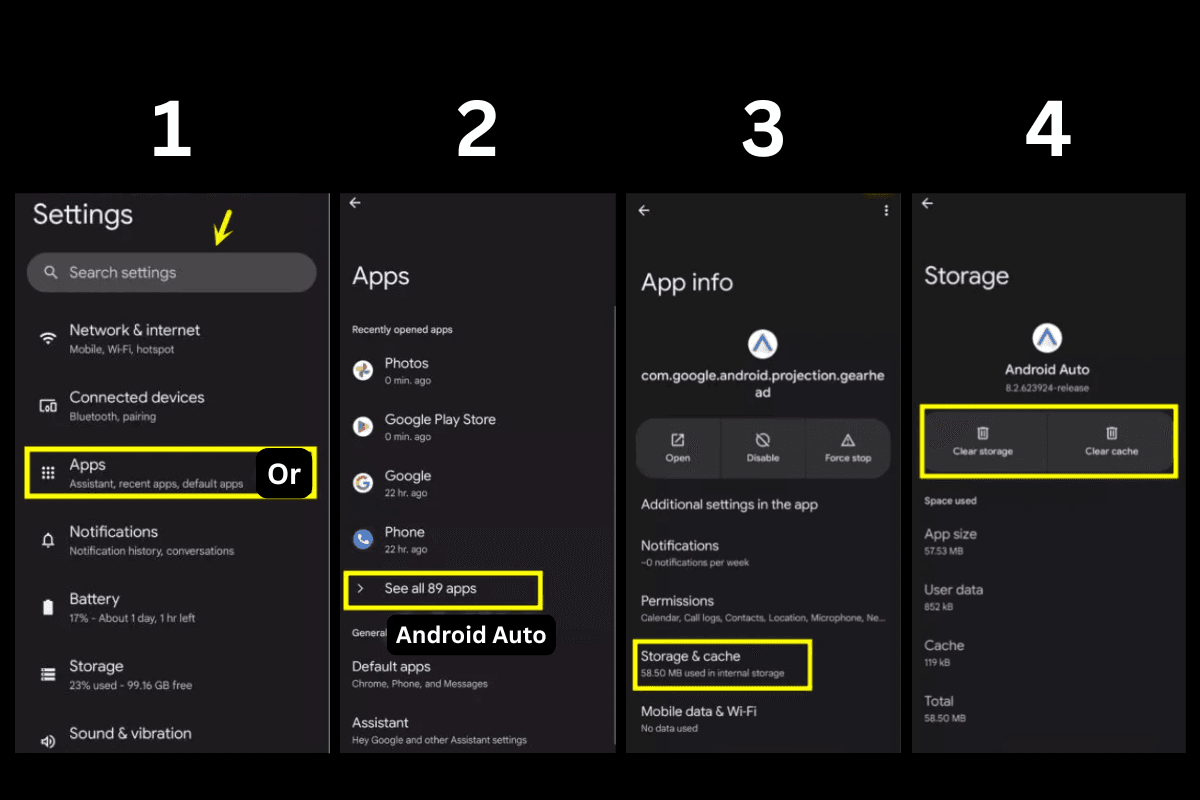
How to Clear Tantan Cache Safely
- Open Android Settings.
- Select Apps (or Apps & Notifications).
- Tap Tantan from the installed application list.
- Tap Storage & Cache.
- Tap Clear Cache.
Clearing cache only removes temporary files without touching login credentials, saved chats, or account preferences. Clearing app data wipes the local SQLite database entirely, returning the app to a clean state and requiring a re-login. Start with clearing the cache. If the startup crash persists, clear the storage data next.
Step 2: Fix Android System WebView and Google Services Conflicts
Tantan relies on hybrid web components to render banners, event pages, verification captchas, and purchase interfaces. On Android, these components depend directly on Android System WebView and the system browser rendering engine. When WebView updates contain bugs or become corrupted, any app embedding web views crashes during startup.
If Tantan loads a black screen for two seconds and closes immediately, WebView is the primary suspect. Devices running Android 7.0 (API level 24) or higher depend on these synchronized system libraries to process visual hooks.
[Tantan Launch Request]
          │
          ▼
[Android System WebView Engine] ──(Corrupted / Outdated)──► [Hard App Crash]
          │
    (Updated/Clean)
          ▼
[Main Feed & Match UI Renders]
Repairing WebView and Core Services
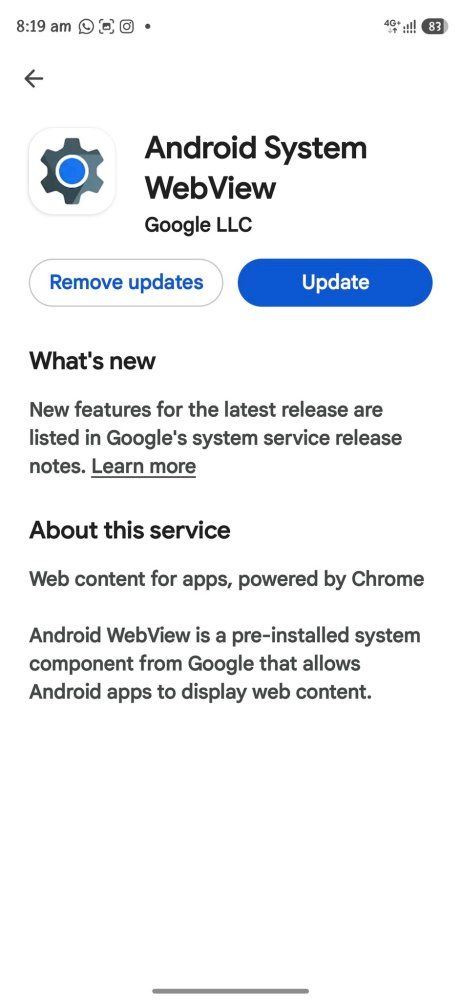
- Open your device's primary application store or system update manager.
- Search for Android System WebView and tap Update. If no update is available, tap Uninstall Updates via
Settings > Apps > Android System WebViewto revert to the factory-stable release. - Search for your default system browser (such as Chrome) and update it to the latest version so shared libraries remain synced.
- Navigate to
Settings > Apps > Google Play Services > Storageand tap Clear Cache. - Select Google Services Framework inside your system apps menu and clear its cache as well.
Resetting these shared framework caches eliminates background API communication timeouts that crash the app before drawing the first interface frame.
Step 3: Eliminate Network Blocks, VPNs, and Token Conflicts
Startup crashes often mask network protocol failures as system errors. When you launch Tantan, the app dispatches authentication handshakes to regional servers to validate your active session token, verify your location, and confirm VIP profile status. If these API calls hit connection drops or unexpected packet alteration, poorly handled network exceptions force the app to shut down.
This failure is common on the mainland build. Users searching for a tantan china apk crash android fix frequently find that background proxy tools, modified DNS profiles, or aggressive ad-blocking filters are interrupting endpoint validation.
- Disable VPNs and Proxies: Turn off active VPN tunnels, SOCKS5 proxies, and local VPN-based ad blockers before opening the app. Security profiles often intercept SSL handshakes, causing the authentication engine to panic.
- Reset Private DNS: Go to
Settings > Network & Internet > Private DNSand change the mode from a custom provider back to Automatic or Off. - Refresh Network Connections: Toggle Airplane Mode on for 10 seconds, then disable it to force cellular and Wi-Fi interfaces to acquire fresh gateway routing tables.
Whenever you buy Tantan coins online or renew membership perks, local session tokens must match server-side security hashes. If an app update introduces backward-incompatible token migrations while a VPN obscures routing, the local client crashes instantly. Disabling network filters lets the client synchronize properly.
Step 4: Storage Limits, Memory Overheads, and OEM Task Killers
Android requires free space on internal flash storage to create swap memory and write dynamic runtime caches. When internal storage drops below 10% free capacity, the operating system enters an emergency conservation state. In this mode, the low-memory killer (LMK) daemon terminates third-party apps the moment they allocate startup RAM.
Free Storage Capacity Status:
[████████████████░░░░] 85% Full -> Optimal App Launch Performance
[██████████████████░░] 92% Full -> High Risk of LMK Startup Process Termination
[████████████████████] 98% Full -> Critical: Aggressive Startup App Crashes
Check device storage under Settings > Storage. If available space is under 5 GB to 8 GB (or less than 10% of total disk space), delete unused offline media, clear messaging download caches, or uninstall dormant apps.
Overcoming Aggressive Manufacturer Battery Management
Android device skins—including Xiaomi MIUI/HyperOS, OnePlus OxygenOS, and Huawei EMUI—rely on aggressive background process management. These OEM skins kill secondary threads during app startup if battery optimization is active.
- Go to
Settings > Apps > Tantan. - Tap Battery or App Battery Usage.
- Change the setting from Optimized or Restricted to Unrestricted.
- Tap Permissions in the same menu and ensure required baseline permissions (such as Location and Storage/Photos) are active. Denying core operational permissions causes specific builds to encounter unhandled exceptions upon launch.
Diagnostic Matrix across Android Environments
Startup stability depends on your operating system build, system architecture, and hardware profile. Match your symptom to the platform matrix below:
| Platform / OS Environment | Minimum Specification | Primary Crash Symptom | Root Cause | Targeted Fix |
|---|---|---|---|---|
| Android 7.0 - 9.0 (Legacy) | API Level 24 | Immediate shutdown on splash screen | Outdated Google Play Services / TLS cipher mismatch | Update system framework libraries and WebView |
| Android 10.0 - 13.0 (Mainstream) | 3 GB RAM, 10% Free Storage | Instant drop to home screen | Storage exhaustion / Corrupted binary cache | Clear cache partition and free up >10% internal storage |
| Android 14.0 - 16.0+ (Modern) | 4 GB RAM, 64-bit OS | Blank black screen hang | Scoped storage permission blocks / 64-bit ABI conflict | Reset app permissions and toggle battery to Unrestricted |
| Custom OEM Skins (MIUI / ColorOS) | Any supported Android version | Crash after 1 second of launch | Aggressive background thread termination | Disable battery saver optimizations for Tantan |
Reviewing your device's specific OS tier ensures you apply the correct structural fix rather than guessing at generic solutions.
Deep Recovery: Safe Mode, Partition Wipes, and Clean Reinstallation
If cache wipes and network resets fail, escalate to deep recovery protocols. Third-party overlay tools, screen recorders, or custom system fonts can create runtime conflicts with Tantan's rendering pipeline.
Step-by-Step Recovery Protocol
Follow this structured sequence to eliminate software corruption without risking personal files.
| Escalation Stage | Execution Method | Diagnostic Purpose | Expected Result |
|---|---|---|---|
| 1. Android Safe Mode | Hold Power > Long-press 'Power Off' > Tap 'Safe Mode' | Disables all third-party apps to isolate background system conflicts | Identifies if another installed app is crashing Tantan's processes |
| 2. Clear System Cache Partition | Boot to Recovery Mode (Power + Vol Up) > Wipe Cache Partition | Deletes legacy temporary OS files left over from system upgrades | Restores system-wide background stability without deleting user data |
| 3. Clean Reinstall | Uninstall Tantan > Restart Phone > Install Latest Official Build | Removes corrupted local database tables and broken assets | Restores a completely clean binary foundation for the application |
Follow these escalation stages in exact order so you avoid performing unnecessary reinstalls unless lower-level methods fail.
Clean Reinstallation Workflow
Confirm you know your login credentials (registered mobile number or linked authentication method) before reinstalling. A clean installation wipes all local tables.
- Open
Settings > Apps > Tantan. - Tap Force Stop, then tap Storage > Clear Storage.
- Tap Uninstall and wait for package removal.
- Restart your phone to clear temporary memory buffers.
- Download and install the latest official release built for Android 7.0 or higher.
Log in with your verified credentials once reinstalled. If you previously completed a Tantan China coin recharge to access VIP search filters or direct messaging perks, your purchased inventory repopulates automatically as soon as the client establishes its server connection.
Frequently Asked Questions
Why does the Tantan app keep crashing on startup on Android?
Tantan crashes on launch primarily due to corrupted cache files, unhandled permission conflicts, outdated Android System WebView, or insufficient free storage. Aggressive OEM battery optimization settings can also kill the app immediately upon launch.
Will clearing the Tantan app cache delete my account or messages?
No, clearing the app cache only deletes temporary performance files and will not erase your account, messages, or login session. However, choosing Clear Data or Clear Storage will log you out and require re-authentication.
What Android version is required to run the Tantan app in 2026?
Tantan requires Android 7.0 (API level 24) or higher to install and operate properly. Running older Android versions will cause compatibility errors and frequent startup crashes.
How does Android System WebView cause Tantan to close immediately?
Android System WebView handles embedded web content and login screens within Android apps. If WebView contains a bug or outdated code, any app attempting to load web components will crash instantly.
Can custom DNS, proxies, or VPNs cause Tantan to crash on launch?
Yes, Tantan performs server and session authentication checks during initial startup. Active VPNs, ad blockers, or custom DNS configurations that block or delay these network endpoints can cause the app to fail silently and crash.
How much free storage space is needed to keep Android apps from crashing?
You should maintain at least 10% of total storage capacity free on your Android device. When storage drops below this threshold, Android restricts app caching and forcefully shuts down launching applications.
What should I do if Tantan hangs on a black screen when opened?
A blank black screen indicates that the app failed during graphic rendering or plugin initialization. Updating Android System WebView, disabling battery optimization, and clearing app cache will resolve the freeze.
Final Troubleshooting Verdict for Android Launch Stability
Fixing startup crashes on Tantan does not require root access or a factory reset. In most cases, the issue traces back to a broken cache file, an outdated WebView library, or local storage dropping below the 10% limit.
Start with a 30-second hardware reboot, clear the Tantan cache in device settings, and verify that Android System WebView is updated. Turn off active VPN proxies and switch battery optimization to Unrestricted to allow authentication handshakes through cleanly. Following these steps restores app stability without jeopardizing account data or purchased coins.

Community
Comments