

Blocked by a regional storefront mismatch? Learn how to switch Apple ID region to Austria, clear account blockers, and redeem your euro gift card right now.
An Austrian Apple Gift Card will not redeem on an account set to the United Kingdom, the United States, or Germany. Apple enforces strict regional locks: if your code was issued in Austria, your App Store storefront must be set to Austria.
A VPN cannot fix this. Apple determines your storefront by your Apple Account billing profile, not your network IP address.
To access your balance, you have two options: change your current account's country setting to Austria, or create a dedicated Austrian secondary account. Below is the step-by-step process to clear all account blockers, update your settings, and redeem the code.

Apple Gift Card (AT)
- -10%
Apple Gift Card 2 EURO AT
Buy NowUSD 2.40
USD 2.64
- -10%
Apple Gift Card 5 EURO AT
Buy NowUSD 6.01
USD 6.61
- -10%
Apple Gift Card 10 EURO AT
Buy NowUSD 12.02
USD 13.22
- -10%
Apple Gift Card 20 EURO AT
Buy NowUSD 24.03
USD 26.43
- -10%
Apple Gift Card 50 EURO AT
Buy NowUSD 60.08
USD 66.09
- -10%
Apple Gift Card 100 EURO AT
Buy NowUSD 120.16
USD 132.17
- -10%
Apple Gift Card 200 EURO AT
Buy NowUSD 240.32
USD 264.35
- -10%
Apple Gift Card 250 EURO AT
Buy NowUSD 300.39
USD 330.43
Why Your Austrian Gift Card Fails on Foreign Apple Accounts
Apple gift cards work only in the country where they were purchased. An Austrian card is denominated in euros and strictly valid on the Austrian storefront. Entering the code into a non-Austrian account returns an immediate error stating that the code must be redeemed in the Austrian storefront.
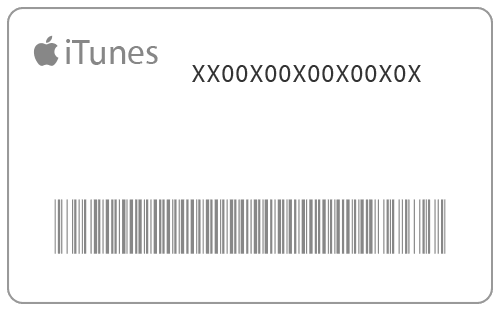
Ensure you enter the actual redemption code rather than the serial number. Apple Gift Card redemption codes are 16-character alphanumeric strings that typically start with "X". Physical cards and purchase receipts frequently display inventory serial numbers starting with prefixes like GCA, PBH, or EPY. Entering an inventory serial number will always return an invalid code error.
Once redeemed, store credit binds permanently to that specific Apple ID. Apple does not transfer credit between accounts or across regions.
Pre-Flight Checklist: Clearing Account Blockers
Apple locks your region settings if your profile has active ties to your current storefront. If you attempt to switch countries while carrying store credit or active memberships, the option will be greyed out or fail during checkout.
You must satisfy four strict prerequisites before the system lets you select Austria.
| Prerequisite | Requirement | Action Required |
|---|---|---|
| Account Balance | Exactly 0.00 | Spend down balance or request Apple Support to forfeit leftover micro-cents. |
| Active Subscriptions | None active | Cancel Apple Music, iCloud+, TV+, and wait for billing cycles to expire. |
| Family Sharing | Not enrolled | Leave current family group or disband your existing group completely. |
| Billing Address | Austrian format | Enter a valid Austrian street name, postal code, and city during setup. |
Every requirement on this checklist must be cleared before the operating system permits a storefront update.
First, your account balance must be exactly zero. Even a leftover balance of 0.02 EUR or USD prevents the region switch. You can zero out your balance by purchasing an item priced higher than your remaining credit (billing the difference to a secondary payment method) or by asking Apple Support to forfeit the remaining cents.
Second, cancel all active subscriptions, including Apple Music, iCloud+, and third-party app passes. You must wait until the current billing cycle ends before the system unlocks the region picker.
Third, leave any active Family Sharing group. Family groups bind all participating members to the organizer's region.
If you plan to buy an Apple Gift Card (AT) once your profile is clear, calculate your purchase amount in advance to avoid leaving leftover cents on an account you might move again later.
Step-by-Step: How to Switch Apple ID Region to Austria on iOS
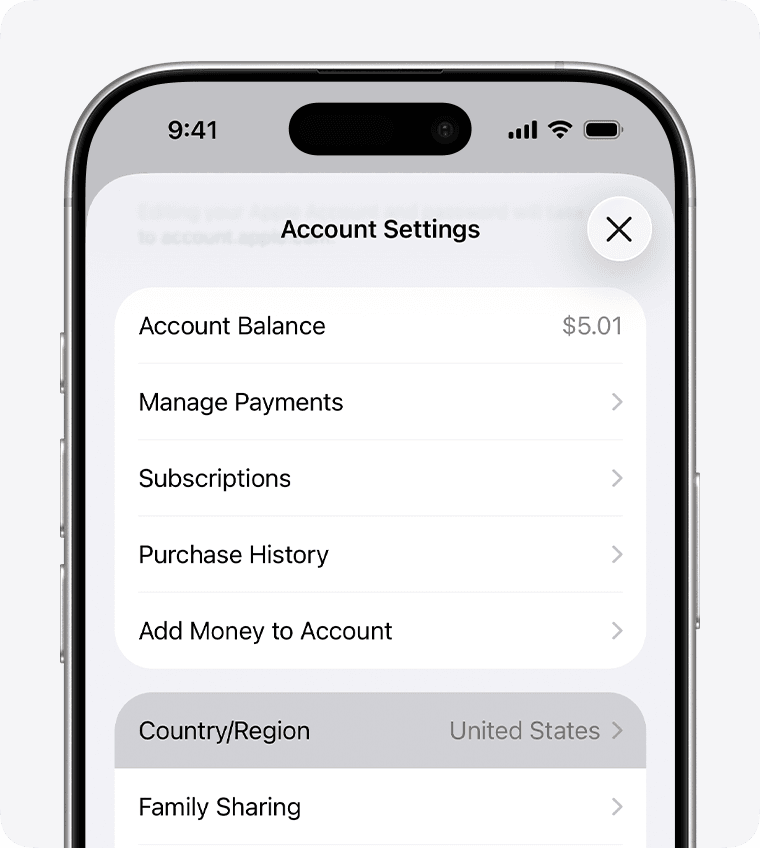
Updating your storefront on an iPhone or iPad is the most reliable method. Follow these steps:
- Open the Settings app on your iOS or iPadOS device.
- Tap your Name / Apple Account banner at the top of the screen.
- Select Media & Purchases, then tap View Account. Authenticate with Face ID, Touch ID, or your passcode if prompted.
- Tap Country/Region.
- Tap Change Country or Region.
- Scroll down and select Austria (Österreich).
- Review the Terms & Conditions, then tap Agree in the top right corner. Tap Agree again to confirm.
- Under payment methods, select None (if available), or enter your Austrian billing address details.
- Complete the required billing fields with a valid Austrian street address, city, and 4-digit postal code (such as 1010 for Vienna).
- Tap Next to apply your changes.
The App Store will immediately switch to the Austrian catalog.
Changing Country Settings Across Different Apple Platforms
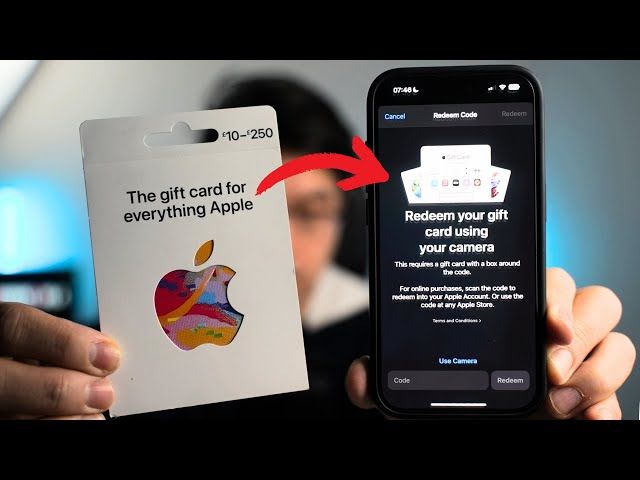
You can also update your storefront on macOS or through a web browser. Note that payment verification requirements vary by platform.
| Platform | Configuration Route | Payment Method Handling | Catalog Refresh Speed |
|---|---|---|---|
| iOS / iPadOS | Settings > Media & Purchases > View Account > Country/Region | Offers "None" if no debts/active subs exist | Instantaneous within App Store app |
| macOS | App Store > Account Settings > Change Country or Region | Allows manual address input directly | Requires App Store restart to reflect catalog |
| Web Browser | account.apple.com > Personal Information > Country/Region | May require valid regional payment card upfront | Updates backend ID; devices require sign-out |
iOS remains the easiest method to switch App Store region to Austria without running into payment card verification prompts.
macOS Instructions
Open the App Store on your Mac. Click your name or profile picture in the bottom-left corner, then click Account Settings at the top right. Under Account Summary, click Change Country or Region. Select Austria, agree to the terms, enter an Austrian billing address, and save.
Web Browser Instructions
Sign in to account.apple.com. Open Personal Information, select Country/Region, and choose Austria. Enter the required address details. Note that browser-based changes frequently enforce payment card checks more strictly than iOS menus.
How to Redeem Your Austrian Apple Gift Card Code
Once your storefront is set to Austria, your gift card code will activate without regional errors. Official Apple Gift Cards do not expire and carry no maintenance fees. Redeemed credit can be spent on apps, games, in-app purchases, and subscriptions like iCloud+ or Apple Music.
To redeem your 16-character code:
- Open the App Store.
- Tap your account icon in the top right corner.
- Tap Redeem Gift Card or Code.
- Select Use Camera to scan the voucher, or tap Enter Code Manually.
- Enter the 16-character code starting with "X".
- Tap Redeem in the top right corner.
The voucher amount instantly credits to your Apple Account balance in euros. If you need balance for future purchases or recurring subscriptions, getting Austrian Apple Gift Card digital codes provides a direct balance reload.
Troubleshooting Traps: Stuck Balances, Subscriptions, and Missing Payment Options
If the migration fails, check for these common account conflicts:
| Problem Encountered | Underlying Cause | Verified Solution |
|---|---|---|
| "None" payment option missing | Outstanding balance, pending pre-orders, or unverified region profile | Clear all unpaid orders; try updating via iOS Settings rather than a browser. |
| Balance below minimum store price | Account has 0.01 - 0.98 remaining | Contact Apple Support to forfeit the micro-balance manually. |
| Apple Music tracks greyed out | Songs tied to origin country catalog | Cloud tracks disappear across regions; resubscribe in Austrian store to rebuild. |
| App updates fail after switch | App was purchased under old country ID | Keep app installed as-is, or delete and reinstall under the Austrian storefront. |
The Missing "None" Option
If the payment screen requires a credit card and does not show "None", the account likely has an unpaid balance or a pending transaction. Apple mandates a valid payment method on accounts with outstanding charges. Settle all pending invoices to restore the "None" option.
Apple ID Country Change with Active Subscriptions
Active Apple Music subscriptions must be canceled and allowed to run out completely before switching regions. In addition, downloaded tracks tied to your previous catalog will be removed. You will need to resubscribe in the Austrian store at local euro pricing and redownload your music.
Existing Apps and Updates
Apps downloaded under your previous country remain on your device. However, if an app is unavailable in the Austrian App Store catalog, it will not receive future updates.
To bypass these migration hurdles, redeeming an Apple Gift Card (AT) balance on a clean, dedicated Austrian profile is often faster than migrating an established primary account.
Switching Existing Account vs Creating a Dedicated Austrian Apple ID
Migrating your primary Apple ID is rarely the most practical choice if that account holds years of iCloud backups, family memberships, and active subscriptions.
Creating a secondary Apple ID dedicated exclusively to Austria avoids these restrictions.
iOS supports using one Apple ID for primary device features (iCloud, Photos, Messages) while using a different Apple ID for Media & Purchases (App Store, Music, TV).
How to Set Up a Dedicated Secondary Austrian Account:
- Open a web browser and create a new Apple ID at
account.apple.comusing a secondary email address. - Select Austria as your country during registration.
- On your iPhone, open Settings > tap your Name > select Media & Purchases.
- Tap Sign Out (this signs out of media services only, leaving your iCloud data untouched).
- Tap Media & Purchases and select Not [Your Name]? to log in with your Austrian Apple ID.
- Open the App Store and redeem your Austrian gift card.
This method bypasses the zero-balance rule, keeps your iCloud+ storage active on your main account, and preserves your primary media library.
FAQ
Why is my Austrian Apple Gift Card giving a region mismatch error?
Apple gift cards are locked to the country where they were issued. If your Apple ID is set to another country, the App Store will reject the code until your storefront matches the card's origin.
Can I switch my Apple ID region to Austria with money left in my account?
No. Your account balance must be exactly zero before changing regions. You must spend the balance or contact Apple Support to remove leftover cents.
Does using a VPN allow me to redeem an Austrian gift card?
No. Storefront access depends entirely on your Apple ID account configuration, not your network IP address.
What happens to my active subscriptions when switching regions?
You must cancel active subscriptions and wait for the billing cycle to expire before switching. Once the region is updated, you can resubscribe at Austrian euro rates.
Will I lose access to previously downloaded apps after switching to Austria?
Installed apps stay on your device and work normally. However, you will not receive updates for apps that are not offered in the Austrian App Store.
Is it better to change my existing Apple ID region or create a new Austrian account?
Creating a secondary Austrian Apple ID is cleaner if you have active subscriptions or leftover balance. You can sign in to the secondary account for Media & Purchases without affecting your main iCloud data.
Where do I find the 16-character code on my Apple Gift Card?
The redemption code is a 16-character alphanumeric string that usually starts with "X", found on the back of physical cards or in digital confirmation emails. It is separate from inventory serial numbers starting with GCA, PBH, or EPY.
The Final Call on Austrian Storefront Switching
If your primary Apple ID has no active subscriptions and zero store credit, switching your storefront to Austria in iOS Settings takes less than three minutes and lets you redeem euro gift cards immediately.
If you have active iCloud plans, Apple Music libraries, or Family Sharing memberships, do not reset your primary account. Sign out of Media & Purchases, log in with a dedicated Austrian Apple ID, and redeem your code there. You get full access to Austrian purchases while preserving your existing Apple setup.

Community
Comments