

Stop frame drops and thermal throttling in Kingshot. Master your render scale, shadow settings, and display refresh rate for peak mobile combat frames.
Nothing ruins a coordinated strike faster than a screen freeze. You spend weeks building troops, gathering iron from level 7 nodes, and timing march speeds down to the second. Then, your alliance collides with an enemy fortress, and the display turns into a slideshow. Inputs drop, the camera locks, and reinforcements arrive late.
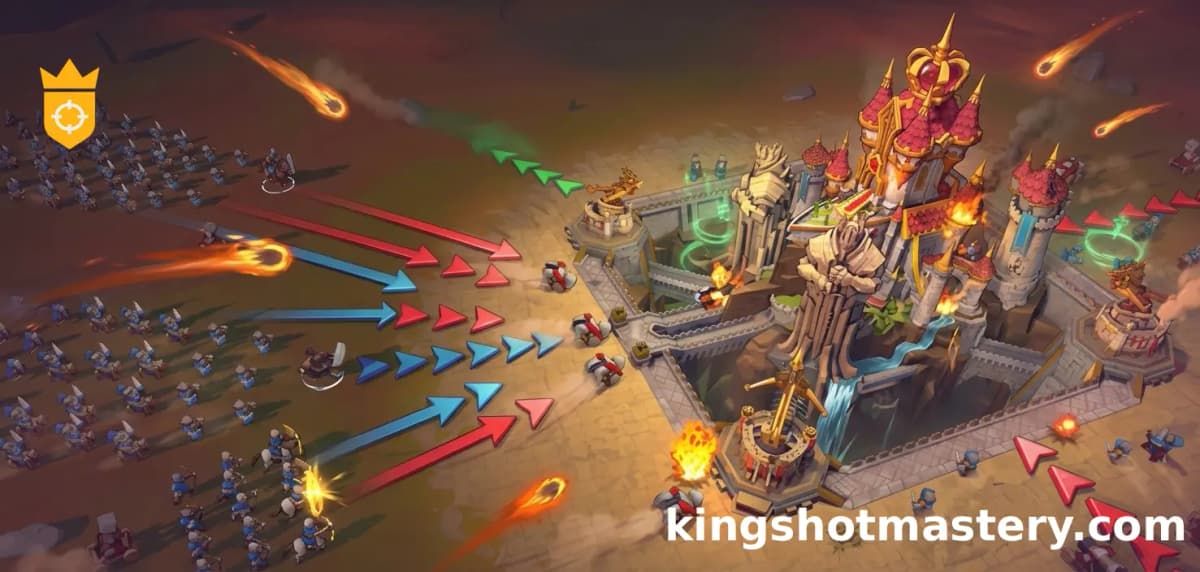
Century Games built Kingshot around massive real-time army collisions. Simulating settlement progression alongside multi-alliance skirmishes pushes mobile hardware to its limits. Running stock visual settings heats up your phone and throttles the processor in under twenty minutes.
Finding the best graphics settings means identifying which visual sliders drain hardware without giving you a tactical advantage. Here is how to configure your device for locked frame rates, clean visual reads, and stable thermals.

Kingshot
- -70%
Standard ALL-IN-ONE 6(0.99$+2.99$+4.99$+9.99$+19.99$+49.99$+【99.99$*3】)
Buy NowUSD 349.93
USD 594.88
- -70%
Standard ALL-IN-ONE 5(0.99$+2.99$+4.99$+9.99$+19.99$+49.99$+99.99$)
Buy NowUSD 170.06
USD 289.10
- -70%
Standard ALL-IN-ONE 4(0.99$+1.99$+4.99$+9.99$+【19.99$*5】+99.99$)
Buy NowUSD 196.15
USD 333.45
- -70%
Standard ALL-IN-ONE 3(1.99$+4.99$+9.99$+19.99$+49.99$)
Buy NowUSD 78.23
USD 133.00
- -70%
Standard ALL-IN-ONE 2(4.99$+9.99$+19.99$+49.99$+99.99$)
Buy NowUSD 166.41
USD 282.90
- -70%
KingShot 4.99+9.99+19.99+49.99+99.99*4
Buy NowUSD 431.80
USD 734.05
- -70%
Any $999.99 Pack
Buy NowUSD 899.75
USD 1529.58
- -70%
Any $499.99 Pack
Buy NowUSD 449.87
USD 764.78
- -70%
Elysium Quest Resource Bundle Full Set (0.99*1+2.99*1+4.99*1+9.99*1+19.99*1+49.99*1+99.99*3)
Buy NowUSD 349.93
USD 594.88
- -70%
Wavebound Voyage Bundle Full Set(4.99*5+9.99*5+19.99*5+49.99*5)
Buy NowUSD 382.22
USD 649.77
- -70%

50000 Diamonds (Double for the First Deposit)
Buy NowUSD 89.97
USD 152.94
- -70%

25000 Diamonds (Double for the First Deposit)
Buy NowUSD 44.98
USD 76.46
- -70%
Any $99.99 Pack
Buy NowUSD 89.97
USD 152.94
- -70%
Any $49.99 Pack
Buy NowUSD 44.98
USD 76.46
Why Your Device Stutters During Massive Castle Battles
Base management and turn-based suppress stages put almost no load on your GPU. Even an entry-level phone handles those scenes at high frame rates.
The bottleneck hits on kingdom day 54 with the first Castle Battle, a recurring 18-day war cycle. These events concentrate hundreds of active players into continuous brawls over central turrets and the main throne.
When multiple alliances launch rallies at once, the engine calculates four separate attributes—attack, lethality, defense, and health—across infantry, cavalry, and archers simultaneously. It merges flat additive stats with multiplicative buffs while rendering distinct unit sprites, spell overlays, and march paths.
+-------------------------------------------------------------------------+
|                    KINGSHOT CLIENT RENDERING PIPELINE                   |
|                                                                         |
|  [Server Combat Tick] -> [4-Stat Calculation (Atk/Def/Leth/HP)]        |
|                                  │                                      |
|                                  ▼                                      |
|  [Frustum Culling Check] -> [Shadow Cascade Generation]                 |
|                                  │                                      |
|                                  ▼                                      |
|  [UI/War Mail Composition] -> [Target Render Window (8.33ms / 16.67ms)] |
|                                  │                                      |
|                                  ▼                                      |
|            [Display Refresh (60Hz / 120Hz Output Pacing)]               |
+-------------------------------------------------------------------------+
This calculation load creates immediate CPU and GPU contention. Maxed-out graphics sliders force the phone to calculate dynamic shadows and unit models within an impossible frame window, causing touch latency, frame pacing spikes, and thermal throttling.
The August 24, 2026 update optimized war mail rendering and streamlined battlefield menus, but client-side settings still overwhelm hardware during Blizzard Brawl and Duel of the Elites.
Kingshot Low Graphics vs High Graphics: The Real Visual Trade-Off
High graphics presets in Kingshot actively work against you. They enable post-processing, screen-space bloom, dynamic lights, and soft shadow filtering. These effects look nice in an empty town, but they obscure the battlefield during crowded alliance rallies.
Lowering visual settings provides immediate tactical clarity. Cutting atmospheric haze and lighting passes makes marching columns, target flags, and hero icons stand out clearly, while higher frame rates keep camera panning responsive.
The following table outlines how each major graphic slider impacts hardware load and visual clarity in the 2026 client build.
| Setting Slider | High Graphics Load | Recommended Setting | Tactical & Frame Impact |
|---|---|---|---|
| Frame Rate Target | Low GPU load, high power draw | Maximum / High (60 or 120) | Cuts input latency; critical for smooth camera pans. |
| Render Quality | Very High (native resolution) | Medium / Standard | Lowers internal pixel count while keeping text sharp. |
| Shadow Quality | Extreme (multi-cascade passes) | Low / Disabled | Eliminates GPU-intensive shadow enclosing calculations. |
| Visual Effects (VFX) | High (particle saturation) | Low | Clears spell and combat clutter during multi-rally fights. |
| UI Animations | Moderate (CPU animation loops) | Off / Static | Speeds up menu transitions and map overlay updates. |
| Map Detail Density | High (wilderness foliage/props) | Medium | Keeps resource nodes visible while cutting draw calls. |
Running standard render quality alongside disabled shadows cuts GPU power draw by roughly 35% without losing map clarity.
Prioritize frame rate over raw resolution. Stripping post-processing and shadows frees up GPU headroom, ensuring your phone maintains stable frame delivery throughout multi-alliance clashes.
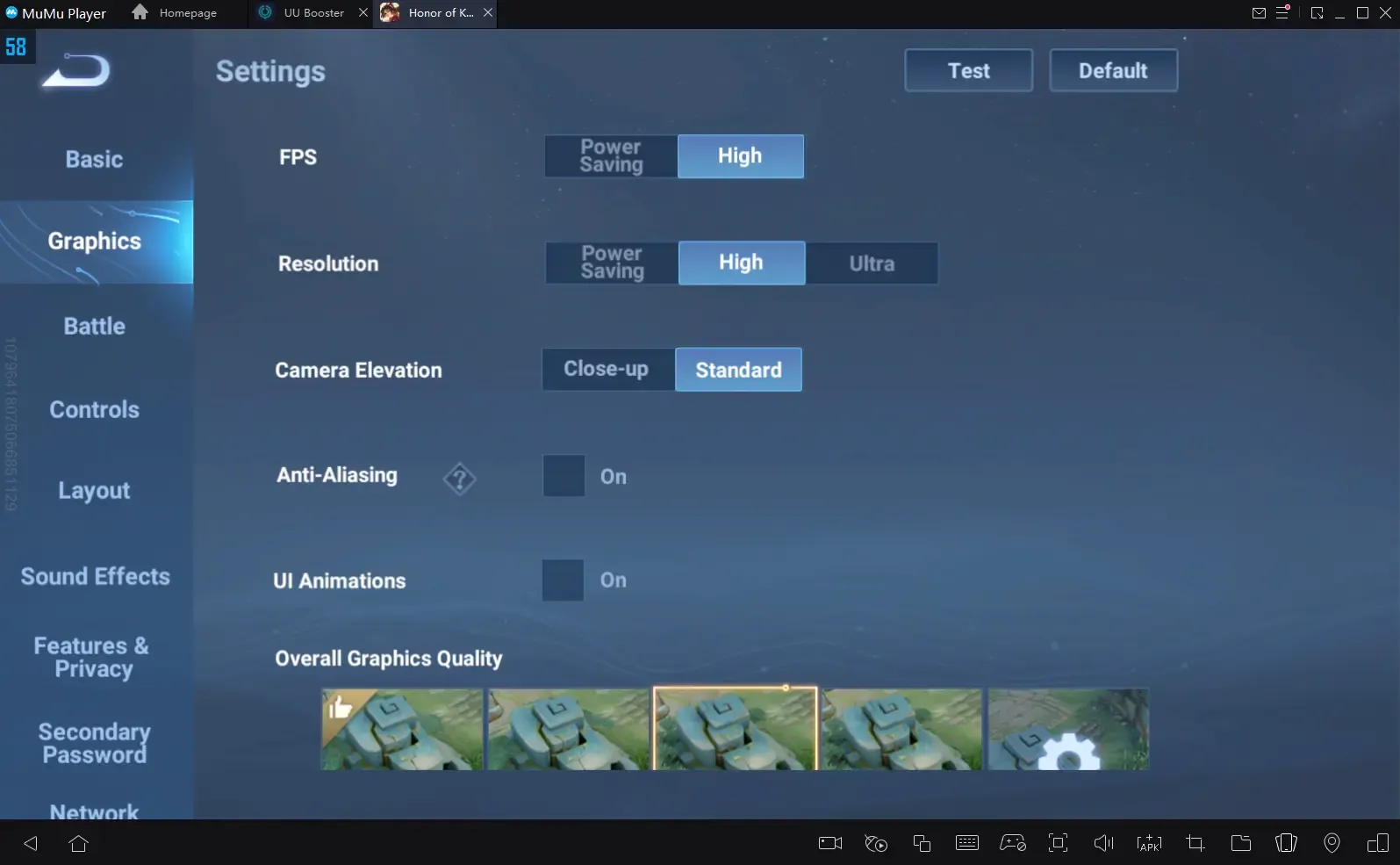
Kingshot Max FPS Slider Configuration for High-Refresh Displays
A 60 Hz display gives your phone a 16.67 millisecond window to render each frame. On a 120 Hz display, that target window shrinks to 8.33 milliseconds.
60 Hz Target:  |============= 16.67 ms =============|
120 Hz Target: |====== 8.33 ms ======|
Missing that 8.33 ms deadline by even two milliseconds causes dropped frames and stutter. On 144 Hz screens, the budget drops to 6.94 milliseconds.
A frequent issue occurs when capping the game at 60 FPS while leaving the phone display locked at 120 Hz. Because the rendering speed and refresh rate are out of sync, the screen repeats alternating frames unevenly. This produces micro-stutter even if an FPS counter reads a steady 60 FPS. If you cap Kingshot at 60 FPS, set your operating system refresh rate to 60 Hz.
For unlocked display profiles, match frame targets to your hardware:
- 60 Hz Displays: Set the in-game frame rate slider to 60 FPS. Keep visual sliders on medium to maintain the 16.67 ms delivery pace.
- 120 Hz Displays: Set the in-game frame rate to Maximum. If your device supports dynamic refresh scaling, target a locked 117 FPS limit to prevent frame tearing and buffer backpressure.
- 144 Hz Displays: Target a 141 FPS cap using external display tuning tools, or drop the screen refresh mode to 120 Hz for consistent frame pacing.
Android 15 defaults game refresh rates to 60 Hz to conserve battery. To run Kingshot at 90 FPS or 120 FPS, confirm the app has dynamic display switching enabled in your OS display settings. Otherwise, the system forces 60 Hz regardless of in-game choices.
On Apple devices with ProMotion displays, touch input polling can fall out of sync with high-refresh display cycles under heavy load. Setting graphic quality to Standard keeps touch input queues responsive.
Kingshot Shadows and Render Distance Settings Breakdown
Shadow calculation is the heaviest GPU bottleneck in Kingshot. Generating real-time shadows for hundreds of march units requires multiple passes over dynamic geometry.
Mobile engines compute shadows using cascading shadow maps. The engine builds bounding spheres around every troop and building, projecting light angles onto texture buffers. During alliance wars, this creates massive GPU overhead.
[Dynamic Light Source]
       │
       ▼
[Calculate Enclosing Sphere] -> [Multi-Cascade Map Generation] -> [GPU Memory Buffer]
       │
       ▼ (High Overhead per Marching Troop)
[Frustum Culling Check]      -> [Shadow Pass Blending]
Setting shadows to Low or Off eliminates dynamic caster passes and replaces them with simple static contact points beneath structures. This single change slashes GPU overhead without affecting tactical readability.
Render distance controls how much wilderness terrain loads during map pans. High settings force your device to store distant level 7 resource nodes, enemy castles, and monster camps in active memory, causing hitching during fast map sweeps.
Keep render distance at Medium. This preserves line-of-sight on immediate targets and march paths without clogging your memory buffer with background terrain.
Kingshot Battery Saver Graphics Profile for Long Sessions
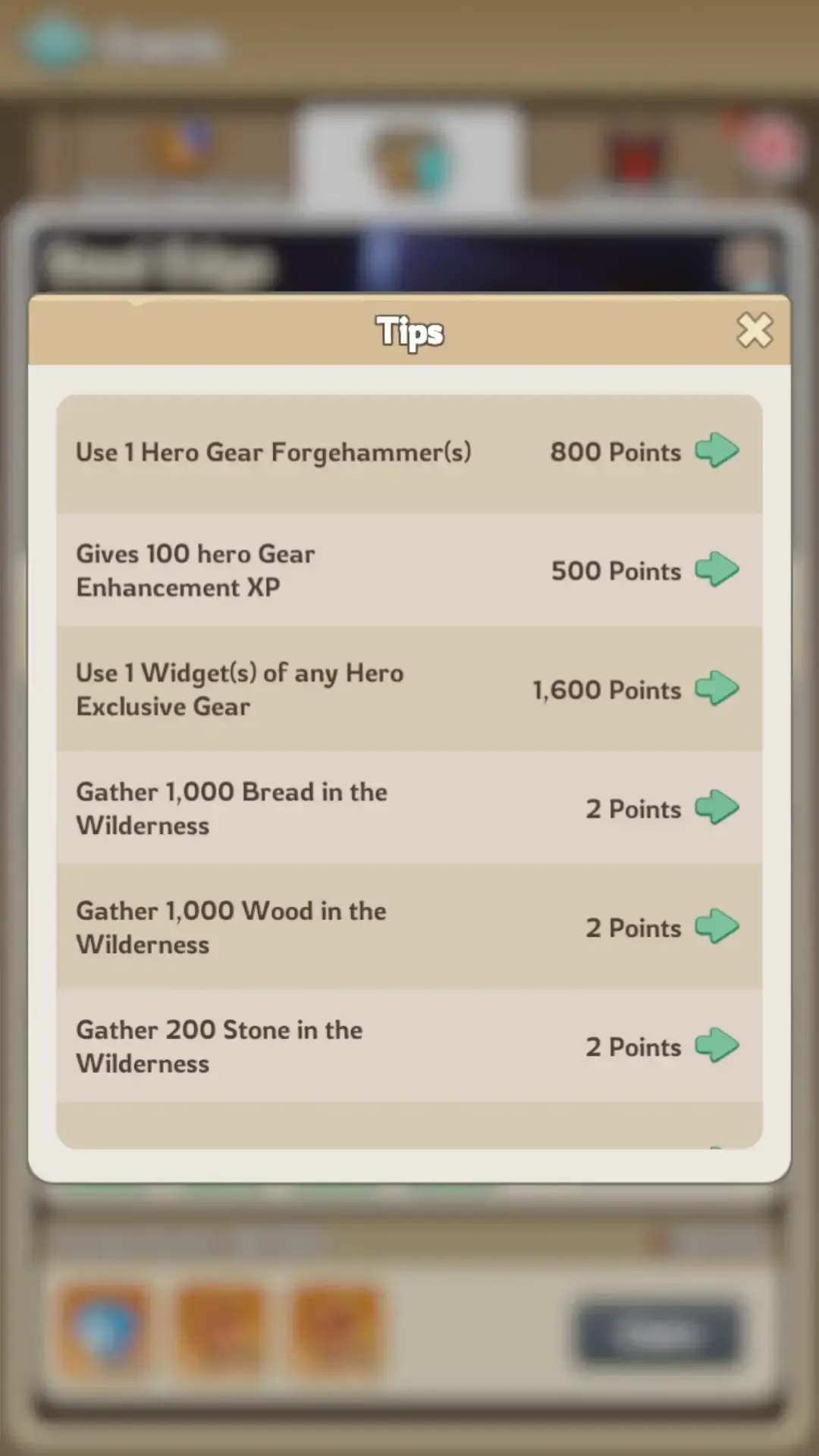
Long events like the 2-day Steel Edge require hours of gathering wilderness materials, upgrading hero gear with forgehammers, and managing enhancement XP.
Pushing high visual settings during marathon sessions triggers thermal throttling. Once the phone chassis heats up, the OS drops processor clock speeds to protect hardware, cutting frame rates from 60 FPS down to 20 FPS.
Use this balanced profile to maintain stability during extended play:
- Overall Graphics Quality: Smooth / Low
- Frame Rate: High (60 FPS locked)
- Resolution / Render Scale: Standard (720p/1080p equivalent depending on screen)
- Shadows: Off
- Dynamic Lighting: Off
- Screen Shake & Combat VFX: Disabled
This profile minimizes power consumption and thermal buildup. If you need extra resources or speed-ups to complete military upgrades during competitive server stages, you can secure your Kingshot gem packs to keep your town development moving forward.
Step-by-Step Kingshot Stutter and Lag Fix
Follow these steps in order to eliminate stutter and input delay:
- Lower Shadow Quality to Off: Open the Graphics settings menu and set shadows to Low or Off for an immediate boost to baseline frame rates.
- Adjust Resolution Before Dropping FPS: Reduce Render Quality to Standard before touching the frame rate target to preserve responsive touch inputs.
- Synchronize OS Display Refresh Rate: Match your phone screen refresh rate to your in-game frame cap (e.g., 60 Hz for 60 FPS) to prevent uneven frame pacing.
- Clear Game Cache and Asset Buffers: Large updates like the August 24, 2026 patch can leave orphaned shaders in storage. Clear the app cache in device settings to force a clean shader rebuild.
- Disable OS Game Bar Background Recorders: Turn off background recording and instant replay buffers in your operating system tools to reclaim memory bandwidth.
- Remove Thick Protective Cases: Take off bulky phone cases during war events to improve passive cooling and prevent thermal clock drops.
Platform Performance: Android vs iOS vs PC Emulation
Android offers granular refresh rate controls, iOS delivers steady frame pacing until heat builds up, and PC emulators bypass mobile thermal limitations entirely by using desktop hardware.
The following table compares how Kingshot performs across each major platform in 2026.
| Platform Category | Target Framerate | Primary Bottleneck | Recommended Configuration Profile |
|---|---|---|---|
| Android (Snapdragon / Dimensity) | 60 - 120 FPS | Thermal throttling & OS refresh capping | Low Shadows, Standard Resolution, 60/120Hz display sync. |
| iOS (A-Series / M-Series) | 60 - 120 FPS | Thermal throttling & touch event queue sync | Standard Quality, High FPS, Dynamic ProMotion enabled. |
| PC Emulation (DirectX / OpenGL) | 120+ FPS Locked | Single-core CPU scheduling overhead | Max Graphics, High Render Distance, Unlimited FPS cap. |
Desktop emulators avoid mobile thermal limits, but mobile devices need conservative shadow and effect settings for smooth play.
While PC emulation provides rock-solid frame rates for macro-managing settlements, mobile play requires conservative visual settings to withstand rally combat without choking.
Managing VIP Uptime and Hardware Performance for Major Events
Smooth frame rates guarantee responsive troop micro-management, while active VIP buffs provide the raw stats needed to win engagements.
VIP perks grant critical bonuses to march speed, attack values, and gathering speed. In Kingshot, VIP privileges require continuous activation using Gems. Letting VIP status expire before an 18-day Castle Battle or Steel Edge gathering push puts your army at a major numerical disadvantage.
The table below outlines the cost and duration options for activating VIP benefits in Kingshot.
| VIP Activation Duration | Gem Cost | Strategic Efficiency Breakdown |
|---|---|---|
| 24 Hours Activation | 1,000 Gems | Short-term emergency boost; highest cost per day of uptime. |
| 7 Days Activation | 3,000 Gems | Medium-term activation; moderate gem efficiency for weekly events. |
| 30 Days Activation | 10,000 Gems | Maximum value; lowest daily cost for continuous combat and gathering perks. |
Activating 30 days of VIP uptime costs 10,000 Gems, saving you 20,000 Gems compared to buying daily 24-hour passes over the same period.
Plan gem expenditures around major kingdom milestones. To maintain constant production bonuses and keep VIP combat stats active during war windows, you can stock up on Kingshot gems so perks never lapse mid-fight.
Pairing an active VIP buff with an optimized 60 FPS graphics profile ensures your commands register instantly without thermal drops. To prep your settlement infrastructure ahead of war cycles, you can buy Kingshot resource bundles and focus your attention on the battlefield.
FAQ
Why is my frame rate dropping during large Kingshot alliance battles?
Massive rally and garrison clashes render hundreds of simultaneous units, which spikes GPU and CPU load. Lowering visual effects and disabling heavy animations prevents severe frame drops.
Should I lower FPS or visual quality first to fix overheating?
Always lower graphical quality and post-processing effects before reducing your FPS target. Maintaining a higher frame rate ensures smooth touch inputs while lowering graphics cools down your GPU.
How does display refresh rate affect mobile smoothness?
A 120 Hz display requires frame delivery every 8.33 milliseconds compared to 16.67 milliseconds on 60 Hz screens. If your device cannot sustain the high rate, frame pacing mismatches cause visible stutter.
Does Android 15 restrict mobile game frame rates?
Android 15 defaults display output for games to 60 Hz to conserve battery life. Games must specifically request 90 Hz or 120 Hz modes using dynamic frame rate APIs to unlock higher FPS.
Can thermal throttling reduce my FPS while playing?
Yes, excessive heat from prolonged high-performance rendering forces the device chipset to throttle clocks to protect hardware. Using balanced visual presets and removing thick phone cases helps sustain stable frames.
Does playing Kingshot on a PC emulator improve performance?
Emulating Kingshot on a PC utilizes desktop hardware to avoid mobile thermal throttling and battery drain. This provides locked frame rates and smoother panning across large kingdom maps.
The Final Verdict on Kingshot Mobile Performance
Maxing out graphics sliders in Kingshot leads directly to input lag and thermal throttling. The cosmetic gain of soft shadows and dynamic lighting does not compensate for frame drops during alliance battles.
For the best mix of clarity and responsiveness, set Frame Rate to High or Maximum, turn Shadows Off, and keep Render Quality at Standard. Align your operating system display refresh rate with your frame cap to eliminate micro-stutter.
This configuration keeps your device cool and touch response instantaneous. When the next Castle Battle begins, your game will remain fluid from the first rally to the final throne push.

Community
Comments