

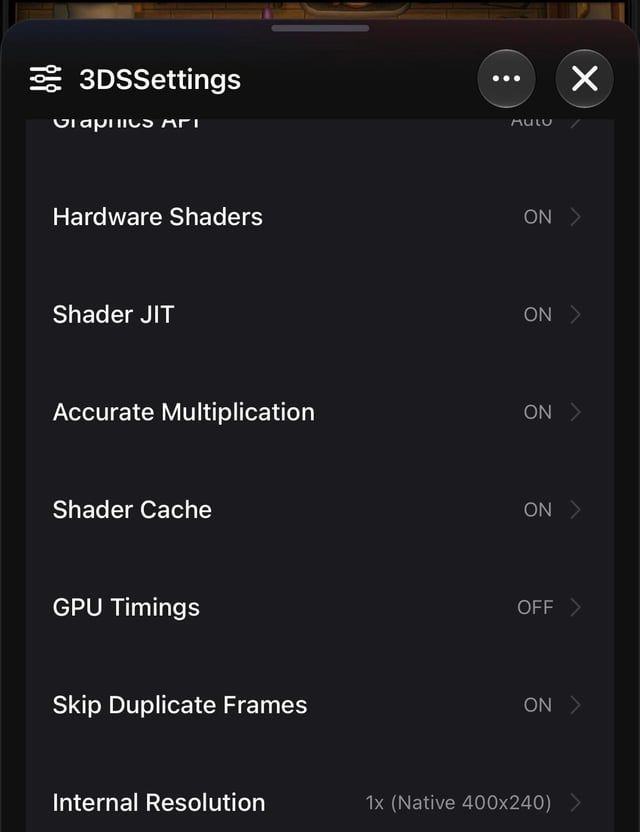
To run Tap4Fun's strategy MMO smoothly without crippling battery drain or thermal throttling, your device must meet the baseline operating system requirement of Android 8.0 or higher (Uptodown). In-engine frame stability depends heavily on keeping rendering resolution tied to native display specs and maintaining active shader caching, as recompiling assets on the fly generates immediate frame drops during massive alliance clashes.

Age of Apes
- -70%
Age of Apes Top Up 1,000 + 50 Coin
Buy NowUSD 9.69
USD 16.47
- -70%
Age of Apes Top Up 2,000 + 100 Coin
Buy NowUSD 19.39
USD 32.96
- -70%
Age of Apes Top Up 5,000 + 250 Coin
Buy NowUSD 48.48
USD 82.42
- -70%
Age of Apes Top Up 10,000 + 500 Coin
Buy NowUSD 96.97
USD 164.85
- -70%
Age of Apes Top Up 20,000 + 1,000 Coin
Buy NowUSD 193.96
USD 329.73
- -70%
Age of Apes Top Up Basic Monthly Card
Buy NowUSD 9.69
USD 16.47
- -70%
Age of Apes Top Up Advanced Monthly Card
Buy NowUSD 48.48
USD 82.42
Mobile Baseline: System Requirements and Thermal Load
Before adjusting graphics profiles, check your operating system. The Age of Apes installation package mandates Android 8.0 or higher to function properly (Uptodown). Attempting to run client builds on deprecated versions leads to immediate compatibility stalls.
Mobile hardware throttles hard under thermal stress. Base building in the wasteland rarely strains a modern chipset, but troop marches and dense Gang conflicts scale up draw calls rapidly. If your phone gets hot to the touch within ten minutes of logging in, running uncapped frame targets or forced high resolutions forces your processor to step down clocks, ruining smooth combat responsiveness.
| Profile Name | Target Objective | Core Graphics Strategy | Hardware Impact | Interface View |
|---|---|---|---|---|
| Battery Saver Profile | Extended gathering sessions & base management | Native resolution (1x), shader cache enabled | Minimal thermal output, lowest power draw (Uptodown) | 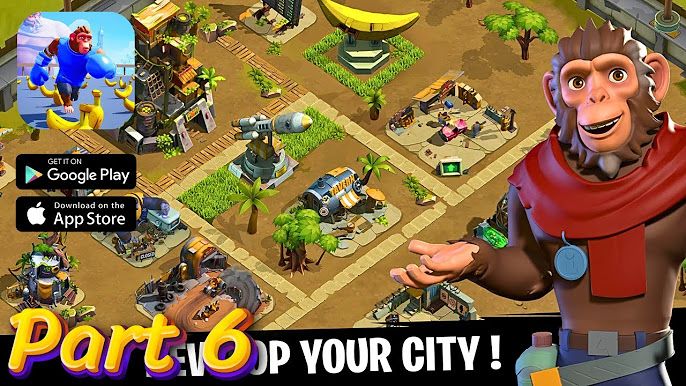 |
| Competitive Combat Profile | Gang warfare clarity & responsive controls | Native rendering, anisotropic filtering enabled | Stable high FPS with moderate processor load (Ryujinx Graphics Documentation) |  |
Configuring Graphics Profiles for Extended Play
Balancing your settings requires deciding whether you are actively fighting over wasteland territory or cycling upgrades in camp. The ideal approach uses two distinct profiles.
The Battery Saver Profile
When managing resource stations or checking building timers, prioritize device endurance:
- Lock rendering output to your device's native resolution rather than upscaling.
- Keep standard visual filtering active without forced multi-sample enhancements.
- Verify that your background Android operating system is updated past the Android 8.0 minimum (Uptodown).
Cutting visual processing overhead directly reduces current draw from the battery. Your device stays cool, preventing internal clock throttling during routine logistical checks.
The Competitive Combat Profile
When your Gang rallies against rivals, missing movement cues due to stutter can cost real troops. Upgrading your wasteland army and buying packs using Age of Apes Discs gives you tactical power, but your graphics pipeline still needs to deliver stable frames when the fighting starts.
- Maintain baseline display resolution to preserve frame stability during heavy animations.
- Enable texture filtering enhancements to clarify ground paths and outpost borders.
- Ensure your rendering backend does not bypass cached compiled assets.
PC Emulator Performance: Shader Caches and Upscaling
Many competitive players migrate to PC emulators to manage massive Gang operations across expansive wasteland views. However, running an Android title inside a virtualization wrapper introduces unique rendering bottlenecks.
Documentation on graphics enhancement pipelines confirms that shader caching directly reduces gameplay stuttering by preventing repeated shader compilation (Ryujinx Graphics Documentation). When an asset or special visual effect renders for the first time, your system compiles the shader and saves it to local disk storage. By caching shaders, the emulator reuses them dynamically during live gameplay instead of recompiling them repeatedly. Turning this feature off creates brutal micro-stutters every time a new troop type or attack animation appears on screen.
| Enhancement Feature | Rendering Function | Visual Result | Hardware Cost | Source Link |
|---|---|---|---|---|
| Shader Cache | Stores pre-processed shaders on local disk | Eliminates recurring micro-stutters during combat | Near-zero overhead; reduces repeated CPU compilation | Ryujinx Documentation |
| Resolution Upscaling (2x, 3x, 4x) | Multiplies internal rendering target beyond native display | Sharper edges, reduced pixelation across wasteland assets | Drastic GPU load increase per multiplier tier | Ryujinx Documentation |
| Anisotropic Filtering | Sharpens angled textures viewed at steep perspectives | Clean roads, walls, and terrain details viewed from distance | Modest GPU memory bandwidth usage | Ryujinx Documentation |
Pushing internal render resolution beyond native values improves visual crispness, offering multipliers like 2x, 3x, or 4x (Ryujinx Graphics Documentation). While this removes pixelation on high-resolution PC monitors, it exponentially increases GPU fill rate requirements. Reserve 3x and 4x multipliers for static screenshots.
For environmental visual clarity, anisotropic filtering sharpens textures viewed from oblique angles and long distances (Ryujinx Graphics Documentation). When looking across outpost walls, angled roads, and desert terrain from an isometric viewpoint, anisotropic filtering keeps ground textures crisp without dragging down your frame rate.
Troubleshooting Stutter and Boot Crashes
If you experience severe hitching despite decent hardware, your local shader storage is the prime suspect. While shader caches provide smooth runtime rendering, they can occasionally become corrupted during improper shutdowns or driver conflicts.
Graphics engineering documentation notes that corrupted shader caches trigger boot crashes when the engine compiles shaders on startup (Ryujinx Graphics Documentation). If your client begins crashing immediately during the game load screen or experiences catastrophic visual glitches upon opening, locate and purge the specific title's shader cache directory. Clearing the corrupted cache forces the emulator to rebuild shaders cleanly on subsequent launches, restoring frame pacing stability without requiring a full game reinstallation.
Keep your mobile OS at Android 8.0 or above, leave shader caching enabled on PC emulation environments, and avoid extreme resolution multipliers if smooth troop management is your top priority.
Follow NXPGame for more Age of Apes news~

Community
Comments