

Dominate ranked matches with the best MLBB control settings 2026. Stop misclicking minions, lock enemy carries, and optimize your HUD for instant skill aiming.
You lose teamfights when your hero decides a full-health siege minion is more important than an enemy marksman standing in front of you. You die when auto-pursuit marches you into point-blank stun range because you tapped basic attack while out of range. Default toggles work fine in lower ranks, but past Epic and into Mythical Glory, they actively throw games.
Touchscreen MOBAs punish messy inputs. Stripping away automated assists and setting up a dedicated layout frees up your mechanical reaction time. Here is the targeting, camera, and interface setup calibrated for high-tier play in 2026.

Mobile Legends Bang Bang(RUSSIA)PIN
- -70%
2371+474 Diamonds
Buy NowUSD 54.65
USD 92.91
- -70%
1581 + 300 Diamonds
Buy NowUSD 36.47
USD 62.00
- -70%
1500 + 224 Diamonds
Buy NowUSD 27.30
USD 46.41
- -70%
791 + 142 Diamonds
Buy NowUSD 18.19
USD 30.92
- -70%
633 + 101 Diamonds
Buy NowUSD 14.58
USD 24.78
- -70%
250 + 25 Diamonds
Buy NowUSD 5.77
USD 9.81
- -70%
239 + 25 Diamonds
Buy NowUSD 5.48
USD 9.31
- -70%
150 + 15 Diamonds
Buy NowUSD 3.45
USD 5.86
- -70%
120 + 12 Diamonds
Buy NowUSD 2.73
USD 4.65
- -70%
80 + 8 Diamonds
Buy NowUSD 1.83
USD 3.10
- -70%
50 + 5 Diamonds
Buy NowUSD 1.15
USD 1.95
Default Touch Controls vs. Competitive Targeting
Mobile Legends defaults to Basic Targeting, giving you a single primary attack button that selects targets algorithmically. When an enemy tank rushes your tower with a wave of cannon creeps, Basic Targeting picks whichever valid target sits closest. In practice, you end up hitting the meatshield or a minion instead of peeling or finishing a low carry.
Switching to the mlbb advanced targeting layout splits your input into three dedicated commands: a central basic attack button flanked by smaller minion and turret buttons.
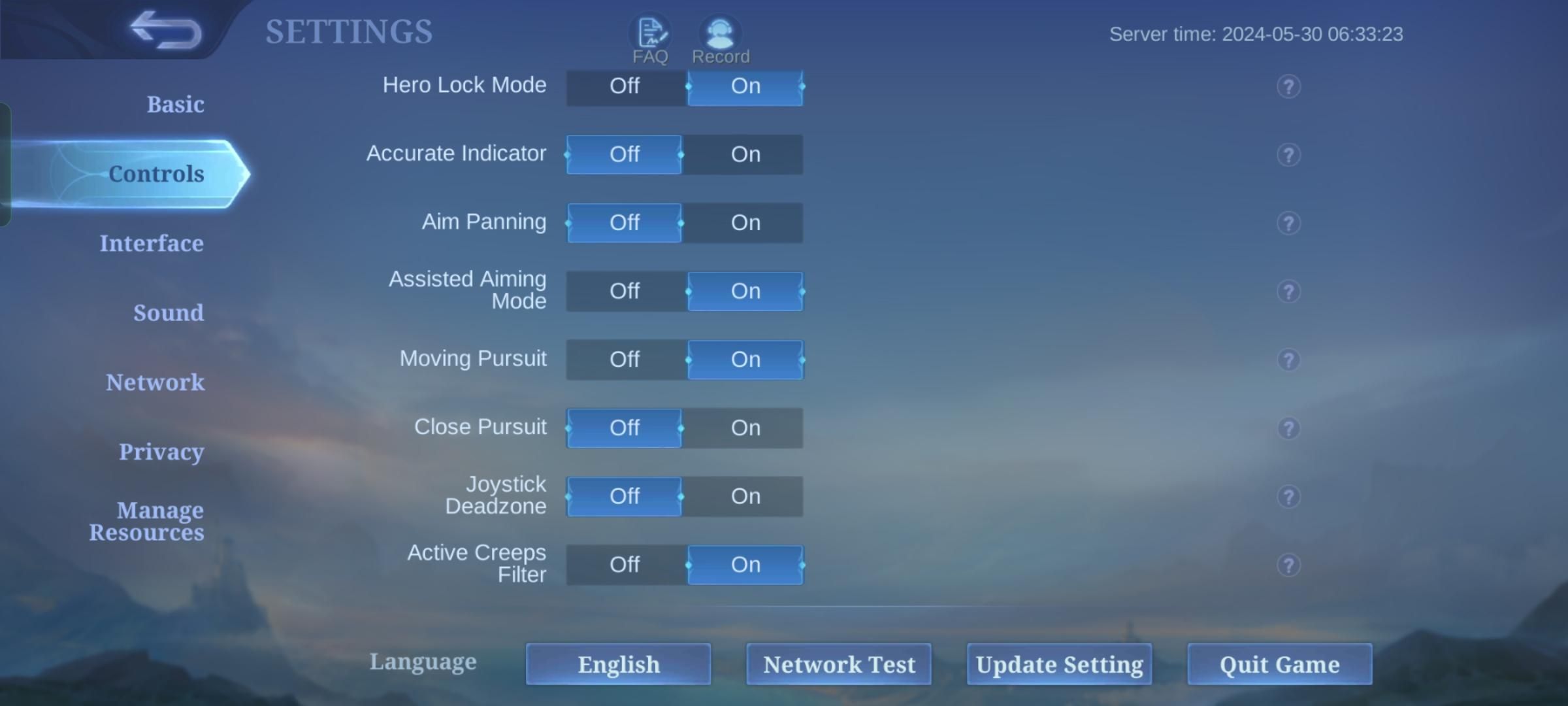
This split prevents misdirected attacks at critical moments. During an aggressive dive, pressing the hero attack button stops you from hitting turret plating. When defending an inhibitor under pressure, pressing the minion attack button keeps your marksman clearing waves rather than walking forward to trade hits with a tank.
Target Priority works alongside your chosen targeting method. The menu offers two viable options: Lowest HP and Closest Target.
| Targeting Parameter | Lowest HP Setting | Closest Enemy Setting |
|---|---|---|
| Core Focus | Absolute lowest health pool | Physical distance from hero |
| Recommended Roles | Marksman, Assassin, Mage | Tank, Fighter, Melee Initiator |
| Strengths | Executes retreating carries automatically | Fast reaction against direct ambushers |
| Vulnerabilities | Can bait you into out-of-position diving | Wastes heavy cooldowns on frontline meatshields |
| Dive Execution | Ignores healthy tanks under towers | Strikes nearest target regardless of carry presence |
Targeting rules establish baseline priority, but manual overrides always dictate tournament-tier teamfights.
Lowest HP is essential for assassins, mages, and marksmen. It routes burst damage directly into squishy carries rather than wasting cooldowns on a high-defense roamer. Closest Enemy fits frontline brawlers and initiators whose job is to lock down whatever target enters their direct perimeter.
Hero Lock Mode and the Smart Targeting Conflict
Crowded 5v5 teamfights pack heroes, summoned lords, minion waves, and particle effects into tight screen space. Even with Advanced Targeting on, leaving target acquisition to the engine during a five-man clash leads to missed kills.
Turn on hero lock mode mlbb settings. As soon as an enemy enters vision, their character portrait appears in an arc next to your attack button. Tapping a portrait locks a red indicator onto that specific hero, directing your single-target spells and basic attacks past everyone else.
A frequent trap in ranked is pairing Hero Lock with Skill Smart Targeting and Basic Attack Smart Targeting. Do not run them together.
Smart Targeting actively fights portrait locks. When Skill Smart Targeting is active, dragging an ability creates a dynamic directional line that overrides your selected portrait lock. In mid-fight scrambles, your thumb naturally drags toward visible movement, clearing your lock on the backline carry and dumping spells straight into the nearest roamer. Disable both Smart Targeting toggles. Use portrait locking and manual directional casting instead.
To practice portrait locks against new heroes in custom drills, pick up a Mobile Legends PIN for Russian accounts to unlock roster options.
Mobile Legends Camera Sensitivity Settings and Vision Control
Default camera height restricts your field of view, hiding jungle flanking routes and objective pits behind the edge of your screen.
Set Camera Height to High. Raising the camera pulls the perspective back, revealing incoming roamer rotations toward the Turtle or Lord pit seconds earlier.
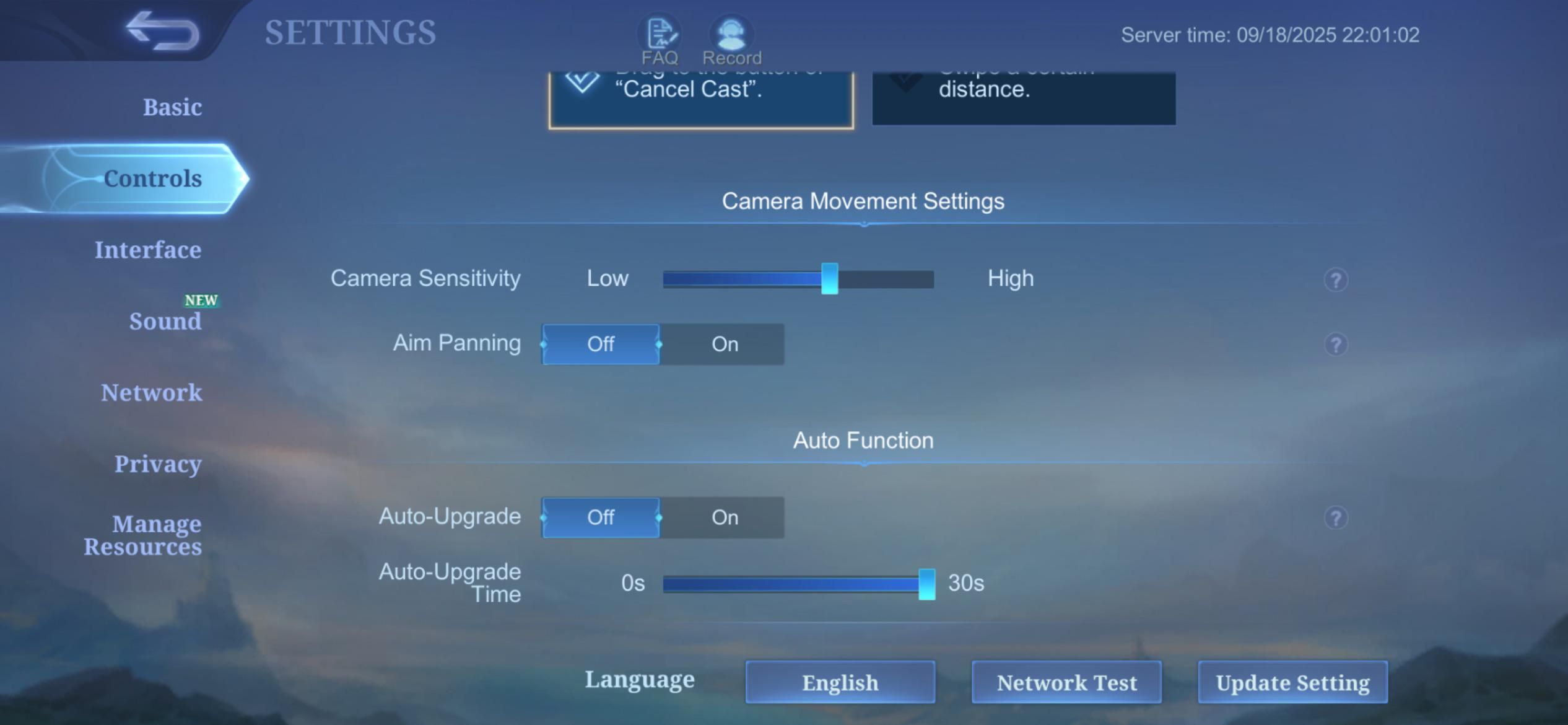
Next, tune your mobile legends camera sensitivity settings. Checking bushes and scouting the fog of war requires sliding your index finger or thumb across the minimap or empty screen space. Sluggish default camera sensitivity forces multiple swipes just to inspect a lane entrance.
Push camera dragging sensitivity slightly above the middle baseline, between notches 3 and 5. This lets you flick once across the screen to check a corridor without overshooting into out-of-bounds map space.
For heroes with long-range skillshots—like Selena, Novaria, or Xavier—the mlbb skill aiming panning layout is mandatory. Turn on Aim Panning in the controls menu. When you drag a skillshot reticle toward the edge of your display, the camera slides forward along the cast vector, exposing the target zone before the projectile arrives.
Turn Aim Panning off for short-range melee fighters. On Chou, Paquito, or Fredrinn, sudden camera shifts during short dash combos cause disorientation and break spacing.
The Best HUD Layout Mobile Legends 2026: UI and Button Placement
Default button layouts favor thumb rest positions rather than input speed, placing critical survival buttons too close to primary commands. The best hud layout mobile legends 2026 rebuilds the interface around immediate reaction times.
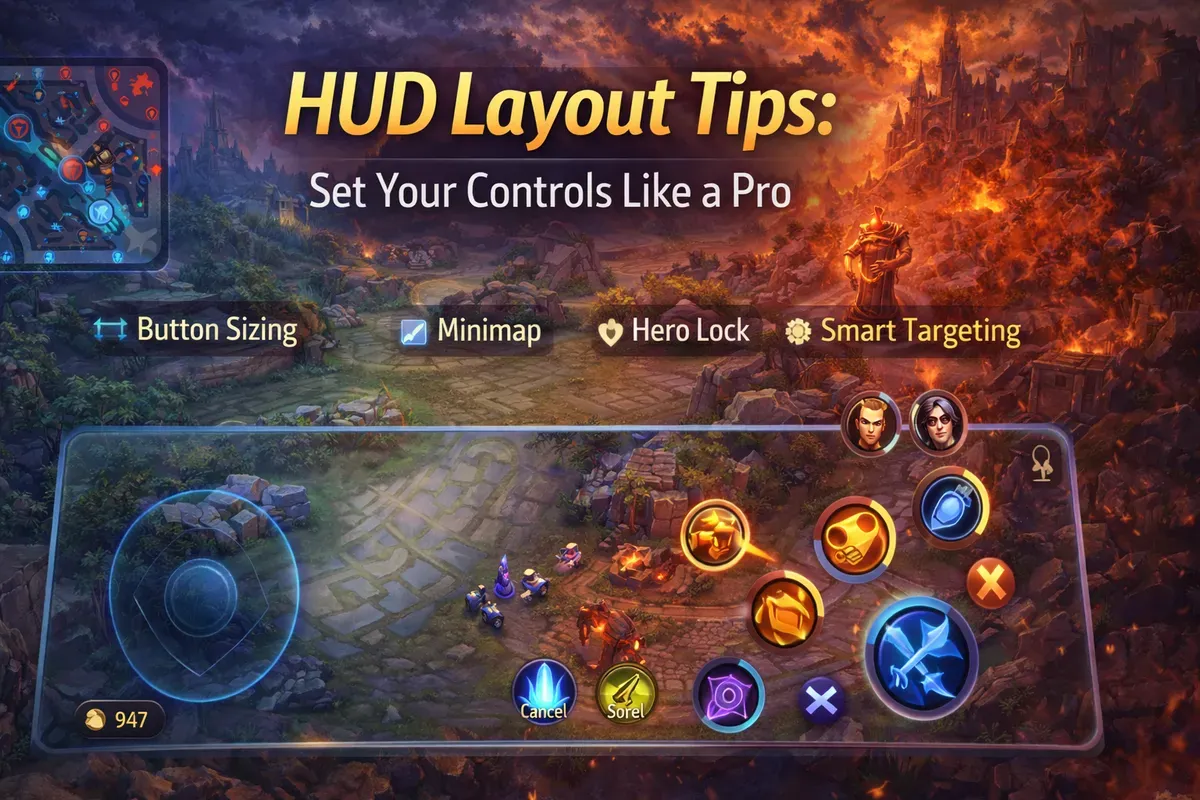
Scale the minimap to roughly 120% in the custom UI editor. A larger minimap keeps enemy rotations in your peripheral vision while you focus on wave management.
Next, drop Battlefield UI Opacity to between 10% and 20%. Making menus, scoreboards, and health frame borders transparent lets you track enemy movement and skillshots through screen elements that otherwise block vision.
Adjust your critical survival keys:
- Enlarge the Battle Spell button by 15% to 20%. You cannot afford to misclick Retribution during a Lord contest or miss Flicker while breaking a gank.
- Shift active equipment buttons (Wind of Nature, Winter Truncheon, Conceal) closer to the primary attack cluster. Reaching into the middle of the screen to activate an invulnerability active costs valuable tenths of a second.
- Turn on HP Shift and HP Lock. HP Shift centers enemy health bars and objective smite thresholds cleanly over target models, helping junglers time Retribution to the exact health threshold.
If you want to test new heroes and layouts in custom games, a cheap MLBB diamond recharge gives you quick access to hero passes and resources.
Eliminating Movement Errors and Automation
Automated assists designed for beginners break mechanical precision in high ranks.
Fix your movement joystick to Fixed Position. A dynamic joystick generates wherever your left thumb lands. If your hand shifts during an extended fight, your baseline thumb position drifts, leading to stalled inputs or missed directional changes. A fixed joystick builds consistent physical muscle memory.
Disable auto-pursuit entirely by switching off both Moving Pursuit and Close Pursuit. When pursuit stays on, entering an attack command while outside attack range forces your hero to walk forward toward the target automatically.
That behavior ruins kiting for marksmen and mages. Instead of holding position or stepping backward between hits, your hero steps into enemy range. Turning pursuit off makes your character obey your movement joystick exclusively.
Turn off Auto Skill Level-Up and Auto Build. Ranked games demand dynamic itemization. When facing heavy physical burst, you may need Dreadnaught Armor or Steel Legplates on your opening recall instead of your planned rush item. Auto-purchase systems spend gold blindly. Manual skill progression is just as critical when you need to hold a skill point or max a defensive skill first.
Frame Rates, Input Latency, and Display Tiers
Touchscreen polling rates depend directly on frame output. Higher frame rates cut input latency, registering your taps and directional drags with less delay.
Drop graphics quality to keep frame rates locked. Shadows, high-detail water effects, and screen shake add visual noise and cause thermal throttling during teamfights. A mid-fight frame drop turns a fast Flicker combo into a dropped command.
Frame rate targets match hardware tiers directly:
| Setting Profile | Frame Rate Range | Hardware Classification | Competitive Evaluation |
|---|---|---|---|
| Low | 30 FPS | Low-end entry devices | Unplayable for ranked; heavy input lag |
| Medium | 30 - 40 FPS | Budget phones (2GB-3GB RAM) | Prone to severe stutter during teamfights |
| High | 60 FPS | Mid-range chipsets | Baseline standard for competitive play |
| Ultra | 90 FPS | Upper mid-range and modern flagships | Smooth tracking, sharp input response |
| Ultra (Max) | 115 - 120 FPS | Premium flagships (120Hz panels) | Absolute esports tournament standard |
Locking in a rock-solid 60 to 120 FPS profile eliminates touch latency and keeps inputs crisp during 5v5 teamfights.
If your phone supports 90 or 120 FPS, turn it on. Set visual details to Smooth or Medium so the frame rate holds steady when multiple ultimates trigger at once.
Network Latency Management and Hardware Differences
Stable ping is just as critical as your touch settings. Turn on Network Speed Display in the settings menu to monitor your connection latency in real time.
Competitive play requires ping under 60ms. Once ping crosses 80ms, ability queuing desyncs and directional flick casts register along delayed angles.
| Latency Bracket | Casting Delay Impact | Control Responsiveness |
|---|---|---|
| Sub-30ms | Instantaneous registration | Perfect for fast-flick combos (Gusion, Chou, Fanny) |
| 30ms - 60ms | Imperceptible delay | Competitive baseline; all inputs execute accurately |
| 61ms - 80ms | Slight casting delay | Playable, but fast reaction cancels become inconsistent |
| 81ms - 100ms | Noticeable input lag | Hard to hit skillshots on moving targets |
| 101ms - 150ms+ | Severe latency threshold | Abilities misfire; retreat kiting becomes impossible |
Monitoring ping thresholds ensures you never initiate high-risk ranked matches on an unstable connection.
Device size also changes how your controls should sit. On narrow smartphones, thumbs obscure a significant chunk of the center screen. Scaling down non-combat buttons like chat and shop icons clears necessary combat space.
On wide phones and mini-tablets, reach is the issue. Reaching toward the default bottom-center forces thumb strain. Use the custom layout editor to slide the attack button cluster and combat spells closer to the bottom-right edge to maintain an unstrained grip.
For updating passes and skins across accounts, an instant Mobile Legends Russia top up provides an easy path to maintain your cosmetic roster.
Step-by-Step Calibration: Tournament-Grade Profile
Apply these settings before your next ranked session:
- Basic Settings Setup: Set Graphics to Smooth or Medium. Turn off Shadows, Screen Shake, and Outline. Set Frame Rate to High (60 FPS), Ultra (90 FPS), or Ultra Max (120 FPS). Set Camera Height to High.
- Targeting Method: Select Advanced Targeting Method. Set Targeting Priority to Lowest HP (switch to Closest Target only on melee tanks and frontline brawlers).
- Locking Mechanisms: Toggle Hero Lock Mode to ON. Turn Skill Smart Targeting and Basic Attack Smart Targeting to OFF.
- Vision and Panning: Set Aim Panning to ON for ranged skillshot heroes. Set Camera Sensitivity to notch 3, 4, or 5.
- Movement Controls: Set Movement Joystick to Fixed Position. Turn off Moving Pursuit and Close Pursuit.
- Interface Calibration: Open Custom UI. Scale Minimap to 120%. Set Battlefield UI Opacity to 15%. Enlarge Battle Spell and active item buttons by 15%, placing them within thumb reach.
- Automation Cleanup: Turn Auto Skill Level-Up and Auto Build to OFF.
Save the profile and spend ten minutes in Practice Mode kiting minions and testing portrait locks to build muscle memory.
FAQ
What is the best targeting method for competitive ranked in MLBB?
Advanced Targeting Method is the standard because it provides separate attack buttons for minions and turrets, preventing your hero from misdirecting attacks onto creeps or towers during fights.
Should I use Lowest HP or Closest Target for targeting priority?
Lowest HP works best for marksmen, mages, and assassins who need to finish squishy carries. Closest Target suits frontline brawlers and tanks tasked with peeling or engaging the nearest threat.
Why should I keep Hero Lock Mode turned on?
Hero Lock Mode surfaces individual enemy portraits in teamfights. Tapping a portrait forces your attacks and single-target abilities to bypass tanks and hit that chosen target directly.
Should I enable Smart Targeting alongside Hero Lock Mode?
No. Smart Targeting overrides manual portrait locks with directional dragging lines, causing abilities to hit frontline tanks during crowded clashes.
What does Aim Panning do in Mobile Legends?
Aim Panning shifts the camera forward when dragging long-range skillshots, giving vision downfield. It benefits heroes like Selena and Novaria, but should stay off on short-range melee fighters.
Why is a Fixed Joystick preferred over a Dynamic Joystick?
A Fixed Joystick roots the movement pad in one spot to develop repeatable physical muscle memory. Dynamic joysticks reposition based on where your thumb touches, causing directional drift.
How does setting Camera Height to High improve gameplay?
Setting Camera Height to High pulls the perspective back to widen your field of view, helping you spot rotations around the Turtle and Lord earlier.
Final Verdict: Winning the Micro-Execution Game
Control settings do not fix bad rotations or poor map awareness. If you overextend without vision, you die regardless of your UI. But in a decisive Lord contest or base defense, your layout determines whether your mechanical inputs register cleanly or fall apart.
Default settings hand control back to the game's targeting scripts. Switching to Advanced Targeting, locking targets with Hero Lock Mode, disabling auto-pursuit, and tightening your HUD puts full control into your hands. Configure your toggles, lock your frame rates, and strip unforced mechanical errors out of your climb.

Community
Comments