

Customizing DouYu PC shortcut keys allows viewers and broadcasters to control playback, adjust danmu visibility, and trigger streamer tools without clicking through desktop menus. The DouYu desktop client runs on Windows 7 or newer operating systems according to platform documentation on Baidu Baike. When key combinations fail to respond while gaming, the failure is usually caused by game display exclusivity capturing hardware input directly or Windows accessibility features overriding hotkey listeners.

DouYu (CN) Shark Fin
- -70%
DouYu (CN) Shark Fin 30 Shark Fin
Buy NowUSD 5.01
USD 8.52
- -70%
DouYu (CN) Shark Fin 50 Shark Fin
Buy NowUSD 8.34
USD 14.18
- -70%
DouYu (CN) Shark Fin 100 Shark Fin
Buy NowUSD 16.70
USD 28.39
- -70%
DouYu (CN) Shark Fin 300 Shark Fin
Buy NowUSD 50.11
USD 85.19
- -70%
DouYu (CN) Shark Fin 500 Shark Fin
Buy NowUSD 83.51
USD 141.97
Accessing Hotkey Settings in the DouYu PC Client
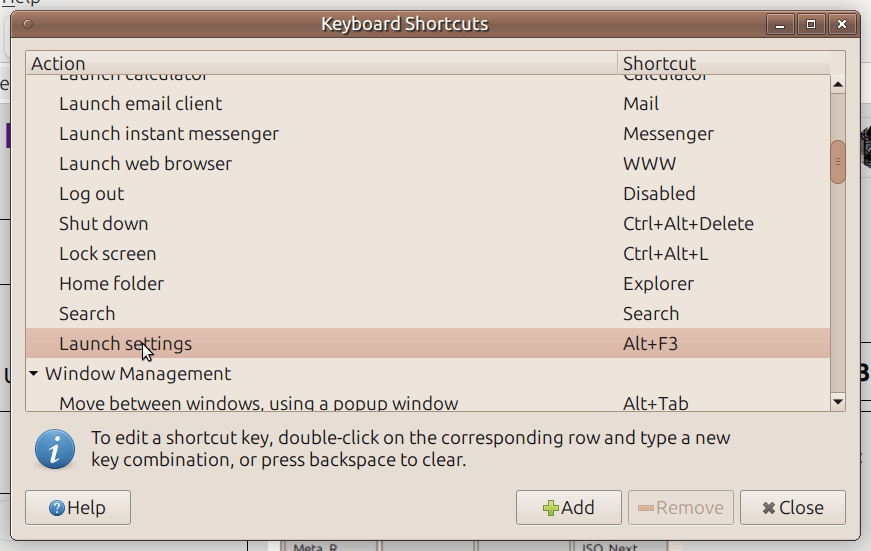
The desktop software packages live streaming, video-on-demand viewing, and built-in streamer tools like activity statistics into a single interface. Managing keybindings prevents keyboard clashes when running games alongside the stream.
- Launch the DouYu PC client on your Windows desktop.
- Click the gear icon located in the upper-right corner of the main window to open System Settings.
- Select the Hotkeys or Shortcut tab from the left-hand navigation pane.
- Click the input box next to the target action—such as fullscreen toggle, volume adjustment, or danmu display.
- Press your desired replacement key combination on your keyboard.
- Click Save or Apply to store the new key configuration.
Changing defaults helps avoid accidental triggers during gameplay. Keep your primary broadcast and viewer toggles mapped to combinations that require modifier keys like Ctrl or Alt.
Resolving Fullscreen Game Clashes with Background Hotkeys
Streamers and viewers often find that DouYu hotkeys stop responding as soon as a 3D game launches. This issue is not always a bug in the DouYu client.
According to user reports documented on Stardock Forums, games running in exclusive fullscreen mode can directly capture hardware input. This blocks background Windows applications from detecting global keyboard shortcuts. When direct input is locked by the active application, DouYu cannot register hotkeys until focus leaves the game window.
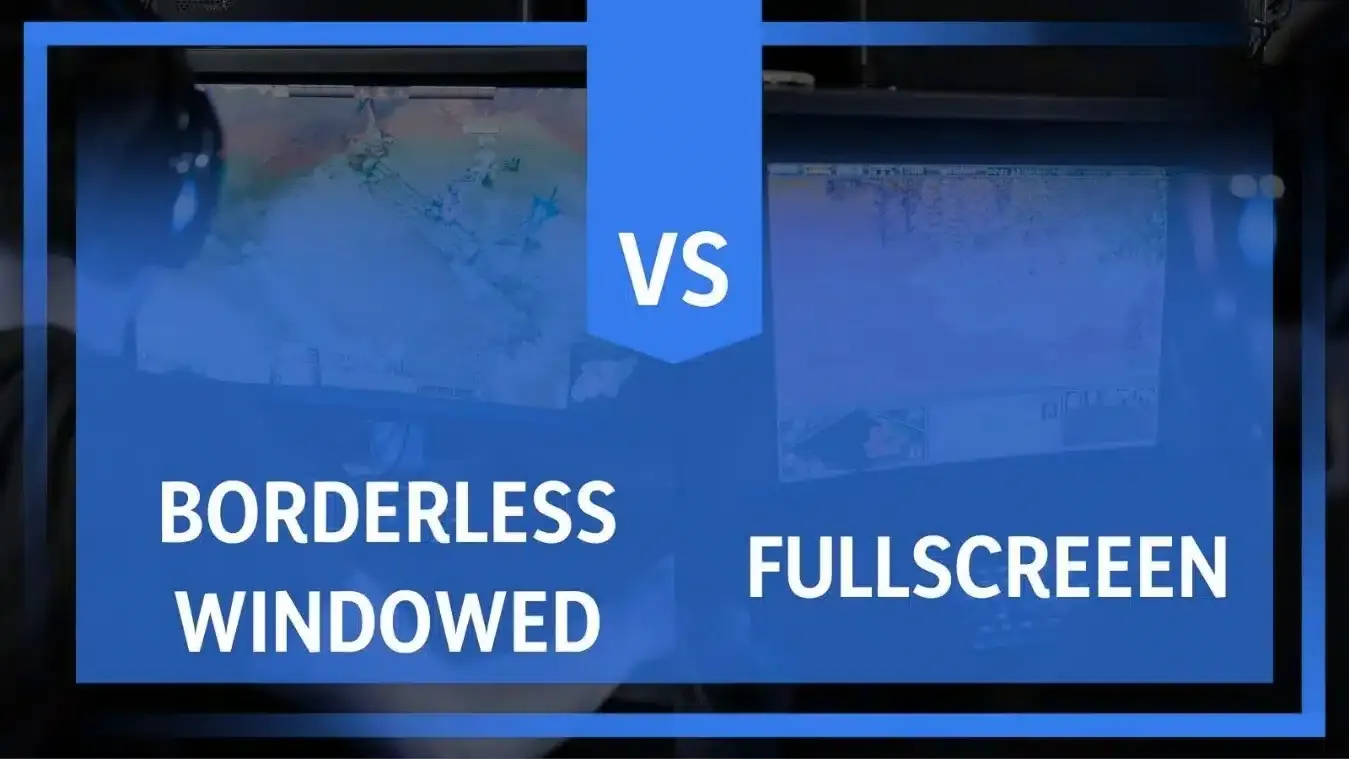
To restore background shortcut detection across your streaming setup:
- Open your game's video or display settings menu.
- Switch the display mode from Exclusive Fullscreen to Borderless Windowed or Windowed mode.
- If you must keep exclusive fullscreen active, press
Alt + Tabto shift focus to the desktop before triggering your DouYu shortcuts.
Borderless windowed mode leaves the Windows desktop window manager active. This lets background hotkey listeners capture commands while you continue playing.
Troubleshooting Unresponsive Keyboard Shortcuts in Windows
If hotkeys fail across both DouYu and desktop tasks, the operating system configuration may be intercepting your keystrokes. Technical troubleshooting from ITarian identifies several common causes for non-functioning shortcut keys, including incorrect keyboard layouts, driver glitches, and enabled accessibility settings.
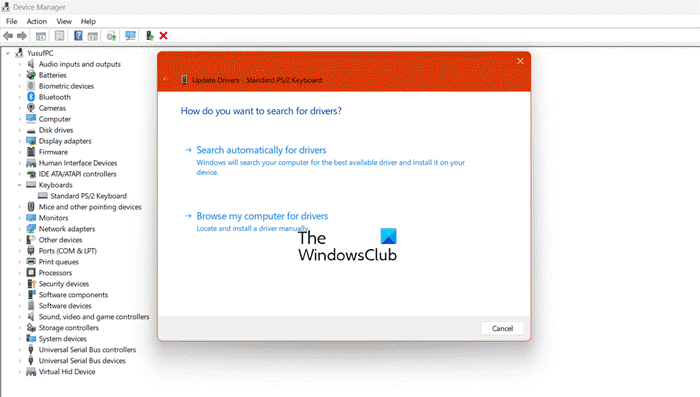
Work through these steps to restore unresponsive keys:
- Disable Filter Keys: Open the Windows Settings menu, navigate to Accessibility (or Ease of Access), select Keyboard, and verify that Filter Keys is switched off. Filter Keys ignores brief or repeated keystrokes, which frequently breaks fast hotkey combinations.
- Check the Active Input Layout: Press
Windows Key + Spacebarto ensure your keyboard is set to the correct regional layout. An unintended layout change can swap key mappings across your physical board. - Reinstall the Keyboard Driver: Right-click the Windows Start menu and open Device Manager. Expand the Keyboards section, right-click your active keyboard device, select Uninstall device, and restart your computer to let Windows reinstall a clean driver profile.
Completing these checks removes software barriers that prevent the DouYu client from receiving key combinations.
Streamer Tools and Viewer Controls
Beyond basic playback, the DouYu PC client integrates specialized streamer modules alongside its viewing suite. As noted in documentation from Baidu Baike, the client supports Windows 7 and later operating systems while bundling streamer utility tools such as activity statistics.
For active broadcast communities, maintaining accessible controls makes interacting with the stream practical while monitoring chat. Viewers using DouYu (CN) Shark Fin to send high-value gifts and trigger exclusive on-screen effects can keep danmu shortcuts mapped to simple toggles, ensuring visual alerts remain visible without blocking the broadcast window.
Frequently Asked Questions
What operating system is required to run the DouYu PC client?
The DouYu PC client supports Windows 7 and later operating systems, as confirmed by platform documentation on Baidu Baike.
Why do hotkeys stop responding when playing a PC game alongside streaming software?
Certain games running in full screen take direct keyboard input and block background desktop applications from registering hotkeys until you Alt-Tab or switch window focus, as documented by Stardock Forums. Switching your game to borderless windowed mode resolves this issue.

Community
Comments