

Managing alert behavior and muting sound effects for Heroic Uncle Kim currently relies on operating system overrides, because official game documentation does not detail internal audio sliders or native alert toggles. Turning off app notifications or setting alerts to silent in Android and iOS stops unwanted pings for stamina and idle loot caps while preserving your background progression.


Heroic Uncle Kim
- -40%
220 Gems + 20 Master Keys
Buy NowUSD 0.64
USD 0.89
- -40%
1200 Gems + 90 Master Keys
Buy NowUSD 3.10
USD 4.34
- -40%
2400 Gems + 150 Master Keys
Buy NowUSD 5.72
USD 8.01
- -40%
8500 Gems + 500 Master keys
Buy NowUSD 16.65
USD 23.31
- -40%
16000 Gems + 1000 Master Keys
Buy NowUSD 28.11
USD 39.35
- -40%
36000 Gems + 2000 Master Keys
Buy NowUSD 56.73
USD 79.42
- -40%
95 Demon Coins + 150 Master Keys
Buy NowUSD 2.05
USD 2.86
- -40%
150 Demon Coins + 300 Master Keys
Buy NowUSD 3.10
USD 4.34
- -40%
950 Dragon Orbs
Buy NowUSD 5.78
USD 8.09
- -40%
Ads Pass 30 Days + 240 Gems
Buy NowUSD 5.78
USD 8.09
Managing Alerts and Notification Sounds on iOS
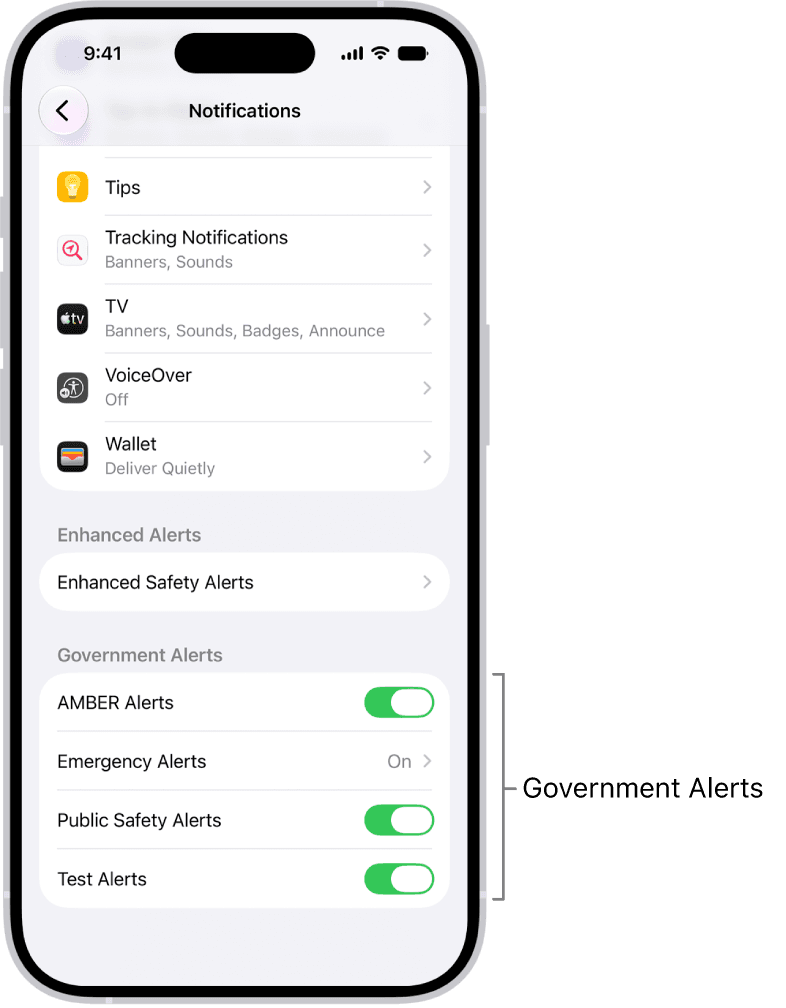
iOS lets you silence audio cues while retaining banner alerts, or shut off notifications completely.
To mute chime audio while keeping lock screen banners and badges active:
- Open Settings on your iOS device.
- Tap Notifications and scroll down to select the game under Notification Style.
- Turn off the Sounds switch according to Apple's notification documentation.
- Keep Allow Notifications switched on if you still want visual banners.
If you prefer to silence alerts temporarily without digging into the primary settings menu, swipe left over an alert banner on your Lock Screen or in Notification Center. Tap Options, then select Mute for 1 Hour or Mute for Today. Choosing Turn Off from that same menu halts all subsequent notifications immediately (Apple Support).
Android App Notification and Alert Modes
Stock Android separates push alerts into alerting and silent display tiers.
To silence notifications or turn them off completely:
- Open system Settings.
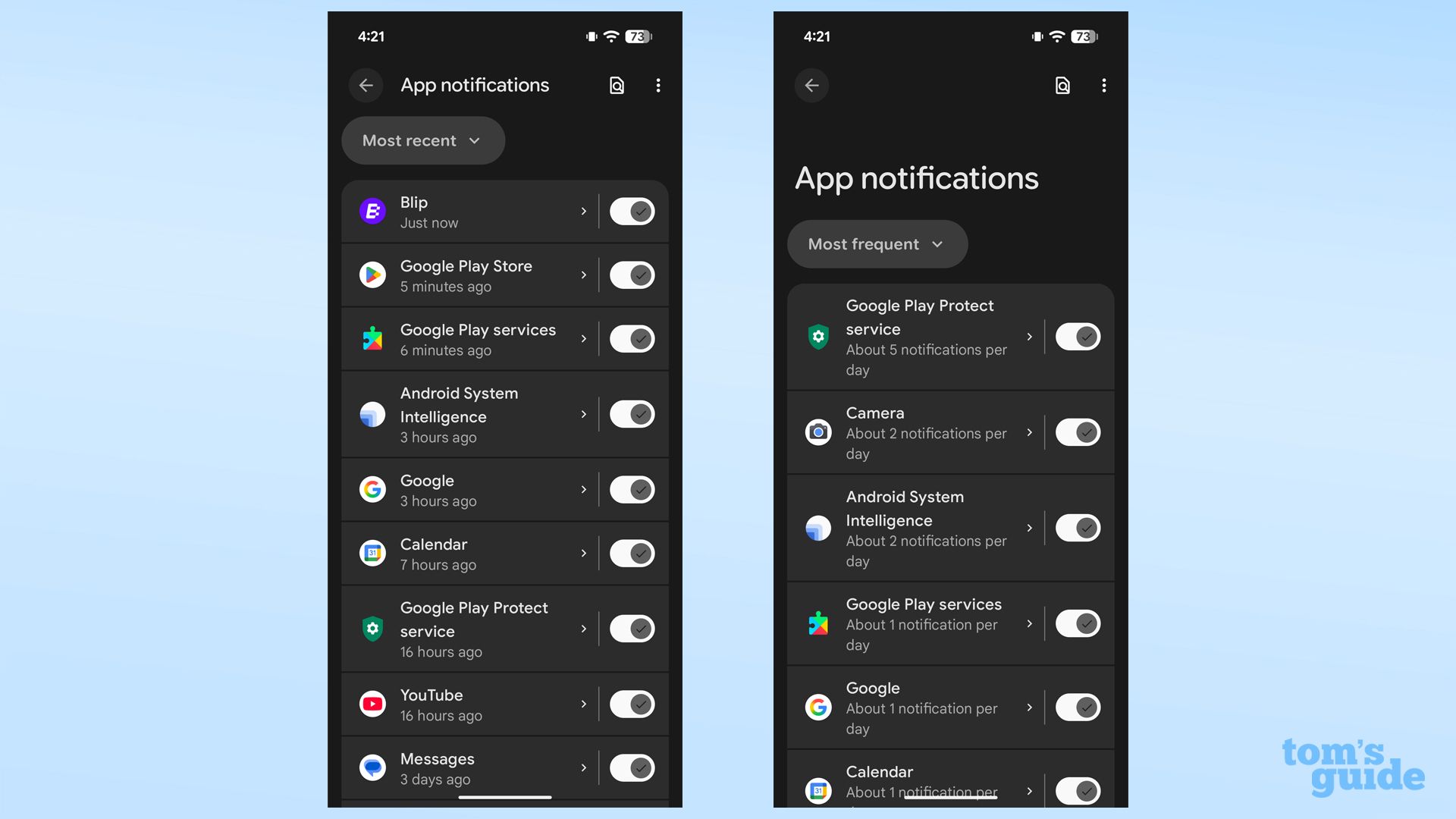
- Select Notifications > App notifications.
- Filter by All apps and locate the title in the list.
- Switch the main toggle off to kill all alerts, or tap the app name to access alert styles as outlined by Google's Android Help.
- Select Silent instead of Alerting.
Choosing Silent keeps your lock screen and status bar clean while leaving notifications tucked away in the pull-down shade. Your phone will not play an audio tone or vibrate when idle loot caps or stamina pools refresh (Google Support).
Extra Step for Samsung One UI
Samsung Galaxy devices handle alert categories differently from stock Android. By default, One UI hides per-app notification category menus until enabled manually.
To expose category toggles:
- Go to Settings > Notifications.
- Tap Advanced settings.
- Scroll down and enable the switch next to Manage notification categories for each app (Samsung Support).
- Return to App notifications, tap the game, and adjust individual alert categories directly.
System-Level Haptics and Sound Muting
Heroic Uncle Kim operates idle progression and combat across Global and South East Asia servers (NXPGame). The publisher provides no public documentation for built-in background music (BGM) sliders, sound effect (SFX) toggles, or screen-dimming sleep modes.
If repeated combat clicks or device vibrations disrupt your idle sessions, adjust device haptics at the system level:
- iOS: Open Settings > Sounds & Haptics and turn off System Haptics to disable vibration feedback (Jam City Player Support).
- Android: Open Settings > Sounds and vibration and toggle off Vibration feedback or Vibrate on touch (Jam City Player Support).
For media volume, use your hardware volume rockers to lower media output to zero before opening the app for extended farming sessions.
System Notification Management Comparison
| Platform | Navigation Path | Available Action | Source |
|---|---|---|---|
| iOS | Settings > Notifications > [App Name] | Disable sound alerts, silence all notifications, or mute temporarily | Apple Support |
| Stock Android | Settings > Notifications > App notifications | Switch between Alerting and Silent, or disable notifications entirely | Google Android Help |
| Samsung One UI | Settings > Notifications > Advanced settings | Turn on category management to unlock granular alert categories | Samsung Support |
Resolving Persistent Alerts After Configuration
Operating system permission updates occasionally fail to bind immediately to active mobile games. If you alter notification permissions while the game runs in memory, the client may continue firing alerts based on cached background tokens.
When alerts persist:
- Swipe up from your home bar or press the app-switcher button to view running applications.
- Swipe the game card away to force-close the process completely.
- Relaunch the application to verify that permissions applied.
- If push banners or chimes continue, restart your mobile device to clear system-level notification caches (Glu Mobile Support).

Community
Comments