

Stop Dynasty Warriors: Overlords crashing on startup Android. Follow this step-by-step diagnostic guide to fix cache, OBB errors, RAM leaks, and launch bugs.
Nothing ruins game night faster than tapping an app icon only to watch your screen turn black and kick you straight back to the home launcher. Dynasty Warriors: Overlords is an officially licensed mobile 3D action hack-and-slash ARPG developed by NEOCRAFT and SuperNova. It brings classic Three Kingdoms officers and signature Musou combat to mobile hardware. However, rendering hundreds of enemy soldiers simultaneously demands significant system resources. When the client fails during boot, it is almost always a conflict between cached assets, memory allocation, or storage permissions.
I have seen these startup errors happen on flagship phones just as often as on budget devices. The good news is that you rarely need to wipe your entire phone to fix it. By working through a prioritized diagnostic sequence, you can isolate the root cause and get your game running.
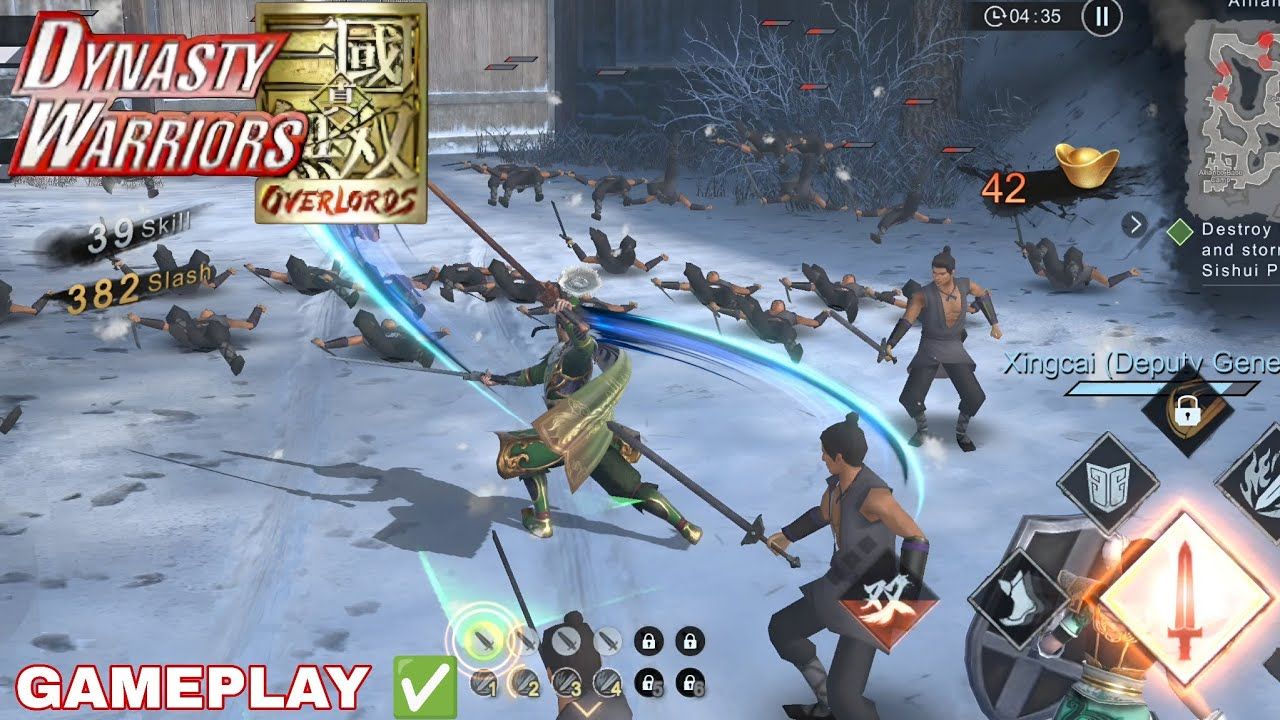

Dynasty Warriors: Overlords Package
- -3%
Special Recruitment Package
Buy NowUSD 13.95
USD 14.37
- -3%
Value Recruitment Gift Bag
Buy NowUSD 30.27
USD 31.18
- -3%
Luxury Recruitment Gift Bag
Buy NowUSD 46.58
USD 47.98
- -3%
Supreme Recruitment Gift Bag
Buy NowUSD 93.15
USD 95.94
- -3%
Special Recruitment Package (Android)
Buy NowUSD 13.95
USD 14.37
- -3%
Value Recruitment Gift Bag (Android)
Buy NowUSD 30.27
USD 31.18
- -3%
Luxury Recruitment Gift Bag (Android)
Buy NowUSD 46.58
USD 47.98
- -3%
Supreme Recruitment Gift Bag (Android)
Buy NowUSD 93.15
USD 95.94
Quick Diagnostic Triage for Immediate Boot Failures
Before you start altering file directories or deleting gigabytes of asset packages, try these three rapid fixes. They take less than two minutes and resolve over half of all sudden crash issues.
- Execute a 30-Second Hardware Power-Cycle: Do not just tap the soft restart button. Hold your device power button down for approximately 30 full seconds until the screen completely shuts off and restarts the hardware cycle. This forces the operating system to dump orphaned background memory pools and clears frozen graphics driver states that cause launch crashes.
- Verify Free Local Storage Space: The game requires a minimum of 3.8 GB of free space on Android just for the base installation. If your device has less than 5 GB of free space, the extraction engine will silently crash on the title splash screen while attempting to unpack runtime patches.
- Toggle Automatic Date and Time: Android security certificates rely on strict time synchronization with remote authorization servers. Head to your device settings, toggle Automatic Date & Time off, wait five seconds, and turn it back on. This refreshes SSL handshake protocols and prevents black screen boot hangs.
If the game still drops out during initialization after these quick checks, the issue lies deeper in local asset corruption, Scoped Storage permission barriers, or RAM starvation.
System Requirements and Hardware Thresholds for 2026
Dynasty Warriors: Overlords pushes mobile hardware aggressively. Rendering massive 1-vs-1,000 battlefields filled with real-time particle effects requires strict baseline specifications. Running the client on outdated firmware or hardware below minimum requirements will trigger instant fatal crashes because the graphics driver cannot compile the necessary shader libraries.
The following table outlines the exact technical requirements needed to run the client stably across supported mobile platforms.
| Hardware Metric | Minimum Specification | Recommended Specification | Impact on Startup Stability |
|---|---|---|---|
| Android OS Version | Android 5.0 (Lollipop) | Android 12.0 or higher | Baseline OS ensures Vulkan and OpenGL ES 3.2 shader compatibility. |
| Free Storage Space | 3.8 GB free space | 8.0 GB+ free space | Low disk space halts unpacking and corrupts local asset archives. |
| System RAM | 3 GB physical RAM | 6 GB+ physical RAM | Insufficient free RAM triggers Out-Of-Memory (OOM) boot crashes. |
| Network Connection | Stable 4G/Wi-Fi | High-speed low-latency broadband | Timeouts during startup account validation force the app to close. |
| iOS Comparison | iOS 11.0 / 4.1 GB storage | iOS 15.0+ / 8.0 GB storage | Package footprint runs slightly larger on Apple devices due to asset compression. |
Reviewing your device specifications against this baseline ensures your hardware can handle runtime asset decompression and rendering pipelines.
If you meet these requirements, your startup crashes are caused by software configuration errors rather than hardware limitations. If you are setting up your account or preparing your roster for the endgame grind, picking up a Dynasty Warriors: Overlords Package gives your officers an immediate power boost once your client is stable.
Step 1: Flushing Corrupted Application Cache and App Data
Temporary cache files accumulate every time the client downloads hotfixes, officer models, or promotional banners. If a single packet drops during a patch download, the cached archive becomes corrupted. When the app boots, the engine tries to read the broken archive and terminates immediately.
Follow these steps to safely clear your cache without losing your account credentials:
- Close Dynasty Warriors: Overlords and swipe it away from your recent apps overview.
- Open your device Settings menu.
- Tap on Apps (or App Management depending on your phone brand).
- Scroll down and select Dynasty Warriors: Overlords.
- Tap on Storage & Cache.
- Tap Clear Cache.
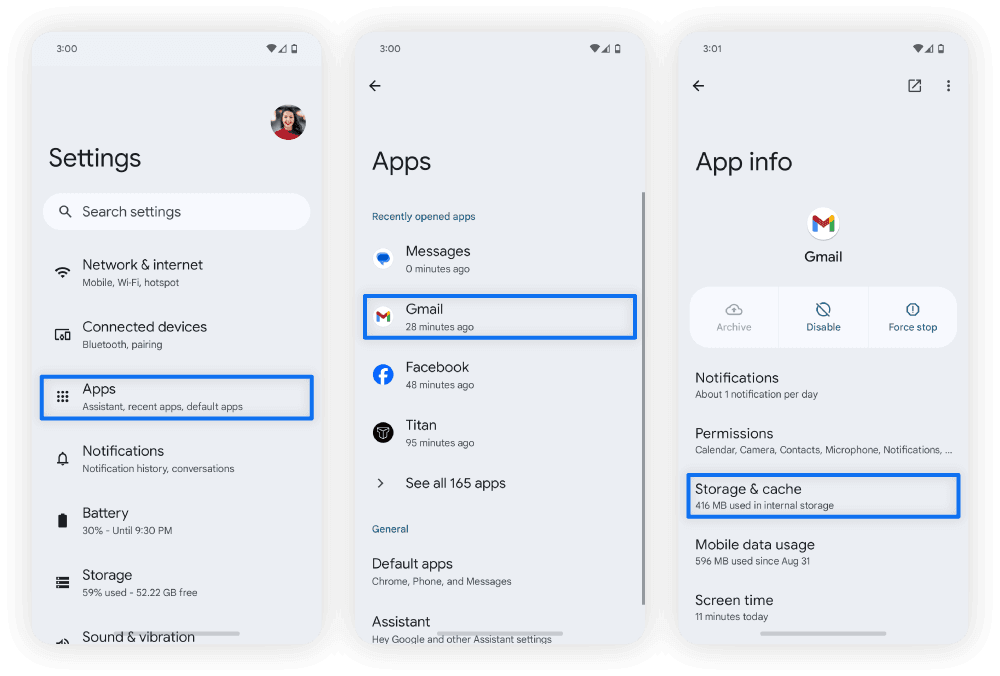
Do not tap Clear Storage / Clear Data just yet. Test the game first. Clearing the cache flushes out bad temporary shaders while keeping your downloaded expansion packages intact.
If the game continues to crash on startup, return to that same menu and tap Clear Data (or Clear Storage). Note that clearing data resets your local settings and requires the app to re-verify downloaded patch assets upon your next launch. As long as your game account is linked to a login provider, your characters and progression remain completely safe on the remote server.
Step 2: Resolving Android Scoped Storage and OBB Directory Conflicts
Modern Android versions utilize a strict security architecture known as Scoped Storage. This system restricts apps from reading and writing freely to internal directories. During startup, Dynasty Warriors: Overlords must access its /Android/data/ and /Android/obb/ storage paths to verify game files.
When permissions become desynchronized, the operating system denies the game access to its own OBB verification data. The app interprets this missing data as a fatal runtime failure and shuts down.
To resolve Scoped Storage conflicts:
- Navigate to Settings > Apps > Dynasty Warriors: Overlords > Permissions.
- Ensure that Storage (or Files and Media) is set to Allow management of all files or Allow access to media only.
- Open your phone's default file manager.
- Browse to
Internal Storage/Android/data/and verify that the game folder exists and contains valid subfolders. - If the folder appears empty or corrupted after an interrupted update, delete the specific game cache folder inside
/Android/data/and allow the game client to rebuild it on fresh startup.
Granting clean filesystem access eliminates silent startup drops where the game shuts down before displaying the publisher logo.
Step 3: Network Time Sync and Regional Routing Handshake Fixes
Dynasty Warriors: Overlords officially opened its global servers under NEOCRAFT on July 30, 2026, at 12:00 PM GMT+8. The global release supports players across Hong Kong, Macao, Taiwan, South Korea, Southeast Asia, Europe, and the Americas. However, specific regional exclusions apply.
Players attempting to connect from mainland China or Japan are excluded from NEOCRAFT global server routing. Connecting from these regions or through misconfigured proxy networks causes the client authentication handshake to drop immediately at the title screen. Furthermore, live server maintenance windows can mimic startup crashes by timing out the security handshake before the main menu loads.
Use this sequence to verify network handshakes:
- Check Live Server Status: If maintenance is underway, client authentication will drop immediately. Wait for the maintenance window to conclude.
- Disable Aggressive VPNs: If you are using a proxy or VPN routing through excluded regional territories, disable it to allow direct routing to your nearest regional cluster.
- Switch Network Protocols: Toggle between 5 GHz Wi-Fi and mobile data. Some local Wi-Fi firewalls block the specific TCP/UDP ports used for game handshake authentication.
- Reset Device Clock: Ensure your device clock matches real-world network time down to the second to pass SSL certificate validation.
Step 4: Managing Heavy RAM Overhead and 1-vs-1,000 Rendering Loads
Dynasty Warriors: Overlords differs from standard mobile RPGs because of its sheer unit density. The engine is built to render 1-vs-1,000 mob battles with active ragdoll physics, custom AI pathfinding, and layered visual effects for Musou attacks. Loading these heavy assets requires immediate memory allocation as soon as the 3D engine initializes.
If your phone has several heavy apps running in the background, the Android Linux kernel will trigger an Out-Of-Memory (OOM) killer event. It terminates Dynasty Warriors: Overlords instantly to prevent the entire operating system from freezing.
To optimize memory allocation before boot:
- Close Background Tasks: Swipe away social media apps, web browsers with heavy tabs, and video streaming apps.
- Disable Battery Saver Modes: Aggressive battery saver settings throttle CPU and GPU clock speeds, causing the game engine to miss its startup frame rate target and crash.
- Disable Memory Expansion Features: Some phone manufacturers include "Virtual RAM" features that use internal storage as memory. On slower storage chips, this virtual paging causes micro-stutters and engine launch timeouts. Disable virtual RAM in your device system settings if you experience constant boot crashes.
Before jumping back into massive 1-vs-1,000 battles with high particle effects, grab an official Dynasty Warriors: Overlords Package to upgrade your officers' gear and Musou capabilities.
Step 5: Clean Reinstallation and Legacy Build Conflict Removal
If your game still will not boot, your installation files are likely missing critical runtime binaries. This frequently happens if you previously installed an older regional release. For example, a legacy SEA edition was published by VNG Games in 2022. If old VNG configuration files remain on your internal storage, they will conflict with the 2026 global NEOCRAFT client.
The following table outlines the key differences between past and present versions and how to resolve legacy client conflicts.
| Release Version | Publisher | Target Regions | Package Footprint | Common Startup Conflict |
|---|---|---|---|---|
| 2026 Global Release | NEOCRAFT / SuperNova | Americas, Europe, SEA, East Asia | 3.8 GB Base (Android) | Scoped storage permission blocks, OOM crashes on low RAM. |
| 2022 Regional Release | VNG Games | Vietnam, Thailand, Indonesia, Philippines | Legacy package size | Residual folder path conflicts preventing global OBB extraction. |
| iOS Global Edition | NEOCRAFT | Global (Excluding China & Japan) | 4.1 GB Base (iOS) | Incomplete asset decompression caused by background app suspension. |
Removing legacy application packages ensures your operating system binds file requests to the correct 2026 global server binaries.
Executing a Clean Reinstallation
To perform a clean installation without leaving corrupted residual data behind:
- Go to Settings > Apps > Dynasty Warriors: Overlords.
- Tap Clear Data, then tap Uninstall.
- Open your device file manager and check
Internal Storage/Android/data/. If any residual folder named after the game remains, delete it manually. - Restart your phone.
- Download a fresh, authorized package directly from your official device application repository.
- Launch the app on a stable Wi-Fi connection and keep the screen active while the game downloads its initial asset updates.
If you are playing on an Android emulator and the game fails to appear in the default store due to hardware filtering flags, manually sideload a clean, verified APK package to bypass hardware profile mismatches.
Startup Error Profiles and Root Cause Mapping
Diagnosing startup issues is much easier when you identify the exact moment the failure occurs. A crash during the opening splash screen points to an entirely different problem than a freeze on a black screen.
The diagnostic matrix below connects visible symptoms with their exact technical causes and immediate remedies.
| Visible Symptom | Failure Point | Root Cause | Immediate Diagnostic Action |
|---|---|---|---|
| Instant Crash to Home Screen | 0 to 2 seconds after tapping icon | Out-Of-Memory (OOM) or missing core binary | Power-cycle phone, close background apps, verify Android 5.0+ OS. |
| Permanent Black Screen | After publisher logo displays | SSL handshake failure or corrupt shader cache | Clear app cache, toggle Automatic Date & Time, disable VPN. |
| Stuck on Loading Bar (0% or 99%) | During initial patch verification | Storage permission block or disk full | Ensure 3.8 GB+ free space, check Scoped Storage permissions. |
| Connection Timeout Dialog | Title screen login screen | Regional IP exclusion or live maintenance | Verify global server status; ensure region is not China/Japan. |
| App Closes Without Error | During 3D character splash intro | GPU driver failure or corrupt OBB | Clear App Data, update Android firmware, reinstall clean APK. |
Mapping your specific crash symptom against this matrix saves time by directing you straight to the correct fix.
Post-Recovery Steps: Level 12 Gift Codes and Account Protection
Once you have resolved your launch issues and the game loads smoothly to the main interface, take a few administrative steps to ensure you do not lose your progress or miss out on launch compensation.
- Bind Your Account Immediately: Do not play on a temporary guest account. Link your profile to a permanent login method in the account settings. This guarantees that your officers, gear, and progress are saved remotely if you ever need to clear app data in the future.
- Check for System Firmware Updates: Navigate to Settings > System > System Update on your Android device. Keeping your operating system updated ensures you have the latest Vulkan and OpenGL ES graphic drivers.
- Unlock In-Game Gift Redemption: If you missed login bonuses due to startup crashes, you can redeem promotional codes once you reach Lord Level 12. Head to Settings > Gift Redeem to input promotional codes and claim your rewards.
After claiming your compensation at Lord Level 12, consider securing a Dynasty Warriors: Overlords Package to accelerate your character progression across competitive global servers.
FAQ
Why does Dynasty Warriors: Overlords crash immediately on startup on Android?
Startup crashes are typically caused by insufficient storage space, corrupted cached data, or background RAM exhaustion during asset loading. Clearing the app cache and ensuring at least 4 GB of free storage resolves most launch failures.
How do I clear the cache for Dynasty Warriors: Overlords on Android?
Open your device Settings, navigate to Apps > Dynasty Warriors: Overlords, tap Storage, and select Clear Cache. This flushes temporary corrupt files without deleting your account data.
Will clearing app data delete my Dynasty Warriors: Overlords progress?
No, your account progress is safely stored on server databases as long as your account is bound to a login provider. However, guest accounts and local patch files will need to be re-downloaded.
How much storage space does Dynasty Warriors: Overlords need on Android?
The Android version requires approximately 3.8 GB of storage space for the base game and updates. Keep at least 5 to 6 GB free to ensure smooth unpacking during launch.
Why does the game get stuck on a black screen when loading?
A black screen usually indicates an incomplete background asset download, network handshake timeout, or device clock desynchronization. Toggling Automatic Date & Time in system settings and restarting your phone will refresh the connection.
Can I fix startup crashes by updating my Android OS version?
Yes, updating your Android system software provides critical compatibility patches for graphic drivers and Scoped Storage permissions. Navigate to Settings > System > System Update to check for available updates.
Why am I getting connection errors on the title screen?
Connection drops occur if game servers are undergoing maintenance or if you are connecting from excluded regions such as mainland China or Japan. Check official server announcements and disable any conflicting proxy networks.
Final Troubleshooting Verdict
Startup crashes in Dynasty Warriors: Overlords look alarming, but they are almost always caused by simple file corruption or memory limits. In my experience, nine out of ten boot failures are resolved simply by clearing the application cache and freeing up internal storage so the 3.8 GB package can decompress.
Do not waste hours tweaking complex system settings until you have done a clean cache wipe and a full 30-second hardware power-cycle. If all else fails, a clean reinstallation completely clears out legacy build conflicts, leaving you ready to lead your officers into battle.

Community
Comments