

To change controller settings on Steam, open the desktop client and go to Steam > Settings > Controller to enable device support, or right-click any library title and select Manage > Controller Layout to edit button mappings and stick responses. Steam Input applies these rebindings at the platform level, allowing you to calibrate the default 5% stick deadzone radius, remap physical buttons, and adjust trigger thresholds per game.
If you funded your library purchases using a Steam Wallet Code (IDR), remember that a digital wallet voucher only adds Indonesian Rupiah balance to your account. The voucher contains no input profiles or device parameters. Every controller calibration, deadzone adjustment, and layout remap happens exclusively within Steam's native Steam Input subsystem.

Steam Wallet Code (IDR)
Enabling Gamepad Support in Client Settings
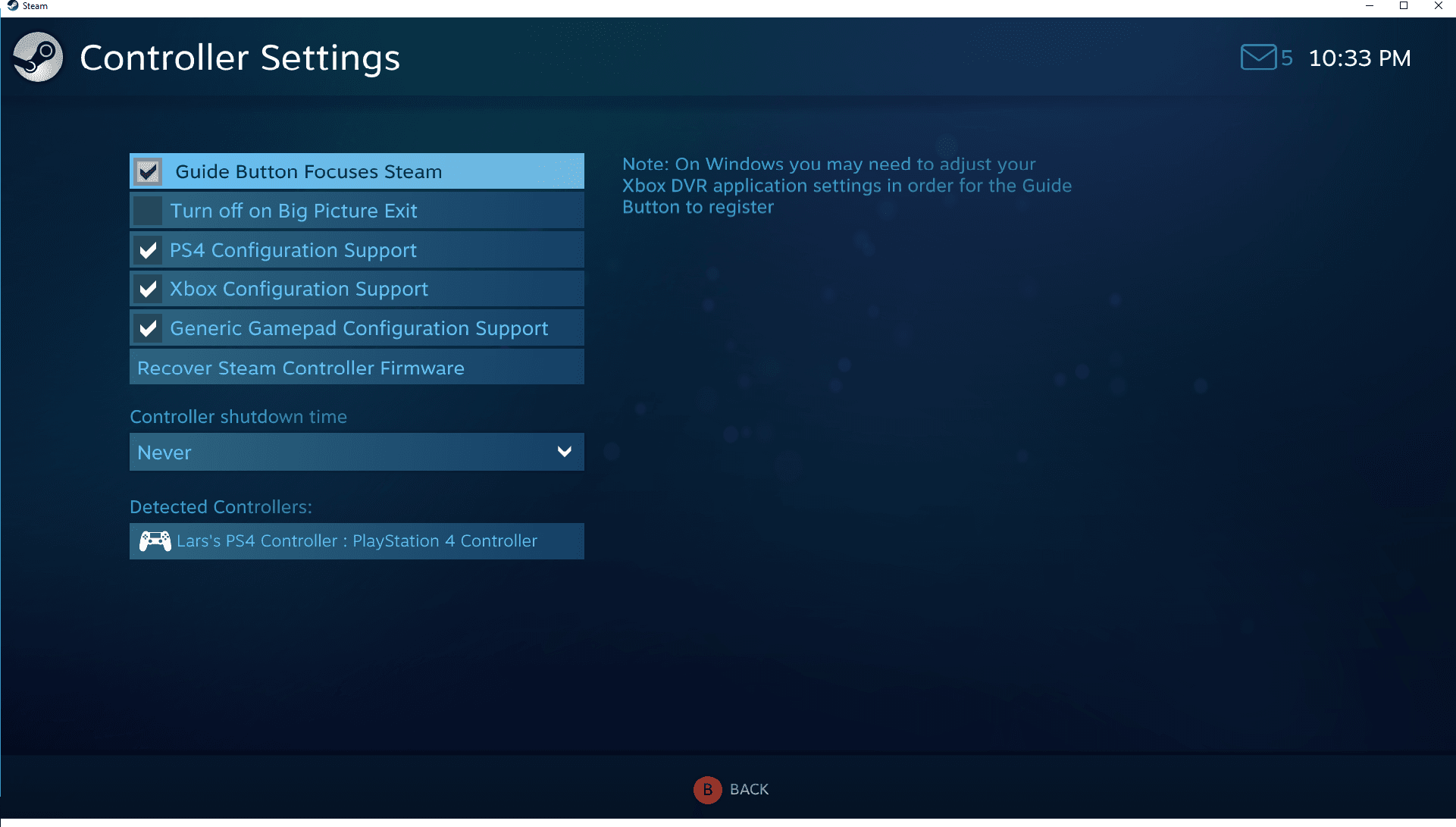
Before modifying button mappings for specific titles, configure your controller hardware in the main client menus. Navigate to Steam > Settings > Controller to view general controller settings and review detected devices.
Steam provides configuration support toggles for PlayStation 4, Xbox One, Xbox 360, and generic gamepads. Check the box corresponding to your device while the controller is plugged in. Detected compatible gamepads show up in this window, where you can also manage global profiles for Big Picture mode, desktop navigation, and Guide button chord combinations.
If you use third-party tools like DS4Windows or InputMapper, Steam Input will not interface with the DualShock 4 directly. The client instead reads the emulated Xbox 360 gamepad generated by the external program and presents an on-screen warning. For native PlayStation glyphs and direct Steam Input handling, close external remapping software before configuring your controller.
Remapping Buttons and Applying Profiles
Per-game remapping is handled through the Steam Library: right-click any installed title and select Manage > Controller Layout > Edit Layout.
From here, you can remap physical face buttons, bumpers, and directional inputs to keyboard keystrokes or alternate controller actions. If you prefer pre-built configurations, Steam categorizes profiles into two main tabs:
- Recommended: Contains official configurations provided directly by game developers upon first launch (Steamworks Documentation).
- Community: Displays user-submitted layouts that you can preview and apply. Steam ranks these profiles by playtime, community votes, and matching controller hardware (Steamworks Documentation).
You can also assign commands to outer ring bindings. An outer ring binding triggers when a stick, touchpad, or gyro nears the edge of its physical travel (PC Gamer). A frequent use case is binding a sprint command to the outer ring of a stick mapped to WASD movement, which engages running automatically when the stick is pushed all the way forward.
Tuning Deadzones, Response Curves, and Triggers
Adjusting analog thresholds eliminates uncommanded stick drift, establishes precision boundaries for aiming, and customizes trigger pull depth.
Stick Deadzones
Deadzone radius measures the percentage of full axis travel required before an in-game input registers. Steam sets the default deadzone radius to 5%.
- Values below 3% risk introducing stick drift.
- Values above 8% mute subtle stick adjustments.
- A deadzone of 6% to 7% is effective for countering resting stick drift in competitive shooters and precision platformers (Alibaba Electronics Buying Guides).
Stick Response Curves
Steam uses a linear 1:1 response curve by default, translating physical stick displacement directly to in-game output (PC Gamer). Switching to a relaxed curve expands the slow-movement physical zone. This requires pushing the stick closer to its physical outer limit to achieve maximum speed, which helps in games where walking slowly is difficult under a standard linear profile.
Trigger Thresholds
Left and right triggers default to a 0% threshold. Raising the threshold to 5–10% creates a small buffer zone, preventing accidental weapon firing or acceleration caused by resting fingers on the triggers during idle grip (Alibaba Electronics Buying Guides).
Deadzone Shape Selection by Genre
Deadzone geometry dictates how Steam Input translates diagonal stick deflection:
| Deadzone Shape | Recommended Genres | Mechanical Behavior |
|---|---|---|
| Circle | FPS Games (Call of Duty, Halo) | Delivers uniform aiming velocity across all 360-degree directions (Test My Gamepad). |
| Square | Rocket League, Fighting Games | Allows the stick to reach maximum diagonal values earlier in the stroke (Test My Gamepad). |
| Cross | Retro / 2D Platformers | Constrains movement strictly along the cardinal Up, Down, Left, and Right axes (Test My Gamepad). |
Troubleshooting Stick Drift and Unresponsive Inputs
If your controller acts erratically or your character drifts without input, follow these troubleshooting steps in order:
- Verify client detection: Go to Steam > Settings > Controller and verify your connected device appears under detected controllers (Steamworks Documentation). Ensure the configuration support box for your controller type is checked.
- Close external remapping programs: Shut down DS4Windows or InputMapper so Steam does not route inputs through an emulated Xbox 360 profile (Steamworks Documentation).
- Open the game-specific layout: Right-click the problem game in your library, then select Manage > Controller Layout > Edit Layout.
- Enter the Joysticks menu: Select Joysticks, set Deadzone Type to Custom, and locate the Deadzone Inner slider (Test My Gamepad).
- Adjust the inner deadzone: Start at the default 5% (roughly 2000–3000 value). Test in-game; if camera or character drift persists, increase the slider to 8% or 10% (Test My Gamepad).
- Filter resting trigger inputs: Under the Triggers menu, set the trigger threshold to 5–10% if resting fingers cause unintended actions (Alibaba Electronics Buying Guides).
Frequently Asked Questions
Does Steam Input introduce noticeable input latency?
Steam Input introduces less than 1 millisecond of input lag, an amount that is imperceptible during normal gameplay (Test My Gamepad).
Why does my controller move the PC mouse on the desktop?
Steam applies a Desktop Configuration profile by default whenever the desktop client is running. You can turn off this behavior or set up a blank action set by going to Steam Settings > Controller > Desktop Layout (wikiHow).
How do I adjust controller settings for a non-Steam game?
Select Games > Add a Non-Steam Game to My Library in the top menu bar, select your game's executable, and launch it through Steam. Once added, you can access Manage > Controller Layout to apply custom Steam Input settings and deadzones to that title (Test My Gamepad).

Community
Comments