

To eliminate teamfight stutter in Extraordinary Ones on Android, adjust your visual rendering profile to meet Android's Choreographer rendering deadline of under 16ms for 60 FPS (or 11ms for 90 FPS) while maintaining the game's baseline requirement of at least 2GB RAM. Locking frame pacing, dropping internal render scaling to 80% to trim pixel shading load by roughly 36%, and relying on native manufacturer game modes rather than battery-draining third-party apps stops thermal throttling before clock speeds collapse.

Extraordinary Ones EOMOBA (Global)
Why Teamfights Cause Frame Drops on Android
Android treats frame rendering as an all-or-nothing timing window. Under the system's rendering architecture, Android's developer documentation notes that frames must finish in under 16ms to maintain 60 FPS, 11ms for 90 FPS, and 8ms for 120 FPS.
Missing that render budget by even 1ms does not result in a late frame. The Choreographer subsystem skips the frame entirely. During an ability-heavy 5v5 clash in Extraordinary Ones EOMOBA (Global), simultaneous particle systems and hero models push processing times past those deadlines. This causes immediate, visible stutter.
| Frame Render Classification | Frame Duration Range | Operational Impact | Visual Diagnosis |
|---|---|---|---|
| Slow frames | Between 16ms and 700ms | Exceeds the VSync window, creating visible micro-stutter and jank during teamfights (Android Developers). | 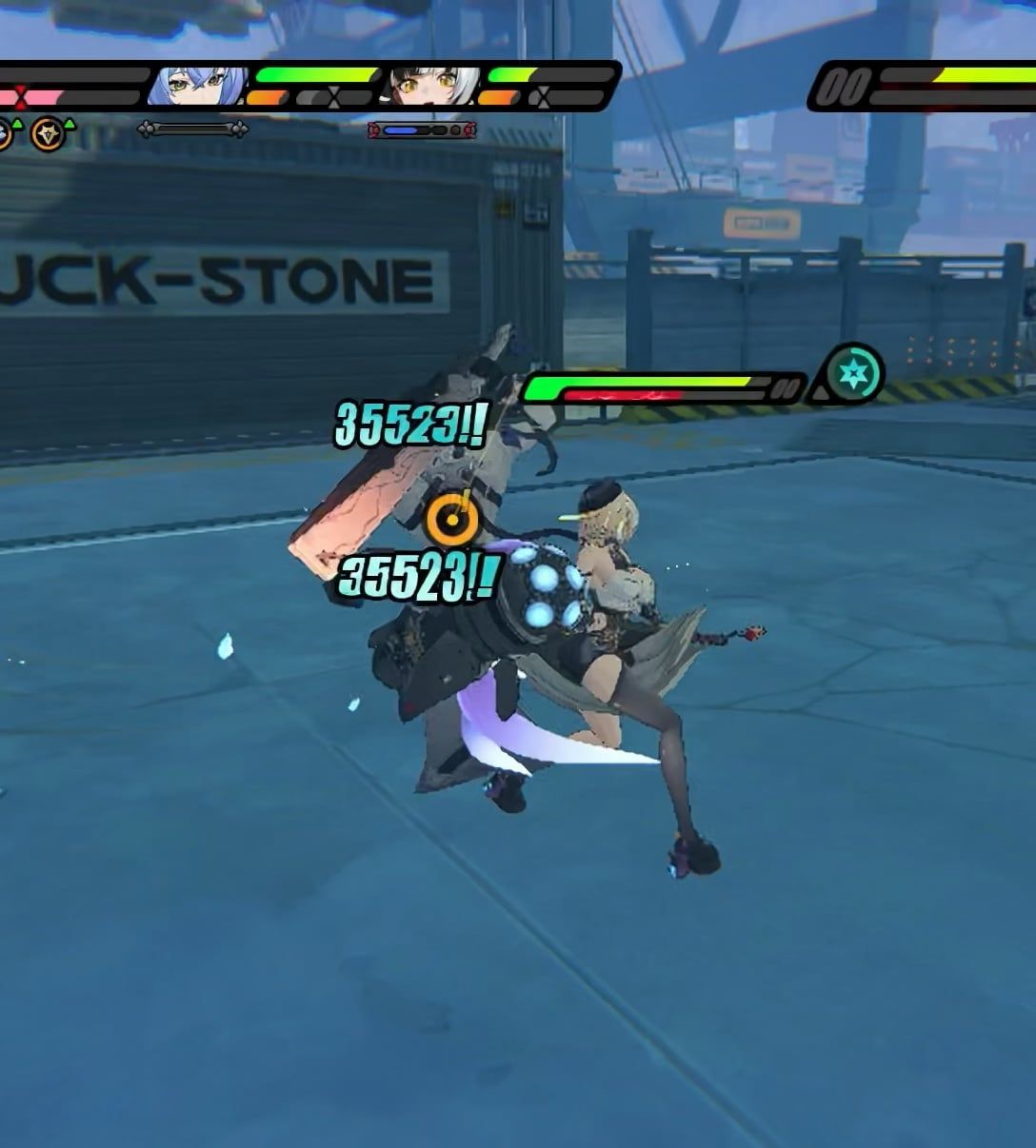 |
| Frozen frames | Between 700ms and 5s | Extended hang where touch input registers late or fails to process (Android Developers). |  |
| ANR (Application Not Responding) | Greater than 5s | Main UI thread lockup triggering an operating system termination prompt (Android Developers). | 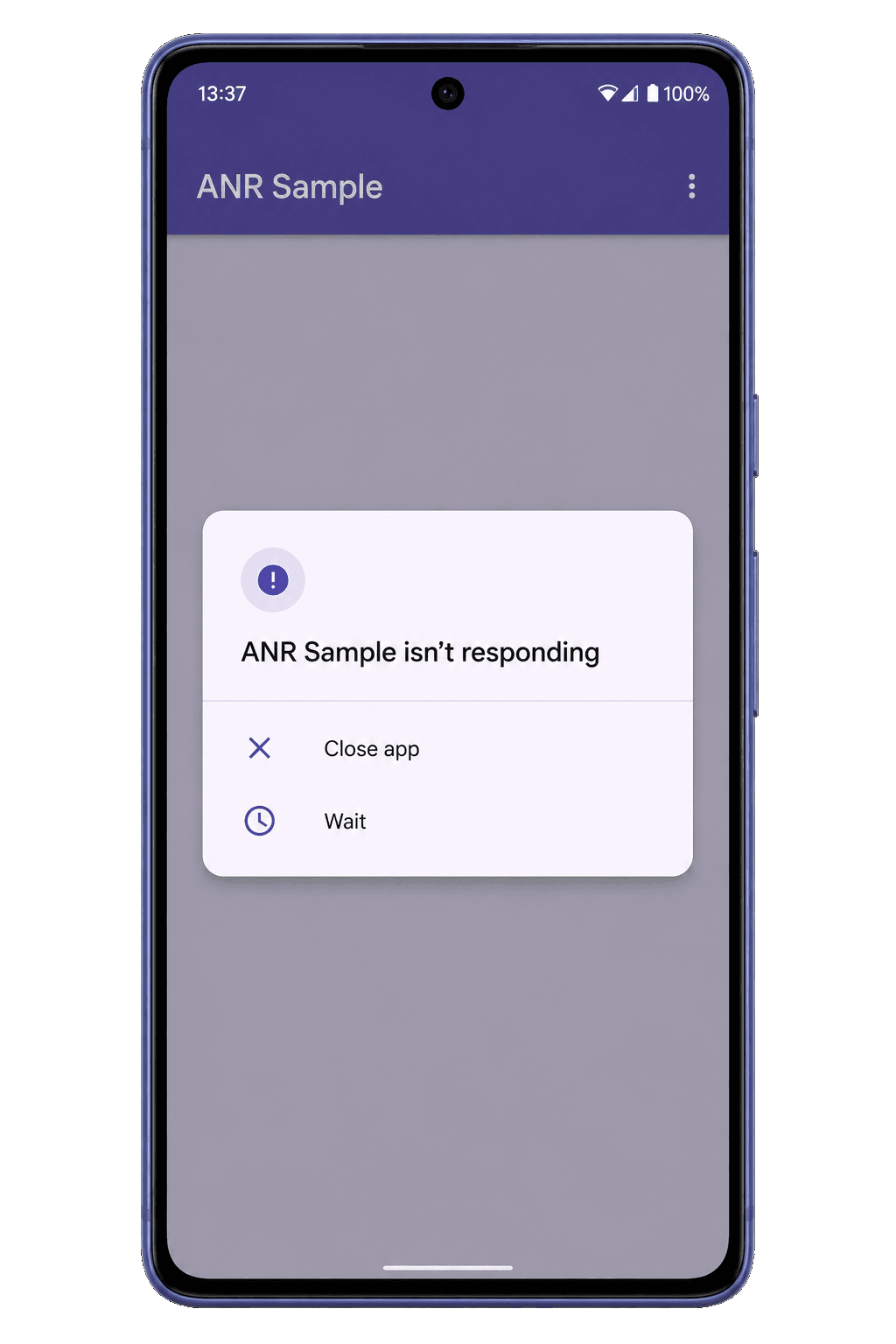 |
These frame delays trigger cascading failures. When frames continually exceed 16ms, the CPU and GPU work at peak power draw. Sustained high power causes rapid heat buildup, and the hardware cuts operating clocks to prevent physical damage.
Extraordinary Ones Best Graphics Settings Android
Balancing visual fidelity against GPU load prevents mid-match stutter on Android hardware.
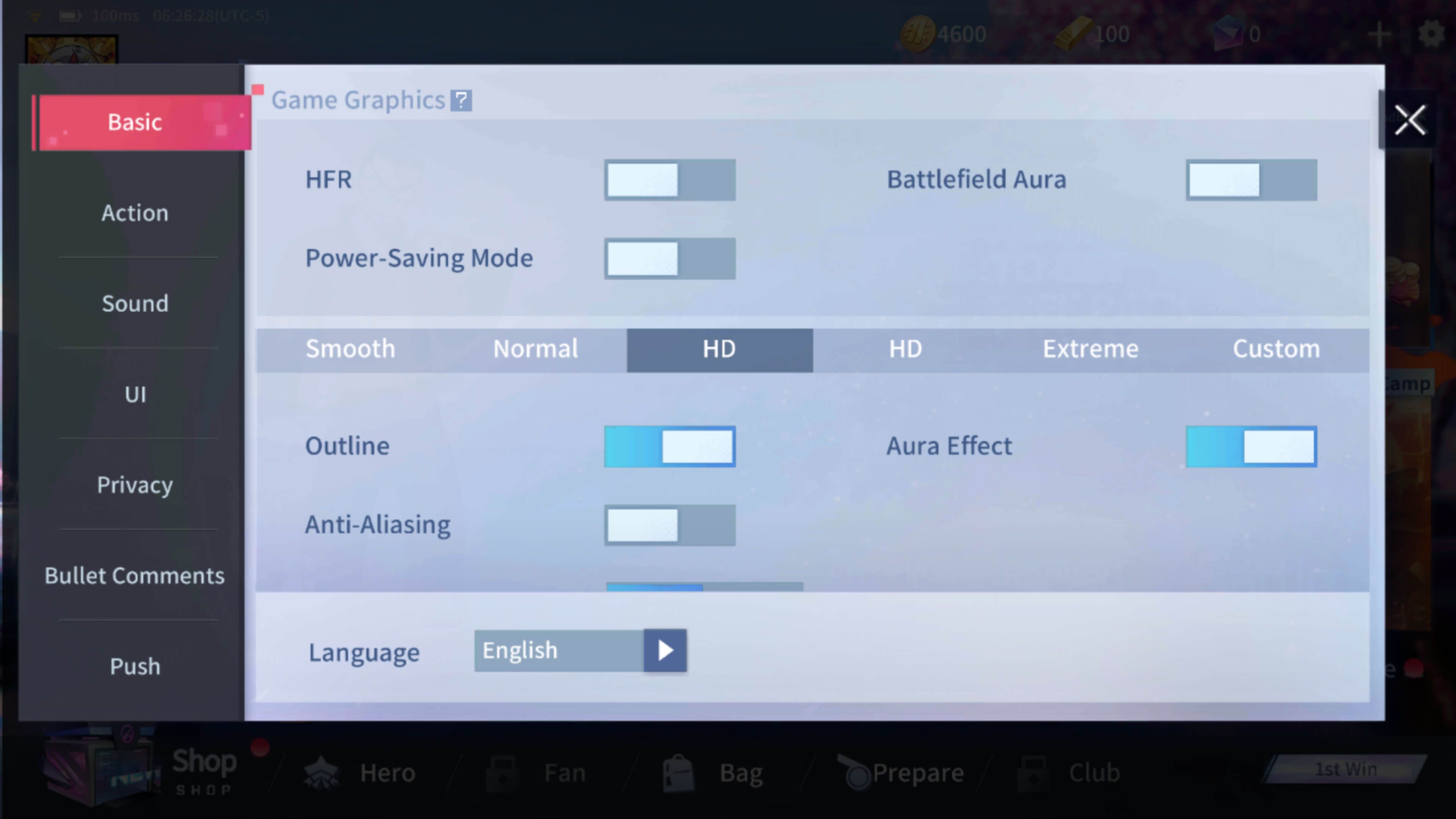
Use this settings profile to prioritize stability:
- Resolution / Render Scale: Medium (or 80% scale). Lowering internal render scale to 80% reduces internal pixel shading workload by about 36% (KTC Technology Hub). Native display output stays intact, keeping HUD text sharp while giving the GPU breathing room.
- Frame Rate: High or 60 FPS. If your display supports high-refresh panels, lock to 90 FPS rather than chasing an erratic 120 FPS.
- Model Detail: Medium. Keeps character silhouettes clear while eliminating high-polygon draw calls.
- Particle Effects: Low or Medium. High particle settings trigger the frame skips responsible for teamfight jank.
- Post-Processing / Bloom: Off. Disabling full-screen blur filters frees immediate fragment shader bandwidth.
- Shadows: Off or Low. Real-time dynamic shadows consume substantial draw-call overhead on mid-range chipsets.
| Setting Parameter | Recommended Choice | Hardware Trade-off | Source Reference |
|---|---|---|---|
| Internal Render Scale | 80% / Balanced | Trims internal pixel workload by ~36% to stabilize frame pacing | KTC Play Analysis |
| Display Target | Locked 90 FPS (or 60 FPS) | Avoids thermal collapse to 70 FPS seen when pushing for 120 FPS | AMX App Performance Guide |
| RAM Availability | 2GB Baseline Minimum | Protects against memory thrashing and OS process preemption | UpdateStar System Specs |
| OS Refresh Cap | 0Hz Default (Android 15) | Limits automatic high-refresh draw unless API requests sustain it | Android Developers |
Extraordinary Ones High FPS Mode: 90 FPS vs 120 FPS
Higher numbers look impressive in spec sheets, but chasing maximum values often degrades match performance. AMX App's mobile performance analysis notes that targeting 120 FPS on high-refresh Android phones frequently induces severe thermal throttling. This collapse drops actual output down to roughly 70 FPS during long gaming sessions.
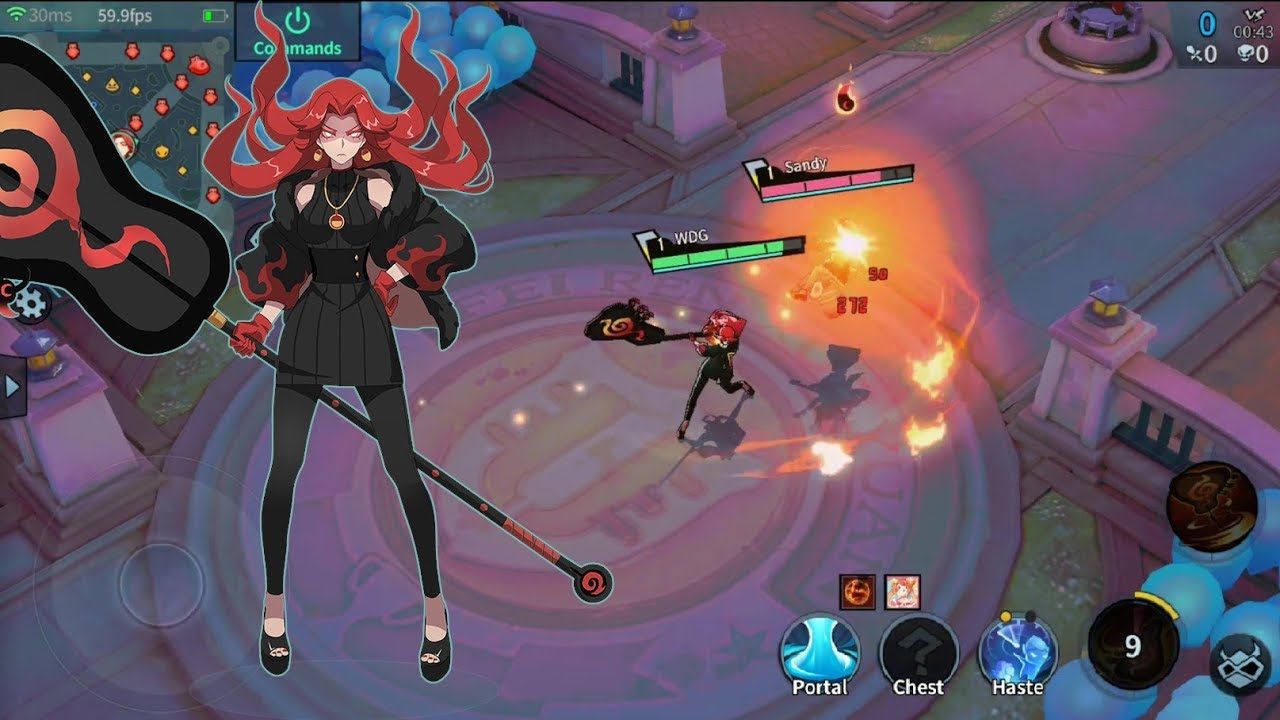
A locked 90 FPS cap delivers steadier frame pacing than an erratic 120 FPS target that collapses to 70 FPS. Eliminating frame spikes preserves skill-shot timing during fast exchanges.
Operating system rules also influence your refresh ceiling. Android 15 documentation highlights that the operating system defaults games to a 0Hz display refresh rate to conserve power. Reaching higher targets like 120 FPS requires explicit requests via the Frame Rate API or Swappy library. Even when unlocked, Android 15 forces the display back down to 0Hz if high device temperatures or low battery conditions occur.
Extraordinary Ones Overheating Battery Drain Fix
Thermal throttling is the primary cause of sudden framerate drops five minutes into a match. When the SoC hits internal temperature ceilings, the kernel downclocks the CPU and GPU.
Camomile's CPU throttling research documents that cutting processor power consumption from 5W down to 20W lowers operating temperatures by 20 to 30 degrees Celsius. Lowering thermal output keeps clock speeds steady throughout long matches.
Prevent thermal downclocking by managing physical and background device loads:
- Disable background synchronizations: Pause cloud backups and app updates in the background before launching matches.
- Avoid gaming while fast charging: Fast charging pushes phone thermals close to thermal throttling thresholds before the game even launches.
- Strip heavy protective cases: Thick cases trap heat against the phone's back glass, accelerating the thermal ceiling.
- Cap frame targets during hot ambient days: If playing in a warm room, shift the in-game display setting down from 90 FPS to a rock-solid 60 FPS.
Memory Constraints and Third-Party Booster Apps
Extraordinary Ones (version 4.3.30) requires a documented baseline of at least 2GB RAM alongside a moderately capable processor (UpdateStar). Running near this baseline leaves almost no memory headroom for Android's system tasks.
Third-party "game booster" apps frequently claim speed improvements between 15% and 30%. On a 2GB or 4GB phone, running an aggressive third-party booster worsens the exact memory thrashing you want to avoid.
| Performance Tool Type | Active Memory Footprint | Power Impact | Operational Recommendation |
|---|---|---|---|
| Built-in OEM Tools (Samsung Game Booster, Xiaomi Game Turbo) | Integrated into system OS | Optimized low-draw monitoring | Recommended; frees 200MB–0MB RAM cleanly (Rokform) |
| Manual Process Termination | Zero ongoing footprint | Zero battery impact | Effective; close background browser tabs and social media feeds |
Legitimate system utilities and built-in manufacturer tools typically recover 200MB to 0MB of active RAM on mid-range hardware (Rokform). They do this by closing idle apps without running continuous diagnostic overlays in the background.
If you use a Samsung device and notice stuttering after an OS update, reset the system booster directly:
- Open Android Settings.
- Tap Apps, then tap the filter icon and enable Show system apps.
- Locate and tap Game Booster.
- Select Storage and tap Clear data (Samsung Support).
This wipes corrupt cache profiles and restores default thermal thresholds.
Fix Ping Spikes Extraordinary Ones
Frame drops sometimes mask network latency issues. When packets drop, the client pauses state updates, mimicking visual jank.
For competitive matches, switch connections from 2.4GHz Wi-Fi to a 5GHz band. The 5GHz band is less congested than 2.4GHz, lowering baseline latency and reducing ping spikes (Fusion Fibre Group).
Stay in close proximity to the router. While 5GHz transmits data quickly, high-frequency signals degrade rapidly through interior walls compared to 2.4GHz. Avoid public hotspots or congested household bandwidth during ranked play.

Community
Comments