

Learn how to change controller layout on Steam PC with this guide covering button remapping, community configs, deadzone fixes, and custom layouts.
Getting a controller to work properly on PC can be frustrating. You plug in your gamepad, boot a game, and the camera spins, face buttons trigger the wrong actions, or the title shows keyboard prompts. Steam Input fixes this by intercepting hardware signals and giving you direct control over button bindings.
Whether you need to swap bumper functions, calibrate stick drift, or load custom profiles shared by other players, the client lets you tune every button, trigger, and axis. Here is how to configure your gamepad for any title in your library.
Steam Wallet Code (KRW)
Steam Input Architecture: Native Mode vs Legacy Mode
Steam processes hardware signals through two distinct translation layers: Native Mode and Legacy Mode.
Native Mode hooks directly into games built with the Steam Input API. Instead of sending generic button presses, your controller transmits in-game actions like "Jump," "Interact," or "Reload." This allows the game to display matching button glyphs on screen whether you hold an Xbox pad, a PlayStation controller, or a custom layout. Developers can also trigger automatic layout swaps when you transition between gameplay states, such as moving from on-foot exploration to driving a vehicle.
Legacy Mode operates as a hardware emulation layer when a game lacks native Steam Input integration. It intercepts physical inputs and translates them into standard XInput commands, mouse movements, or keystrokes. While this lets you play older titles or strategy games entirely on a controller, the game will typically display standard Xbox-style ABXY prompts regardless of your physical gamepad.
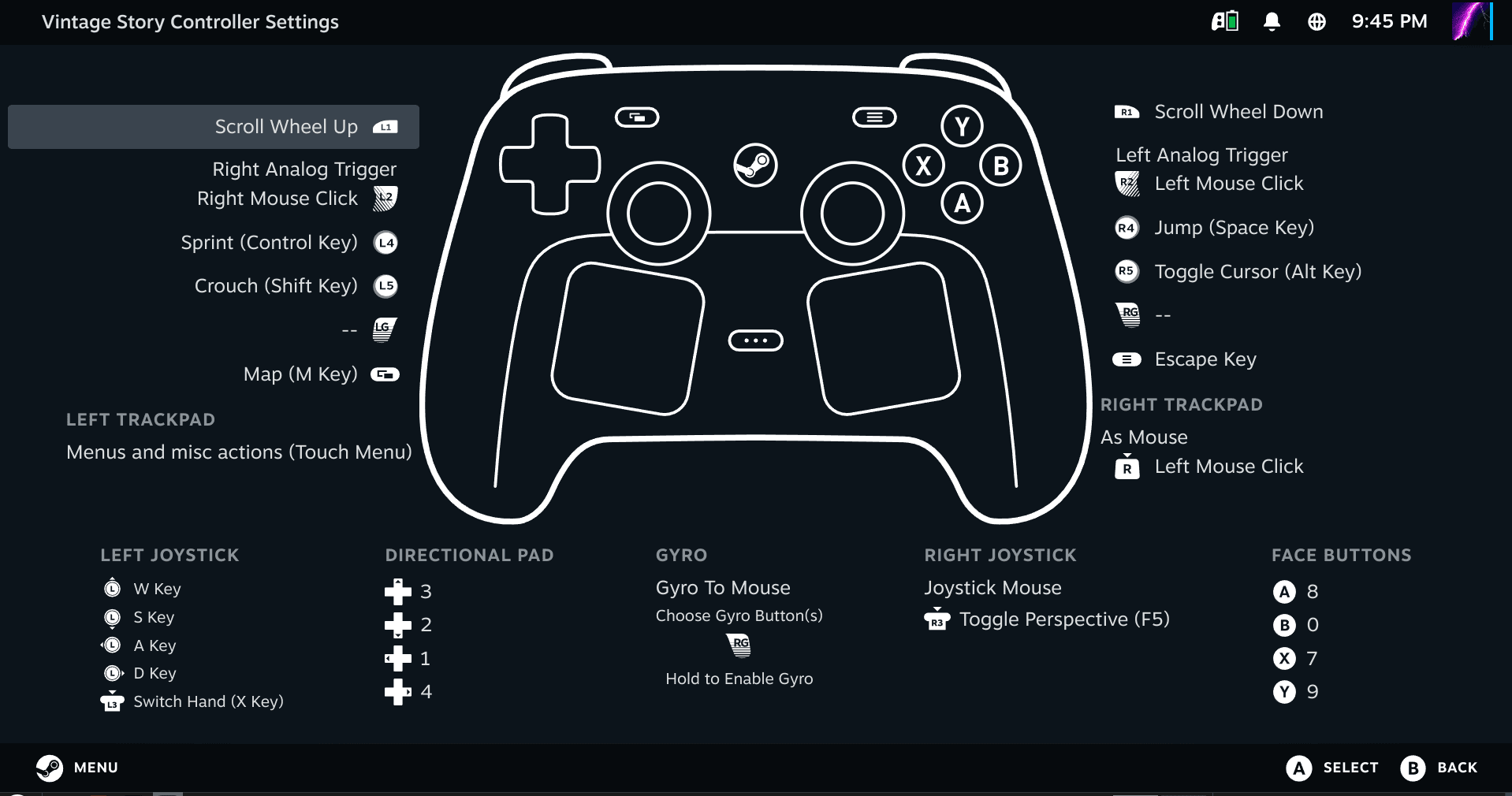
Third-party remapping utilities running in the background can break this pipeline. Many external tools output a virtual Xbox 360 controller signal. Steam Input then captures that virtual 360 device instead of your physical hardware, locking the client into Legacy Mode and disabling hardware features like native gyro aiming or touchpad bindings.
Accessing Controller Settings in Desktop and Big Picture
You can open the controller configuration menus through either the standard Steam Desktop Client or Big Picture Mode.
Desktop client access: 1. Open Steam and go to your Library. 2. Right-click the target game and select Properties. 3. Click the Controller tab in the left sidebar. 4. Click Controller Configurator, or click the Controller Icon on the game's library page banner.
Big Picture Mode access: 1. Launch Big Picture Mode by clicking the monitor icon in the top right corner. 2. Select your game and open its game hub. 3. Select Manage Game from the sidebar. 4. Click Controller Configuration to launch the overlay.
Steam also maintains global controller configurations that apply outside of individual games:
| Configuration Type | Scope | Primary Purpose |
|---|---|---|
| Per-Game Layout | Active game executable | Maps controls, sensitivity curves, and action layers for a specific title |
| Big Picture Configuration | Big Picture interface | Dictates menu navigation, selection buttons, and UI shortcuts |
| Desktop Configuration | Windows Desktop environment | Turns thumbsticks/trackpads into mouse pointers and triggers into mouse clicks |
| Guide Button Chord | Global overlay shortcut | Executes system actions (screenshots, keyboard summon) while holding the central Guide button |
Configuring global profiles prevents unwanted desktop cursor drift when you alt-tab out of a game.
Mapping Inputs Across the 11 Input Source Groups
Steam Input sorts physical hardware into eleven discrete input source groups: * Left Joystick and Right Joystick: Analog movement, directional clicks (L3/R3), and directional pad emulation. * Left Trackpad, Right Trackpad, and Center Trackpad: Mouse emulation, touch radial menus, scroll wheels, and edge taps. * ABXY: The primary face button cluster. * DPAD: Directional pad configured as 4-way, 8-way, or radial inputs. * Left Trigger and Right Trigger: Dual-stage analog sweeps and digital full-pull thresholds. * Gyro: Internal motion sensors used for tilt aiming, steering, or camera panning. * Switch: Select/Back, Start/Menu, shoulder bumpers (L1/R1), and rear grip paddles.
| Input Source Group | Common Physical Controls | Supported Output Styles |
|---|---|---|
| Joysticks | Left & Right Thumbsticks, Stick Clicks | Directional Pad, Radial Menu, Mouse, Joystick Move |
| Trackpads | Dual Trackpads, Central Touchpads | Mouse Pointer, Touch Menu, Scroll Wheel, Single Button |
| Face Buttons (ABXY) | A, B, X, Y (or Cross, Circle, Square, Triangle) | Single Key, Turbo Button, Mode Shift Activator |
| Triggers | Analog Left & Right Triggers | Analog Pull, Threshold Click, Dual-Stage Button Action |
| Gyroscope | Internal Motion Accelerometers | Mouse Aiming, Lean Steering, Directional Tilt |
| Switches / Bumpers | Bumpers, View/Menu, Grip Paddles | Standard Gamepad Inputs, Hotkeys, Modifier Chords |
For complex control schemes, use Action Sets and Action Set Layers. An Action Set is a complete controller layout swap. For instance, define a "Ground" Action Set for running around and a "Flight" Action Set that rebinds sticks to yaw and pitch inside vehicles.
Action Set Layers apply temporary modifications on top of an active Action Set. Holding down your aim button can trigger a layer that lowers stick sensitivity, switches gyro aiming to "Always On," and remaps the right bumper to hold breath. Release the aim button, and the layer drops away instantly.
If you want to test custom profiles across new titles in your library, top up your account with a Steam Wallet Code (KRW) to add games directly through the client.
Loading Community Profiles and Controller Templates
You do not need to map every input manually. The Steam community shares pre-built configurations for almost every game in the catalog.
To load a pre-made layout: 1. Open the Controller Layout screen for your game. 2. Click the current layout card at the top. 3. Select the Browse Configs tab.
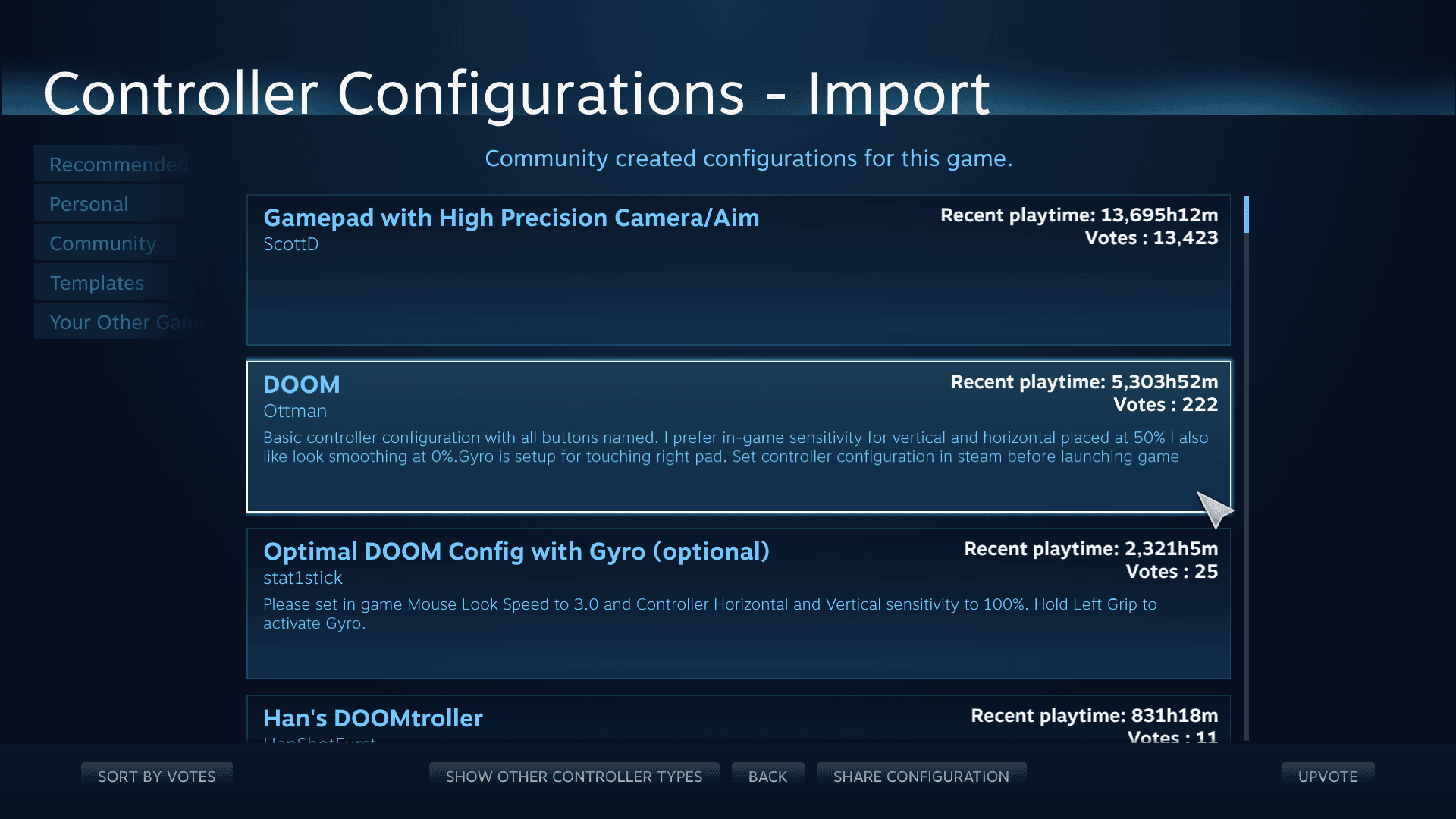
Steam categorizes layouts into four groups: * Recommended: Official profiles supplied by game developers. * Personal: Saved configurations exported locally or stored in your Steam Cloud. * Community: Layouts shared by other players, ranked by total playtime and upvotes. * Templates: Genre baselines (Gamepad, Keyboard & Mouse WASD, or High Precision Camera) for manual customization.
Highlight a configuration, press inspect to review the bindings, and click Apply Layout. Export customized community profiles to your Personal tab so future community updates do not overwrite your tweaks.
Tuning Deadzones, Sensitivity, and Diagonal Response
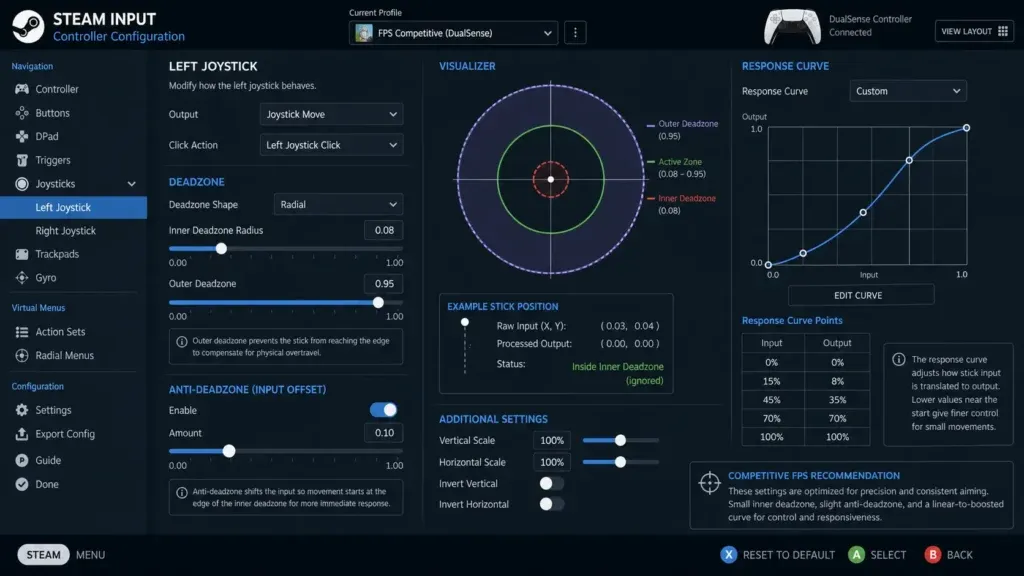
Stick drift and sluggish camera controls typically stem from improper deadzone calibration. If your character moves without touching the stick, the deadzone is too narrow. If subtle aim adjustments feel unresponsive, the deadzone is too wide.
To adjust deadzone settings: 1. Open the game's controller layout. 2. Click Edit Layout. 3. Select Joysticks in the left menu. 4. Click the gear icon next to your thumbstick and choose Deadzone.
Steam lets you keep default game values, set custom minimum/maximum thresholds, or enforce specific geometric shapes. In racing or sports titles, standard circular deadzones can limit diagonal stick reach, preventing full 100% steering lock at the diagonal extremes.
Two methods correct diagonal response: 1. Square Deadzone: Forces a square boundary, enabling full diagonal deflection across all four corners. This can make diagonal input sensitive to over-steering. 2. Sensitivity Multiplier (1.41): Scales diagonal coordinates to maximum output on circular deadzones without creating the sharp corner response of a square zone.
Start with a standard cross or circular deadzone and a 1.41 multiplier. Switch to a square deadzone only if a title demands instant corner inputs.
Remapping Non-Steam Games and Standalone Executables
Steam Input works with external executables added to your client, applying the same remapping, gyro aiming, and community profiles available to native Steam titles.
To import an external game: 1. Click Games in the top menu bar. 2. Select Add a Non-Steam Game to My Library. 3. Check your game's executable or click Browse to find its file path. 4. Click Add Selected Programs.
Always launch the game through Steam. If you launch the executable directly from its folder, the Steam overlay will not hook into the process, and the custom layout will not activate.
On handheld PCs in Desktop Mode, non-Steam titles can default to Desktop Navigation bindings instead of your game layout: * Right Trackpad: Mouse cursor * Left Trackpad: Scroll wheel * Right Trigger: Left mouse click * Left Trigger: Right mouse click * Steam + X: Virtual keyboard
If an imported title stays stuck in desktop mode, switch out of Desktop Mode to the handheld gaming interface before launching.
Step-by-Step Fixes for Unresponsive Controls
When a controller refuses to register inputs, double-presses buttons, or exhibits severe input lag, work through these troubleshooting steps in sequence.
Step 1: Toggle Per-Game Steam Input Override
  │
  ├── Fixed? ──> Done
  └── No ──> Step 2: Clear Third-Party Background Wrappers
               │
               ├── Fixed? ──> Done
               └── No ──> Step 3: Hardware Handshake Reconnection
                            │
                            ├── Fixed? ──> Done
                            └── No ──> Step 4: Purge Corrupted Layout VDF Cache
                                         │
                                         └──> Step 5: Recalibrate in Global Settings
1. Toggle the Per-Game Steam Input Override
Conflicting driver stacks cause most controller issues. Games with dedicated native drivers can double-bind or fail when Steam Input translates signals simultaneously. 1. Right-click the game in your Library and open Properties. 2. Select the Controller tab. 3. Find Override for [Game Name]. 4. Set the dropdown to Disable Steam Input if the game has native controller support. 5. Set it to Enable Steam Input if the game fails to recognize your controller.
2. Close Third-Party Virtual Controller Wrappers
Exit external utilities that emulate virtual Xbox 360 controllers. Running these alongside Steam creates duplicate controller instances, triggering double inputs and broken stick mapping.
3. Reconnect the Controller on the Properties Tab
When a title does not recognize an active gamepad at launch: 1. Disconnect the controller. 2. Open the game's Properties > Controller page in Steam. 3. Set the override to Enable Steam Input. 4. Reconnect the controller while keeping the menu open. 5. Launch the game once the controller indicator turns active.
4. Purge Corrupted Layout Configuration Caches
If Steam fails to save your layouts or constantly reverts your bindings:
1. Exit Steam completely.
2. Open your installation folder, typically at steamapps/common/Steam Controller Configs.
3. Delete the temporary VDF files in that directory.
4. Restart Steam and re-apply your layout.
5. Recalibrate in General Controller Settings
If stick drift persists after tuning per-game deadzones: 1. Open Steam Settings > Controller. 2. Click Calibration and Advanced Settings. 3. Test the stick centering values and follow the calibration prompts to reset zero points.
If you switch between multiple game genres, keeping a prepaid Steam Wallet balance lets you pick up new titles and test their layouts immediately.
Controller Configuration Features by Platform and Architecture
Remapping tools differ significantly across operating systems and hardware layers. The comparison below shows where Steam Input fits alongside alternative remapping tools:
| Remapping Tool / Layer | Platform Scope | Multi-Layer Action Sets | Keyboard & Mouse Spoofing | Hardware Breadth |
|---|---|---|---|---|
| Steam Input | Steam Client & Imported Executables | Yes (Sets & Layers) | Yes (Full Macro & Keystroke Support) | Major Gamepads (Xbox, PlayStation, Switch, Custom) |
| Console Companion Apps | Windows Desktop (First-Party Hardware) | No | No (Gamepad Signals Only) | First-party pads only |
| Proprietary Advanced Remappers | System-wide Windows Applications | Yes (Multi-Slot Systems) | Yes (Full Macro & Mouse Emulation) | Over 100 supported controllers |
| Open-Source Emulation Wrappers | Windows Desktop (Targeted Controllers) | No | No (Primarily Virtual 360 Emulation) | Specific hardware (DualShock/DualSense) |
| Lightweight Keymappers | Universal Desktop | No | Yes (Basic Gamepad-to-Key Translations) | Generic DirectInput Gamepads |
While system utilities provide OS-level remapping, Steam Input integrates custom layers directly into the in-game overlay without requiring extra background drivers.
FAQ
How do I change the controller layout for a specific game on Steam PC?
Right-click the game in your Steam Library and select Manage > Controller Layout (or Edit Steam Controller Configuration). From there, choose "Edit Layout" to remap buttons individually or "Browse Configs" to select community layouts and official developer templates.
Can I use Steam Input to remap non-Steam games?
Yes, you can add any external executable by clicking "Games" > "Add a Non-Steam Game to My Library" in the top menu bar. Once added, launch the game directly through the Steam client to enable the Steam Input layout configurator.
Why is my PlayStation controller displaying Xbox button prompts on Steam?
In Legacy Mode, Steam Input translates controller signals into standard XInput commands, causing games to show generic ABXY prompts. Native Mode titles will show PlayStation glyphs only if the game developers implemented direct Steam Input API glyph support.
How do I fix stick drift or adjust sensitivity in Steam controller settings?
Open the Controller Layout configurator for your game, navigate to "Joysticks," and select the Deadzone and Sensitivity settings gear. You can increase the minimum deadzone threshold to eliminate drift or change the response curve using custom sensitivity multipliers.
Why are my controller inputs not working in a Steam game?
Input conflicts happen when Steam Input collides with a game's native controller driver or an external background tool. Right-click the game, select Properties > Controller, and toggle "Override for [Game Name]" between "Enable Steam Input" and "Disable Steam Input" to resolve the conflict.
What is the difference between Action Sets and Action Set Layers in Steam?
An Action Set is a completely separate control layout that swaps all button bindings at once for distinct game states like driving or menus. An Action Set Layer applies partial modifications and specific binding overlays on top of your currently active base Action Set.
The Final Verdict on Steam Controller Customization
Steam Input provides deep control over gamepad hardware on PC, but configuration depends on the game. When a game offers built-in support for your specific gamepad, set the per-game override to Disable Steam Input to maintain accurate on-screen prompts and avoid translation latency.
When a title lacks native support, exhibits deadzone issues, or requires complex multi-button bindings, enable Steam Input and configure an Action Set. Once your layouts are dialled in, grab a digital Steam Wallet Code to keep your library ready for upcoming releases.

Community
Comments