

Learn how to change steering controls in Ace Racer, optimize button layouts, and master drift techniques to dominate tracks with precise competitive handling.
Ace Racer does not handle like standard mobile racers. Vehicles accelerate automatically, leaving you to manage steering, brake taps, drift angles, and Ultimate timing. While auto-throttle simplifies inputs, NetEase's stock button placement is cramped on modern screens. Miss the drift trigger or fat-finger an arrow during a chicane, and your racing line falls apart.
Customizing your HUD and picking the right steering mode separates podium finishes from barrier collisions. Here is how to configure your inputs, select the right driving preset, and dial in an optimal layout for high-speed drifting.

Ace Racer
Accessing the Control Settings Menu Step-by-Step
NetEase tucked the steering configurations behind a couple of UI layers. You cannot afford to fumble through menus mid-match, so set this up from the main lobby before queueing up for ranked matches.
Follow these steps in order to access and customize your button map:
- Launch Ace Racer and wait until your vehicle is displayed in the main garage lobby.
- Tap the Gear icon situated in the upper-right corner of the interface to open the main Settings menu.
- Select the Controls tab from the left-hand navigation list.
- Review the driving presets displayed on screen (Auto Drift, Sliding Drift, or Manual Mode).
- Tap the Customize or Edit Layout button to pull up the on-screen HUD editor.
- Tap any on-screen button—such as the steering arrows, handbrake, Nitro, or Ultimate icons—to drag it to your preferred position or tweak its on-screen scale.
- Hit Save to lock in your custom layout, or select Reset if you want to wipe your changes back to the default factory configuration.
Take five minutes in practice mode right after saving. Tapping a button five millimeters off from where your muscle memory expects it will ruin your drift angle on turn one.
Preset Driving Modes Breakdown: Manual vs One-Touch
Before dragging buttons across your screen, you need to decide which baseline driving mode fits your playstyle. Ace Racer offers three primary driving models: Auto Drift, Sliding Drift, and Manual Mode. Auto Drift tries to guess your cornering angles, which actively sabotages your lines once tracks introduce consecutive S-curves and narrow hairpins.
For competitive racing, the real choice boils down to Manual Mode versus One-Touch Mode.
The table below contrasts how each preset handles screen real estate and input logic.
| Control Mode | Steering Setup | Action Buttons | Skill Ceiling | Recommended For |
|---|---|---|---|---|
| Manual Mode | Directional arrows grouped on the left screen | 4 distinct action icons grouped on the right | Highest | Competitive players and ranked climbing |
| One-Touch Mode | Directional buttons split on left and right sides | 1 primary action button placed directly above | Low | Casual play and basic track clearing |
| Auto Drift Mode | Directional steering arrows on the left | Automated drift trigger with manual Nitro/Ult | Very Low | Absolute beginners learning track directions |
Manual Mode remains the gold standard because separating directional input from drift and braking is essential for advanced sliding techniques.
One-Touch Mode sounds appealing if you find multi-button inputs overwhelming, but it is a trap. Splitting left and right arrows across opposite edges of your phone forces your right thumb to juggle directional steering alongside your drift and nitro inputs. Manual Mode cleanly isolates horizontal steering to your left hand and tactical actions to your right hand.
Building the Best Control Layout for Ace Racer Mobile
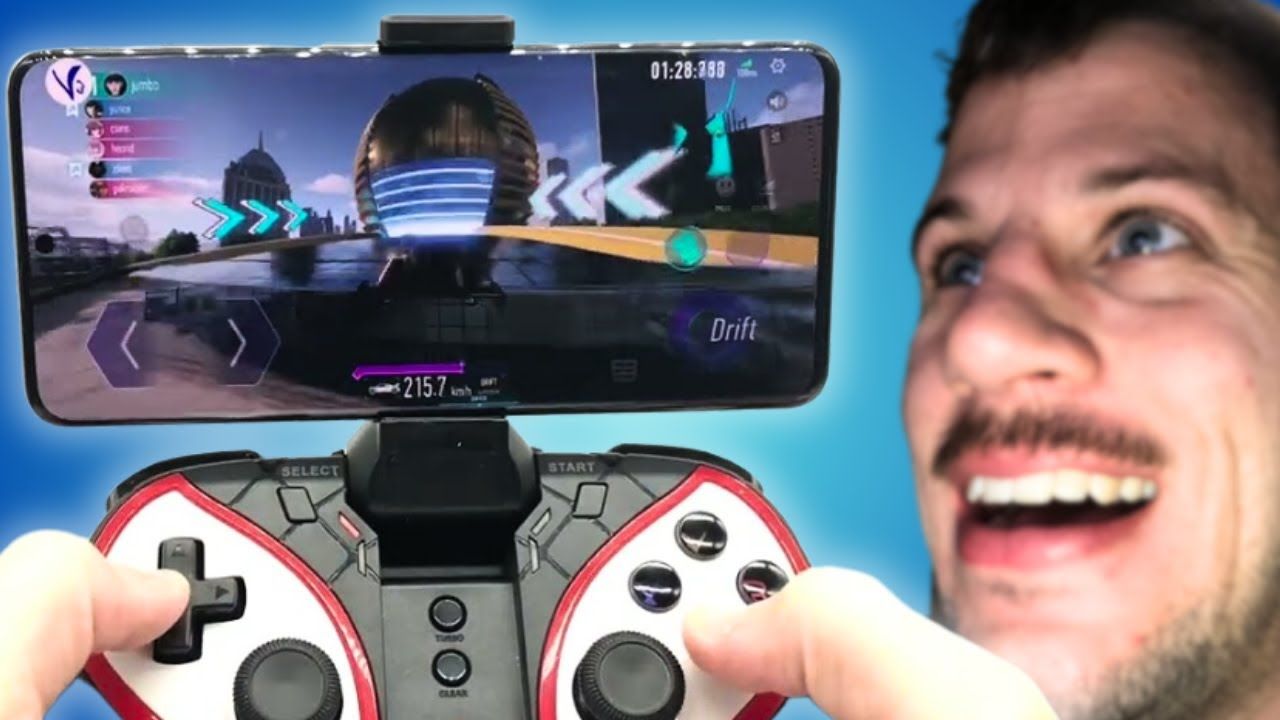
Choosing a mobile layout comes down to two options: a standard two-thumb grip or a three-finger claw setup. Because acceleration is automatic, four fingers are unnecessary. A dedicated three-finger layout, however, gives you an immediate physical advantage on technical courses.
The Two-Finger Setup (Standard Mobile Grip)
If you prefer holding your phone naturally between both palms: - Left Thumb: Dedicated exclusively to the left and right steering arrows. Increase the arrow button size by roughly 10% to 15% in the custom editor so your thumb never slips off the touch zone. - Right Thumb: Handles the Handbrake/Drift button, the regular Brake pedal icon, the Nitro boost, and the vehicle Ultimate trigger.
The fatal flaw of the two-finger grip is the delay between drifting and boosting. Because your right thumb must hop between the drift key and Nitro icon, you lose fractions of a second on corner exits. If you need upgraded parts or new rides to offset those millisecond losses, you can top up Ace Racer tokens to keep your garage competitive while refining your touch controls.
The Three-Finger Claw Setup (High-Response Layout)
For the fastest reaction times around technical apexes, shift to a three-finger setup: - Left Thumb: Stays locked on the left and right steering arrows near the bottom-left corner. - Right Thumb: Assigned solely to the lower-right cluster: the Handbrake drift button and the standard brake pedal icon. - Right Index Finger: Curled over the top-right edge of your phone screen, dedicated to tapping Nitro and triggering the Ultimate ability.
By decoupling your drift trigger from your boost activation, you can instantly ignite your Nitro boost while still holding your drift angle. That simultaneous input is mandatory for pulling off high-tier cornering maneuvers without scrubbing straight-line speed.
Drift Styles and Mechanical Input Combinations
Rebinding your buttons only matters if you know what to do with them. Drifting is not just a stylistic choice in Ace Racer—it is your primary engine for vehicle power. Drifting length directly dictates how quickly your vehicle Nitro gauge replenishes. Standard Turbo charges passively, but sustained drift arcs fill your Nitro reserve rapidly. Discharging that accumulated Nitro is what charges your car's ultimate meter.
Mastering every corner requires executing different drift techniques depending on the track curvature.
The following breakdown covers all six official drift variations and their exact input sequences.
| Drift Technique | Exact Input Sequence | Track Scenario | Tactical Advantage |
|---|---|---|---|
| Handbrake Drift | Directional Arrow + Drift Key simultaneously | Routine standard curves | Steady Nitro build; easy counter-steer exit |
| Inertia Drift | Drift sequence tap + secondary input combo | Sweeping wide-radius bends | Sustains prolonged drift arcs for heavy Nitro charge |
| Straight Drift | Initiate Drift + Hold down Brake Key | Sharp, narrow 90-degree turns | Prevents hitting inner walls without bleeding speed |
| Brake Drift | Tap Brake Key + Directional Arrow & Drift | High-speed inner apexes | Hugs tight inside lines without wide understeer |
| Pendulum Drift | Hold Drift Key + Slide steering to opposite Arrow | Consecutive S-curves / chicanes | Snaps vehicle weight across rapid directional shifts |
| Thrust Drift | Initiate Drift while under active Turbo or Nitro | Tight corners under full boost | Yields massive Nitro gauge replenishment |
Matching the right drift technique to the corner profile prevents wall collisions and keeps your ultimate gauge continuously cycling.
Take note of the Brake Drift and Straight Drift inputs. Many beginners treat the brake icon as useless clutter and drag it off into a corner of the screen. Do not do that. Holding the brake during a drift alters your slip angle, letting you shave paint off the inner guardrail on tracks where a standard Handbrake Drift would send your rear bumper smashing into the outer barrier.
Platform Setup: Mobile Touchscreens vs PC Emulators
Ace Racer runs on Android and iOS devices, but many competitive racers prefer running the client on PC emulators like BlueStacks to bind their steering to mechanical keys or analog controller sticks. How you tune your controls depends entirely on your platform.
Here is how hardware demands and control configurations compare across platforms.
| Platform | Minimum Specs | Input Method | Latency Considerations | Key Advantages |
|---|---|---|---|---|
| Android Mobile | Android 4.3 or above | Capacitive multi-touch | Minimal input lag; screen size limits spacing | Native portability; natural gyroscopic options |
| iOS Mobile | Current supported iOS builds | Capacitive multi-touch | High touch sampling; glass friction affects thumb speed | Smooth frame pacing on modern devices |
| PC (Emulator) | 4 CPU cores, 4 GB RAM | Keyboard / Gamepad (via Ctrl + Shift + A) | Potential micro-stutter if frame rate drops below 60 FPS | Physical tactile feedback; zero screen occlusion |
Configuring the correct platform settings guarantees your steering inputs register instantly without frame drops killing your drift angle.
If you choose the PC emulator route, do not settle for default virtual button emulation. Open the Advanced Editor using the shortcut Ctrl + Shift + A. From there, map the left and right steering arrows to physical keys (such as A and D, or Left and Right arrow keys). Assign the Handbrake to the Spacebar or a gamepad face button, and map your Nitro to a shoulder trigger.
To eliminate input latency on PC, configure your emulator instance with at least 4 CPU cores, 4 GB of allocated RAM, set the graphics engine to High Performance, and lock the display refresh rate to a stable 60 FPS. Anything lower introduces steering stutter that makes apex clipping impossible.
Steering Sensitivity and Hardware Tuning for Clean Apexes
Once your HUD buttons are positioned, head into the sensitivity sub-menu. Steering sensitivity determines how aggressively your vehicle's nose reacts when you tap or hold a directional arrow.
If your steering sensitivity is cranked too high, your car will twitch violently across the asphalt, initiating unwanted slides on straightaways. If it is set too low, your vehicle will suffer from understeer, forcing you into wide arcs that leave you vulnerable to overtakes.
Set your horizontal steering sensitivity to a neutral baseline and adjust incrementally based on your vehicle class: - Speedsters: Benefit from slightly lower sensitivity. High straight-line velocity means tiny steering inputs produce massive lateral movements. - Supporters and Interceptors: Need moderate to high sensitivity so they can quickly weave through traffic, disrupt opponents, or provide positioning buffs to teammates.
If you find yourself needing an edge in high-rank lobbies while mastering these sensitivity balances, grabbing Ace Racer token packs allows you to unlock vehicle enhancements and cosmetic kits without waiting out weekly milestones.
Roster Discrepancies, Daily Supplies, and the S License Vanquish
As you spend time remapping controls across different vehicle types, you will notice distinct differences in vehicle handling and collection sizes. Track guides often conflict regarding the game's actual scope. Uptodown lists Ace Racer as featuring over 30 cars, BlueStacks guides cite over 80 authorized vehicles, and NetEase's launch materials state there are more than 100 models representing over 25 real-world automotive manufacturers.
Race lengths also show documentation conflicts: some community guides list race durations between 2 and 3 minutes, whereas NetEase designed competitive rounds to wrap up in roughly 1 minute. In standard competitive play, sprints clock between 60 and 90 seconds, meaning every drift input must be executed cleanly. There is zero time to recover from a botched turn.
To practice your layouts without running dry on fuel, keep track of the daily scheduled supply periods. Logging into the game during these specific windows awards free upgrade resources: - Mid-day Supply Window: 11:00 to 15:00 (Grants 50 gift cards and 50 fuel) - Evening Supply Window: 19:00 to 22:00 (Grants 50 gift cards and 50 fuel)
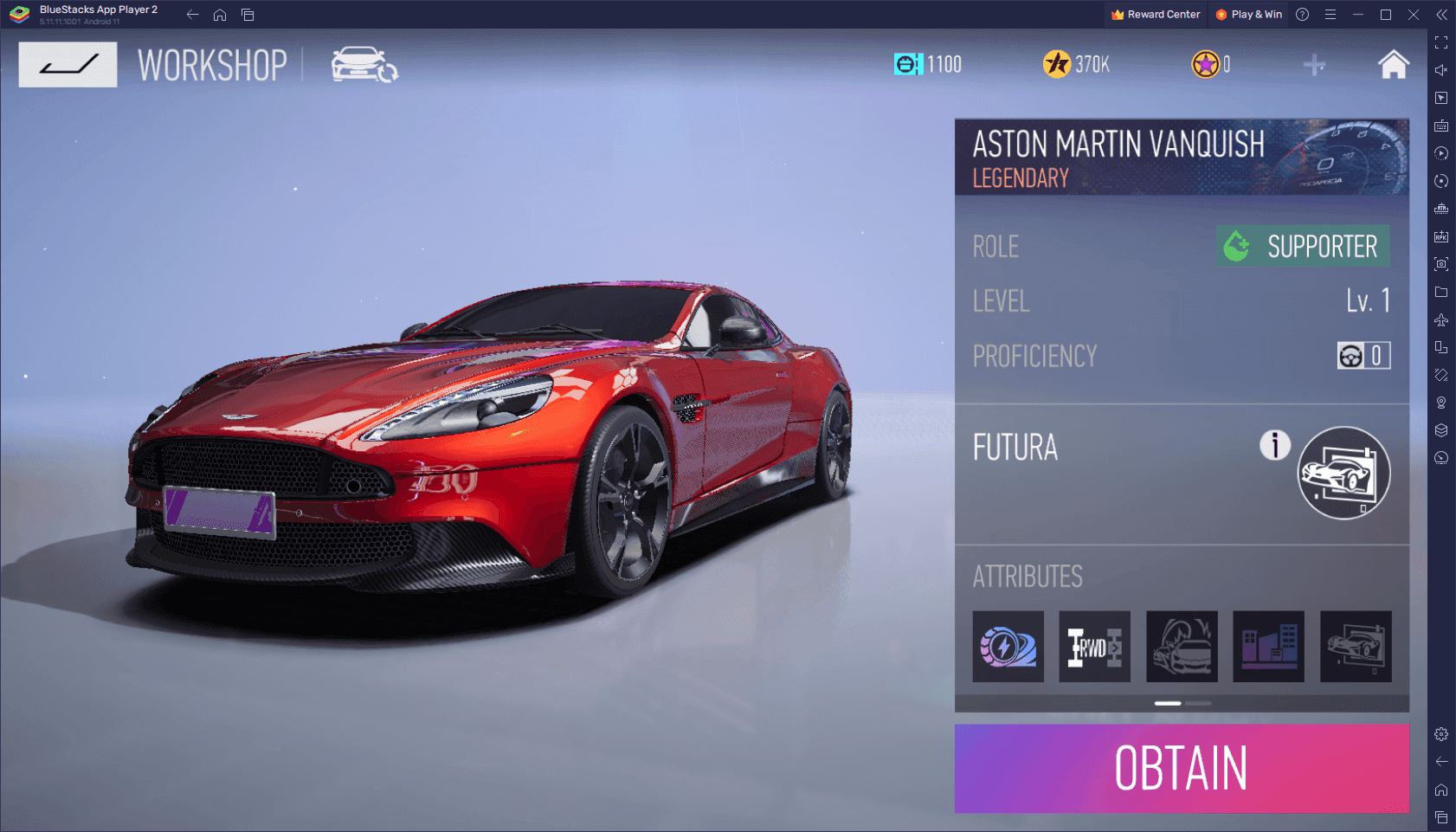
Collecting this free fuel gives you ample track time to test custom button placements. Put those practice hours toward completing all stages of the S License Exam. Finishing the S License unlocks the Aston Martin Vanquish, a supporter vehicle equipped with the Futura ultimate ability. Futura provides collision immunity and projects an acceleration buff to allied vehicles within a 500-meter radius, giving teams a massive edge in ranked matches.
Step-by-Step Fixes for Unresponsive Drift Inputs
If you have customized your layout but your vehicle fails to initiate slides or ignores steering inputs, your setup likely suffers from an input collision or software conflict. Run through these troubleshooting fixes in order.
Step 1: Verify Button Hitbox Overlap
Open the custom layout editor and inspect the transparent boundary rings surrounding your drift and directional arrows. If the invisible outer hitbox of your left arrow overlaps the right arrow, or if your drift button clips the standard brake icon, your device's digitizer will register simultaneous conflicting presses. Separate all active touch zones by at least a few millimeters.
Step 2: Disable Multi-Touch Gestures in OS Settings
Modern Android and iOS operating systems feature system-level multi-touch gestures, such as three-finger swipe for screenshots or three-finger tapping for copy-paste menus. If you use a three-finger claw layout, your phone will occasionally freeze game inputs to listen for an OS gesture. Turn off all system swipe shortcuts in your phone's accessibility and gesture settings.
Step 3: Re-evaluate Screen Protector Thickness and Friction
Capacitive touchscreens require reliable electrical conductivity. Thick, low-quality glass screen protectors can swallow rapid micro-taps on steering arrows. If your thumbs stick to the glass while sliding between arrows during Pendulum Drifts, apply a matte screen protector or use mobile gaming finger sleeves to reduce surface drag.
Step 4: Clear Cache and Check Baseline Android Version
If steering inputs register with a noticeable half-second delay, your hardware may be struggling with memory leaks. Ace Racer requires an operating baseline of Android version 4.3 or higher. If your device is near the minimum specification, lower your visual quality settings to ensure stable frame rates. A stuttering frame rate directly causes dropped touch inputs.
Step 5: Execute a Full Layout Reset
If your buttons become completely misaligned or an update displaces your HUD icons off the visible screen area, go to Settings > Controls > Customize and tap Reset. This restores the factory default positions. From there, rebuild your custom spacing from scratch rather than trying to fix individual displaced icons.
FAQ
How do you change steering controls in Ace Racer?
Open the in-game settings menu by tapping the gear icon in the garage, then navigate to the Controls tab. From there, switch between Manual Mode and One-Touch Mode, or tap the Customize button to manually drag and scale directional arrows and action triggers anywhere on your screen.
What is the difference between Manual Mode and One-Touch Mode?
Manual Mode places your steering arrows on the bottom-left and clusters four distinct action buttons on the bottom-right. One-Touch Mode splits directional steering across opposite sides of the screen with a single action button positioned directly above, which significantly limits your drift control.
How do you perform a Handbrake Drift in Ace Racer?
Press your desired directional arrow and the handbrake drift icon at the exact same moment. Once your vehicle settles into the intended slide angle, release both buttons and lightly counter-steer to straighten your line.
Why is Brake Drifting useful on sharp corners?
Brake Drifting uses the regular brake pedal in tandem with your steering and drift icons to alter your entry trajectory. This technique forces the vehicle to hug the inner apex tightly, preventing you from sliding outward into walls during high-speed turns.
Can you use a gamepad or PC controls for Ace Racer?
Yes, you can run the game through an emulator like BlueStacks and open the Advanced Editor with Ctrl + Shift + A. This tool allows you to map touch controls directly to physical keyboard keys or an analog gamepad controller.
Does Ace Racer require players to press an accelerator pedal?
No, vehicles accelerate forward automatically throughout every race. You only need to manage left and right directional steering, brake inputs, drift initiations, and timing your Nitro and Ultimate skills.
How does drifting recharge your Nitro boost?
Maintaining continuous drift arcs fills your vehicle's Nitro gauge, with longer and more aggressive slides filling the meter significantly faster. Once full, expending your Nitro boost directly charges your vehicle's Ultimate ability.
Final Verdict: Ditch the Defaults for Edge Precision
Leaving your controls on default settings will cap your competitive ceiling in Ace Racer. The stock layout tries to be an all-around compromise for casual players, but it places critical drift and brake inputs too close together for precise execution. Shift your controls to Manual Mode immediately, separate your drift and brake hitboxes, and spend a few practice runs testing a three-finger layout.
Once you decouple your steering from your tactical abilities, complex maneuvers like Pendulum Drifts through chicanes and high-boost Thrust Drifts become second nature. Master the inputs, keep your fuel topped up during the daily 11:00 and 19:00 supply windows, and whenever you want to expand your garage options or customize your favorite rides, replenish your Ace Racer tokens to keep your machines running at their absolute peak.

Community
Comments