

Learn how to link GOG account in Cyberpunk 2077 across PC and consoles to enable cross-progression saves, claim stash rewards, and fix annoying login errors.
Connecting your CD PROJEKT RED and GOG credentials enables cloud save synchronization across platforms and delivers bonus equipment directly into V's apartment stash.
Setup takes under five minutes on PC or console. If you pick up Cyberpunk 2077 digital editions to start fresh or transfer an existing campaign, this guide covers the exact menu steps, platform requirements, and fixes for common connection errors.

Cyberpunk 2077
Cyberpunk 2077 (only for PC)
Buy NowUSD 41.98
Why Connect Your CDPR Account to Cyberpunk 2077?
Connecting your profile ties your copy of Cyberpunk 2077 directly to CD PROJEKT RED online services. The integration handles two core functions: the My Rewards item catalog and cross-platform cloud saves.
Account registration drops leveled armor, weapons, and cosmetics into V's stash without spending eddies. It also uploads your manual saves, quicksaves, and autosaves to the cloud so you can continue the same character across different hardware.
Registration permanently binds a platform save profile to one CD PROJEKT RED account. While you can link multiple platform profiles (such as PlayStation Network, Xbox network, and PC) to that central CDPR account, you cannot split a single platform profile across multiple separate GOG accounts.
Linking on PC Through the REDlauncher
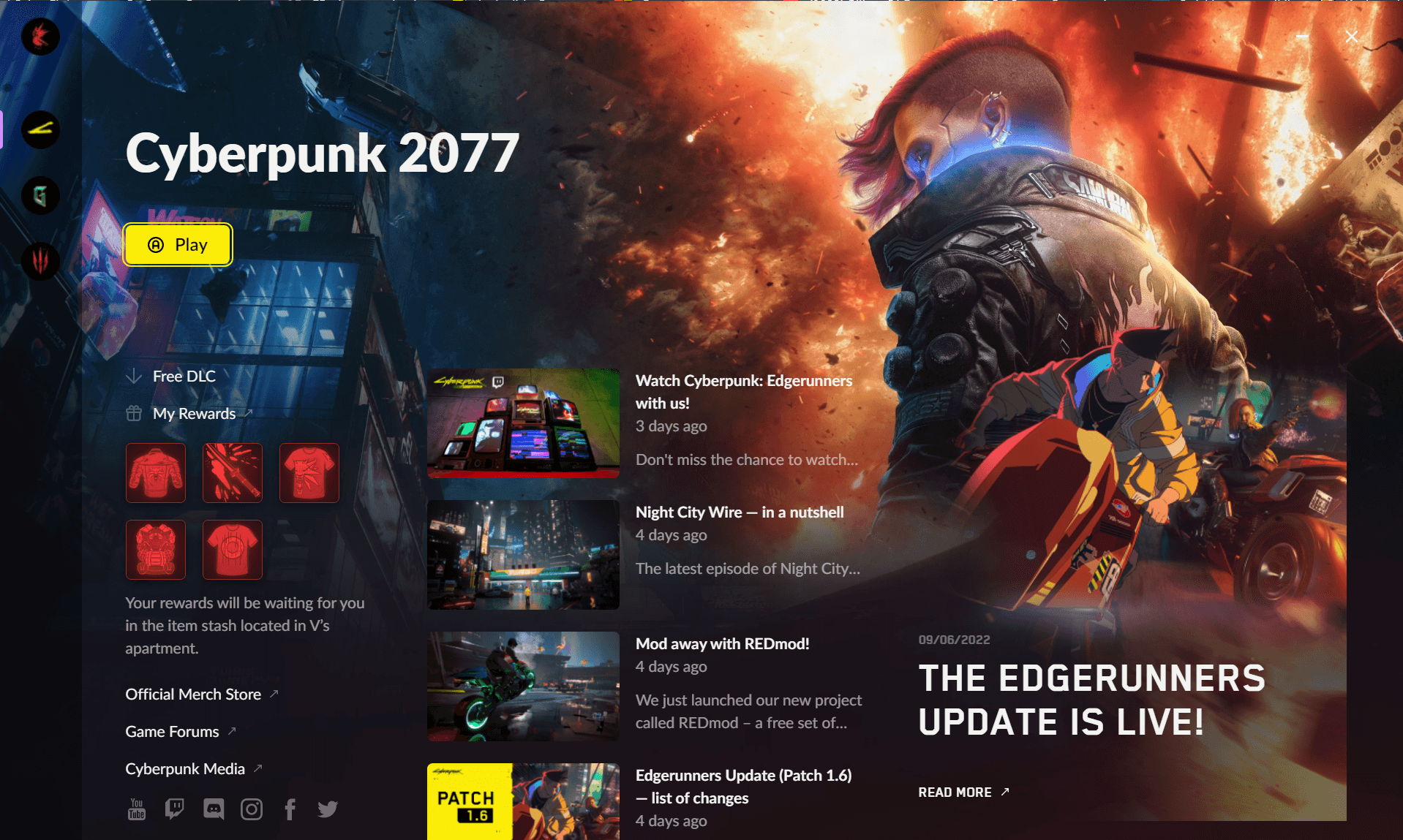
PC players authenticate through the REDlauncher window that opens before the game boots.
- Launch the game through your PC desktop client to open REDlauncher.
- Locate the account prompt at the bottom of the launcher window.
- Enter your CD PROJEKT RED account email and password, then click Log In.
- Wait for the profile confirmation to update your status.
- Click Play to launch Cyberpunk 2077 with your rewards and cloud sync active.
Offline installer builds run without GOG GALAXY cannot claim My Rewards. The backend server requires an active handshake through REDlauncher or GOG GALAXY to verify entitlement tokens.
PlayStation and Xbox QR Code Connection Walkthrough
Console versions on PS4, PS5, Xbox One, and Xbox Series X/S authenticate directly from the main title menu.
Follow these steps on your console:
- Launch Cyberpunk 2077 and wait for the title screen to load.
- In the bottom-right corner of the main menu, select the MY REWARDS prompt.
- A registration screen will appear displaying a scannable QR code and a direct web URL.
- Scan the QR code with your phone camera, or type the URL into a web browser.
- Log into your CD PROJEKT RED / GOG account on the authentication portal.
- Confirm the authorization in your browser. Return to your console, and the in-game menu will refresh to show your unlocked rewards.
Watch your inbox for verification messages sent from [email protected]. Do not close your browser tab while waiting for the one-time verification code, as closing the tab invalidates the active code. Submitting code requests repeatedly triggers a temporary 15-minute security rate-limit lockout.
Platform Setup Comparison and Requirements
Each platform connects to CDPR account servers through distinct authentication protocols:
| Platform Environment | Primary Authentication Method | In-Game Menu Steps | Critical Requirement |
|---|---|---|---|
| PC (Launcher / Galaxy) | REDlauncher Client Login | Automatic verification via launcher sign-in before booting | Active internet connection and live launcher client |
| PlayStation (PS4 / PS5) | QR Code & Web Portal Link | Main Menu > MY REWARDS > Scan QR / Open Link | Browser authentication via smartphone or PC |
| Xbox (One / Series X/S) | QR Code & Web Portal Link | Main Menu > MY REWARDS > Scan QR / Open Link | Browser authentication via smartphone or PC |
Takeaway: PC users authenticate through their launcher wrapper before boot, while console users authenticate in-game through an external web browser gateway.
Activating Cross-Progression and Cloud Saves Across Systems
Cross-progression cloud saves allow you to transfer your latest save states between platforms. Logging into your account does not enable cloud saves automatically; you must switch the setting on inside the game menus.
If you plan to switch between desktop rigs and consoles, pick up Cyberpunk 2077 game codes to set up matching versions on your alternate systems.
How to Turn on Cloud Saves
- Open the game and go to Settings.
- Select the Gameplay tab along the top navigation bar.
- Scroll down to the Miscellaneous section.
- Toggle Enable cross-platform saves to On.
- Open your Load Game menu and check the bottom corner for the cloud sync indicator icon.
Settings -> Gameplay -> Miscellaneous -> Enable cross-platform saves [ON]
Once active, your most recent manual save, quicksave, and autosave upload to the cloud automatically. A cloud icon marks synced save files in the Load Game menu.
Cross-Save Regional Compatibility Restrictions
Cross-progression works across PC, PS5, and Xbox Series X/S, but regional SKU restrictions lock down specific territories. Saves created under regional censorship guidelines cannot transfer to unrestricted game builds.
Saves originating from or transferring into the following 7 regions cannot sync with outside versions: - Saudi Arabia - United Arab Emirates - Bahrain - Kuwait - Oman - Qatar - Japan
If your base game was purchased in any of these 7 regions, cloud saves remain locked to that regional SKU.
Console Generation Upgrades
When migrating within the same console family (PS4 to PS5 or Xbox One to Xbox Series X/S), standard platform-level transfers apply alongside CDPR cloud saves. PS4 to PS5 saves transfer via console cloud backup, local LAN/Wi-Fi transfer, or USB storage. Xbox One to Xbox Series X/S saves transfer automatically via Smart Delivery cloud sync.
Claiming My Rewards in V's Apartment Stash
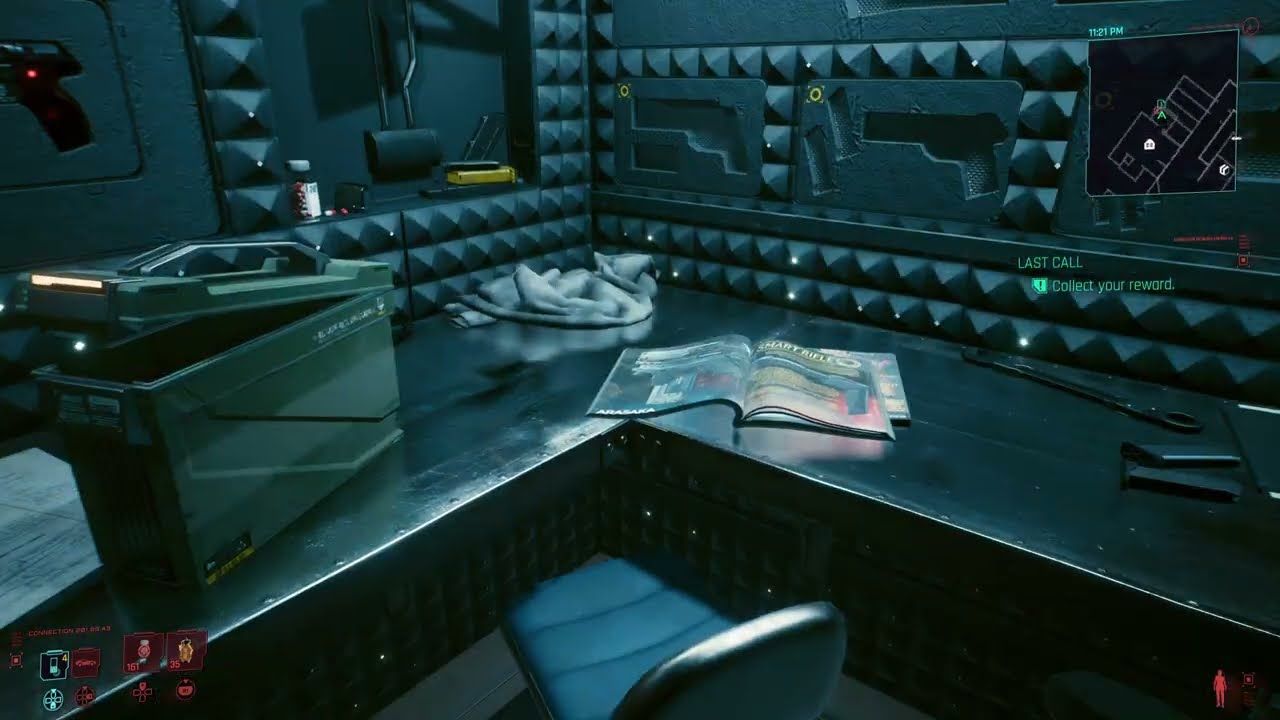
Claimed items route directly into V's apartment stash without requiring you to restart your campaign or speak with a fixer.
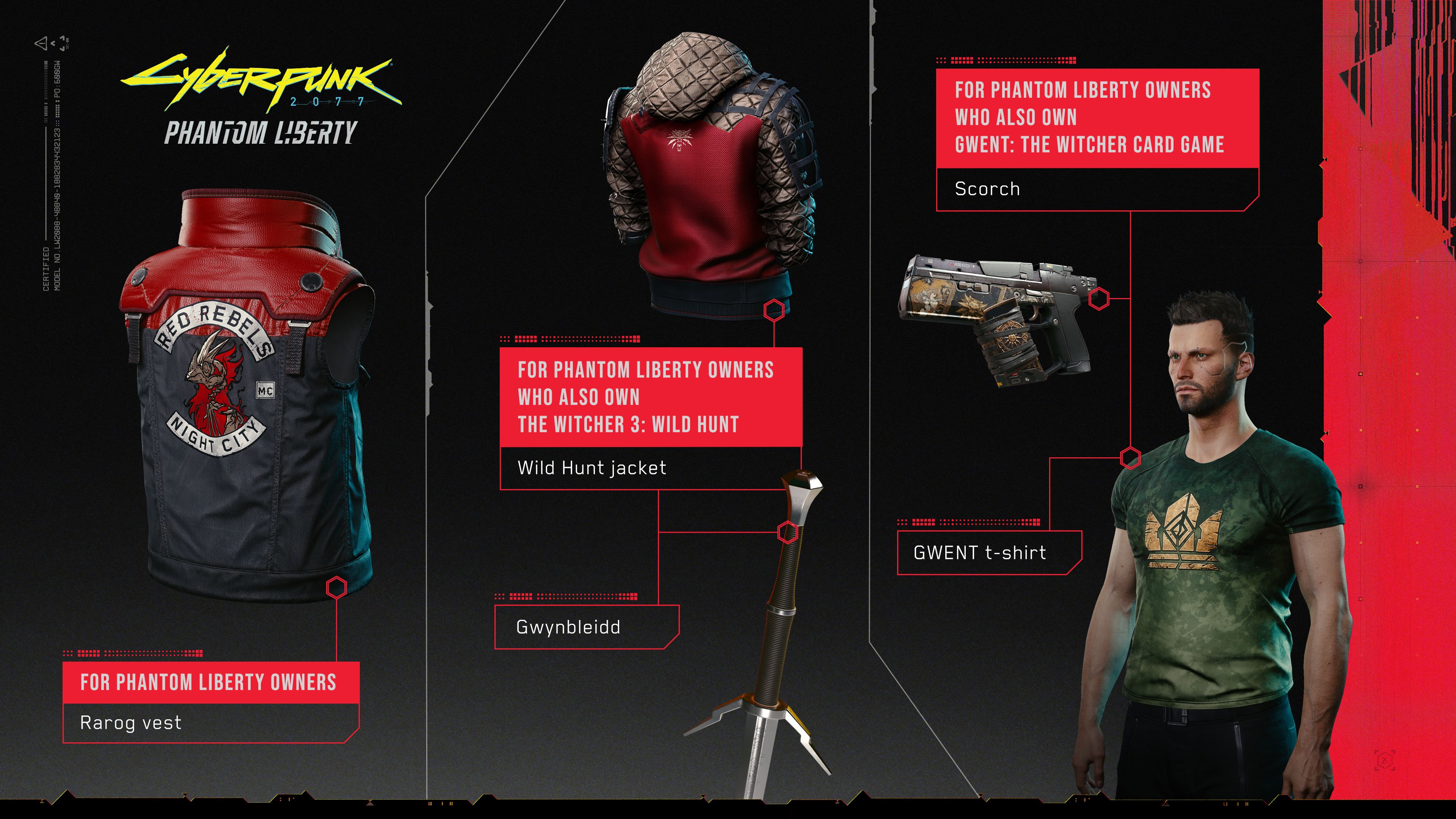
Owning other CD PROJEKT RED titles on the same linked account unlocks additional crossover gear. For example, owning The Witcher 3: Wild Hunt awards bonus gear in Cyberpunk 2077: Phantom Liberty, while linking your game grants cosmetics in Gwent: The Witcher Card Game.
| Reward Package | Item Name | Item Category | Requirement Details |
|---|---|---|---|
| Core Registration | Wolf School Jacket | Torso Armor | Link CDPR account to Cyberpunk 2077 |
| Core Registration | Galaxy T-Shirt | Inner Torso Clothing | Link CDPR account to Cyberpunk 2077 |
| Core Registration | Wolf School T-Shirt | Inner Torso Clothing | Link CDPR account to Cyberpunk 2077 |
| Core Registration | Black Unicorn | Katana Melee Weapon | Link CDPR account to Cyberpunk 2077 |
| Core Registration | Shupe the Troll Plushy | Apartment Stash Decoration | Link CDPR account to Cyberpunk 2077 |
| Cross-Game Perk | Wild Hunt Jacket | Outer Torso Armor | Own The Witcher 3 on linked CDPR profile |
| Cross-Game Perk | Gwynbleidd Sword | Melee Blade Weapon | Own The Witcher 3 on linked CDPR profile |
| Gwent Crossover | "Breathtaking" Title | Profile Title | Own Cyberpunk 2077 on linked GOG profile |
| Gwent Crossover | Samurai Coin | Custom Match Coin | Own Cyberpunk 2077 on linked GOG profile |
| Gwent Crossover | Samurai Cardback | Custom Card Aesthetic | Own Cyberpunk 2077 on linked GOG profile |
Takeaway: The initial registration grants 5 core items, while cross-game entitlements deliver up to 2 extra expansion items and 3 Gwent cosmetic unlocks.
To retrieve your gear, go to V's starter apartment in Little China (Watson). Open the storage room on the wall opposite the front door, interact with the stash container, and move the items into your inventory.
Troubleshooting Account Link Errors and Verification Issues
Account linking errors typically stem from browser cache issues, mod conflicts, or verification rate limits.
If you need to verify code redemptions or expand your library, check Cyberpunk 2077 account keys before modifying configuration files.
| Issue Description | Probable Root Cause | Resolution Action |
|---|---|---|
| "Access Denied" on Rewards | Platform integration desync in GOG Galaxy | Open GOG Galaxy Settings > Add games & friends and reconnect integration |
| Missing Verification Email | Spam filter or closed verification tab | Check spam for [email protected]; do not close window |
| 15-Minute Rate Limit Lock | Repeatedly requesting verification codes | Wait full 15 minutes without requesting new security codes |
| No Rewards in Apartment Stash | Mod skipping the game intro sequence | Disable intro-skipping mods to let the login handshake complete |
| Invalid Game Code Error | Mistaking numerical zero for letter 'O' | Re-enter code substituting all round characters with '0' |
| Cross-Save Not Uploading | Cross-platform toggle disabled in gameplay menu | Go to Settings > Gameplay > Miscellaneous and enable cross-platform saves |
Takeaway: Most authentication failures trace back to interrupted verification browser tabs, mod interference, or mistyped activation characters.
Resolving Mod Handshake Conflicts
Mods like Cyber Engine Tweaks or intro-skipping utilities can bypass the splash screen where REDlauncher sends entitlement tokens to the game engine. If rewards do not appear in V's stash after a valid login, disable intro-skipping mods, launch the game normally once, load your save, and recheck your stash.
Locating Local Save Files for Backup
If cloud sync fails, back up your local PC save folder before changing settings. Default local saves are located at:
C:\Users\[username]\Saved Games\CD Projekt Red\Cyberpunk 2077
Copy this folder to a separate drive before toggling cross-platform settings.
Activation Code Format Rules
Retail registration codes and digital activation keys for CDPR games never contain the letter "O". All circular characters are the number zero (0). Entering the letter "O" triggers an "Invalid Key" error.
Step-by-Step Fix Flow for Login and Sync Failures
If your profile fails to link or cloud saves do not sync, execute these troubleshooting steps in order:
Check Server Whitelist & Rate Limits
Ensure you have not triggered the 15-minute rate limit. Check email filters to confirm messages from[email protected]are permitted.Clear Browser Cache and Cookies
If scanning the QR code causes a blank screen on your phone, clear mobile browser cookies for CDPR/GOG domains and rescan the code.Verify Settings Toggles In-Game
Open the game, go to Settings > Gameplay > Miscellaneous, and verify that Enable cross-platform saves is set to On.Trigger a Clean Manual Save
Load your character, open the pause menu, and create a new manual save in an empty slot. Confirm that the cloud upload icon finishes spinning.Reconnect Platform Integrations
In GOG Galaxy, go to Settings > Add games & friends, disconnect your platform integration, wait 30 seconds, and reconnect it to refresh authorization tokens.Restore Clean Game Files
If using PC mods, temporarily move yourpluginsandtweaksfolders out of the directory, run the game through REDlauncher, and check V's stash.
FAQ
How do I link my GOG or CD PROJEKT RED account in Cyberpunk 2077?
On PC, sign into the REDlauncher window before starting the game. On PlayStation and Xbox consoles, select MY REWARDS on the main menu, scan the on-screen QR code with your mobile device, and log in through the web portal.
Where do I collect my GOG My Rewards items in-game?
Claimed items appear directly in the stash room inside V's starter apartment in Little China. Open the stash container and transfer the items to your inventory.
Do I need to start a new game to receive linked rewards?
No, you can link your account during an ongoing playthrough. The items will appear in your apartment stash container immediately upon linking.
How do I enable cross-progression saves between platforms?
Open the main settings menu, select Gameplay, scroll to Miscellaneous, and turn "Enable cross-platform saves" to On. Your latest save slot will then sync to the cloud for use on other linked platforms.
Why am I not receiving my email verification code from CD Projekt Red?
Verification emails come exclusively from [email protected] and may route to spam folders. Keep the verification browser tab open while waiting; closing the tab cancels the code, and spamming code requests triggers a 15-minute lockout.
Can I link multiple CD PROJEKT RED accounts to one copy of Cyberpunk 2077?
No, each game installation profile binds to one CD PROJEKT RED account. However, you can link multiple platform profiles (such as PlayStation, Xbox, and PC) to that single CDPR account.
Final Setup Verdict
Linking accounts in Cyberpunk 2077 takes only a couple of minutes and enables cross-platform save transfers alongside free leveling gear. Console setup requires an extra step with a mobile browser, but the QR code process is straightforward as long as you keep the authorization window open.
Turn on the cross-platform save toggle in gameplay settings to back up your progress automatically. If items do not appear, temporarily disable intro-skipping mods and ensure retail product keys use numerical zeroes rather than letters.

Community
Comments