

Learn how to remap game controller buttons on iPhone and iPad natively, invert stick axes, build custom game profiles, and eliminate input conflicts in 2026.
Default button layouts often clash with muscle memory, and many mobile games lack internal remapping options. When a game refuses to let you invert the Y-axis or swap face buttons, gameplay suffers immediately.
Apple includes native button remapping across iOS, iPadOS, tvOS, and macOS. You do not need third-party keymapping apps, jailbreaks, or hardware modifications. The configuration interface activates inside your device settings as soon as a compatible gamepad pairs.

Apple Gift Card (UK)
- -5%
Apple Gift Card 500 UK
Buy NowUSD 698.76
USD 733.70
- -5%
Apple Gift Card 5 UK
Buy NowUSD 7.23
USD 7.59
- -5%
Apple Gift Card 10 UK
Buy NowUSD 14.60
USD 15.33
- -5%
Apple Gift Card 20 UK
Buy NowUSD 29.03
USD 30.48
- -5%
Apple Gift Card 50 UK
Buy NowUSD 72.85
USD 76.50
- -5%
Apple Gift Card 100 UK
Buy NowUSD 145.24
USD 152.50
- -5%
Apple Gift Card 200 UK
Buy NowUSD 279.51
USD 293.48
Native iOS Controller Settings: System Requirements and Access
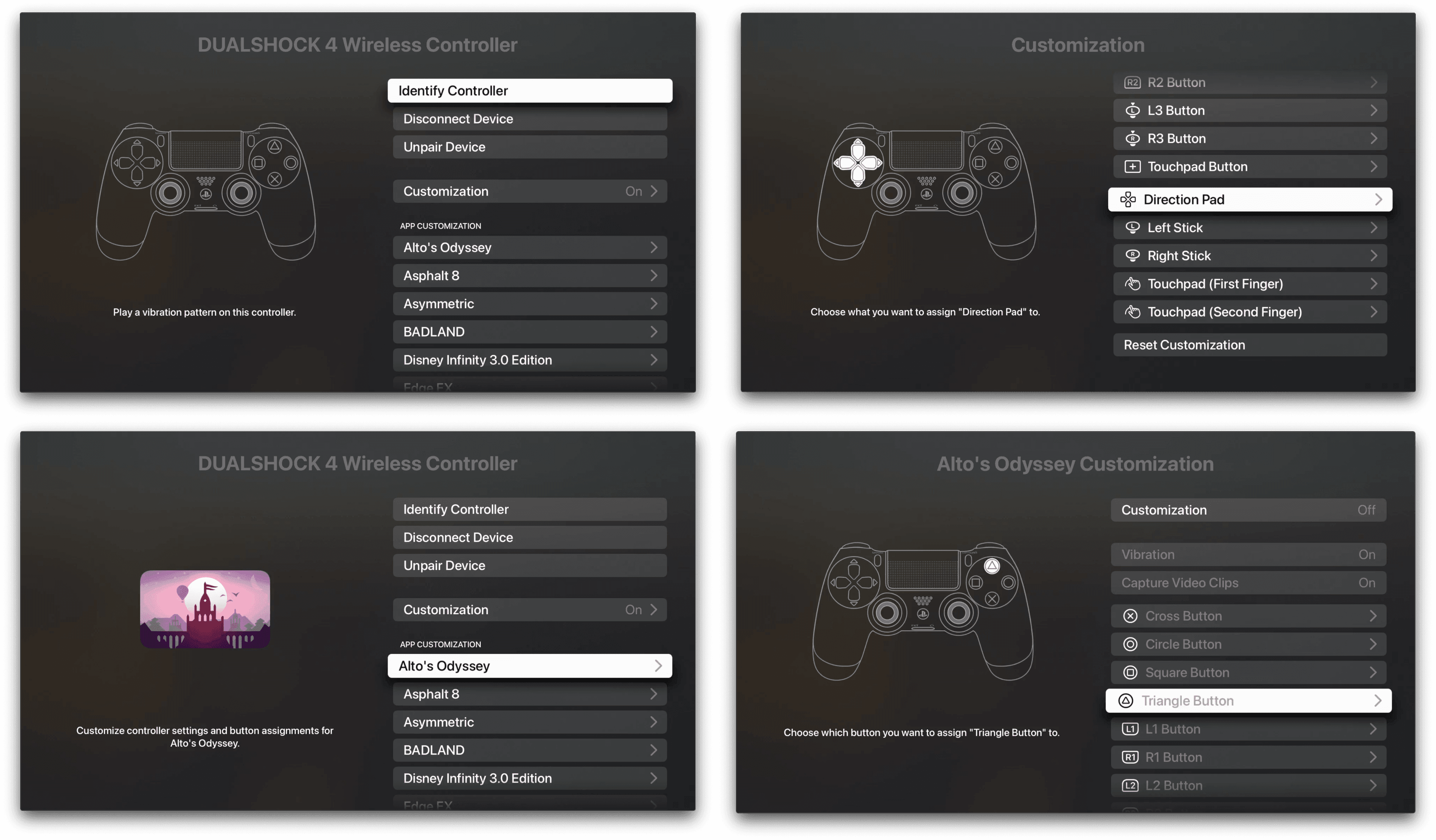
Apple requires iOS 16 or iPadOS 16 or later for full system-level gamepad customization. While iOS 14.5 supported basic screenshot shortcuts, complete button reassignment, thumbstick axis inversion, and per-title profiles arrived in version 16.
The customization menu stays hidden until a gamepad connects.
To access the configuration menu:
- Ensure your gamepad is connected via Bluetooth or a direct USB-C cable.
- Open the Settings app on your iPhone or iPad.
- Tap General.
- Select Game Controller.
Inside this menu, iOS displays every currently connected gamepad alongside global customization toggles. Each paired gamepad maintains its own distinct configuration profile.
Step-by-Step: Remapping Buttons and Inverting Stick Axes
Once inside the Game Controller menu, building a baseline layout takes under a minute. If you struggle with inverted camera controls or awkward trigger bindings, follow these numbered steps.
- Go to Settings > General > Game Controller.
- Tap the name of your connected controller.
- Tap Default Controls to open the global layout screen.
- Select the specific physical button you want to reassign (such as Button A, Button X, L1, or R2).
- Choose the replacement input from the list of available gamepad actions.
- Scroll down to the Thumbsticks section.
- Toggle Invert Horizontally (X-Axis) or Invert Vertically (Y-Axis) for either the left or right stick.
- Adjust haptic feedback intensity by toggling the system rumble switch.
Inverting stick axes at the OS level forces your preferred movement across every game, even titles without built-in camera settings.
Native iOS processing applies uniform linear stick scaling. Deadzone delays or drift usually point to worn hardware potentiometers or 2.4GHz radio congestion, not OS calibration.
Building Custom Per-Game Controller Profiles
Global layout changes apply across every game on your device. Swapping jump and attack buttons might suit an action RPG, but it can disrupt your throttle setup in a racing simulator. To prevent input conflicts, iOS supports game-specific profiles.
How to Set Up Per-Game Custom Mappings
- Open Settings > General > Game Controller.
- Tap your connected controller.
- Under the Customizations header, tap Add App.
- Select the installed game you want to customize from the list.
- Tap the newly added game name to open its profile interface.
- Remap specific face buttons, bumpers, triggers, and thumbstick axes for that title alone.
When you launch that game, iOS detects the active window and swaps your controller mappings automatically. Returning to the home screen restores your global defaults.
If you want to expand your gaming library, pick up an Apple Gift Card (UK) to fund premium controller-supported titles without linking a credit card.
Controller Model Compatibility and Wireless Pairing
Controller compatibility comes down to hardware revision, Bluetooth standard, and connection mode.
Pairing PlayStation Controllers
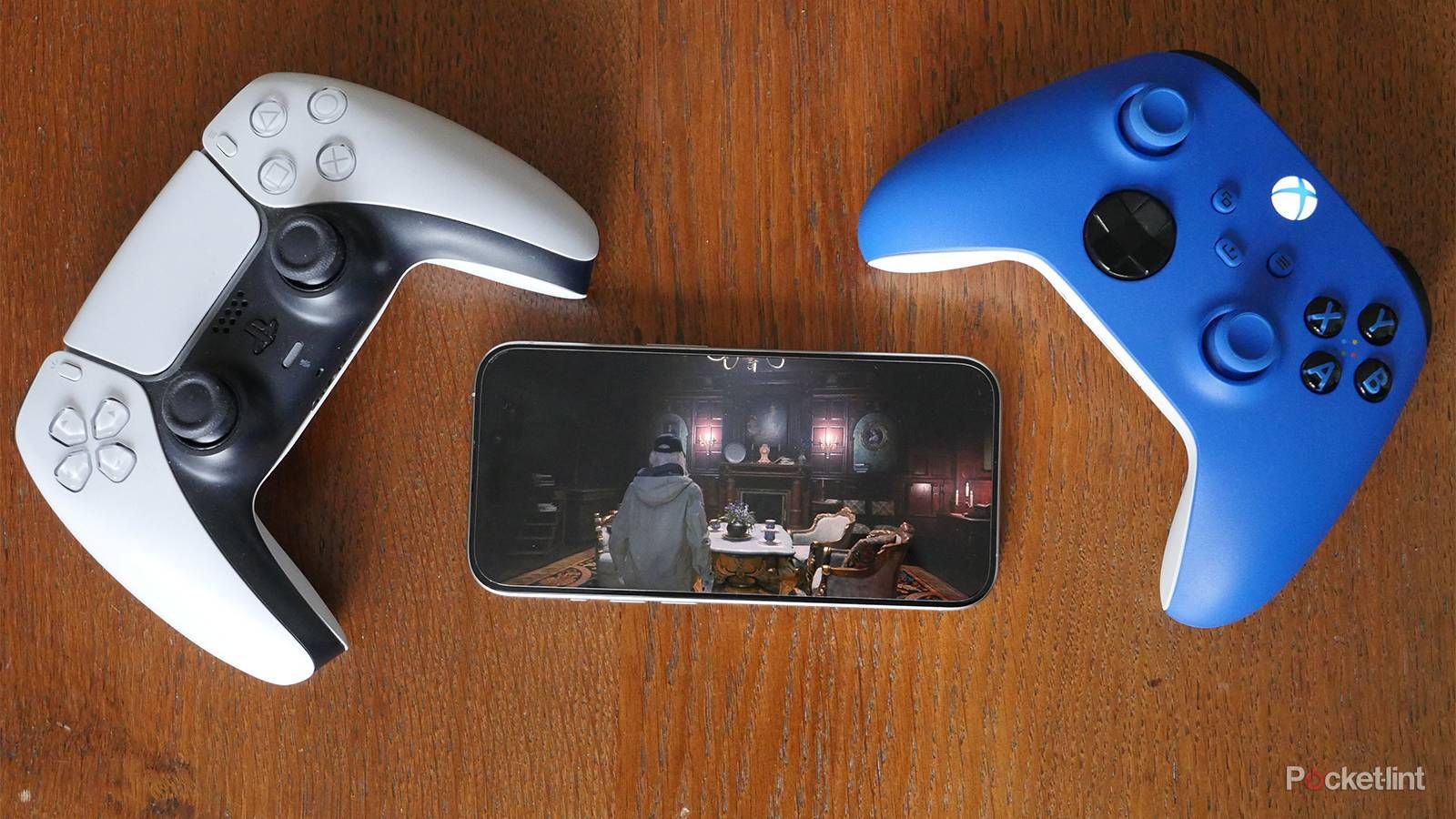
PlayStation DualShock 4, DualSense, and DualSense Edge controllers pair wirelessly over Bluetooth:
- Ensure the controller is powered off.
- Hold the PS Button and the Create/Share Button simultaneously for 3 seconds.
- Release both buttons when the light bar begins blinking rapidly in a double-pulse pattern.
- Open Settings > Bluetooth on your iPhone or iPad and select the controller from the list.
DualShock 4 and DualSense models also support direct wired pairing. Connecting them to an iPhone or iPad using a data-rated USB-C cable establishes a data link without opening the Bluetooth menu.
Pairing Xbox Controllers
Xbox wireless support depends strictly on the hardware revision. Older Xbox One controllers (Model 1537, Model 1697, and the original Elite Model 1698) lack standard Bluetooth radios and cannot connect wirelessly to iOS devices. Supported models include:
- Xbox Wireless Controller with Bluetooth (Model 1708)
- Xbox Series X|S Controller (Model 1914)
- Xbox Elite Wireless Controller Series 2 (Model 1797)
To pair a supported Xbox controller, turn it on, hold the Pair button on the top edge for 3 seconds until the Xbox logo flashes rapidly, and select it inside your device's Bluetooth menu.
Nintendo Switch and Direct Mobile Gamepads
iOS 16 and iPadOS 16 introduced native Bluetooth pairing and customization for Nintendo Switch Joy-Con (both individually and as a pair) and the Nintendo Switch Pro Controller. Hold the circular sync button on the rail or top edge until the running lights cycle, then pair them directly.
Direct USB-C mobile controllers connect directly to modern iPhone and iPad ports. Devices like the ZIKE Z331 bypass Bluetooth entirely, offering up to 1000Hz polling rates, zero wireless latency, and passthrough device charging.
The following table outlines connection capabilities, compatibility tiers, and key hardware features across major controller families.
| Controller Model | Connection Protocol | Native iOS Remapping | Advanced Features Supported |
|---|---|---|---|
| PS5 DualSense / Edge | Bluetooth 5.1 / Wired USB-C | Yes (iOS 16+) | Share capture shortcuts, basic rumble, touchpad click |
| PS4 DualShock 4 | Bluetooth 2.1+EDR / Wired USB | Yes (iOS 16+) | Share capture shortcuts, basic rumble, touchpad click |
| Xbox Series X|S (1914) | Bluetooth Low Energy / Wired | Yes (iOS 16+) | Share button capture, trigger rumble |
| Xbox Elite Series 2 | Bluetooth / Wired USB-C | Yes (Profile LEDs off) | Paddle remapping via OS, adjustable thumbstick tension |
| Xbox One (1537 / 1697) | Proprietary 2.4GHz RF | No (Incompatible) | None (Requires PC adapter / Unsupported on iOS) |
| Nintendo Switch Pro | Bluetooth 3.0 | Yes (iOS 16+) | Standard button remapping, basic rumble |
| Switch Joy-Con (Pair) | Bluetooth 3.0 | Yes (iOS 16+) | Individual or combined player mapping |
| USB-C Mobile Grips | Direct USB-C Port | Yes (MFi / Native HID) | 1000Hz polling, zero-latency input, pass-through charging |
Native button remapping functions identically across all supported models once connected, but advanced console-specific features like adaptive trigger resistance require specific USB connections or custom developer integration.
Fixing Hardware Quirks: Xbox Elite Series 2 and PS5 DualSense
Advanced controllers bring distinct hardware quirks on iOS. If you do not configure these devices correctly, their premium features will fail to register.
The Xbox Elite Series 2 Paddle Input Rule
The Xbox Elite Wireless Controller Series 2 features four rear paddles. Apple's GCPhysicalInputProfile framework only reads discrete paddle inputs when the controller's onboard hardware memory profiles are inactive.
Press the central Profile button on your Elite Series 2 until all three profile indicator LEDs are unlit. Once the controller enters this unprofiled state, iOS detects the rear paddles as distinct mappable inputs. You can then assign each paddle independently inside Settings > General > Game Controller > Default Controls.
DualSense Haptics and Edge Profile Switching
When paired over Bluetooth, a PS5 DualSense controller transmits standard rumble rather than localized haptic feedback or adaptive trigger resistance. Adaptive triggers and voice-coil haptics require a wired USB-C data link or explicit developer integration via Apple's Core Haptics API.
On the DualSense Edge, profile switching shortcuts function differently on mobile compared to a console:
- Fn + Triangle remains permanently locked to the default profile.
- Fn + Circle, Cross, or Square switches between onboard profiles configured on a PlayStation console.
Pressing the controller's Share/Create button triggers universal iOS shortcuts: a single press captures a screenshot, while a double press starts screen recording.
Mobile Grips, Companion Apps, and Touch Mapping Limitations
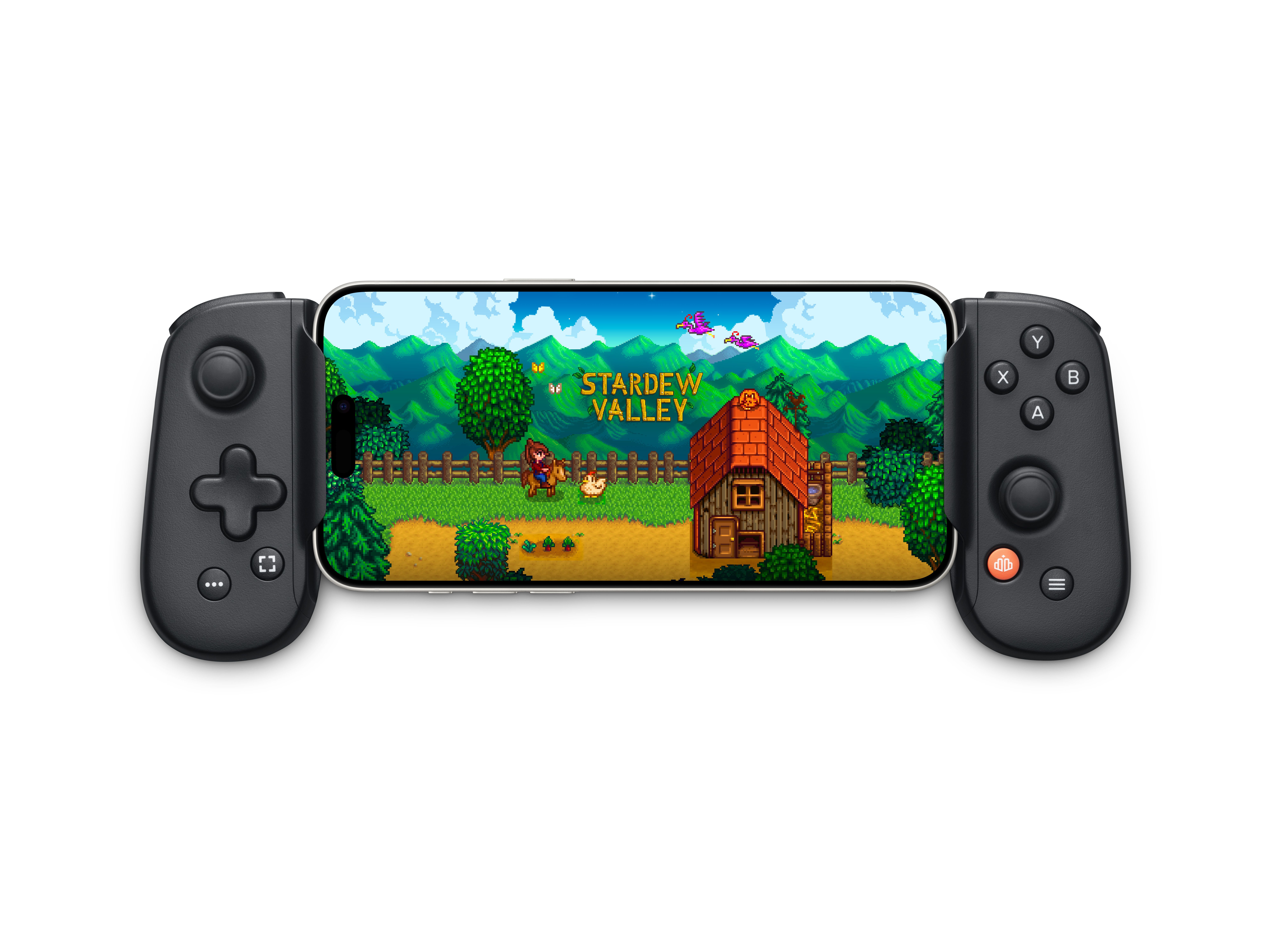
Direct-attach mobile controllers provide a portable form factor without wireless latency. MFi-certified devices contain hardware authentication chips that allow firmware updates, thumbstick calibration, and custom button profiles via companion apps.
Backbone One hardware integrates natively with Apple devices, offering free button remapping and individual game profiles. Certain advanced features, like specialized touch-emulation layers, operate through companion subscription services.
The iOS Touchscreen Remapping Myth
Third-party apps cannot map physical controller buttons to on-screen touch coordinates due to operating system sandboxing. One application cannot run in the background and inject simulated touch events into an active game window.
To play touchscreen-only games with a physical gamepad, you must rely on hardware-level touch emulation grips or system accessibility features like AssistiveTouch custom gestures. Native controller remapping applies exclusively to titles with built-in controller support.
If you are setting up a dedicated mobile rig, top up your gaming balance with a UK Apple gift card voucher before purchasing new digital releases.
Apple Ecosystem Comparison: Settings Paths Across Devices
Controller settings exist across iOS, iPadOS, tvOS, macOS, and visionOS, but menu paths differ by platform.
The table below shows the exact navigation path required to customize controller layouts across every Apple device platform.
| Operating System | Navigation Path | Per-Game Profiles | Custom Axis Inversion |
|---|---|---|---|
| iOS (16+) | Settings > General > Game Controller | Yes (Add App) | Yes (X and Y per stick) |
| iPadOS (16+) | Settings > General > Game Controller | Yes (Add App) | Yes (X and Y per stick) |
| tvOS (16+) | Settings > Remotes and Devices > Bluetooth > [Controller] | Global Only | Yes (System default) |
| macOS (13+) | Apple Menu > System Settings > Game Controllers | Yes (Add App) | Yes (X and Y per stick) |
| visionOS (1+) | Settings > General > Game Controller | Yes (Add App) | Yes (X and Y per stick) |
Every platform from iOS 16, tvOS 16, and macOS Ventura 13 upward shares the same core input engine, though tvOS manages settings through the Remotes and Devices interface.
Multi-Controller Limits and Bluetooth Audio Rules
When connecting multiple controllers for local multiplayer, check device-specific hardware limits. Apple TV restricts wireless capacity when paired with wireless audio accessories.
The following table details multi-controller limits and audio restrictions across Apple hardware.
| Device Family | Max Bluetooth Gamepads | Max Gamepads with BT Audio | Buddy Controller Support |
|---|---|---|---|
| iPhone | 4 Controllers | 4 Controllers | Yes (2 into 1 virtual input) |
| iPad | 4 Controllers | 4 Controllers | Yes (2 into 1 virtual input) |
| Apple TV 4K / HD | 4 Controllers | 1 Controller Max | Yes (2 into 1 virtual input) |
| Mac (Apple Silicon) | 4+ Controllers | 4+ Controllers | Yes (2 into 1 virtual input) |
Connecting Bluetooth headphones or soundbars to an Apple TV immediately drops the simultaneous Bluetooth controller capacity from four down to exactly one.
Assisted Gameplay: Setting Up Buddy Controller
Buddy Controller combines two separate physical gamepads into a single virtual player. It aids accessibility and allows cooperative assistance through difficult sections.
How to Enable Buddy Controller
- Pair two compatible gamepads to your iPhone, iPad, Mac, or Apple TV.
- Open Settings > General > Game Controller.
- Scroll down and tap Buddy Controller.
- Select your Primary Controller (the main player).
- Select your Secondary Controller (the assist gamepad).
Inputs from both controllers register simultaneously on the same character. Player Two can steer or control the camera while Player One handles combat.
Troubleshooting Input Lag, Sticking Buttons, and Profile Conflicts
If button responses feel delayed, unmapped, or stuck on the wrong actions, run through these diagnostic steps.
- Verify the Active Profile: Open Settings > General > Game Controller and confirm no unintended game profile overrides your defaults.
- Check Xbox Elite Hardware LEDs: Press the Profile button on the center of the controller until all three LEDs turn off.
- Eliminate Apple TV Audio Bottlenecks: Disconnect external Bluetooth headphones or route audio through eARC to free up Bluetooth bandwidth.
- Clear Bluetooth Connection Cache: Open Settings > Bluetooth, tap the (i) icon next to your gamepad, tap Forget This Device, and pair it fresh.
- Test a Direct Cable Connection: Connect your gamepad using a USB-C data cable. If input lag vanishes, 2.4GHz Wi-Fi or Bluetooth interference is degrading the wireless link.
- Restore Default Controls: In Settings > General > Game Controller > [Controller Name], tap Restore Defaults to clear invalid custom bindings.
- Update Controller Firmware: Connect your controller to a PC, Xbox, or PlayStation console and update its firmware to prevent dropped Bluetooth packets.
Once your layout feels responsive and calibrated, redeem an Apple Gift Card (UK) digital code to grab new expansions and full mobile games that feature full gamepad customization.
Frequently Asked Questions
How do I remap game controller buttons on iPhone and iPad?
Connect your controller, open Settings, tap General, and select Game Controller. Tap Default Controls to rebind physical inputs or add custom layouts for individual games.
Can I invert controller stick axes natively on iOS?
Yes, iOS includes native toggles to invert horizontal (X-axis) and vertical (Y-axis) inputs on either stick. This applies system-wide across supported titles even if the game lacks an in-game toggle.
Can I create custom button layouts for specific games on iPhone?
Yes. Tap Add App under Settings > General > Game Controller to configure independent mappings for any installed title. The system applies the custom profile automatically when the game launches.
Why aren't Xbox Elite Series 2 paddles registering on iPhone?
Rear paddles only send discrete inputs to iOS when the controller's onboard profile LEDs are completely unlit. Press the profile button on the controller until all three indicator lights turn off.
What is Buddy Controller on Apple devices?
Buddy Controller merges inputs from two separate gamepads into one virtual player, allowing two people to share control cooperatively.
Do all Xbox and PlayStation controllers connect to iPhone and iPad?
Only Bluetooth-enabled models connect wirelessly, including Xbox Model 1708, Series X|S, Elite Series 2, PS4 DualShock 4, and PS5 DualSense. Older Xbox One models (1537 and 1697) lack standard Bluetooth and cannot connect to iOS devices.
Final Verdict on iOS Gamepad Mapping
System-level controller remapping removes the need for third-party keymapping apps on iOS. Setting up per-game profiles and applying system-level axis inversion resolves awkward control bindings across your entire library. Keep your controller firmware updated, verify that hardware profile LEDs remain unlit on pro controllers, and let the OS handle input translation.

Community
Comments