

To turn off Hago notifications, adjust alert permissions directly in your phone's operating system settings or use the application's built-in preferences. On Android, you can suppress alerts completely or turn off specific notification categories under Settings > Notifications > App notifications so that voice room and invite spam stops while key messages remain visible. On iPhone, open Settings > Apps > Hago > Notifications and toggle Allow Notifications off to silence all banners, sounds, and lock screen popups at once.
Hago blends casual party games with live voice chat rooms, which frequently triggers automated room alerts, friend requests, and game activity pings. When these notices overwhelm your device, system-level controls provide the cleanest fix.

Hago
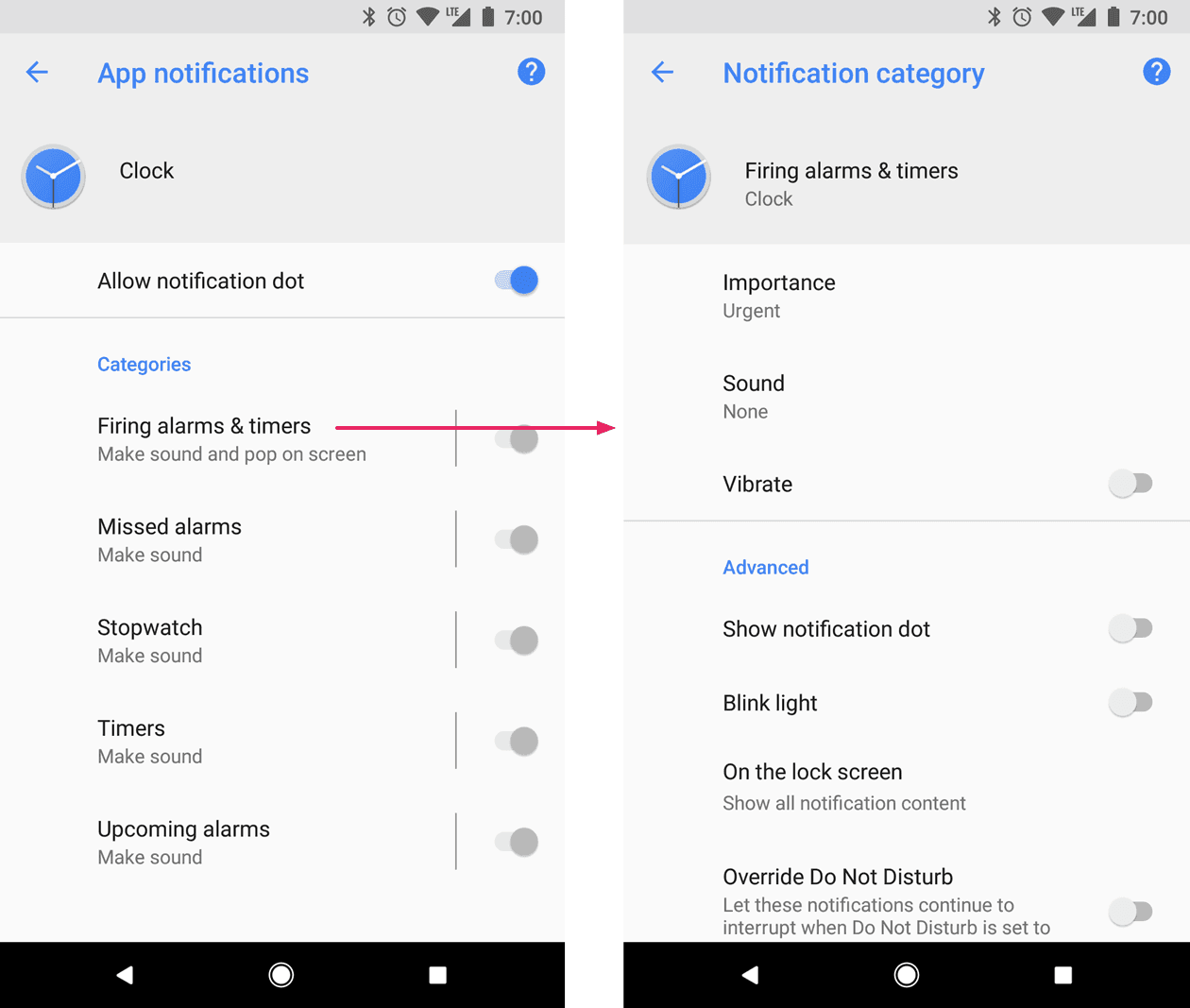
Managing alerts on Android by category
Android supports granular suppression through system notification channels. Rather than muting Hago entirely, you can switch off specific alert channels responsible for room pings and mini-game prompts while keeping direct messages active.
Google's Android Help details how to switch off individual notification categories without revoking an application's general alert permissions:
- Open your device's Settings app.
- Tap Notifications, then select App notifications.
- Locate Hago under the "Most recent" list or switch the dropdown to All apps.
- Tap the application name to view its notification settings.
- Toggle off specific notification categories causing spam, or switch off all notifications to block the app completely.
Disabling an individual category silences those specific alerts on your device even if the overall app retains notification permissions, as outlined in OneSignal's Android category guides. This setup eliminates voice room reminders while leaving core chat functions intact.
Disabling Hago alerts completely on iOS
iOS does not support Android-style notification categories, so stopping room invites and game popups at the system level requires turning off alerts entirely.
To shut off alerts completely, use the setup outlined by Apple Support:
- Open the Settings app on your iPhone.
- Tap Apps.
- Scroll down and select Hago.
- Tap Notifications.
- Turn Allow Notifications off.
Turning off Allow Notifications blocks all delivery immediately. Hago can no longer display lock screen notices, drop banners across the screen, play alert chimes, or update badge counters on your home screen.
Checking in-app settings
System toggles silence notifications at the device level, but Hago also includes internal alert controls. As noted in Google's notification documentation, apps frequently provide in-app settings menus to control activity pings and sounds independently of OS rules.
To keep OS-level alerts on for chats while muting background noise, open Hago and go to your profile or settings menu. You can silence voice room alerts, sound effects, and interaction notices directly from the in-app preferences.
Recommended alert configurations
| Desired Result | Platform | Recommended Action | Source |
|---|---|---|---|
| Stop all Hago alerts | iOS | Settings > Apps > Hago > Notifications > Toggle "Allow Notifications" Off | Apple Support |
| Stop all Hago alerts | Android | Settings > Notifications > App notifications > Hago > Toggle Off | Google Support |
| Silence room and game spam only | Android | Settings > Notifications > App notifications > Hago > Disable specific categories | OneSignal Documentation |
| Adjust sounds and in-app alerts | iOS / Android | Open Hago > Profile / Gear icon > In-app settings menu | Google Support |
When to deviate
- You play party games regularly with friends: Keep general app notifications active on Android and disable only promotional or room categories. On iOS, you must decide between all alerts or none.
- You use Hago strictly for voice rooms: Keep system alerts on, but silence game invite categories on Android to avoid gaming interruptions.
- You want zero distractions: Turn off the master notification toggle in your operating system settings regardless of your device type.

Community
Comments