

Wondering if McAfee Game Mode stops PC gaming stutter? We test real-time scanning impact, 1% low frame drops, and background tweaks on Windows 11.
A sudden frame freeze kills competitive play. You sweep a corner in Call of Duty: Modern Warfare III or line up an attack in Elden Ring, and 140 FPS violently trips. Frame delivery times spike to 45ms against a steady 7ms to 9ms baseline. Aim breaks, timing dissolves, and the round is lost.
Security suites are often the primary suspect. McAfee hooks into Windows 11 at the kernel level, intercepting on-access file reads, storage writes, and incoming network packets. While McAfee provides game toggles to suppress popups and delay full scans, alerts are not what causes stutter.
Game Mode alone does not fix erratic frame pacing. The toggle mutes alerts, but leaves the underlying scan architecture untouched. Stopping 1% low frame drops requires manual file exclusions, service priority adjustments, and strict schedule overrides.

McAfee AntiVirus
The Real Impact: McAfee LiveSafe Benchmark Numbers
Antivirus vendors claim active defense runs unnoticed in the background. Real-world benchmarks prove otherwise. Across Cyberpunk 2077, Elden Ring, and Modern Warfare III, McAfee LiveSafe imposes a measurable 3% to 6% frame rate penalty compared to a clean Windows installation.
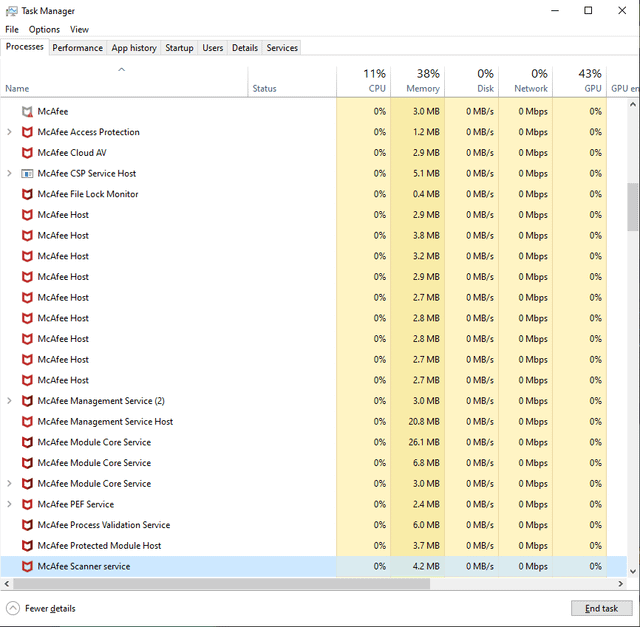
A 5 FPS drop at 120 FPS is manageable. Frame pacing variance is not. When asset streaming demands immediate drive throughput, background security modules hold up storage requests, causing sudden hitching.
At idle, LiveSafe draws 300 to 450 MB of RAM and generates 3% to 8% CPU spikes. When an unmanaged scan activates mid-match, resource consumption surges.
| Operating State | Resource Consumption | Performance Impact Note |
|---|---|---|
| Idle State | 3-8% CPU, 300-450 MB RAM | Baseline background footprint across multiple active McAfee service modules. |
| Light Quick Scan | 25-40% CPU, 500-700 MB RAM | Moderate scan pass checking common paths; can trigger noticeable micro-stutter if started during gaming. |
| Full System Scan | 50-70% CPU, 700-950 MB RAM | Exhaustive disk and file scan causing severe frame drops and heavy I/O contention. |
Takeaway: An active background scan will cut your available processor budget significantly, turning minor frame dips into jarring 45ms freezes.
Cold boots also take a hit: LiveSafe adds 6 to 9 seconds on an Intel Core i5-11400 test bench with an SSD, as security drivers establish early hooks into the storage stack.
Why McAfee Micro-Stutters Happen: Multi-Process Bloat
The culprit is architectural fragmentation. McAfee distributes on-access file checks across multiple separate processes, including McSvHost.exe, mfemms.exe, and ModuleCoreService.exe.
As a game pulls high-resolution textures, geometry, or audio banks from disk, McAfee intercepts each I/O call. The engine inspects the file before the Windows kernel releases it to your GPU. During fast map traversal with hundreds of asset calls per second, this interception mechanism chokes drive throughput.
Signature updates amplify the issue. Definition downloads range from 10 to 25 MB, writing to disk at bursts of 25 to 40 MB/s. When that write activity collides with active game reads on the same drive, frame delivery stalls.
If you want full protection without the frame rate penalties, purchase a verified license for McAfee AntiVirus and apply manual tuning to tame background behaviors.
McAfee Gamer Security vs. Standard LiveSafe
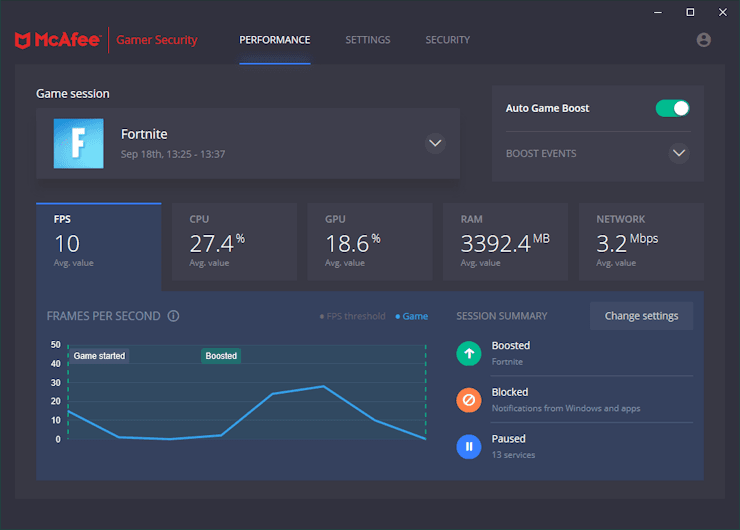
To address performance complaints, McAfee released McAfee Gamer Security for Windows 10 (v1809+) and Windows 11. Priced at $59.99 annually for a single PC, its structure departs from standard LiveSafe.
Rather than crawling the entire drive, Gamer Security pairs Auto Game Boost with a stripped-down scan engine. It skips broad file sweeps, checking only launch points and modified files. Initial scans run in about nine minutes; subsequent differential passes take under sixty seconds.
| Feature / Metric | McAfee LiveSafe | McAfee Gamer Security |
|---|---|---|
| Device Coverage | Multi-device licenses available | 1 PC only |
| Annual Pricing | Varies by tier | $59.99 per year |
| Supported OS | Windows 10 / 11 | Windows 10 (v1809+) & Windows 11 |
| Scan Engine Scope | Full storage crawling, deep file inspection | Stripped-down scan engine, modified files only |
| Initial Scan Time | Comprehensive (often 30+ minutes) | Roughly 9 minutes |
| Follow-Up Scans | Variable depending on file volume | Under 1 minute (differential) |
| Primary Drawback | 3-6% FPS drop, unmanaged disk spikes | Locked to one machine, requires separate subscription |
Takeaway: Gamer Security solves the heavy disk-scan issue, but at $59.99 for a single machine, learning to properly configure standard McAfee accomplishes a similar result for far less hassle.
Despite marketing promises of interruption-free gaming, benchmarks show the 3% to 6% frame deficit persists alongside occasional notification popups. A simple toggle switch does not eliminate the overhead.
Step-by-Step Optimization: Eliminate Game Hitching
You do not need Gamer Security or third-party software to stabilize frame pacing. Standard LiveSafe can be configured to stop interfering with game threads.
1. Enable Speed-Biased Scanning
- Open your McAfee dashboard and click the Settings gear.
- Navigate to Virus and Spyware Protection.
- Open Real-Time Scanning.
- Select the option labeled "Minimize the effect on my PC’s speed".
- Apply the change to prevent the Scanner Service from saturating your CPU cores.
2. Configure Game Directory and Executable Exclusions
Real-time on-access protection conflicts with game launchers and live game files. Adding directory exclusions prevents McAfee from scanning game files while you play.
- Under Real-Time Scanning, select Excluded Files.
- Click Add file and browse to your primary game installations (e.g.,
C:\Program Files (x86)\Steam\steamapps\common). - Add the primary executable for your competitive titles (e.g.,
cod.exe,eldenring.exe). - Confirm that both the game directories and main launcher processes are listed.
3. Restrict Scheduled Scans to Idle Hours
McAfee scheduled scans default to once per week. If that automated sweep triggers while you are mid-game, your system will choke.
- Go to Scheduled Scans under the scanning settings.
- Toggle Scan using minimal resources to active.
- Change the schedule to a time when your PC is powered on but you are away from the keyboard (such as early morning hours).
- Ensure the schedule runs strictly during idle periods.
4. Adjust Process Priority for scan32.exe
If spontaneous background memory spikes persist, rein in the core scanning executable through Windows.
- Press
Ctrl + Shift + Escto open Windows Task Manager. - Click the Details tab.
- Locate
scan32.exe. - Right-click the process, hover over Set priority, and choose Below Normal or Low.
- This prevents Windows from letting McAfee pre-empt your game threads when CPU demand surges.
Running dependable security does not require sacrificing responsiveness. Set up an authentic copy of McAfee AntiVirus using these tuning steps to keep scan engines out of your render pipeline.
Fixing Ping Jitter and Network Delays
Disabling the firewall is a common knee-jerk reaction to multiplayer lag, but McAfee's packet filtering operates in fractions of a millisecond and rarely causes latency spikes on its own.
Latency thresholds define the competitive experience: sub-20 ms represents ideal ping, standard broadband hovers under 100 ms, and anything above 150 ms produces unplayable desync. Most multiplayer titles require 1 to 3 Mbps of sustained upload throughput to communicate reliably with game servers.
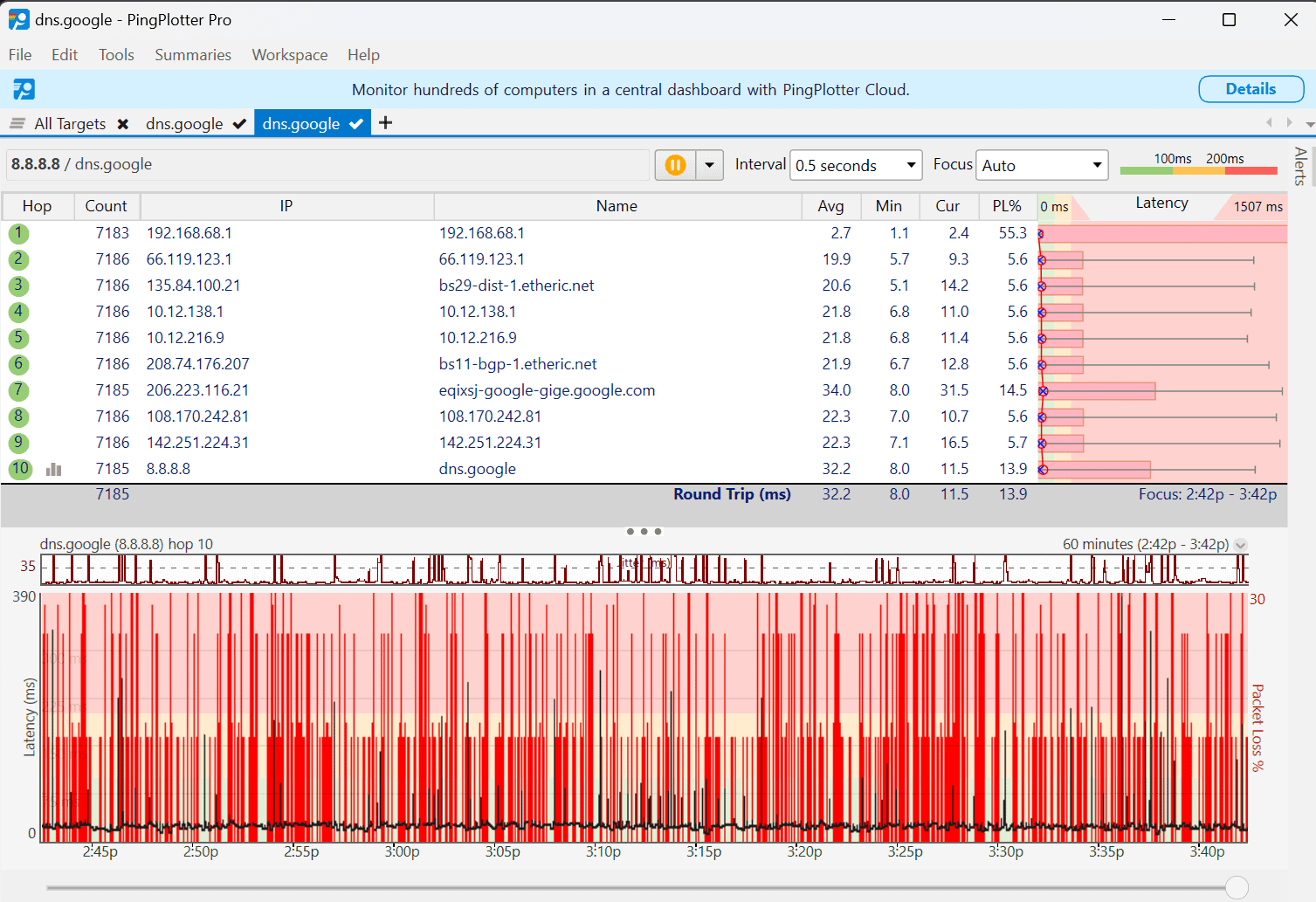
The actual network culprit is background definition updates. When McAfee pulls a 25 MB update across a bandwidth-constrained link, bufferbloat and packet queuing hit the router, driving a 20 ms connection straight to 150 ms.
To prevent update-driven jitter, navigate to General Settings and instruct McAfee to prompt before downloading, or schedule updates outside gaming hours. This keeps the firewall active against port scans without throttling bandwidth during matches.
External Culprits: Is McAfee Truly at Fault?
Not every micro-stutter traces back to your antivirus. Operating system policies and engine-level quirks often mimic background file interception.
DirectX 12 Shader Compilation
DX12 shader compilation stalls the CPU pipeline whenever the engine renders an uncompiled asset or effect. Following driver updates or cache purges, games frequently hitch throughout the first hour of play. If McAfee's real-time engine scans these newly generated shader cache files as they hit the drive, the compilation stutter compounds.
Memory Overclock Instability
Marginal XMP or EXPO memory profiles cause silent data transmission retries. When memory timings sit on the edge of stability, hardware error correction forces 30ms to 50ms pauses while recovering packets. Players often blame background utilities when erratic memory timings are the root cause.
Windows Game Mode Conflicts
Windows Game Mode dynamically redistributes CPU and GPU priorities to active games. In specific titles like Rocket League, community testing shows this rescheduling mechanism can clash with auxiliary background services and introduce frame pacing irregularities. If frame times remain unstable alongside antivirus software, toggle Windows Game Mode off in system settings to compare stability.
The Frame Capping Solution
Capping your frame rate provides a buffer against transient CPU and disk spikes. Limiting your output just below your monitor's refresh rate (such as 141 FPS on a 144Hz panel) maintains continuous GPU headroom. When background processes demand brief I/O or CPU time, the headroom absorbs the spike without dropping frames.
Pair this strategy with a licensed copy of McAfee AntiVirus, setting up directory exclusions and idle schedules during initial configuration.
FAQ
Does McAfee Game Mode completely eliminate 1% low frame drops?
No, it suppresses notifications and limits certain tasks, but McAfee still induces an average 3% to 6% frame reduction. Background scanning services and on-access file hooks can still trigger frame time spikes during heavy asset streaming.
Why does McAfee cause micro-stutters during competitive gameplay?
McAfee splits protection across multiple processes like McSvHost.exe and ModuleCoreService.exe, which intercept game disk I/O and asset loading. Unscheduled definition downloads also create spontaneous 25 to 40 MB/s disk write bursts that disrupt game storage access.
Will adding game folder exclusions improve stuttering in McAfee?
Yes, excluding your game installation folders and launcher executables bypasses on-access file inspection during gameplay. This stops the scanner from stalling texture streaming and shader cache reads while you play.
Can McAfee cause high ping or multiplayer latency spikes?
McAfee itself rarely inflates ping directly unless background definition updates saturate your internet upload or download bandwidth. Most high ping is caused by network routing, ISP limits, or household bandwidth competition, though update bursts can trigger jitter if your upload drops below 1 to 3 Mbps.
How can I stop McAfee scans from starting while I am gaming?
Configure scheduled scans to run only during idle hours and enable the "Scan using minimal resources" option in McAfee settings. You can also manually adjust the priority of scan32.exe to Below Normal in Windows Task Manager.
Is McAfee Gamer Security different from standard McAfee LiveSafe?
Yes, Gamer Security is a single-PC edition that strips out full system scans to focus on lightweight real-time defense and automatic boost settings. However, it requires a dedicated annual subscription of $59.99 for just one machine.
Should I disable Windows Game Mode if I use McAfee?
You should test your games individually because Windows Game Mode prioritizes foreground resources while McAfee runs background threads. If dynamic thread scheduling leads to inconsistent frame times in titles like Rocket League, try toggling Windows Game Mode off.
The Verdict on McAfee Game Mode
Game Mode silences desktop alerts, but default LiveSafe settings still cost 3% to 6% in average FPS and risk 25 to 40 MB/s disk bursts during play. Leaving security settings on automatic won't prevent 1% low frame time spikes.
You do not need to uninstall antivirus software to preserve competitive frame pacing. Switching to speed-biased scanning, adding game folder exclusions, and confining scans to idle hours eliminates disk contention at the source. Lock your frame rate just below your refresh cap, let the tuned exclusions bypass asset checks, and your frame delivery stays stable.

Community
Comments