

Tired of sluggish QR popups at checkout counters? Tune these Naver Pay settings to eliminate register lag and stop background battery drain on your phone.
Nothing is more frustrating than standing at a register while your screen spins on an uncooperative payment code. You want your QR code or NFC signal ready the moment you reach the front of the line. Instead, an unoptimized setup wastes cellular data, pollutes your notification bar with marketing noise, and drains your battery long before evening falls.
Configuring your client correctly turns an inconsistent, bloated app into an immediate checkout tool. By auditing permissions, background tasks, biometric authenticators, and system handshakes, you can pull up your payment screen instantly without letting background services chew through your charge.
Naver Pay
Core Wallet Constraints and Transaction Parameters
Before modifying OS sliders or system switches, you must know the fixed limits of the service. Digital wallets operate within strict backend security guidelines that govern how long a checkout token remains valid, how small a transaction can be, and how transaction reverses process.
If you let a checkout screen sit while looking for items, the session will expire automatically. Knowing these thresholds prevents confusion when a cashier scans a stale screen that refuses to settle. If you want to keep your balance ready without repeated bank re-authentications, acquiring Naver Pay balance vouchers helps you bypass frequent authorization steps during busy store visits.
Backend service parameters enforce these operational boundaries:
| Parameter | System Constraint | Operational Impact on Performance |
|---|---|---|
| Minimum Payment Amount | 100 KRW | Lowest transaction value accepted by the payment system |
| Checkout Session Timeout | 14 minutes | Active token expiry before an unconfirmed session cancels |
| Allowable Refund Window | 365 days | Maximum time window to process digital payment reversals |
Values reflect standard client network policies and transaction lifecycle caps.
These constraints show why lingering on an open payment screen is bad practice. Because an active checkout session maintains an open secure handshake for up to 14 minutes, leaving the payment screen open in your pocket keeps the radio modems engaged and prevents your phone from slipping into low-power sleep mode.
Eliminating Checkout Stalls: Cache, Clock Sync, and Networks
Three quiet problems cause the majority of loading stalls at the counter: corrupted temporary cache, desynchronized device time, and fluctuating public Wi-Fi connections.
When your device clock slips even a few seconds behind the authentication servers, secure handshake packets fail. The client will hang on a blank screen or loop indefinitely while trying to fetch the dynamic payment barcode. To fix this, open your operating system settings, search for Date & Time, switch "Set automatically" off, toggle it back on, and restart your device. This single reset forces an immediate synchronization with the local mobile network tower, resolving cryptic connection failures.
App cache is another silent offender. As you browse local storefronts, book appointments, and load merchant coupons, the application collects temporary external assets. Over time, bloated storage slows cold launch speeds.
- Navigate to Android Settings > Applications > NAVER app > Storage.
- Tap Clear cache.
Doing this clears temporary third-party site tokens, external trackers, and broken images without logging you out of your core profile or clearing your saved payment methods. Do not tap "Clear Data" unless you are ready to enter your login credentials from scratch.
Network transitions present the third hurdle. Public Wi-Fi in malls or convenience stores is notoriously erratic. If your phone clings to an authentication-walled access point while you wait in line, the payment gateway stalls.
Turn off Wi-Fi before entering checkout queues and stay on 4G or 5G. A direct carrier link completes the handshake without captive-portal interference.
The Battery Myth: Background Suspension Versus Force-Quitting
A persistent myth claims that swiping away the app after every single purchase extends battery life. It does not. In fact, doing so achieves the exact opposite.
Modern mobile operating systems are built to hold idle software in a suspended RAM state. In this frozen state, the app consumes virtually no CPU cycles. When you force-close the app from the recent apps menu, you dump that stored state from memory. The next time you open the wallet in a store, the operating system must wake the processor, re-parse system assets, query the storage partition, and re-establish secure server keys.
This cold-launch sequence causes noticeable CPU spikes and draws substantial current from your battery. Swiping the app shut ten times a day means you are forcing your processor through ten energy-intensive cold launches.
Force-closing apps to clear RAM is an obsolete habit. Swipe the client away only when it freezes or hits a display glitch. In normal daily use, let the OS suspend it.
Where battery drain genuinely occurs is through unnecessary background sync permissions and aggressive location tracking. To stop genuine power drain:
- Open your OS application settings for the wallet.
- Set Location Access to Only while using the app.
- Disable Background Data Usage or disable Background App Refresh (on iOS).
This configuration prevents the application from waking the GPS chip or sending analytics pings while your phone sits idle in your pocket, without punishing your processor with constant cold restarts.
Push Notification Tuning to Kill Processor Wake Locks
Unchecked push notifications harm your battery through processor wake locks. Every time an app sends a notification that wakes your screen, your display draws peak brightness power and your mobile chip exits its deep-sleep state. When an app sends multiple marketing notifications every day, your device never rests.
Many users do not realize that the app contains aggressive automated reminder algorithms. In the MY Place review and booking section, the service deploys automated revisit reminders based on demographic profiles. The platform automatically sends check-in prompts 3 weeks after an appointment for male profiles, and 8 weeks after an appointment for female profiles, provided you have visited at least two locations in the preceding 6 months.
To strip away this bloat while maintaining instant alerts for actual card charges:
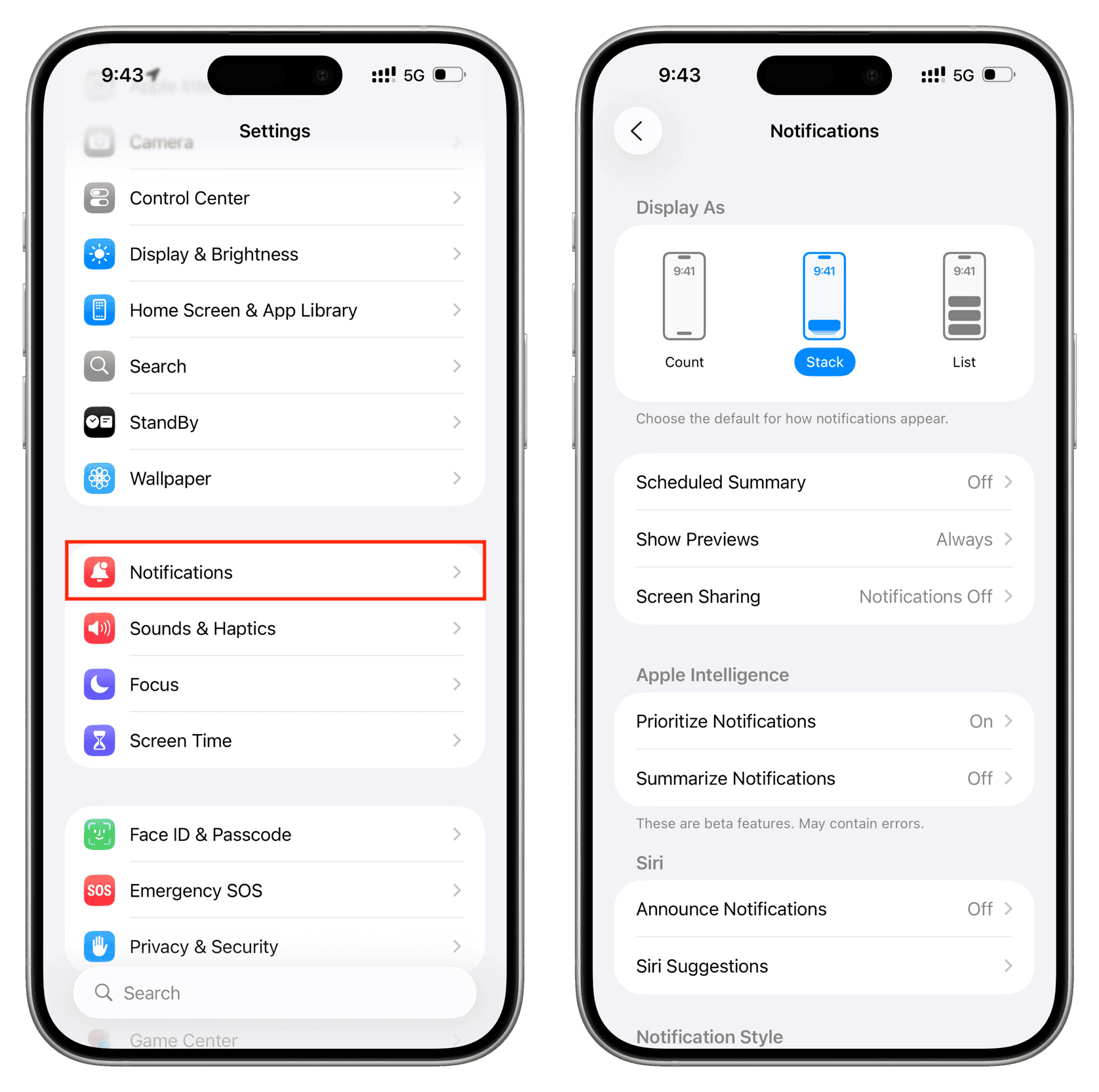
- Open the app and tap the Bell Icon in the top corner.
- Tap the Settings Gear to access notification configurations.
- Disable promotional alerts, marketing banners, and usage guides.
- Leave transaction confirmations, payment authorizations, and real-time pickup alerts enabled.
- Open MY Place and toggle off demographic booking reminders.
On Android, you can take power conservation a step further by using system-level Notification Categories. Set non-urgent alert categories to "Silent" so they do not activate the vibration motor or flash the screen. You can also turn on the OS-level "Notification cooldown" feature, which stops repeated alert chimes from holding the system processor awake if several promotions trigger close together.
Biometrics and Facesign: Instant Authentication Setup
Typing a six-digit payment PIN at a counter creates friction and exposes your screen to wandering eyes. Implementing local biometric authorization cuts checkout times down to less than two seconds while keeping fraud barriers high.
For standard on-device checkout, register your fingerprint or facial profile directly in the wallet settings. The client relies on biometric hardware APIs, meaning the matching sequence executes locally inside your smartphone's secure enclave rather than over a remote server round-trip.
For broader identification, the platform provides Facesign facial recognition. In tests by the Korea National Biometric Test Center (KISA), the Facesign matching algorithm logged over 99 percent accuracy. That reliability allows the system to integrate directly into the Smartpass framework at Incheon International Airport checkpoints.
- South Korean citizens aged 7 and above can link their passport and boarding pass details to the app.
- Minors between the ages of 7 and 14 can access this fast-track feature with parental or guardian consent.
- Registering your passport details for Smartpass through the promotional prompt grants 3,000 KRW in reward points directly to your wallet account.
International travelers and tourists visiting South Korea can take advantage of biometric features as well. Instead of dealing with foreign identification barriers, overseas visitors can complete on-device onboarding by scanning their passport and snapping a selfie inside the registration tab. Once verified, foreign tourists can book reservations, order at digital kiosks, and pay at local retail stalls without needing a domestic bank card. You can keep your spending account ready for quick counter purchases by securing a Naver Pay digital balance code before setting out on your day.
Recommended Settings Profile for Speed and Battery
This configuration profile eliminates background overhead while keeping counter launches immediate:
The Performance Profile Setup
- App Cache State: Cleared once every 30 to 60 days via system storage settings.
- Network Protocol: Cellular data (4G/5G) active; Wi-Fi toggled OFF in checkout queues.
- Date & Time Sync: Set to "Automatic" at the operating system level.
- Location Permissions: "Allow only while using the app" (Never set to "Always").
- Background Activity: Background App Refresh / Background Data toggled OFF.
- Notification Hierarchy: Transaction/Payment alerts set to ON; Guides, Event Prompts, and MY Place Reminders toggled OFF.
- Biometric Validation: Fingerprint or Facial Unlock set to PRIMARY; PIN entry kept as emergency fallback.
- Home Screen Shortcut: Payment widget or 3D Touch quick-action pinned to your main desktop grid.
When to Deviate from This Profile
There are two specific scenarios where you should break these rules:
First, if you are actively traveling through an airport using Smartpass, you must temporarily allow background data and keep your notifications enabled for gate and flight changes. Cutting background refresh during transit might delay essential boarding gate change pings.
Second, if you live or work in a basement shop or rural zone with weak cellular reception, switching off Wi-Fi will lead to stalled handshakes. In low-signal environments, remain on a known, authenticated Wi-Fi connection with low ping rather than forcing your device to search for distant carrier towers.
Platform Comparison: Android vs iOS vs Wear OS
The operating system you choose dictates which power-saving switches you can flip. Android provides fine-grained control over individual notification sub-channels, while iOS enforces strict memory sandboxing.
Platform capabilities and checkout behavior vary across operating systems:
| Feature / Optimization | Android Client | iOS Client | Wear OS (Smartwatch) |
|---|---|---|---|
| Background Data Control | Granular (System toggle per app) | Global (Background App Refresh switch) | Synced via companion watch manager |
| Cache Purging | Direct (Settings > Storage > Clear Cache) | Indirect (App offloading or reinstallation) | Automated internal storage cleanup |
| Notification Filtering | Sub-channel categories & Cooldown | Global push switches (In-app tuning) | Direct vibration toggle on wrist |
| Quick-Launch Mechanism | Lock-screen shortcuts & Desktop Widgets | Lock-screen widgets & Action Button | Hardware button double-press |
| Biometric Authentication | Screen fingerprint / Facesign | Face ID / Touch ID | Wrist detection PIN lock |
Platform features depend on device hardware generation and software permissions.
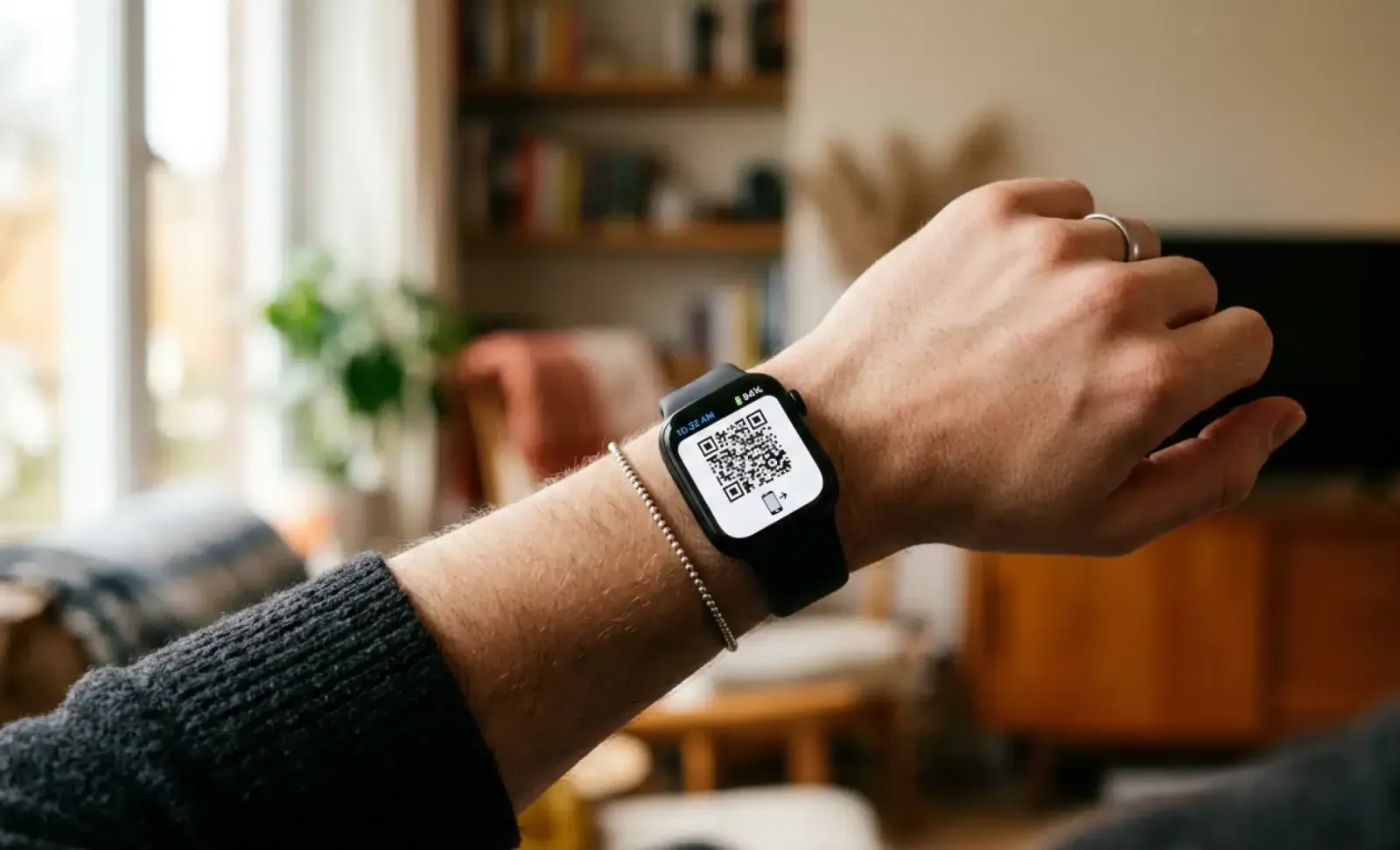
If you own a Wear OS wearable—such as a Galaxy Watch 4 or newer model—you can sidestep phone power usage entirely. Wear OS supports standalone wrist transactions. By installing the wearable companion client, you can launch your payment barcode right from your wrist using a double-press hardware shortcut. This keeps your smartphone display off in your pocket, saving your phone's battery while you clear the register in seconds.
Troubleshooting Stalls and Failed Verifications
When an optimized client halts at the register, the cause almost always traces to system integrity flags or local memory contention.
If your phone is rooted or jailbroken, the application's integrity modules will deliberately block checkout. The financial infrastructure scans for system tampering, unlocked bootloaders, and unsafe system binaries. If your device fails these checks, the app will freeze or shut down instantly. There is no setting adjustment or cache purge that bypasses this; you must run the client on an unmodified, production-signed operating system build.
Another common failure occurs when users confuse biometric read errors with network timeouts. If your biometric sensor fails to register your fingerprint three times, the app defaults to the six-digit PIN screen. If this screen fails to load, your local storage partition is likely full, preventing the client from writing temporary cryptographic session files. Ensure your internal flash storage has at least 2 GB of free space so the client can generate secure local tokens.
Use this checklist to catch configuration faults before reaching the register:
| Diagnostic Checkpoint | Recommended Status | Failure Symptom |
|---|---|---|
| System Clock Drift | Automatic (Network-synced) | Cryptographic handshake timeout at payment terminal |
| Device Integrity Status | Official OS (Unrooted/Unjailbroken) | Immediate app crash or payment service termination |
| Internal Storage Headroom | Minimum 2 GB free space | Biometric credential errors and stalled QR generation |
| Application Cache Volume | Under 250 MB | Noticeable stutter when switching between pay and points tabs |
Running diagnostic checks ensures payment credentials validate properly during peak network hours.
If your device passes these checks, your checkout process will remain snappy. If you find your primary bank connection drops out during weekly merchant maintenance windows, having a backup pool of stored Naver Pay funds prevents awkward card declines when you need to pay quickly.
Final Recommendations
Speeding up counter checkouts requires sensible defaults rather than developer workarounds. Clear stale cache, stop force-quitting the app, restrict location tracking to active use, mute promotional alerts, and authenticate with biometrics instead of a PIN.
Take five minutes to apply these configurations. You will stop holding up checkout lines, eliminate notification clutter, and keep your phone powered throughout the day.
FAQ
How do I fix lag or freezing when opening Naver Pay QR codes?
Clear the app cache in your mobile storage settings and make sure automatic date and time synchronization is turned on. If the stall persists at the counter, switch off unreliable public Wi-Fi and use your phone's cellular data connection.
Does closing the Naver Pay app after checkout save battery?
No, force-quitting suspended apps makes your phone spend extra CPU power to cold-launch the software the next time you use it. Keep the app suspended in the background unless it crashes or freezes completely.
How can I prevent Naver Pay notifications from draining standby battery?
Open the in-app notification menu via the bell icon and gear symbol, then disable usage guides, marketing promotions, and revisit reminders. On Android, you can also set non-essential notification categories to Silent to stop screen wakeups.
Can I pay at physical stores without draining my phone battery?
Yes, you can run the client on a Wear OS smartwatch like the Galaxy Watch 4 or newer. Processing the transaction on your wrist lets you pay without turning on your phone screen.
Will clearing the app cache log me out of my Naver Pay account?
No, clearing the cache only deletes temporary assets, tracking tokens, and third-party merchant page data. Your core login credentials, saved cards, and search records remain safely stored on your device.
Can foreigners set up Naver Pay on their devices in South Korea?
Yes, international travelers can complete digital onboarding by uploading a passport photo and taking a selfie within the application. Once approved, visitors can make reservations and complete offline payments across South Korea.

Community
Comments