

If the Nintendo eShop crashes on Nintendo Switch, hangs on an endless loading wheel, or drops to a black screen, the failure typically stems from an interrupted local software state, temporary server downtime, or default ISP DNS routing stalls. Forcing a hard reboot by holding the physical power button down for at least 12 seconds purges volatile system cache conflicts without wiping saved games, while assigning custom DNS servers like Cloudflare (1.1.1.1) bypasses ISP resolution bottlenecks that halt eShop network handshakes.
Here is our prioritized, non-destructive troubleshooting sequence to restore your store access and get digital redemptions working properly.
Nintendo eShop Gift Card (EU)
- -70%
Nintendo 12 Months EU
Buy NowUSD 21.82
USD 37.09
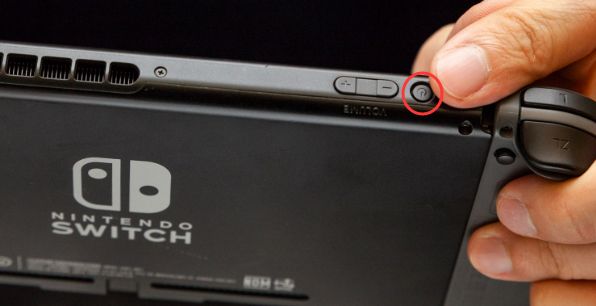
Step 1: Force a 12-Second Hard Reset
A black screen or an infinite loading spinner often indicates the operating system's web-applet container has locked up. Tapping the Home button might do nothing. Do not panic about your game progress: holding the physical power button down does not delete your save files.
- Press and hold the physical power button on the top edge of the Switch console.
- Keep holding the button continuously for at least 12 seconds.
- Release the button once the screen completely powers off.
According to troubleshooting documentation from QuestTiny, powering off through the software menu is preferred when responsive, but holding the power button for at least 12 seconds performs a forced restart that clears corrupt temporary system files preventing apps from launching.
Step 2: Decode the Error Code Before Changing Settings
When the digital store fails, the console frequently spits out a numeric error. Take note of the exact digits before dismissing the alert. Official Nintendo Support emphasizes that support queries must always retain the hyphen (formatted as 1234-5678) to match active maintenance and incident documentation.
Before spending an hour tweaking home routers, verify whether the outage lives entirely on Nintendo's infrastructure. If the servers are down, no local trick will open the storefront.
| Primary Error Code | System Meaning | Immediate Action | Service Status Reference |
|---|---|---|---|
| 902-5998 | Nintendo eShop undergoing active maintenance | Wait for maintenance window to finish | 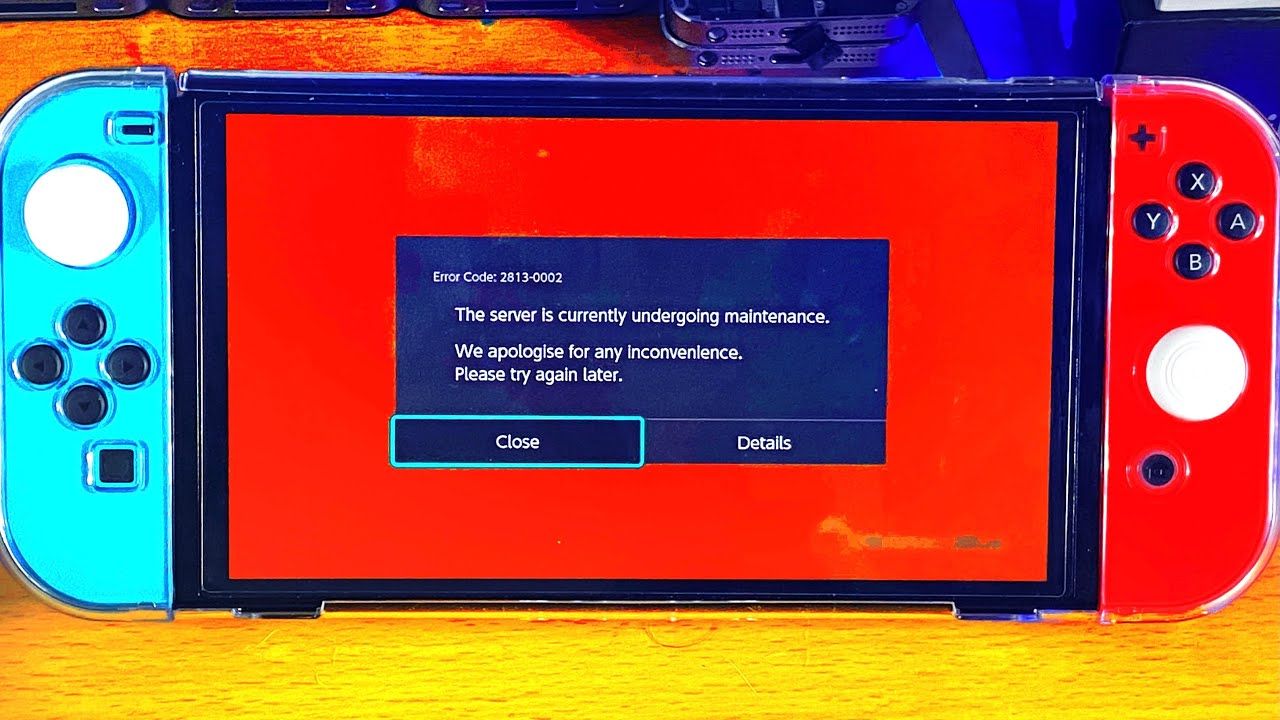 PS4Blog Support PS4Blog Support |
| 2124-5249 | Nintendo Account service maintenance | Hold off on sign-in or balance top-ups | 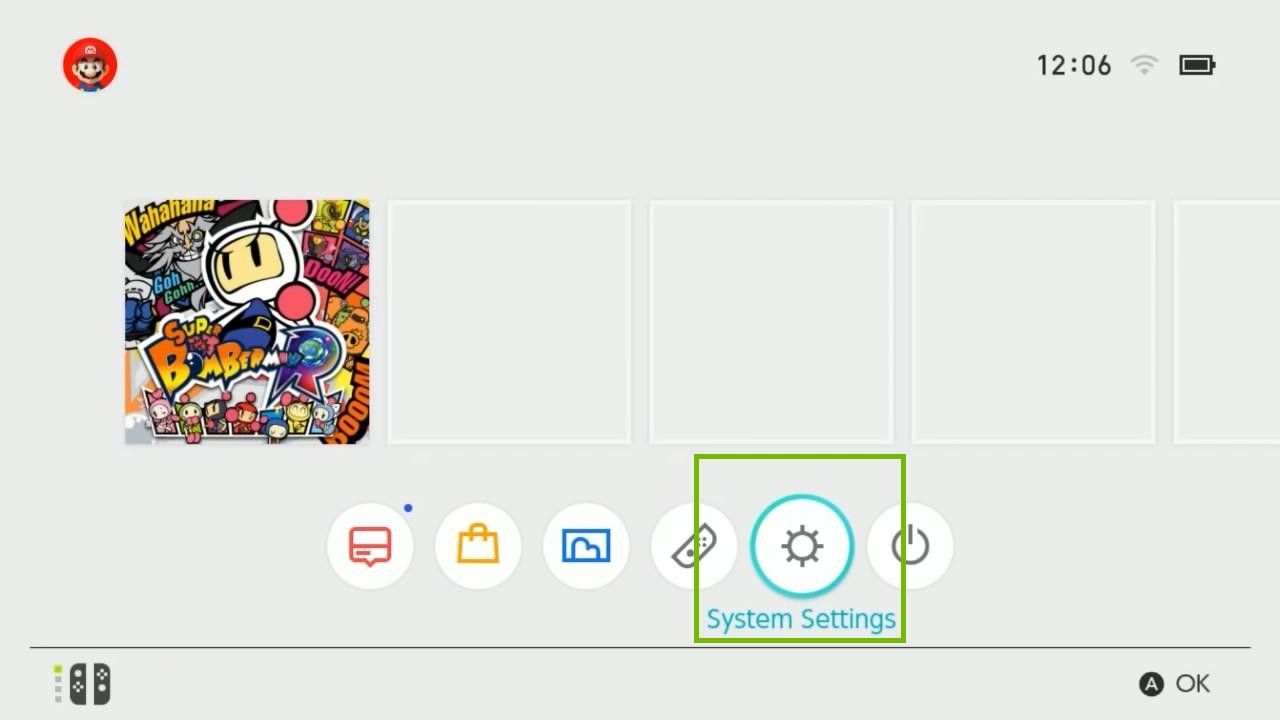 PS4Blog Support PS4Blog Support |
| 2813-0002 | Unable to connect to the Nintendo eShop | Check home network signal and server health | 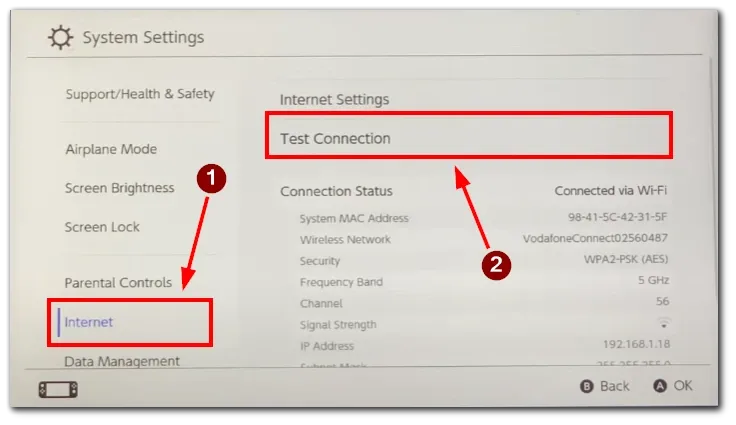 PS4Blog Support PS4Blog Support |
| 2811-5001 / 2811-1028 | Unable to access online features | Test network connection and clear cache | 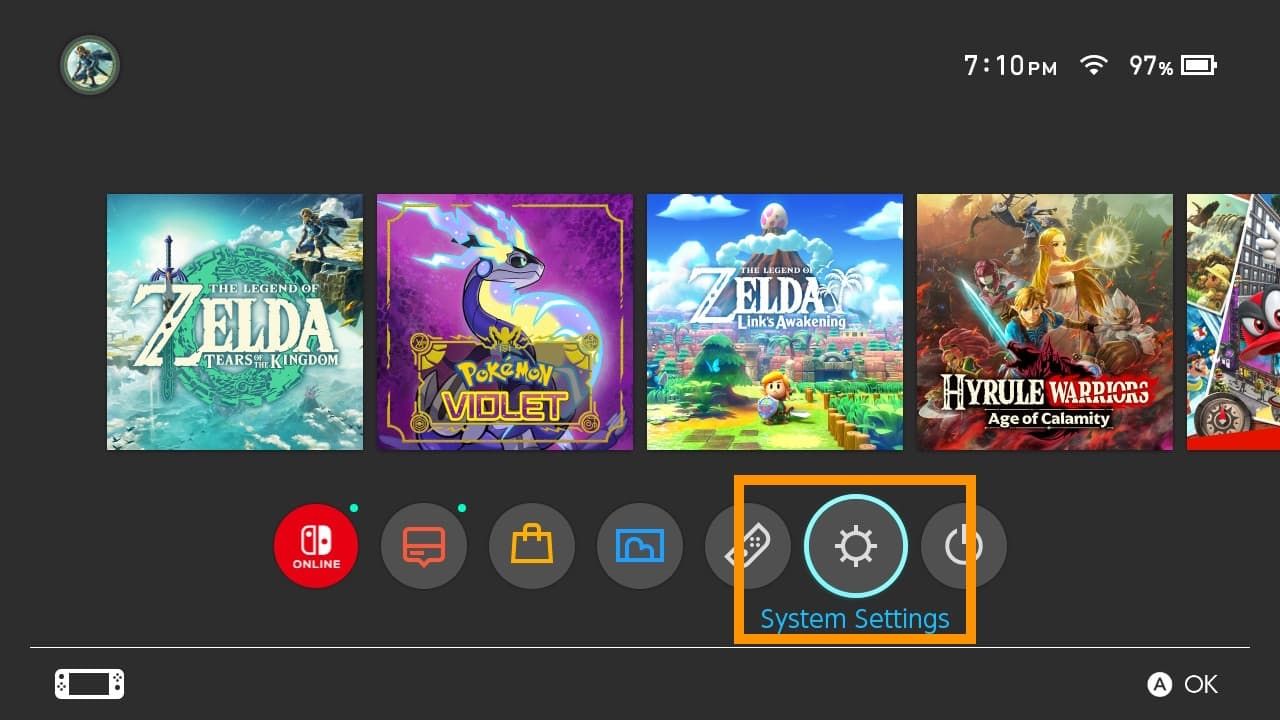 PS4Blog Support PS4Blog Support |
| 2811-7502 / 2811-7503 / 2811-7504 | Issue while trying to use eShop online service | Restart console and switch to public DNS | 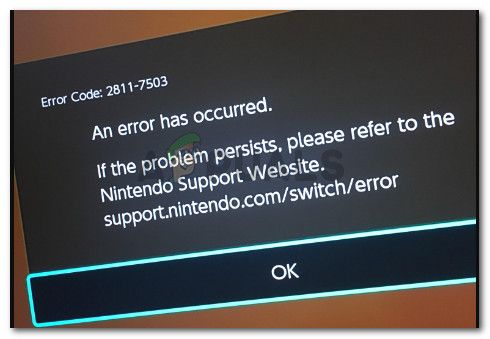 PS4Blog Support PS4Blog Support |
| 2124-8006 / 2124-8007 | DNS resolution failure or weak wireless signal | Switch DNS settings to manual; check Wi-Fi | 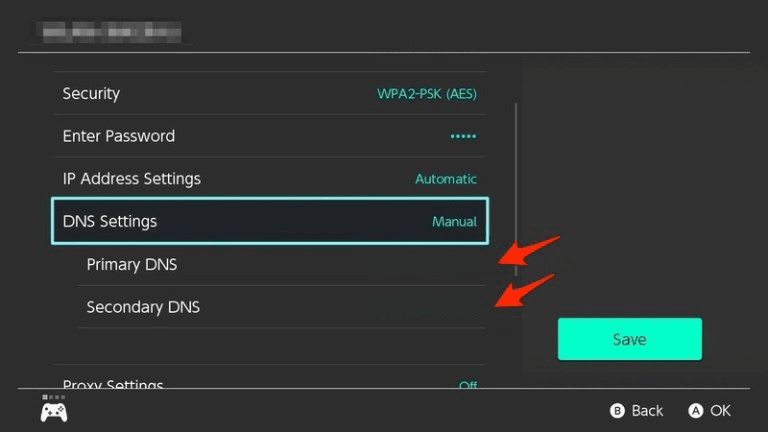 PS4Blog Support PS4Blog Support |
If your console throws error code 902-5998 or 2124-5249, check Nintendo's official Network Maintenance page. No amount of restarting will override scheduled server maintenance.
When server maintenance is clear yet the store stalls on a spinning icon, your internet service provider's default DNS server is frequently failing to resolve Nintendo's store domains.
An investigation by MundoBytes illustrates how severe this bottleneck gets: on a 1 Gbps fiber broadband connection using an Ethernet-connected Switch dock, the console clocked abysmal download speeds of just 25-26 Mbps and upload speeds of 10 Mbps under the default ISP DNS. Port forwarding and DMZ configurations produced zero improvement. However, manually setting the DNS to Cloudflare pushed download speeds to roughly 120 Mbps and uploads to 46 Mbps without touching any other router configuration.
| Provider | Primary DNS | Secondary DNS | Architectural Profile | Source Citation |
|---|---|---|---|---|
| Cloudflare | 1.1.1.1 | 1.0.0.1 | Low latency, privacy-focused routing | MundoBytes Analysis |
| Google Public DNS | 8.8.8.8 | 8.8.4.4 | Broad global availability, anti-spoofing protection | MundoBytes Analysis |
| Quad9 | 9.9.9.9 | 149.112.112.112 | Malware domain blocking, DNSSEC encryption | MundoBytes Analysis |
| OpenDNS | 208.67.222.222 | 208.67.220.220 | Content filtering support, alternate routing | MundoBytes Analysis |
How to Update DNS on Nintendo Switch
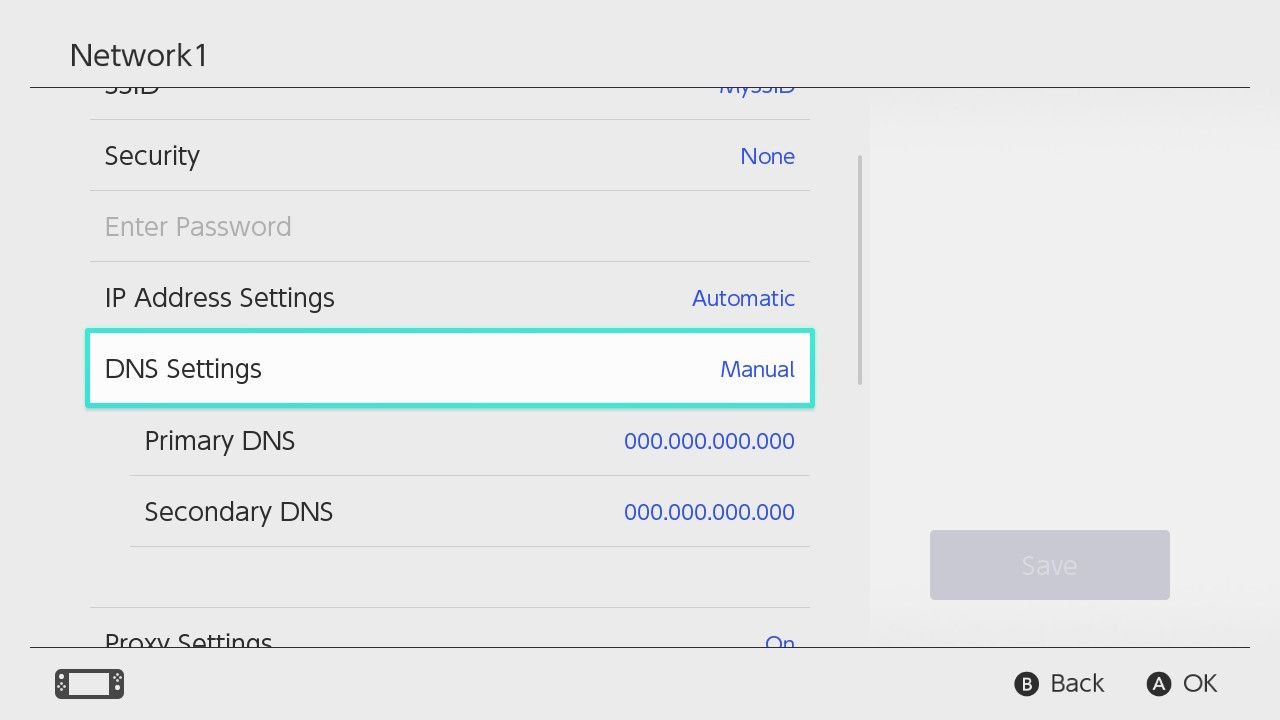
- From the HOME menu, open System Settings.
- Scroll down to Internet and select Internet Settings.
- Choose your current network connection from registered networks.
- Select Change Settings.
- Select DNS Settings and switch it from Automatic to Manual.
- Run a connection test, then relaunch the eShop.
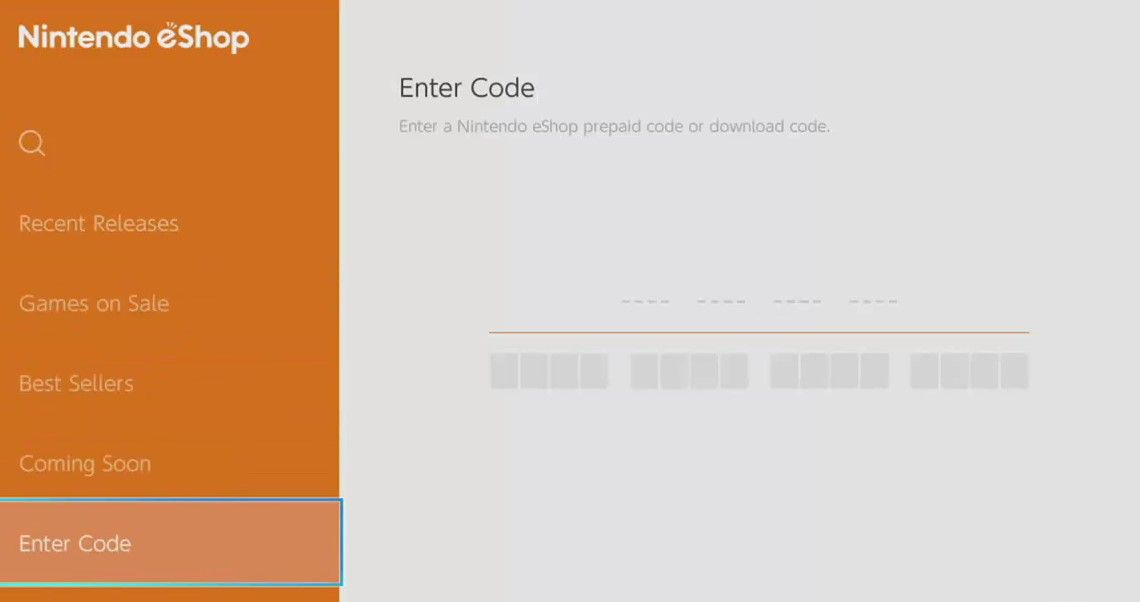
Did your eShop freeze or kick back an error right after typing in a code? When the store app abruptly stops working during code redemption, the issue is often a regional mismatch rather than a broken applet.
According to PS4Blog Support, error codes 2813-6838 and 2813-6561 signify failed prepaid card redemption. These errors occur when the digital code does not match the active currency of your Nintendo Account.
As verified on NXPGame's EU card product terms, a Nintendo eShop Gift Card (EU) is strictly locked to Nintendo Accounts registered in European countries operating with EUR (€) currency. Attempting to redeem an EU EUR voucher on an account set to the United Kingdom (GBP), Poland (PLN), the United States (USD), Japan (JPY), or Hong Kong triggers store rejections.
| Regional Code Specification | Supported Account Profile | Excluded Territories / Accounts | Error Triggers | Sourced Policy |
|---|---|---|---|---|
| Nintendo eShop Gift Card (EU) | European accounts configured with EUR (€) | US, UK (GBP), Poland (PLN), Japan, Hong Kong | Error codes 2813-6838 and 2813-6561 | NXPGame Product Details |
If you run into redemption stalls, do not repeatedly submit the code. Verify that your Nintendo Account country setting matches the exact currency stated on the voucher. A currency mismatch causes the transaction layer to stall or fail out completely.
Troubleshooting Checklist for Persistent Stalls
When custom DNS and reboots do not immediately solve the problem, run through this concise checklist:
- Verify Wi-Fi strength: Error codes 2124-8006 and 2124-8007 reflect signal weakness or domain resolution drops. Move closer to the router or dock the console with an Ethernet adapter.
- Confirm system update status: An out-of-date system firmware version can prevent authentication with the modern eShop backend.
- Check active maintenance: Remember error code 902-5998 means server work is in progress. Wait for Nintendo's engineers to wrap up server tasks before re-attempting access.
- Check the code currency: If an error strikes during redemption, ensure your account region matches your card's currency exactly.
Take two minutes to check the server status and switch your DNS to 1.1.1.1 or 8.8.8.8. That simple routing fix sidesteps the ISP traffic jams that cause the vast majority of black screens and spinning wheels on Switch.
Follow NXPGame for more Nintendo eShop Gift Card (EU) news~

Community
Comments