

Stop Chrome from crashing on Razer Gold reloads. Fix Aw Snap errors, clear GPU hangs, and safely verify your wallet balance or THB PIN in minutes.
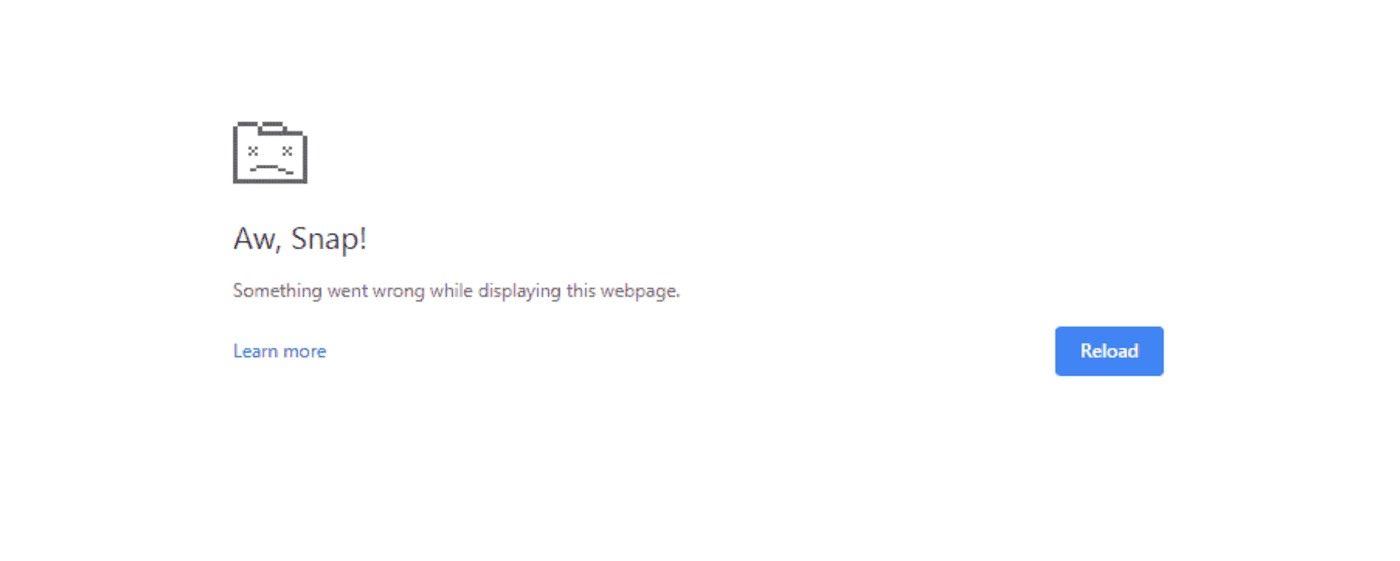
Entering a 14-digit prepaid PIN only for Google Chrome to freeze, crash to a blank screen, or throw an "Aw, Snap!" error mid-checkout is alarming. Razer Gold operates as a web-based wallet and payment gateway supporting 19 regional currencies across more than 34,000 games and applications. Because transactions run directly in your browser rather than a dedicated client, checkout stability depends on local script execution, cookie validation, and hardware-accelerated rendering pipelines.
When Chrome terminates the tab, players often worry that their prepaid funds were lost. In practice, almost every crash stems from local GPU rendering stalls, cross-domain cookie blocks, or regional IP verification conflicts.

Razer Gold Thailand (THB)
Why Chrome Crashes on Razer Gold Checkout Pages
Web checkout gateways run several intensive processes simultaneously. When you open the Razer Gold reload portal, Chrome loads dynamic JavaScript forms, validates regional IP routing, triggers two-step verification modules, and connects to merchant payment APIs. If any single rendering or security thread hangs, Chrome terminates the tab to protect the rest of the browser instance.
Chrome tracks these tab crashes using 94 internal crash error codes. Look at the bottom of the error page to identify the failing subsystem:
GPU_DEAD_ON_ARRIVAL: Chrome attempted to offload page composition and CSS animations to your graphics card driver, but the GPU driver failed to respond before the timeout threshold.HUNG: Complex gateway scripts blocked the main browser thread beyond the execution timeout limit.KILLED_BAD_MESSAGEandBAD_PROCESS_TYPE: Corrupted session cookies or conflicting browser extensions interfered with inter-process data transfers.
Step-by-Step Sequence to Stop Chrome Tab Freezes
Do not repeatedly refresh an unresponsive reload page. Refreshing an active gateway creates duplicate requests and validation conflicts. Work through these targeted fixes instead.
Step 1: Disable Hardware Acceleration in Chrome
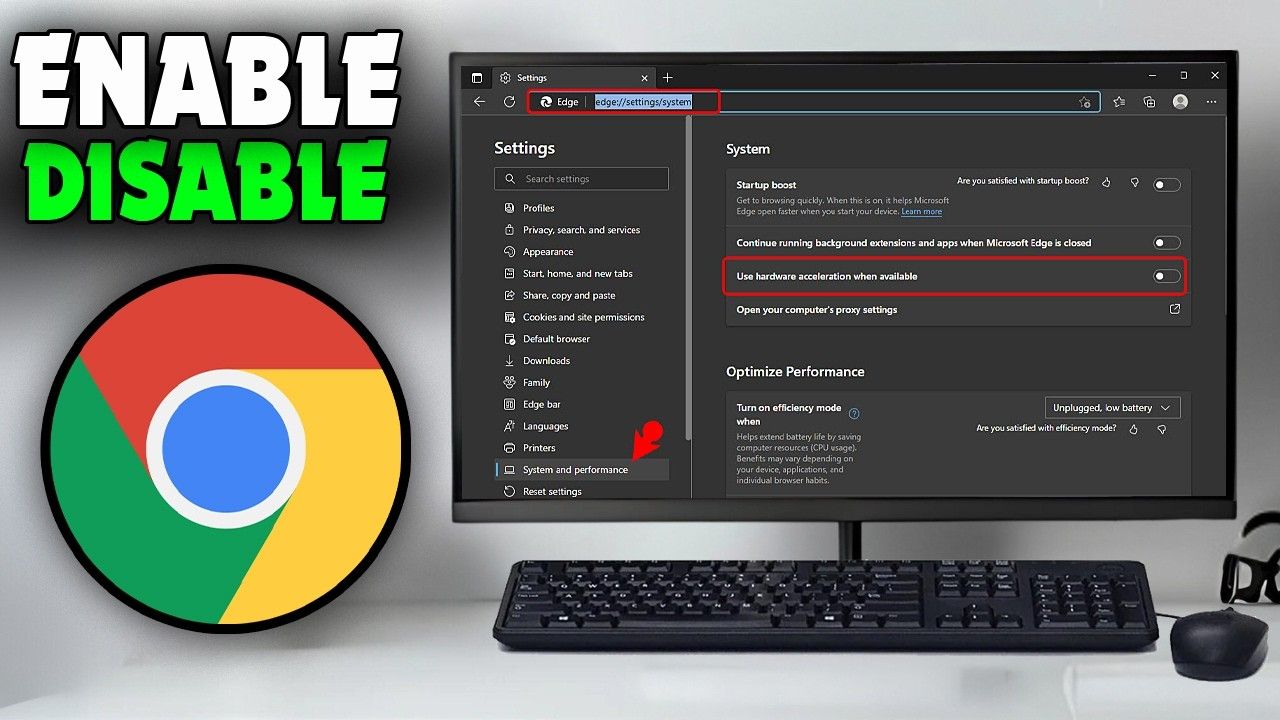
GPU acceleration conflicts cause most browser freezes on dynamic checkout portals. Disabling this setting forces Chrome to render page elements via CPU software execution, bypassing unstable graphics drivers.
- Open Chrome, click the three vertical dots in the upper-right corner, and select Settings.
- In the left-hand sidebar, select System.
- Turn off Use hardware acceleration when available.
- Click Relaunch to restart the browser.
- Verify the change by typing
chrome://gpuinto your address bar and pressing Enter. Confirm that entries under Graphics Feature Status read Software only, hardware acceleration unavailable.
Step 2: Clear Corrupted Session Cache and Cookies
Stale session tokens from earlier login attempts corrupt active payment handshakes, causing blank screens.
- Enter
chrome://settings/clearBrowserDatainto the Chrome address bar. - Set the Time Range dropdown to All time.
- Select Cookies and other site data and Cached images and files.
- Click Clear data, close Chrome completely, and reopen it.
Step 3: Allow Third-Party Cookies for Payment Processing
Razer Gold connects to regional merchant services and fraud detection networks across external domains. Strict cookie blocking breaks these authentication handshakes.
- Open Settings > Privacy and security > Third-party cookies.
- Select Allow third-party cookies, or add the reload gateway domain under Sites allowed to use third-party cookies.
- Reload the portal and retry the transaction.
Step 4: Disconnect Active VPNs and Anonymizing Proxies
Razer Gold enforces geographic locking and validates your IP address during two-step authentication. If your IP address conflicts with your registered account region, or if Chrome routes traffic through a known datacenter proxy, the portal aborts the session and crashes.
Turn off desktop VPN apps, proxy extensions, and custom routing profiles before opening the checkout page.
Step 5: Flush Local DNS Cache
Outdated DNS records for Razer's web servers prevent page assets from loading.
- Press Windows Key + R, type
cmd, and press Enter. - Type
ipconfig /flushdnsand press Enter. - If connection drops continue, configure your network adapter to use public resolvers such as Google Public DNS (
8.8.8.8/8.8.4.4) or OpenDNS (208.67.222.222).
Pinpoint Your Specific Chrome Crash Code
Match your error screen code to the exact local fix in the table below.
| Chrome Crash Code | Root Cause on Reload Page | Targeted Solution |
|---|---|---|
GPU_DEAD_ON_ARRIVAL | Graphics driver failed to initialize hardware rasterization | Toggle off hardware acceleration in chrome://settings/system |
HUNG | Gateway scripts exceeded main thread execution timeout | Clear cache and disable script-blocking extensions |
KILLED_BAD_MESSAGE | Corrupted session tokens or invalid cross-domain payload | Clear browser cookies via chrome://settings/clearBrowserData |
BAD_PROCESS_TYPE | Sub-frame process isolation failure during payment handoff | Update Chrome to the latest stable build and relaunch |
Verifying Wallet State and Avoiding Duplicate Redemptions
When Chrome crashes during payment submission, confirm whether the transaction processed before re-entering payment information.
Open a single browser tab and log into your Razer Gold account dashboard. Open your transaction history ledger. If the reload went through, your updated balance and transaction timestamp will appear on the ledger. If no record appears, the transaction did not execute.
Pay close attention when entering prepaid vouchers. Razer Gold reload vouchers use a 14-digit alphanumeric PIN. The 19-digit number printed on receipts is a tracking serial number, not a redeemable code. Submitting the 19-digit serial triggers immediate validation errors. Entering incorrect codes consecutively can lock your account, requiring support intervention with proof of purchase to restore access.
To replenish your balance with retail-verified codes after a failed session, check Razer Gold Thailand (THB) vouchers to ensure you are redeeming standard PINs rather than short-lived promotional codes that expire in 30 days.
Cross-Platform Breakdown: Desktop vs Mobile Chrome
While Chrome shares the underlying Blink engine across platforms, mobile operating systems terminate background tabs and memory-heavy pages more aggressively than desktop systems.
| Platform | Primary Crash Vector | Best Diagnostic Action |
|---|---|---|
| Chrome on Windows PC | GPU hardware acceleration conflicts and driver timeouts | Disable hardware acceleration; flush DNS via Command Prompt |
| Chrome on Android | Low-memory tab termination (Out of Memory killer) | Close background apps; clear Chrome app cache in Android Settings |
| Chrome on iOS / iPadOS | WebKit rendering engine memory caps during 2FA redirects | Use Private Browsing mode; disable third-party content blockers |
Android builds omit the desktop hardware acceleration toggle, so clearing the app cache and freeing device memory are your primary troubleshooting tools on mobile.
Bypassing the Main Portal via Direct In-Game Top-Up
If gold.razer.com fails to load due to routing issues or server maintenance, you do not need the main wallet dashboard to spend your credit. Razer Gold integrates directly into partner checkout pages across 34,000 titles.
Go directly to your game's official web store. Choose your item pack, select Razer Gold PIN as the direct payment method, and enter your User ID (UID). Enter your 14-digit PIN directly on the merchant's embedded gateway when prompted.
This method credits your game account directly in one step. It bypasses the primary wallet dashboard entirely, avoiding the script conflicts causing Chrome tab crashes.
When the main website is down, you can secure a prepaid Razer Gold Thailand THB code and redeem it on the direct game checkout screen.
Core Reload Failure Triggers and Fixes
| Failure Trigger | Operational Impact | Immediate Fix Action |
|---|---|---|
| Hardware Acceleration Mismatch | Freezes rendering pipeline during payment handoff | Disable GPU acceleration in Chrome System settings |
| Third-Party Cookie Block | Drops cross-domain authentication tokens | Enable third-party cookies in Chrome Privacy settings |
| Corrupted Session Cache | Retains stale authorization and broken scripts | Clear browser cache and cookies for all time |
| Regional IP Mismatch | Aborts reload during 2-step verification | Turn off all VPNs and proxies before loading checkout |
| Serial vs PIN Confusion | Rejects form input as an invalid format | Submit the 14-digit PIN instead of the 19-digit serial |
Platform Modernization and Backend Outage Checks
Some crashes result from server-side updates rather than local browser configurations. Razer regularly updates security backends, API endpoints, and authentication microservices. For example, legacy Razer Synapse 3 cloud infrastructure reached official end-of-life on February 3, 2026, transitioning ecosystems to Synapse 4 frameworks. Web authentication systems undergo similar structural updates.
If Chrome hangs on a blank white screen across multiple browsers (including Edge or Firefox), check live service status feeds. The reload platform depends on three distinct components:
- Web Portal Frontend: Renders the store and reload interfaces.
- Authentication Backend: Handles two-step verification and regional profile validation.
- Payment API Gateway: Connects to banking systems and prepaid code validation servers.
If the Payment API or Authentication backend slows down or goes offline, frontend scripts time out waiting for a server response, crashing the tab. If an outage is confirmed, wait until backend services recover before attempting another reload.
Input Traps: Alphanumeric Confusion and Lockout Rules
Typing errors on manual PIN entry trigger security blocks after repeated failed attempts:
- Zero vs. Letter O: Numeral
0and uppercase letterOlook identical in standard web typography. Verify against your digital receipt. - One vs. Letter I / L: Uppercase
I, lowercasel, and number1cause frequent typos. - Spaces and Dashes: Do not add spaces or hyphens unless the form automatically creates separate input boxes.
To avoid lockouts caused by manual entry errors, pick up verified Razer Gold Thailand (THB) digital pins and paste the 14-digit string directly into the form field.
FAQ
Why does the Razer Gold reload page freeze or show Aw Snap in Chrome?
Chrome crashes during checkout are primarily caused by GPU hardware acceleration conflicts, corrupted cache files, or blocking third-party scripts. Disabling hardware acceleration in Chrome settings and clearing browsing data usually resolves the issue.
How do I turn off hardware acceleration in Google Chrome?
Click the three dots menu, open Settings, navigate to System on the left, and toggle off "Use hardware acceleration when available". Click Relaunch to apply software-only rendering.
Can third-party cookies cause Razer Gold payment failures?
Yes, strict third-party cookie blocking prevents authentication tokens and payment gateways from executing correctly. You should allow third-party cookies in Chrome's Privacy and Security settings while reloading.
What should I do if my Razer Gold PIN is rejected as invalid?
Verify that you entered the 14-digit PIN instead of the 19-digit serial number, checking carefully for lookalikes like '0' versus 'O'. Also confirm the PIN currency matches your Razer Gold account region.
Why does Razer Gold fail to process payments when using a VPN?
Razer Gold enforces strict geographic region locking and validates your IP address during 2-step authentication. Connecting through a foreign VPN server triggers security flags and aborts the reload.
Can I redeem my Razer Gold PIN directly without loading gold.razer.com?
Yes, many supported games allow you to select "Razer Gold PIN" directly on their own checkout page. This applies the balance straight to your game ID and completely bypasses the main wallet reload website.
Final Troubleshooting Verdict
Treating Razer Gold checkout crashes as local rendering or session conflicts resolves the problem quickly. Disabling hardware acceleration under chrome://settings/system stops GPU_DEAD_ON_ARRIVAL and HUNG errors. Clear cached data and disconnect active VPNs before two-step authentication. When the primary wallet dashboard is down for maintenance, bypass the website entirely by redeeming your 14-digit PIN on your game's direct checkout gateway.

Community
Comments