

Configure the best IMO video settings 2026 to stop call lag, reduce battery drain, and stabilize live streams on budget Android and iOS hardware.
Video calling on a mobile device requires serious computational muscle. When you launch a video call or host a live broadcast on imo, your smartphone camera captures raw frames, your processor compresses them via software or hardware encoders, and your modem broadcasts those packets over Wi-Fi or cellular networks. At the same time, your phone receives an incoming stream, decompresses it in real time, and renders it on your display.
On high-end flagship phones, this workload produces mild warmth. On mid-range devices or budget phones with 4GB of RAM or less, it frequently triggers aggressive thermal throttling, dropped frames, audio desync, and empty batteries within forty minutes. Because imo handles over 300 million daily video calls across 170 countries, getting your setup dialed in makes an immediate difference.
Imo has no hidden video resolution slider in its settings menus. The client dynamically alters quality based on device temperature and network conditions, meaning any real optimization happens outside the active call window.
Why IMO Video Calls Lag and Overheat Your Phone
Choppy video streams and thermal build-up stem from an overworked system-on-chip (SoC). Mobile encoders must compress video frames instantly without introducing latency. If your connection flickers or your processor gets too hot, the client cannot keep pace.
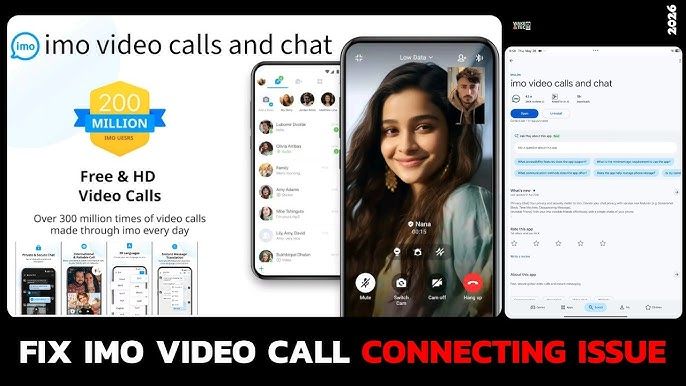
Many users blame their local internet provider when calls freeze. Network speed matters, but hardware bottlenecks often cause the real damage. Encoding high-definition video places severe sustained stress on processors. When internal component temperatures cross safe limits, the operating system forcibly slows the processor clock speed to avoid permanent hardware damage. This thermal throttling causes sudden framerate collapses and frozen screens.
Network congestion compounds this issue. If family members stream 4K content on the same Wi-Fi connection, that activity pulls 15 to 25 Mbps of continuous throughput. Real-time video calling demands low latency rather than pure download volume. When a shared connection spikes, packet loss forces the application to request retransmissions, creating stutter.
Resolution scaling directly governs how hard your hardware works. Pushing a 1080p stream demands substantially more system resources than transmitting a clean 480p image. The table below outlines how resolution and frame rates directly impact bandwidth and system loads.
| Target Resolution | Frame Rate Target | Standard Video Bitrate | Memory & Processor Impact |
|---|---|---|---|
| 360p (SD) | 30 fps | 365 kbps | Minimal load; ideal for 1GB to 2GB RAM devices. |
| 480p (HQ) | 30 fps | 800 - 1,200 kbps | Balanced; prevents thermal throttling on 4GB RAM phones. |
| 720p (HD) | 30 fps | 3,000 kbps | Moderate; requires stable LTE or Wi-Fi and mid-tier SoCs. |
| 1080p (Full HD) | 30 to 60 fps | 6,000 - 7,800 kbps | Heavy; triggers battery drain and heat on budget phones. |
Targeting 30 fps at lower resolutions dramatically stabilizes stream bitrates and avoids encoder overload on everyday devices.
The Core Myth About IMO Low Data Mode
Dig through the application settings and you will find an option labeled Low Data Mode under Storage & Data on Android. Most users switch this toggle on, expecting their video calls to sip data and keep the phone cool. That expectation is completely incorrect.
Official support documentation confirms that imo's built-in Low Data Mode does not support video calls. The toggle applies to static assets, image preloading, and voice transmissions. It has zero effect on the resolution or compression rate of an active video call. The iOS build lacks this switch entirely.
Imo relies on dynamic automated scaling. The platform monitors real-time packet round-trip times and available throughput. On an unmetered, strong Wi-Fi network, the client automatically defaults to the highest supported resolution. If bandwidth drops, it compresses packets and dials back quality automatically to keep the call alive.
Because the app prevents manual quality capping during calls, operating system controls are the only fallback. System power profiles and choosing the right app branch deliver the data and battery savings the in-app toggle skips.
IMO App Editions: Lite vs Standard vs HD
Choosing the correct version of the application impacts performance far more than tweaking sliders. The developer maintains three distinct branches on mobile platforms, each tailored for different hardware capabilities.

Imo Lite is the definitive choice for older hardware. Downloading at roughly 33.6 MB to 37.68 MB, it cuts device storage needs in half compared to the main app. It strips heavy visual animations, removes background UI bloat, and operates smoothly on devices with just 1GB of RAM. It is also engineered to transmit smaller data packets that survive on unstable 2G networks, running on operating systems as old as Android 5.0 Lollipop.
Imo Standard represents the mainstream build. It supports adaptive resolutions ranging from 360p up to 720p, VoiceRooms, stories, and full media sharing. For everyday calling on modern mid-range devices, it provides the standard balance between graphical fidelity and operational stability.
Imo HD targets flagship hardware and high-bandwidth connections. It supports full HD video rendering, large file attachments up to 10 GB, and 25 GB of cloud backup for Premium members. However, imo HD demands Android 10 or higher. Running imo HD on a budget phone guarantees high temperatures and rapid battery depletion.
| Edition | App Size / Requirements | Max Group Video Capacity | Primary Focus |
|---|---|---|---|
| imo Lite | 33.6 - 37.68 MB APK / 1GB RAM / Android 5.0+ | 1-on-1 focus (stripped bloat) | Maximum battery savings, 2G/3G stability, low RAM footprint. |
| imo Standard | ~60 - 90 MB / 2GB+ RAM / Android & iOS | Standard group calls | Balanced everyday calls, VoiceRooms, and interactive feeds. |
| imo HD | 100 MB+ / Android 10+ / 4GB+ RAM | Up to 20 participants | Uncompressed 1080p feeds, 10 GB transfers, 25 GB cloud sync. |
Selecting imo Lite solves hardware stutter on budget phones, whereas imo HD should be reserved strictly for capable devices on unmetered Wi-Fi.
Some community reviews claim group chats lack video calling support entirely. That is inaccurate. The imo HD branch explicitly supports group video conferences for up to 20 concurrent participants. Be aware, however, that decoding 20 incoming video feeds simultaneously will drain even a large smartphone battery rapidly.
Step-by-Step Configuration to Fix Video Call Stutter
Follow these sequential configuration steps to stop call freezing, reduce data usage, and protect your battery life.
1. Disable Auto-Save for Media
Background file writing during a live video transmission forces flash storage to read and write data simultaneously, consuming CPU cycles and generating heat.
- Open imo and tap your Profile Icon in the top left corner.
- Navigate to Settings and select Storage & Data.
- Locate the toggles for Auto-Save Photos after Receive and Auto-Save Videos after Receive.
- Turn both options completely Off.
- Disable Auto-Save after Send to prevent the client from duplicating outbound files.
2. Force 30 FPS Stream Caps via Display Refresh Settings
Real-time video rarely benefits from ultra-high frame rates. Broadcasting at 60 fps doubles the encoder workload compared to 30 fps with no practical benefit for standard conversations.
- Open your phone's system Settings.
- Tap Display (or Display & Brightness on iOS).
- Find Screen Refresh Rate or Motion Smoothness.
- Change the setting from Adaptive / 120Hz to Standard / 60Hz.
- Limiting display refresh locks the camera capture pipeline to 30 or 60 fps, preventing thermal runaway during calls.
3. Activate System-Level Battery Optimization
Because imo lacks a native manual framerate limiter, you can use system power controls to manage hardware draw.
- On Android, pull down the notification shade and tap Battery Saver.
- On iOS, go to Settings > Battery and enable Low Power Mode.
- This restricts background CPU synchronization, caps peak processor clocks, and cools the device during extended calls.
- On Android, open Settings > Apps > imo > Battery and select Optimized or Restricted to prevent background media processing when the screen turns off.
4. Purge Heavy Cache Files Regularly
Cached stickers, temporary video fragments, and downloaded assets clutter local storage and drag down memory access speeds.
- Go to imo Settings > Storage & Data.
- Tap Manage Storage.
- Tap Clear Cache to wipe junk data without deleting your chat history.
5. Throttle Network Load from Other Devices
Real-time streams fail when available upstream bandwidth drops below 1 Mbps.
- Ensure other devices on your home network are not actively downloading large files or running 4K streams (which absorb 15 to 25 Mbps).
- If using cellular data, move to an area showing strong LTE or 5G reception to prevent the phone's modem from maximizing broadcast power, which rapidly drains battery.
Mobile OS Platform Differences: Android vs iOS Performance
Operating system rules dictate how much overhead imo can generate. Android provides direct access to battery and data policies, while iOS handles background tasks through automated system profiles.
| Feature / Setting | Android Implementation | iOS (iPhone/iPad) Implementation |
|---|---|---|
| In-App Low Data Mode | Present in settings (voice/assets only; exempts video) | Not available in application menus |
| Lightweight Client | imo Lite APK supported (1GB RAM minimum) | No Lite edition available on the platform |
| System Data Throttling | Android Data Saver restricts background sync | iOS Low Data Mode reduces stream bitrate |
| Background App Refresh | Granular control per application | System-wide toggle under General settings |
| High-Definition Client | imo HD dedicated branch available | Standard application handles adaptive scaling |
Android users gain superior flexibility through imo Lite, while iPhone users must lean heavily on iOS system-level power and data toggles.
On iOS, navigating to Settings > Cellular > Cellular Data Options and enabling Low Data Mode helps manage stream overhead. This instructs iOS to actively compress network traffic and limit background tasks. Pairing this with Low Power Mode dims peak screen brightness and reins in the graphics processor.
On Android, you should avoid the imo Beta branch available on application distribution platforms. Beta releases introduce experimental camera filters, novel gift animations, and early user interface tweaks. These experimental builds introduce higher risks of crashes, unoptimized memory leaks, and severe battery drain. Stick strictly to standard production builds or imo Lite.
Live Streaming and VoiceRoom Performance Tweaks
Live broadcasting and multi-user VoiceRooms place heavy loads on phone hardware compared to one-on-one calls. Two culprits drive the extra strain: graphic overlay rendering and concurrent stream decoding.
Entering a VoiceRoom or live stream downloads heavy graphical gift assets, sound effects, and animated overlays. When top supporters trigger massive animated gifts across the screen, budget GPUs choke trying to render alpha-channel transparency effects on top of an active camera feed. This causes sudden audio cutting and frozen camera frames.
If you actively stream or support creators during events, managing your resources matters. Viewers regularly acquire digital assets to send gifts during competitive broadcasts. You can secure an imo diamond recharge to participate in gifting rooms, but be mindful of room density. If you notice your phone heating up inside a crowded broadcast, minimize the chat overlay or exit animated full-screen viewing modes to give your mobile GPU breathing room.
If you stream your own video content, keep your camera lens clear, avoid direct sunlight, and refrain from charging your phone with high-wattage fast chargers while broadcasting. Fast charging generates substantial heat on its own. Combining rapid charging with active camera encoding will force your phone into thermal shutdown within half an hour.
Broadcasters looking to send gifts or support community talent can use an online imo diamond top-up to fund their accounts ahead of scheduled events. Maintaining a stable stream setup ensures that your participation in these interactive rooms does not result in a crashed application or dropped connection mid-event.
Encryption and Privacy: Sorting the Contradictions
Call stability matters little if call contents are exposed. Imo's actual encryption setup carries distinct limitations that users often misunderstand.
Official developer materials state that imo voice and video calls utilize end-to-end encryption. Under end-to-end encryption, cryptographic keys reside strictly on the sender and recipient hardware, preventing intermediate network nodes or service providers from intercepting the raw audiovisual content.
Conversely, multiple independent cybersecurity audits and technology reviews have questioned the transparency and reliability of imo's privacy implementation. Critics point out that the platform's proprietary encryption protocols lack third-party public audits. Some technical reviewers suggest that certain community features, such as public VoiceRooms and large group interactions, do not enforce the same strict encryption standards applied to direct calls.
What does this mean for everyday operation? For private family catch-ups, imo's protocols provide everyday usability across low-bandwidth connections. However, for sensitive enterprise communications or highly confidential discussions, you should weigh whether a consumer-focused VoIP app meets your security requirements. From a pure performance standpoint, the underlying encryption engine runs with very low overhead, consuming minimal processing cycles on modern ARM chips.
Complete Settings Checklist for Trouble-Free Streaming
Before initiating an important video call or starting a live broadcast, run through this configuration checklist to ensure stable performance.
- App Edition Selection: Use imo Lite if your phone has 1GB to 3GB of RAM. Use imo Standard for everyday mid-range calling. Reserve imo HD for modern hardware running on dependable Wi-Fi.
- Storage Configurations: Turn off both Auto-Save Photos and Auto-Save Videos in imo's Storage & Data menu to eliminate storage write bottlenecks.
- Cache Management: Clear the temporary app cache inside the imo storage management screen before launching hour-long broadcasts.
- Power Profiles: Activate your operating system's native Battery Saver or Low Power Mode to throttle excess CPU clock cycles and prevent overheating.
- Display Refresh: Set your phone's display refresh rate to a fixed 60Hz rather than high-refresh 120Hz modes.
- Network Clearing: Confirm local network users are not pulling 4K streams that saturate upstream bandwidth.
- Thermal Management: Take off thick protective phone cases and avoid fast-charging the device while simultaneously transmitting live video.
Live streamers who engage with audience rewards and need an imo diamonds direct top-up should always complete account funding outside the streaming session. Managing gifts beforehand prevents unnecessary app switching, which can disrupt camera capture and force audio to desync.
FAQ
Can I manually set my video resolution inside the IMO app?
No, imo automatically adjusts video resolution and bitrate based on real-time network throughput and hardware capability. To force a lighter stream that prevents freezing, you must switch to imo Lite or restrict your device-level connection speed.
Does IMO's built-in Low Data Mode reduce video call data and battery usage?
No, the in-app Low Data Mode toggle in Storage & Data does not apply to video calls. It only compresses static media and disables certain asset preloads. You must rely on system-level battery savers or switch to imo Lite to conserve video resources.
Why does my phone overheat during IMO video calls?
Continuous real-time video encoding places sustained workloads on mobile processors, particularly on devices with 4GB of RAM or less. High screen brightness, charging while calling, and heavy background app activity compound this thermal load.
How does IMO Lite help prevent video call lag?
Imo Lite strips away background bloat, animated stickers, and complex visual filters to keep the total package size under 38 MB. This dramatically lowers RAM and CPU utilization, allowing smooth video calls even on 1GB RAM devices and 2G connections.
What network speed is recommended for smooth HD calls on IMO?
While standard-definition calls can run on connections below 1 Mbps, reliable HD calling demands a stable 3 Mbps upstream connection. You should avoid shared networks where simultaneous 4K streams consume 15 to 25 Mbps of continuous throughput.
Should I use imo Beta for better streaming quality?
No, imo Beta is designed to test unreleased experimental tools and camera effects, which increases the likelihood of system glitches and memory leaks. Stick to the official stable release or imo Lite for dependable battery life and call stability.
Can I host group video calls on IMO HD?
Yes, imo HD supports group video calling for up to 20 concurrent participants. Be mindful that decoding multiple video feeds simultaneously requires Android 10 or higher and will drain your battery significantly faster than a one-on-one call.
Optimal Configuration Verdict for 2026
For Android users on entry-level hardware, imo Lite delivers the best frame stability and thermal management. Stripping out animations and secondary menus leaves the processor free to handle the video feed.
On modern devices, stick with imo Standard. Turn off media auto-save, lock display refresh to 60Hz, turn on your system battery saver, and stay off the Beta branch. Those steps stop mid-call thermal throttling without sacrificing voice or video clarity.

Community
Comments