

The best PS5 DualSense button mapping layout for responsiveness swaps the thumbstick clicks (L3 and R3) to the shoulder bumpers (L1 and R1), pairs this with Trigger Effect Intensity set to Off or Weak, and runs the controller over a wired USB connection polling at 250Hz (4ms intervals). This configuration eliminates analog stick strain, removes mechanical resistance along the L2 and R2 trigger stroke, and ensures instant actuation across action titles.

PlayStation Network Card (TH)
Core System Layout: The Stick-to-Bumper Reassignment Profile
Standard DualSense controllers place intense physical demands on the thumbsticks. Sprinting and melee actions frequently require hard presses on L3 and R3 while aiming or steering. Moving these inputs to the bumpers frees your thumbs to stay locked to the analog sticks.
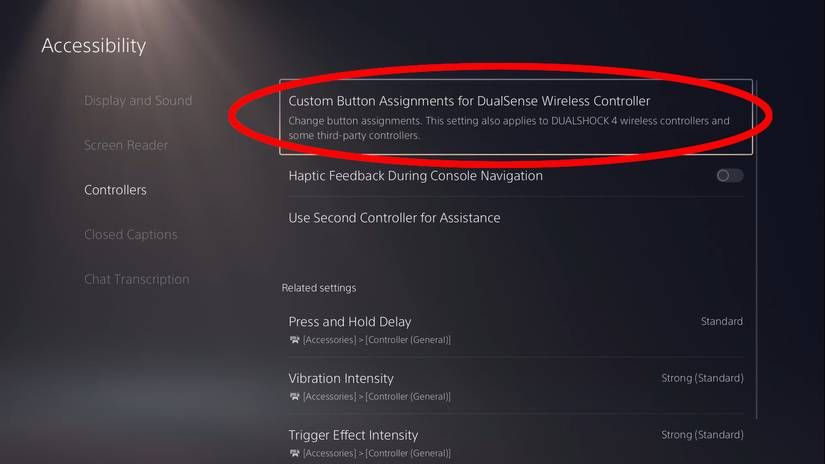
Under the PlayStation 5 operating system, you can remap digital and analog inputs directly through system accessibility options. Below is the baseline responsive profile recommended for standard DualSense controllers:
- L1 assigned to L3: Moves tactical sprint or secondary utility away from the left thumbstick to your index finger.
- R1 assigned to R3: Moves melee, crouch, or ping inputs off the right thumbstick to reduce mechanical wear and stick drift risk.
- L3 assigned to L1: Shifts tactical equipment or grenade throws onto the left stick click.
- R3 assigned to R1: Shifts weapon abilities, spotting, or secondary interactions onto the right stick click.
- Face Buttons (Cross, Circle, Square, Triangle): Kept standard, or swap Cross and Circle if your primary games rely heavily on quick evasion while thumb-tracking.
Swapping thumbstick clicks to shoulder buttons preserves your aim during high-intensity encounters. Because L3 and R3 require significant downward force, clicking while tracking a target often jerks the crosshair off course. Relocating those clicks to the light microswitches of L1 and R1 restores fluid tracking.
PS5 Custom Button Assignments Setup: Step-by-Step Instructions
Configuring how to remap PS5 controller buttons system wide takes less than two minutes. The console applies these changes globally across every title you boot under your profile.
- From the PS5 home screen, select the Settings gear icon in the upper-right corner.
- Select Accessibility from the main settings menu.
- Scroll down and open Controllers.
- Select Custom Button Assignments for DualSense Wireless Controller.
- Switch the toggle on for Enable Custom Button Assignments.
- Select Customize Button Assignments to open the input remapping matrix.
- Highlight the source button (for example, L1) and select your desired replacement input (such as L3).
- Once your layout is configured, select Apply in the bottom right to save the profile.
According to How-To Geek's remapping analysis, the system allows full reassignment among the following inputs: L1, R1, L2, R2, L3, R3, the directional pad (Up, Down, Left, Right), and the action buttons (Triangle, Circle, Cross, Square).
Four specific inputs are locked at the hardware level. You cannot remap the Create button, Options button, Touchpad, or physical Mute button through the system accessibility menu.
| Input Setting | Supported Options / Status | Operational Impact | Sourced Reference |
|---|---|---|---|
| Remappable Inputs | L1, R1, L2, R2, L3, R3, D-pad, Face Buttons | Reassigns clicks and triggers across all digital and analog inputs | How-To Geek |
| Non-Remappable Inputs | Create, Options, Touchpad, Mute | Retain factory functions; excluded from accessibility swaps | How-To Geek |
| Profile Storage | 1 active layout per console user account | Standard DualSense cannot store multiple switchable presets | How-To Geek & Game Access |
| In-Game Prompts | Defaults remain visible | Visual glyphs on screen do not match remapped inputs | How-To Geek |
| Trigger Resistance | Strong, Medium, Weak, Off | Off eliminates motor resistance for faster trigger actuation | S状mo Shop Store |
DualSense Trigger Effect Intensity Competitive Tuning
The DualSense adaptive triggers use internal motors and worm gears to simulate physical resistance, weapon jams, and surface tension. While immersive, this resistance slows physical actuation.
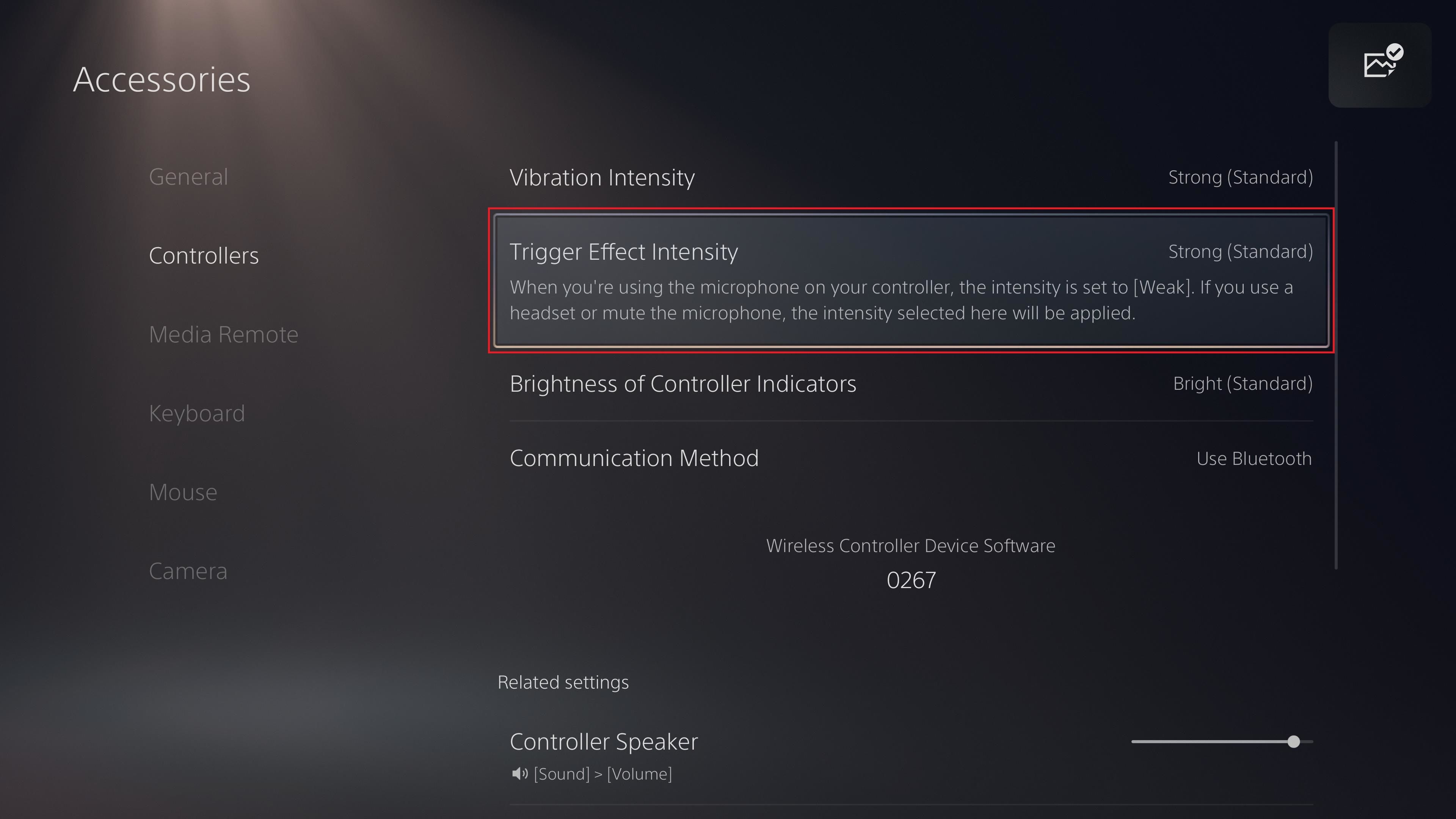
In competitive environments where split-second actuation dictates survival, MakeUseOf notes that adaptive resistance slows finger pull speeds. Eliminating that resistance ensures the trigger reaches its actuation threshold without delay.
Setting Trigger Resistance for Maximum Responsiveness
- Open Settings on the PS5 home screen.
- Go to Accessories > Controllers (General).
- Locate Trigger Effect Intensity.
- Change the value from Strong to Off or Weak.
Setting Trigger Effect Intensity to Off removes motor pushback entirely, turning L2 and R2 into smooth pulls. Setting it to Weak provides subtle tactical feedback without fighting your finger pull.
The Microphone Throttling Mechanic
The PS5 includes an automated hardware safeguard tied to the controller microphone. Laptop Mag reported that an active DualSense microphone automatically throttles trigger effect intensity and vibration down to Weak. This prevents the internal motors from leaking noise into voice chat.
If you prefer playing with trigger effects on Medium or Strong for single-player campaigns, ensure the physical mute button on the controller shows an orange light, or set the default microphone status to Mute under Settings > Sound > Microphone. Leaving the built-in mic unmuted silently overrides your preferred settings.
Reducing Input Latency via Wired USB Connection
Software button reassignment only optimizes how your fingers interact with the shell; input transport speed dictates how fast those signals reach the console.
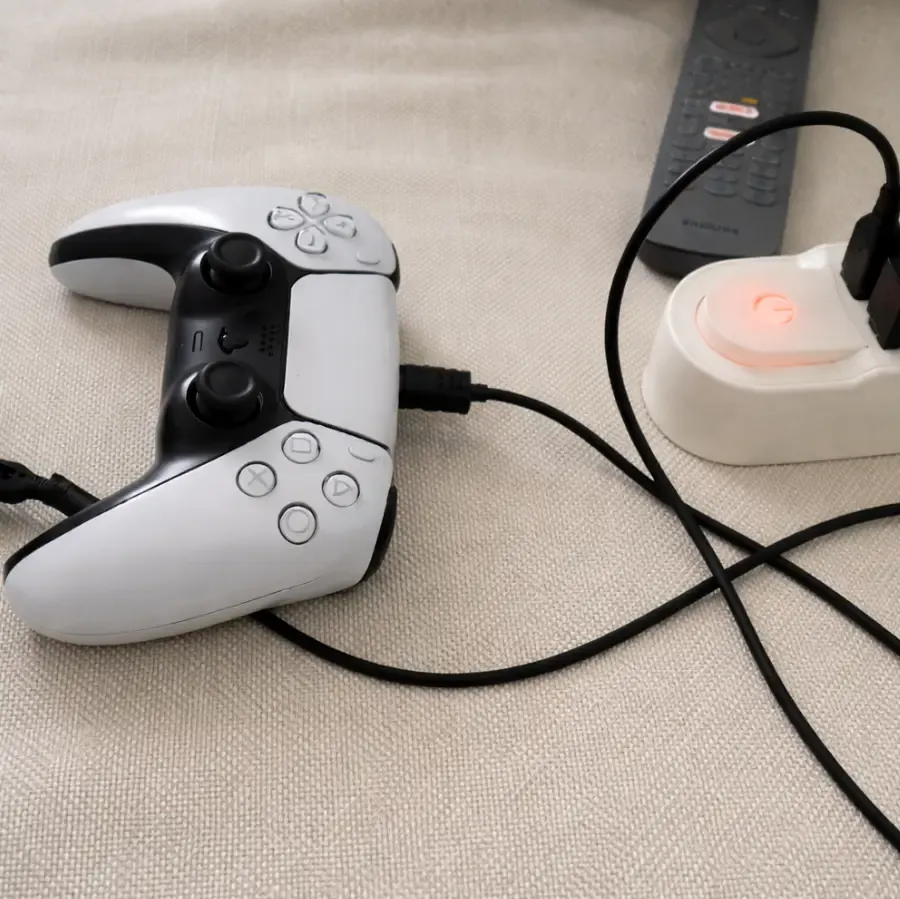
Hardware benchmarks from Gamepad Tester confirm that the DualSense controller polls at 250Hz over a wired USB connection. This translates to a 4ms polling interval. To ensure your controller sends signals through the cable rather than standard Bluetooth:
- Connect the DualSense to the PS5 using a high-speed, data-capable USB-C cable.
- Open Settings > Accessories > Controllers (General).
- Select Communication Method.
- Change the setting from Use Bluetooth to Use USB Cable.
Switching to USB cable communication prevents local 2.4GHz wireless interference from degrading polling consistency during critical play sessions.
Managing System-Level Remapping Limitations
While system-level remapping solves basic ergonomic hurdles, it operates strictly at the OS layer. Understanding its limitations prevents unexpected confusion during play.
The In-Game UI Prompt Disconnect
The PS5 OS routes your remapped signals before passing them to the game engine. As highlighted by How-To Geek and Game Access, game software does not recognize that a system remap is active. If you swap Cross and Circle, the game will still display a "Press Cross to Jump" visual prompt on screen, but your controller will require Circle.
Quick-time events (QTEs) and rapid tutorial sequences can become confusing until muscle memory adapts to the reassignment.
Single Profile Capacity
Standard DualSense controllers do not support multiple layout presets. Unlike the DualSense Edge, which includes dedicated hardware profile-switching toggles, the standard controller profile allows only one active custom layout per PS5 user account. If you transition from a shooter layout to a racing game, you must manually toggle Enable Custom Button Assignments off in the Accessibility menu, or configure a second PS5 user profile on the console.
The system remapper also prohibits assigning one input to multiple buttons and will not let you disable buttons completely.
Analog Stick Deadzones
Players frequently seek stick deadzone adjustments when remapping controls. Nacon Gaming confirms that standard DualSense controllers cannot adjust stick deadzones within PS5 system settings. System-level deadzone tuning curves are restricted to modular controllers like the DualSense Edge.
To manage deadzones on a standard DualSense, you must adjust the deadzone sliders within each individual game's settings menu. For competitive shooters, an inner deadzone between 3 and 5 is widely recommended to balance responsiveness with stick centering stability.
If you regularly expand your library with new titles from regional digital stores, you can fund your wallet using a PlayStation Network Card (TH) on Thailand-registered accounts to download supported games and access internal controller adjustment options directly.
Frequently Asked Questions
How do you access the button remapping menu on PS5?
Go to Settings > Accessibility > Controllers > Custom Button Assignments for DualSense Wireless Controller. Toggle on Enable Custom Button Assignments, then open Customize Button Assignments to modify your inputs per How-To Geek's guide.
Why do on-screen button prompts not match remapped buttons during gameplay?
The PS5 system-level remapper changes input commands at the console operating system layer without sending layout metadata to the game engine. Games continue to render default interface art regardless of your custom assignments.
Can you adjust analog stick deadzones at the system level on a standard PS5 DualSense?
No. The standard DualSense lacks system-level deadzone configuration options. Deadzones must be modified in the controller menus of individual games.
How does the built-in microphone affect DualSense trigger resistance and haptics?
Activating the built-in microphone causes the PS5 to automatically reduce Trigger Effect Intensity and Vibration Intensity to Weak to prevent controller motor noise from being captured by the voice chat channel.

Community
Comments