

Learn how to change control settings in Haikyu Fly High, configure manual inputs, and stop missing spike quick-time events on mobile or emulator setups.
Missing an open spike because the on-screen prompt vanished before your thumb moved is infuriating. HAIKYU!! FLY HIGH is an officially licensed mobile volleyball RPG where players collect anime characters, manage lineup formations, and execute strategic serves, sets, blocks, and spikes. It looks like a standard automated battler on the surface. Then the match tightens, a quick-time event (QTE) flashes, and the default automation hands an unearned point to the opposing side.
The real issue is usually not your fingers. The default settings keep the game partially automated, masking the exact touch windows you need for high-stakes rallies. If you want full command over your roster, you must tweak your setup.
HAIKYU!! FLY HIGH SEA Top Up

Finding the Match Control Menus
The configuration screens in Haikyu!! Fly High are split across two completely different interfaces. Finding where each toggle lives saves you from scrambling during an active rally.
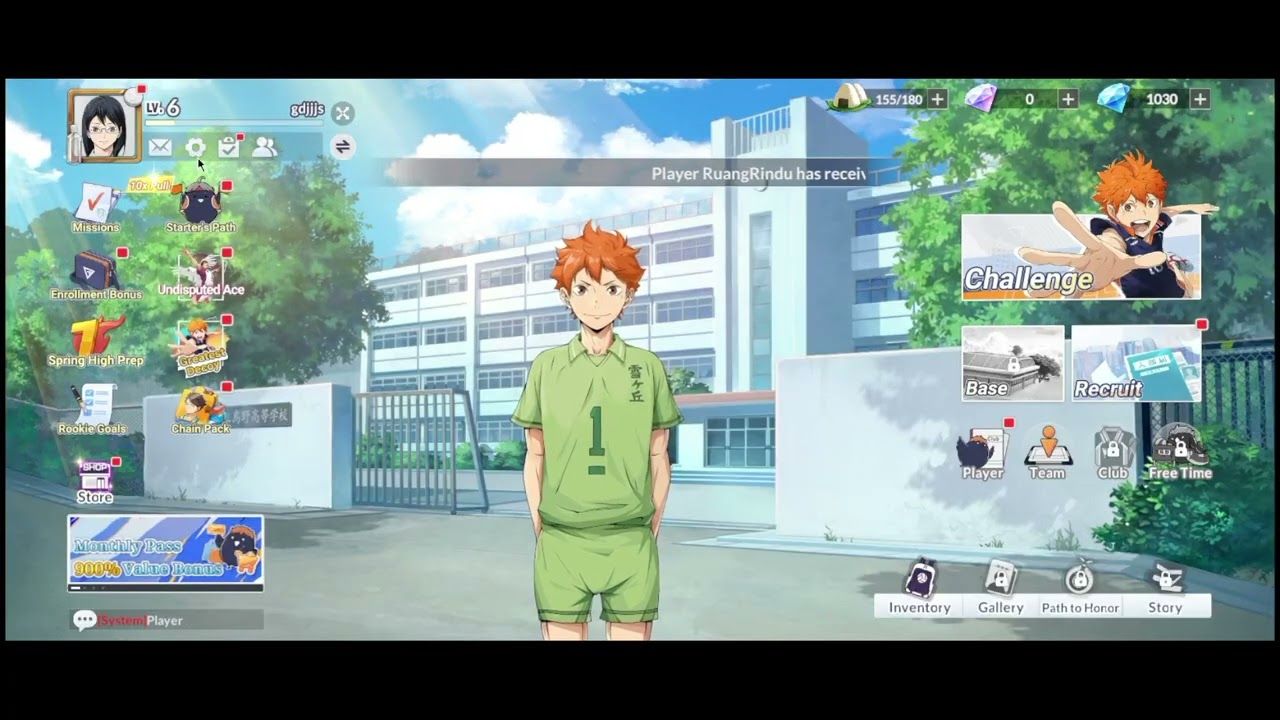
To access your system-level options, look at the main home screen. In the upper-left corner, next to your player portrait, sits a small gear icon. Tapping that gear opens the main settings hub. From here, you adjust your sound mix, graphics fidelity, and basic system behaviors. If you need your unique Player ID for browser events or web redemptions, tapping your player portrait right beside that gear shows your account numbers immediately.
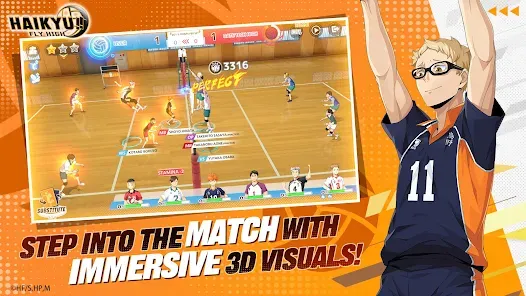
Match inputs, however, are governed inside the matches themselves or tested in the game's designated practice ground. If you try to map court inputs from the main lobby without entering Training Mode, you will not find the active button toggles. You must start a rally or enter practice to unlock the active input switches.
Step-by-Step Guide to Reconfiguring Your Match Controls
When your spikes mistime or the AI burns an essential set, follow these steps in order to switch to manual control and secure consistent touches.
- Head into Training Mode: From the main mode selection screen, select Training Mode. This mode lets you test serves, sets, and spikes without burning stamina or risking rank points.
- Pause the Match: Once the court renders, tap the pause icon located in the upper-right corner of the display.
- Locate the Control Scheme Option: Open the match control settings submenu to review your input preferences.
- Toggle Manual Mode: Switch the primary match mode toggle from Auto to Manual. This changes automated spikes and blocks into direct player-activated quick-time events.
- Tune Visual and Auditory Cues: Ensure both sound effects and graphics are set to high performance. The audio chirp and visual ring tell you exactly when the ball hits the sweet spot.
- Test the Swipe Sensitivity: Return to the practice court and practice three consecutive spikes to confirm directional swipe detection.
If you find your starting lineup lacks the raw power to finish points even with manual timing nailed down, picking up extra recruit currency through a HAIKYU!! FLY HIGH SEA Top Up can help pull the frontline attackers your rotation needs.
Manual Control Setup vs. Auto Skill Toggles
Why bother with a haikyu fly high manual control setup when the AI can run the plays? Because the auto system plays the odds blindly. It does not calculate turn cooldowns or match context.
In Fly High, active blocking and spiking skills carry mandatory turn cooldowns of at least one full turn. If your automated AI burns your middle blocker's shutdown skill on a weak, off-target receive from the opponent, that blocker sits powerless on the next play when the opponent sets their ace. Manual inputs prevent the game from blowing your team's best skills prematurely.
| Setting Mode | Skill Trigger Logic | Defensive Reaction | Offensive Execution |
|---|---|---|---|
| Full Auto | Skills fire immediately off cooldown | Standard AI block and receive calculations | Baseline stat-check spikes without QTE bonuses |
| Semi-Auto | Player triggers skills manually | AI handles positioning; QTEs trigger automatically | Player initiates toss; timing prompts auto-resolve |
| Full Manual | Complete player skill selection | Manual jump timing and directional receive taps | Directional swipe with precision QTE timing rings |
Switching to manual gives you complete control over your spike trajectories and defensive coverage, removing random AI mistakes during crucial points.
When you handle the haikyu fly high auto skill toggle setting manually, you also dictate who gets the ball. Setters determine team attack specialty across the board. If you run Tobio Kageyama, your manual control prioritizes fast quick attacks. If you slot in Toru Oikawa, you want manual timing to feed his power hitters. Leaving skills on auto strips those setter archetypes of their true tactical strengths.
Perfecting Quick Time Event Timing Windows
Spikes, setter criticals, and clutch blocks in Haikyu!! Fly High do not rely strictly on reflex speed. They are built around haikyu fly high quick time event timing settings and hidden character attributes.
Every spike and receive triggers a closing ring prompt. Achieving a "Perfect" rating demands hitting that prompt right as the outer ring aligns with the inner target. But notice how two different players on your team can have drastically different timing feel. That comes down to character stats.
| Attribute Name | Category | Primary Mechanical Benefit | Secondary Tactical Effect |
|---|---|---|---|
| Reflex | Defense | Increases critical receive, block, and save chance | Widens the defensive timing window on QTE prompts |
| Spirit | Defense | Raises critical defensive power | Prevents ball deflection off a block on late inputs |
| Awareness | Offense | Governs critical hit probability on serves and spikes | Expands the "Perfect" hit zone on offensive rings |
| Strength | Offense | Multiplies impact power on critical spikes | Blows through opposing blockers on successful QTEs |
Boosting Awareness and Reflex makes your timing windows significantly wider, turning near-misses into clean critical hits.
Defensive consistency comes down to Reflex and Spirit. If your libero regularly gets blown back by spikes despite on-time inputs, raise their Spirit to stop late-contact deflections.
For attackers, Awareness expands the "Perfect" zone on timing rings, while Strength determines whether spikes punch through opposing blocks. If you struggle to land green rings, prioritize Awareness on your primary wing spiker.
Leveling up your characters matters beyond baseline stats. Once a character reaches level 20, you unlock cheer items and support skills. These provide passive bonuses during long rallies, stabilizing team stamina and widening those tight reaction margins.
Mobile Touch Layout vs. PC Emulator Keybinds
Playing on a phone screen feels natural, but rapid directional inputs can lead to errant swipes. On mobile, matches rely on directional movement inputs (left, right, forward, backward), direct taps to trigger jumps, and finger swipes across the glass to spike the ball. When hands get sweaty during ranked sets, those swipes can slip.
Moving to an emulator allows you to map those touch gestures to physical keys, eliminating thumb slippage and ensuring reliable haikyu fly high keybinds emulator setup inputs during long sessions.
| Platform / Setup | Minimum Operating Spec | Storage Requirement | Input Method | Timing Precision |
|---|---|---|---|---|
| Android Mobile | Android 9.0 or higher | 2.67 GB initial footprint | On-screen D-pad, tap jump, swipe spike | High, but prone to touch misses on small displays |
| iOS Mobile | iOS 13.0 or higher | ~2.7 GB storage | Touchscreen gestures and UI button taps | High, smooth frame response on modern chips |
| PC Emulator | Android 9.0 (64-bit), 4 GB RAM | 5.0 GB free disk space | Physical keyboard remapping & mouse swipes | Highest precision, zero screen-blocking fingers |
Emulators deliver the lowest input variance thanks to dedicated physical keybinds, though mobile remains perfectly viable if your device meets the Android 9.0 standard.
If you play through an Android emulator on PC, set your emulator's display engine to 120 FPS or 240 FPS if your monitor supports high refresh rates. Higher frame outputs reduce visual frame stutter, making the closing timing ring far easier to read. Map your spike swipe to a physical mouse stroke or a macro button, and assign your jump and receive actions to Space and Shift.
When rebuilding a roster around faster physical controls, you might want to pull specialized setters or heavy hitters quickly. Grabbing points through an affordable Haikyu Fly High SEA recharge gives you the resources to recruit those players without waiting on slow campaign drips.
Calibrating Your In-Game Graphics for Faster Input Response
A common cause of missed spike timing on mobile is dropped frames. If your device dips from 60 frames per second down to 42 during a jump sequence, the visual ring skips forward, ruining your timing.
Fix this directly from the primary settings hub:
- Tap the gear icon in the top-left corner of the home lobby.
- Open the Graphics settings submenu.
- Lower your special effects resolution to medium.
- Lock the framerate setting to its highest available value.
- Turn off dynamic camera blurs or motion shake.
Gift code redemption causes frequent confusion across regional client builds. While some community guides direct players to the main system tab, several versions place the redemption box at the very bottom of the Graphics interface. If your account screen lacks a redemption field, scroll to the base of the Graphics menu.
While hunting down bonus resources, don't miss the free weekly diamond drop. The game has a built-in weekly share function. You can generate a share link once every seven days directly from the in-game event interface to pocket 88 free diamonds. You do not even have to publish the post on external social media; simply tapping the share trigger awards the currency.
Starter Recruitment Rates and Building Around Your Controls
Once your controls respond instantly, your lineup composition decides how far you climb. The starter recruit banner provides a reliable path to anchor your team with a premier player.
| Rarity Tier | Unit Pull Rate (Starter Banner) | Guaranteed Mechanics | Strategic Value |
|---|---|---|---|
| SSR | 2.50% per featured unit (10.00% total) | Guaranteed 1 SSR per 10-pull | Core anchors: Tanaka, Iwaizumi, Haiba, or Aone |
| SR | 0.34% per individual unit | Standard pool dispersion | Reliable role-fillers and rotation substitutes |
| R | 0.98% per individual unit | Standard pool dispersion | Baseline depth and early-campaign utility |
| N | 6.53% per individual unit | Standard pool dispersion | Roster filler and early training sacrifice fodder |
Your first ten-pull guarantees an SSR anchor, giving you an immediate frontline core to build your control habits around.
Tanaka, Iwaizumi, Haiba, and Aone each carry a 2.50% individual rate (10.00% combined SSR pool). Because their archetypes differ drastically, who you pull dictates which manual inputs you need to master first.
Pick your controls based on who you pull: - Takanobu Aone / Lev Haiba: Both dominate the net. If you run them, manual control over your block timing is mandatory. You cannot afford to let the auto-combat misread an opponent's feint. - Ryunosuke Tanaka / Hajime Iwaizumi: Pure offensive wings. Pair them with high-Awareness setters, switch your haikyu fly high match button layout to manual spikes, and practice directional swipes into the deep corners of the opposing court.
Be mindful of lineup errors in community tier lists. For example, some early guides incorrectly listed Kenma Kozume as a Libero. Kenma is a Setter. Misidentifying his position leads to disastrous defensive rotations if you expect him to cover the back row. Always check a player's true role card before assigning them.
If you want to pull for your favorite anime stars or shore up your rotation with elite talents, grabbing resources through a Haikyu Fly High SEA top up online lets you summon on event banners without burning through all your campaign reserves.
Troubleshooting Control Failures
If your controls suddenly refuse to respond during a match, run down this checklist before reinstalling the app:
- The QTE Appears but Swipes Fail: Check if your screen edge protection is active on Android. Curved glass screens often reject quick diagonal swipes near the display border.
- Lag Spikes on Setter Releases: This happens when character support auras render simultaneously. Drop your graphics particle settings by one tier.
- Emulator Keybinds Stop Working: Re-verify your emulator's keyboard mapping overlay. If the client updates, the on-screen UI positions can shift slightly, requiring you to drag the key circles back onto the jump and receive buttons.
- Character Fails to Jump: You are likely on an active skill cooldown. Specialized skills require at least one turn between uses. The game will register normal inputs, but skill-specific animations will not trigger until the cooldown clears.
Frequently Asked Questions
Where do I find the control settings in Haikyu Fly High?
Tap the gear icon located in the upper-left corner of the main home screen to adjust system preferences. To tweak match mechanics, enter Training Mode and open the pause menu to adjust button responses.
How do I switch from auto to manual controls?
During any match, tap the pause icon in the top corner or toggle the on-screen Auto/Manual switch on the match UI. Manual mode grants full direct control over directional movements, jumps, and QTE timing rings.
Why am I missing spike and receive timing prompts?
Missed prompts typically stem from frame drops or low character attributes. Upgrading your spiker's Awareness or your defender's Reflex widens the timing ring, making Perfect hits much easier to achieve.
Can I remap touch controls to physical buttons?
The mobile game does not feature native controller button remapping inside the mobile app. To use physical keybinds, play via a PC Android emulator with custom keyboard mapping.
What touch gestures are used during matches?
Matches require directional touches to position your players, direct screen taps to execute jump actions, and directional swipes across the display to direct spike paths.
Where is the Training Mode located to test my controls?
Training Mode is located inside the main game mode selection screen. It provides a zero-stamina environment to drill serve, toss, block, and spike timings before jumping into competitive play.
The Final Verdict
Auto mode works for low-stakes resource grinding, but it caps your progress in competitive matches by burning turn cooldowns and missing critical spikes. Spending five minutes in Training Mode to calibrate manual inputs and lock your frame rate removes AI variance. Once you control jump timing and toss selection yourself, close rallies swing in your favor.

Community
Comments