

Struggling with clunky camera turns and odd combat keys? Here is how to change keybinds in Rememento White Shadow on PC and configure smooth controls.
Blackstorm built Rememento: White Shadow as a 3D turn-based anime RPG with character gacha, elemental matchups, and open-area exploration. The graphics hit the mark. The stock PC keyboard mapping does not. Skill shortcuts span eight number keys across the top row, and volatile camera sensitivity makes basic overworld exploration jarring.
Whether jumping into an archived client or prepping for the post-overhaul relaunch, fixing your controls comes first. Here is how to configure the PC key mapping interface, stabilize mouse tracking, and build an ergonomic battle layout.
Rememento: White Shadow
Default PC Keyboard Controls Layout and Common Pain Points
Locomotion defaults to standard WASD, but combat commands quickly run off the rails. Skills, elemental triggers, and item slots sit across keys 1 through 8. Stretching your index finger to 7 or 8 while tracking turn counters and setting up a Guard Break causes missed inputs and late rotations.
Camera control creates a separate problem. Stock horizontal panning swings too fast across open terrain, then drops to a crawl during skill targeting.
The table below shows the default PC setup alongside a cluster layout that keeps primary inputs within resting reach of your left hand.
| Function / Action | Default Keybind | Recommended Ergonomic Binding | Ergonomic Benefit |
|---|---|---|---|
| Basic Movement | W, A, S, D | W, A, S, D | Retains standard muscle memory |
| Primary Skill / Attack | 1 | Q | Eliminates top-row finger stretching |
| Secondary Skill | 2 | E | Instant reach next to movement keys |
| Ultimate / Burst Skill | 3 | R | Faster execution during Guard Break |
| Elemental Swap / Hotbar 4 | 4 | F | Natural thumb or index transition |
| Hotbar Actions 5 through 8 | 5, 6, 7, 8 | Z, X, C, V | Closes the physical distance across the board |
| Interact / Talk | F | Space or Mouse Thumb Button | Prevents misclicks during crowded scenes |
| Camera Reset / Lock | Middle Mouse Click | Mouse Thumb 2 or Tab | Stabilizes view without straining the scroll wheel |
Anchoring your inputs to the home row keeps defensive and burst triggers immediately accessible during boss mechanics.
Accessing the In-Game Key Mappings Menu Step-by-Step
Rememento provides in-engine rebinding on PC. Remap your layout directly through the system menus using this sequence:
- Press Escape (Esc) in the overworld or hub zone to open the main pause screen.
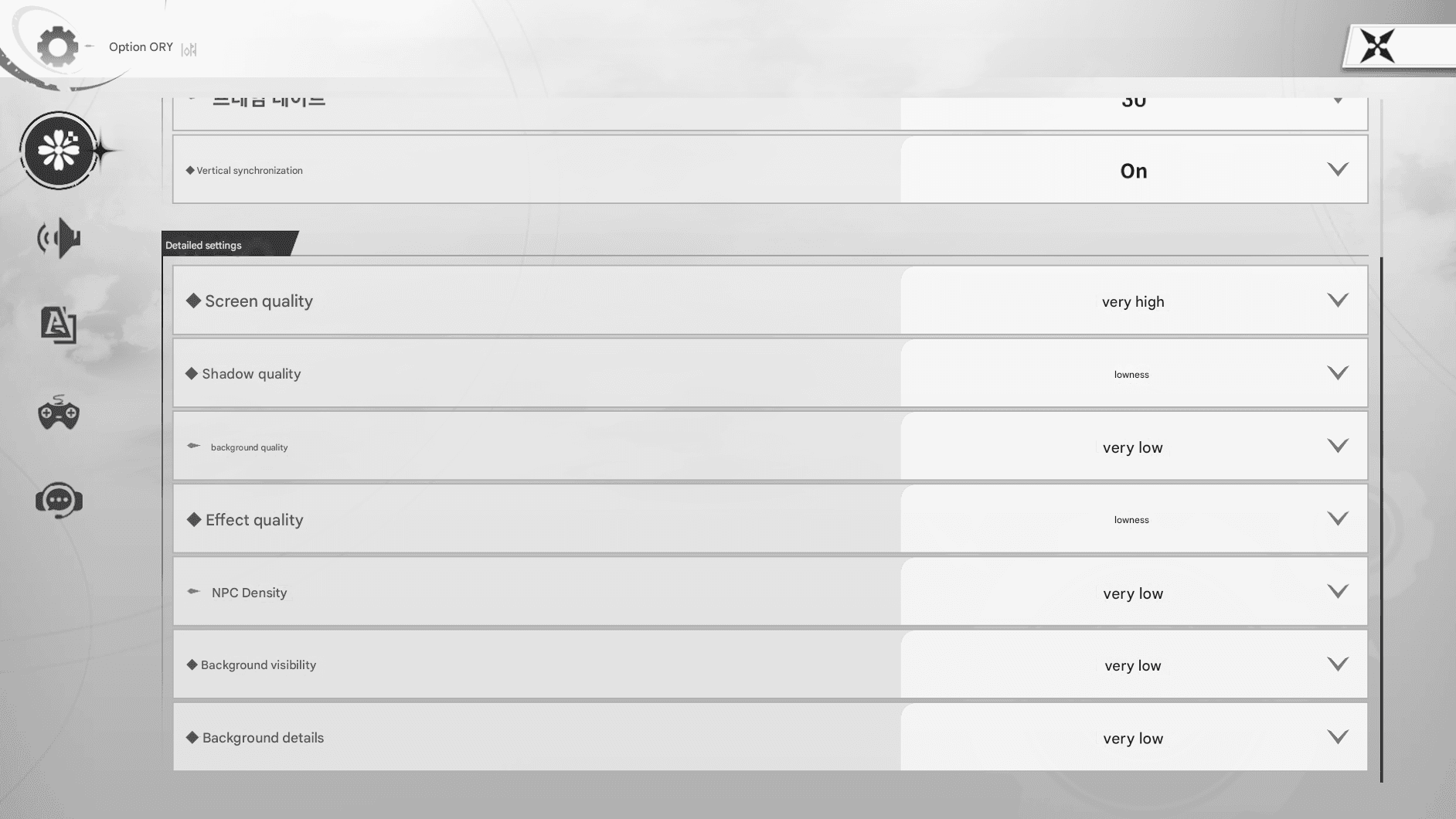
- Select the Settings gear icon on the right side of the screen.
- Click Controls from the left tab list.
- Open the Keyboard & Mouse panel to display all registered actions.
- Click the binding slot you want to replace (e.g., Hotbar Slot 1 or Interact).
- Press your replacement key when the input prompt appears.
- Hit Apply or Confirm at the bottom right before leaving the screen.
If progression walls slow down your party once your controls are locked in, the Rememento: White Shadow store page provides resources to raise character levels and gear rank.
Recommended Custom Keybinds for Turn-Based Combat
Rememento uses a turn system driven by MP management, a five-element affinity wheel (Fire, Forest, Water, Light, Dark), and Guard Break status. Shattering a boss's guard yields a brief damage bonus window. Wasting turns fumbling for awkward keys cuts your total output.
Shift your party commands to the Q-E-R cluster. Place your standard skill on Q, support or heal on E, and character burst on R. This leaves your thumb free for the space bar and lower-row modifiers.
Move secondary actions 5 through 8 to Z, X, C, and V. This row handles items and secondary elemental shifts, cutting physical reach distances in half so you can trigger bursts without looking away from turn orders.
Adjusting Mouse Sensitivity and Camera Tracking
Traversing semi-open zones requires steady camera handling. The PC client splits camera turning into separate Horizontal (X-axis) and Vertical (Y-axis) sliders.
Pull the horizontal slider down to 35-40%. The factory 50% setting causes large target overshoots on mice running 800 DPI or higher. Drop the vertical slider to 30% to stop accidental camera pitch changes while inspecting elevation changes.
If you see micro-stutter during quick camera pans, turn on raw mouse input in your display settings and verify your mouse polling rate is capped at 1000 Hz. Higher rates can choke the unoptimized client engine.
Controller Setup Without In-Engine Gamepad Detection
Native gamepad detection remains spotty for DirectInput and non-standard controllers on PC. When the engine ignores your controller, map hardware inputs directly to virtual keyboard presses using system-level configuration software.
These utilities intercept controller signals and present them to the game process as keyboard keystrokes, bypassing missing controller drivers.
| Configuration Parameter | Standard Value Range | Recommended Setting | Operational Effect |
|---|---|---|---|
| Left Stick Deadzone | 0% to 25% | 8% to 10% | Eliminates analog stick drift during overworld walking |
| Right Stick Response Profile | 6 distinct profiles | Steady or Dynamic | Smooths out sudden camera spikes during exploration |
| Trigger Actuation Depth | 30 to 70 range | 35 (Quick Actuation) | Triggers skills instantly without requiring a full trigger pull |
| Profile Layer Switching | 1 to 4 toggle slots | Slot 1: Explore / Slot 2: Menu | Lets you swap controller layers mid-game with a hotkey |
| Input Output Mode | Gamepad / Virtual Keys | Virtual Keyboard Mapping | Bypasses uncooperative native gamepad detection completely |
Setting trigger actuation to 35 cuts finger fatigue across long farming runs. When pushing difficult bosses for materials, checking available Rememento: White Shadow resource packages helps keep stat progression on pace.
Platform Differences Across Windows PC, Android, and iOS
Rememento launched on PC, Android, and iOS, but input options differ sharply across each build.
The breakdown below shows how control mapping, sensitivity, and prompt handling operate across all three platforms.
| Feature / Mechanism | Windows PC Client | Android Operating System | iOS Mobile Client |
|---|---|---|---|
| Native Key Rebinding | Yes (via in-game Settings > Controls) | No (fixed on-screen touch UI) | No (fixed on-screen touch UI) |
| Native Gamepad Detection | Partial (hardware dependent) | Supported via OS Connected Devices | Limited to certified mobile controllers |
| OS-Level Button Swapping | Requires system utility / virtual drivers | Native (System > Game Controllers) | Limited OS accessibility remaps |
| Input Overlay Customization | Not applicable | Available when using PC translation layers | Not supported |
| Camera Sensitivity Controls | Granular X/Y sliders in settings | Single generalized swipe slider | Single generalized swipe slider |
| Visual HUD Button Prompts | Dynamic for keyboard; static for gamepads | Touch button icons only | Touch button icons only |
PC players get dedicated sensitivity sliders and free key binding, while mobile clients remain locked to static touch layouts.
Service Status and Offline Redesign Context
Keep client availability in mind before rebuilding custom profiles. Rememento released in South Korea on December 18, 2024, followed by global soft-launch releases on PC, Android, and iOS on May 28, 2025.
Blackstorm suspended global service on November 27, 2025, and closed Japanese servers on January 31, 2026, taking the game offline for a full mechanical rebuild. Archived local installations will not reach active matchmaking or pull servers until the reworked client goes live globally.
Once servers return online, players looking to build up their rosters can top up Rememento: White Shadow directly for summon currency and progression crates.
Troubleshooting Stuck Inputs and HUD Button Mismatches
Custom PC keybinds occasionally create stuck movement axes, missed hotbar inputs, or mismatched UI icons. Work through these steps to clear input errors:
- Clear Conflicting In-Game Bindings: If you map a key through external software while leaving an active in-game binding on the same action, the engine catches double inputs. Unbind the stock in-game slot first.
- Run Executables as Administrator: Windows security often prevents background translation tools from passing keystrokes into elevated game clients. Right-click your game executable, select Properties > Compatibility, and check Run this program as an administrator.
- Account for Static HUD Displays: Mapping controller buttons to keyboard keys externally will not alter in-game UI prompts. The HUD continues showing factory keyboard keys or stock gamepad icons because the engine only receives the translated signal.
- Wipe Corrupted Input Config Files: When key mappings fail to save, exit the game, browse to your Windows user AppData directory for Rememento, and delete
input.inior the cached control profile. Restarting generates a clean file. - Update Emulation Bus Drivers: Outdated virtual gamepad drivers cause stuck directional inputs in Windows 10 and 11. Reinstall or update your virtual bus package to clear ghost stick signals.
Frequently Asked Questions
Can you change keybinds directly inside Rememento: White Shadow on PC?
Yes. The PC client includes keyboard remapping under Settings > Controls. Select any action slot, press your replacement key, and hit Confirm before closing the menu.
How do you remap controller buttons if the PC client does not recognize your gamepad?
Use controller mapping utilities to bind physical buttons to virtual keyboard strokes. The game interprets these as standard PC keyboard commands, bypassing missing native gamepad recognition.
Why do in-game HUD prompts stay the same after remapping buttons?
External remapping software converts inputs before they reach the game client. The engine receives ordinary simulated keystrokes, so visual UI button prompts never change.
Can you customize camera sensitivity and stick deadzones on PC?
Yes. Horizontal and vertical sensitivity adjust directly through in-game sliders. Hardware stick deadzones (set between 8% and 10%) and response curves require your controller's companion app or virtual driver suite.
How do you set up keybindings when running a mobile build on PC?
Open the emulator sidebar overlay, drag keyboard touchpoints over the on-screen combat buttons, assign your preferred keys, and save the custom layout template.
Is Rememento: White Shadow currently accessible to play?
Global live service paused on November 27, 2025, followed by Japanese servers on January 31, 2026. Live online services and gacha remain offline while Blackstorm redesigns core gameplay systems.
Final Assessment: Is Fixing Your Layout Worth It?
Leaving Rememento: White Shadow on factory PC controls guarantees missed turns and hand strain. Reaching across number keys 1 through 8 slows down Guard Break rotations when seconds matter. Shifting core abilities to Q, E, and R while tuning camera sensitivity down to 35% makes exploration responsive and turn-based combat fast.
Rebind your layout in the settings menu now. Your hands will thank you in every encounter.

Community
Comments