

Learn how to silence promotional alerts and banner spam in Appota Wallet while preserving critical payment OTPs and transaction receipts.
Constant pinging ruins mobile gaming sessions. Top up an account through Appota, and your notification shade quickly turns into a billboard. Flash sales, midday cashback alerts, and promotional vouchers arrive at all hours. Push messages also bundle rich media payloads up to 10 MB for images and 50 MB for video files, burning mobile data while cluttering your screen.
Nuclear options backfire. Stripping notification permissions entirely at the OS level silences incoming payment confirmation banners and in-app verification pings. You need a targeted setup: mute marketing noise while keeping real-time security intact.
Appota (VN)
Why Appota Push Spam Is a Real Problem for Gamers
Appota serves as a primary entertainment and payments hub for Vietnamese digital content and gaming accounts. It regularly broadcasts campaigns for event top-ups, seasonal game packs, and partner discounts. When you buy balance for an account or grab gift codes, you want immediate access to what you paid for—not five daily pings for events you never requested.
Gamers who pick up Appota (VN) vouchers often keep the wallet installed only to redeem PINs or manage gaming balances. Unrelated mini-game ads create pointless friction.
The real issue is alert priority. Operating systems treat all alerts identically unless an app separates them into distinct channels or you configure custom rules. When an app treats a transactional receipt like a seasonal sales banner, your phone vibrates just as violently for an ad as it does for an unauthorized account login.
The Root Problem: Promo Banners vs Critical OTP Delivery
Killing notifications completely seems simple. You toggle off the master switch in device settings and get total silence. That works until checkout demands an in-app verification code.
Time-based one-time password (TOTP) codes expire fast, staying valid for 30 to 60 seconds. In that window, you have to read the code, copy it, and paste it into the merchant screen. When server and device clocks drift apart, the maximum allowable server-device clock difference is typically 90 seconds before verification fails. Shut alerts down globally, and those 30-second verification pop-ups never show up over your game.
Services frequently fall back to cellular SMS for two-factor verification when push alerts fail. SMS fallback works as a backup, but carrier routing delays during a 45-second checkout timer cause failed checkouts. The goal is simple: kill marketing banners without delaying local verification banners.
| Alert Type | Delivery Method | Validity / Expiry | Recommended Notification State |
|---|---|---|---|
| Transaction OTP | Push / TOTP | 30 to 60 seconds | High Priority (Sound & Pop-up) |
| Server Sync Window | System Clock | Max 90s drift | System Background Sync Active |
| Payment Receipts | In-App / Push | Indefinite | Deliver Silently (Drawer Only) |
| Daily Marketing | Push Banner | 12 to 24 hours | Blocked / Disabled Completely |
| Rich Media Ads | Push (Image/Video) | Transient (10-50 MB) | Blocked / Disabled Completely |
Blanket muting is dangerous. Block everything, and you break time-sensitive authorization tokens that expire in under a minute.
Android Setup: Fine-Tuning Notification Channels
Android handles app noise through notification channels. Channels split monolithic alerts into targeted feeds, letting you mute marketing categories while keeping security pings loud and clear.
Starting with Android 13+, apps must ask explicit permission before sending alerts, establishing a 75% average opt-in baseline across the platform. If you tapped "Allow" when first launching Appota, you granted permission for every notification type it fires. You need to dial that back.
[System Settings] -> [Apps] -> [Appota]
       |
       v
[Notifications] -> [Notification Categories]
       |
       +--> Marketing / Promos  --> Toggle OFF
       +--> Deals / Events      --> Toggle OFF
       +--> Transactions / Security --> Toggle ON (Set to "Alerting")
       +--> General / System Updates --> Set to "Silent"
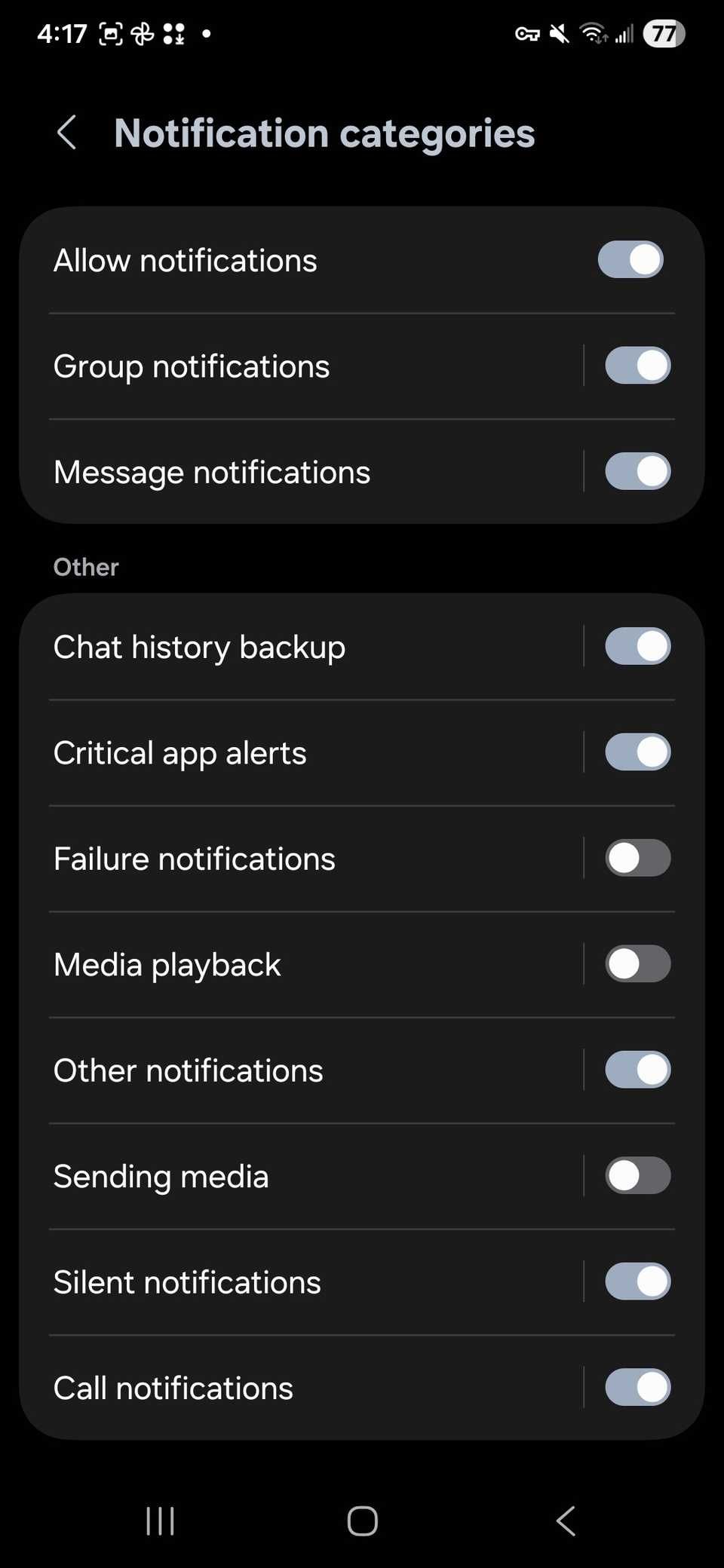
Open your phone's Settings menu, tap Apps, and select Appota. Tap Notifications. On standard Android, you will see a list labeled Notification categories or Channels.
Find categories named Promotions, Events, Marketing, or Partner Deals, and switch them off. Keep Account, Security, Transactions, and Customer Service turned on. To review receipts without hearing notification chimes mid-game, switch transaction categories to Silent. Silent alerts suppress vibrations and sounds while showing up in your notification shade when you pull it down.
Android also includes Notification Cooldown. This setting lowers the volume and reduces pop-up frequency when an app fires multiple alerts in quick succession, stopping spam floods without discarding the underlying notification.
Special Fix for Samsung One UI Devices
On modern Samsung Galaxy devices, opening Appota's notification settings often reveals no category toggles. Samsung hides granular channel controls behind a global toggle in recent One UI builds.
Leaving this hidden leaves you stuck: either endure marketing spam or lose transaction receipts.
To re-enable category controls on Samsung:
- Open phone Settings.
- Tap Notifications, then select Advanced settings.
- Scroll down to Manage notification categories for each app.
- Switch this toggle to ON.
- Go back to Settings > Apps > Appota > Notifications.
- Tap Notification categories at the bottom.
Once revealed, the sliders appear. Disable promotional categories immediately. Keep transactional and order updates active. This single adjustment ends notification spam on Galaxy devices.
iOS Settings: Taming Spam Without Channel Toggles
iOS approaches permissions differently. Apple requires explicit opt-in across all releases, resulting in a lower platform baseline of roughly 56%. Once approved, iOS historically offered an all-or-nothing switch.
Modern releases such as iOS 26 include system-level controls to silence marketing offers and promotions while keeping transaction, order, and critical payment alerts live. If your device runs an updated build, inspect Appota's settings inside the iOS Settings app to see if promotional switches can be toggled off directly.
[iPhone Settings] -> [Appota] -> [Notifications]
       |
       +--> Time-Sensitive Notifications --> Toggle ON
       +--> Sounds --> Toggle OFF (Optional)
       +--> Lock Screen / Banners --> Custom Delivery
       +--> Scheduled Summary --> Add Appota (for non-urgent alerts)
For general alerts on iOS, rely on Time-Sensitive Notifications. Flag critical authentication alerts as Time-Sensitive so they punch through Focus modes and Scheduled Summaries. Route non-urgent marketing banners into Scheduled Summary, where they sit quietly once or twice a day without lighting up the display.
Guides often claim iOS forces users to opt out of notifications one by one without an option to shut down alerts completely. That is incorrect. iOS includes a master Allow Notifications switch at the top of every app's settings page that immediately turns off banners, badges, and sounds. Just note that toggling the master switch off also suppresses instant payment alerts.
| Feature / Behavior | Android 13+ / One UI | iOS Current Builds |
|---|---|---|
| Default Permission Model | Explicit Opt-In (75% baseline) | Explicit Opt-In (56% baseline) |
| Channel Granularity | OS-level category toggles | App-defined or Time-Sensitive flags |
| Silent Delivery Mode | Minimizes to shade without sound | Delivers to Notification Center quietly |
| Burst Mitigation | Notification Cooldown | Scheduled Summary delivery |
| Ad Personalization Controls | Ad Topics (purged every 4 weeks) | System-wide Tracking toggles |
Android provides fine control over specific message channels. iOS relies on delivery schedules and Time-Sensitive flags.
Uncovering Hidden In-App and Privacy Toggles
System menus handle only part of the problem. If an app uses background sockets or routes marketing announcements through system update categories, you must disable them inside the app.
Marketing opt-outs sit in account and privacy submenus rather than obvious notification tabs. Apps frequently assume users check the basic notification screen and abandon the search.
Open Appota, head to Account or Profile, and tap Settings. Select Privacy or Security Preferences. Look for checkboxes named "Receive promotional offers from partners," "Personalized recommendations," or "Event notifications." Deselect each one.
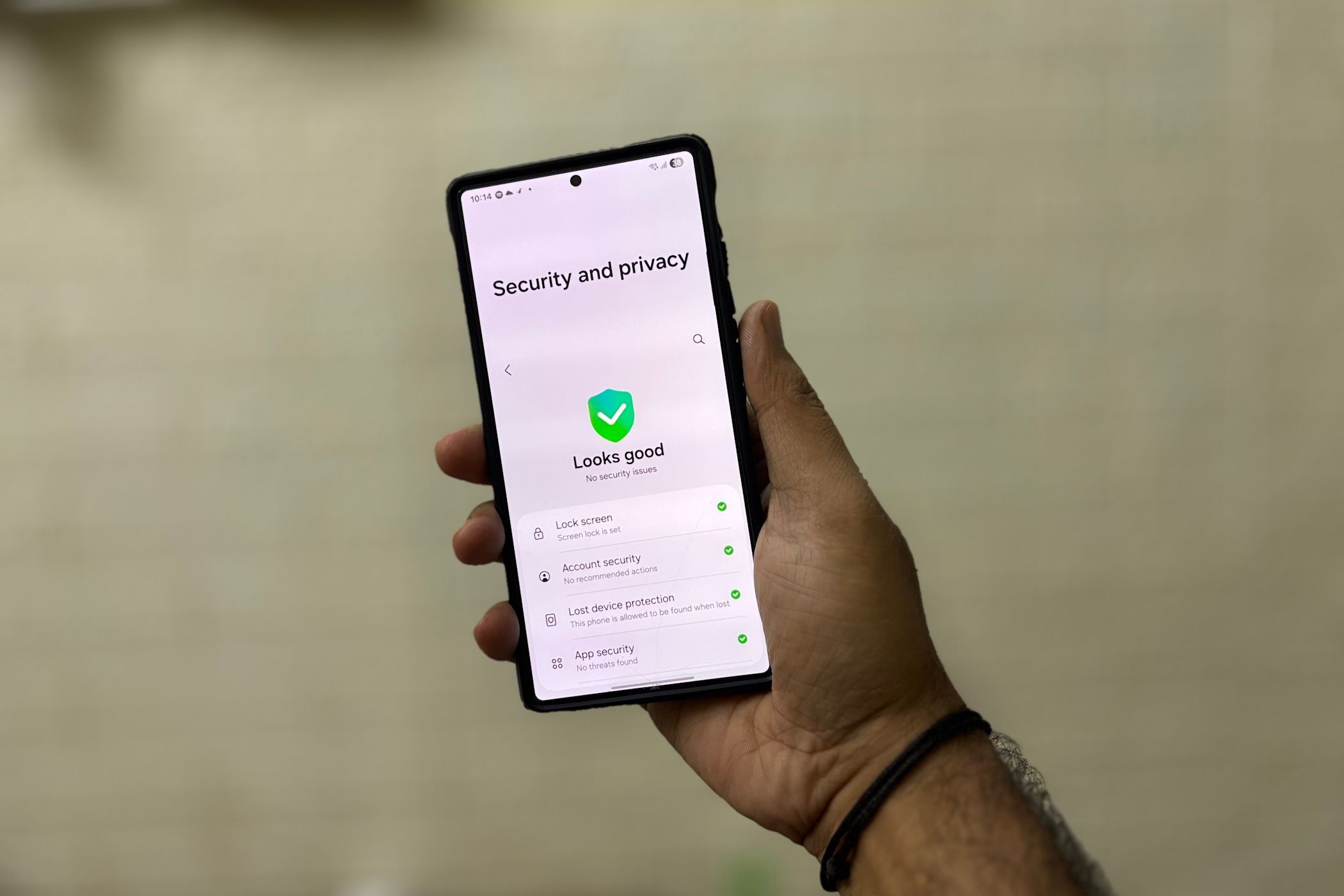
Next, inspect your device's ad profile. Android limits behavioral profiling by sharing at most 3 interest topics at a time with apps, clearing those topic profiles automatically every 4 weeks. You can wipe this data manually under Settings > Security & Privacy > More privacy settings > Ads > Ad privacy. Clearing ad topics stops the app from requesting targeted campaigns based on your activity across other apps.
If you want game balance without setting up ad tracking, buying an unlinked Appota (VN) code allows direct balance redemption without exposing your phone number to promotional lists.
Diagnosing Mystery Alerts with Notification History
When an unwanted notification gets through your filters, tracking down its origin can be tricky. You hear a chime, unlock the screen, and spot an ad banner without knowing which channel sent it. Android includes a dedicated log for these incidents.
Under Settings > Notifications > Advanced settings > Notification history, Android logs every alert received during the past 24 hours, including dismissed banners, silent pings, and background notices.
- Wait for an ad notification to appear.
- Do not clear it immediately.
- Open Settings > Notifications > Advanced settings > Notification history.
- Find the alert in the 24-hour log.
- Press and hold the entry to view its channel tag.
Once you identify the offending channel, turn it off directly from the log. If Appota routed an ad through "System Notices" or "Security Alerts," set that channel's priority to Silent. That keeps receipts recorded without triggering audio alerts.
The Recommended Settings Profile for Gamers
Use this baseline setup to stop notification spam without missing checkout codes.
Step-by-Step Configuration Sliders
- Appota System Notification Toggle: Set to ON.
- Promotions / Marketing Channel: Switch to OFF.
- Transaction & Payment Channel: Set to ON (Alerting / High Priority).
- General Updates / News Channel: Switch to OFF or Silent.
- Notification Cooldown (Android): Switch to ON in device system settings.
- Battery Optimization: Set to Unrestricted or Optimized (Avoid Ultra Battery Saver).
                      [Appota Notification Profile]
                                   |
        +--------------------------+--------------------------+
        |                                                     |
        v                                                     v
[Security & OTPs]                                     [Marketing & Promos]
  - Sound: ON                                           - Channels: DISABLED
  - Priority: Alerting / Pop-up                         - In-App Privacy: OPT-OUT
  - Battery: Unrestricted                               - Banner Display: OFF
When to Deviate From This Profile
Two specific scenarios call for adjusting these settings:
- Aggressive Battery Savers: Extreme power-saving modes suspend background processes, delaying push alerts and causing TOTP expiration. If OTPs arrive minutes late, exempt Appota from battery optimization and select Unrestricted.
- Shared Devices: When others share your tablet or phone, configure lock screen banners to Hide Sensitive Content. This keeps one-time authentication codes off the lock screen while sounding the prompt.
Gaming top-ups should not create an alert flood. Picking up balance with a direct Appota (VN) top up gives you digital codes to redeem on your schedule, keeping your checkout process fast and quiet.
FAQ
How can I stop promotional notifications in an app without missing payment OTPs on Android?
Open phone Settings, go to Apps, tap the app, and open Notification Categories. Turn off marketing or promotional channels while keeping transactional, alert, and payment categories enabled.
Will turning off all notifications for a wallet app block SMS OTP codes?
No, turning off push notifications in app settings does not stop OTP codes sent over regular SMS. However, if your verification code relies on an in-app push notification banner, you will not receive it.
Why do some Android phones not show notification categories for an app?
Samsung One UI requires users to toggle on "Manage notification categories for each app" under Advanced Notification Settings. Older applications that skip Android notification channels will only expose a global on/off toggle.
How long do payment OTP verification codes stay valid?
Most time-based one-time passwords (TOTP) expire within 30 to 60 seconds. Ensure your phone's system clock matches network time to avoid verification failures.
Can battery saver settings cause OTP and payment notifications to arrive late?
Yes, aggressive battery optimization suspends background app tasks and delays push delivery. Setting app battery usage to "Unrestricted" or adding it to your memory exception list fixes this delay.
How can I check which app is sending spam push notifications on Android?
Go to Settings > Notifications > Advanced Settings > Notification History on Android. This log tracks dismissed alerts from the last 24 hours so you can trace the channel behind any promotional message.
Final Verdict on Appota Notification Management
Cutting off notification permissions entirely is a clumsy fix that causes missed codes and stalled top-ups. You do not need to silence the whole phone to get rid of promotional banners.
Enable notification categories in system settings, turn off marketing channels, and set transaction alerts to high priority. Setting up these toggles keeps payment confirmations instant, stops game interruptions, and eliminates notification clutter.

Community
Comments