

Tired of thermal drops and dead batteries in territory wars? Lock in the perfect world m best settings for stable 60 FPS without torching your mobile phone.
Flying across the open sky in Perfect World Mobile feels great until your phone turns into a pocket furnace. The game renders a continuous 60,000 square kilometer 3D world with dynamic lighting and shadows. That scale looks sharp on paper, but standard mobile processors hit thermal limits after twenty minutes. Once your phone crosses its heat threshold, GPU clocks drop, frame rates crater from 60 to 18, and your character freezes mid-combo.
Running every slider at maximum drains battery in under an hour. Gutting visual settings entirely makes the game muddy and obscures telegraphed combat cues. Perfect World Mobile is a free-to-play 3D mobile fantasy MMORPG developed by Perfect World Games and published by Tencent, featuring race and class progression in an open world. This guide details how to configure each toggle for a locked 60 FPS in combat while preserving battery life during auto-grind sessions.

Perfect World M Top Up (TW)
- -10%
600 Gold Ingot
Buy NowUSD 9.59
USD 10.55
- -10%
1000 Gold Ingot
Buy NowUSD 15.83
USD 17.41
- -10%
2000 Gold Ingot
Buy NowUSD 31.43
USD 34.57
- -10%
4000 Gold Ingot
Buy NowUSD 63.26
USD 69.59
- -10%
6000 Gold Ingot
Buy NowUSD 95.00
USD 104.50
- -10%
6580 Gold Ingot
Buy NowUSD 104.24
USD 114.66
- -10%
10000 Gold Ingot
Buy NowUSD 157.69
USD 173.46
- -10%
20000 Gold Ingot
Buy NowUSD 316.31
USD 347.94
The Thermal Reality of a 60,000 Square Kilometer World
Most mobile titles confine combat to small, instanced corridors. Perfect World Mobile loads a continuous world, forcing your chip to compute long-range terrain, water reflections, dynamic lighting, and cloud layers at once while you fly on mounts.
Flying above major hubs multiplies draw calls. Because phone chips rely entirely on passive heat dissipation through the frame rather than active fans, prolonged heat buildup triggers kernel-level throttling. Clock speeds drop to protect the silicon, producing classic MMORPG stutter: ten smooth minutes followed by erratic frame drops. Lowering ambient render settings keeps internal temperatures below that throttling threshold.
High Frame Rate (HFR) and the Display Divisor Math
To see fluid animation, you must first enable High Frame Rate (HFR) inside the graphics menu and select 60 FPS. Leaving this at default keeps the game locked to 30 FPS regardless of hardware headroom. Unlocking the frame rate introduces display pacing demands.
Frame pacing issues emerge when your target frame rate fails to divide evenly into the screen's refresh rate. On 90 Hz or 120 Hz displays, selecting an mismatched cap forces the panel to hold select frames longer than others, creating micro-stutter. Matching exact divisors stabilizes cadence and cuts power draw.
| Screen Refresh Rate | Target FPS Setting | Display Divisor Ratio | GPU Power Impact |
|---|---|---|---|
| 60 Hz Screen | 60 FPS Target | 1:1 (Exact Match) | 100% Power Baseline |
| 60 Hz Screen | 30 FPS Target | 1:2 (Exact Divisor) | Up to 50% GPU Reduction |
| 90 Hz Screen | 45 FPS Target | 1:2 (Exact Divisor) | ~30% GPU Reduction |
| 90 Hz Screen | 30 FPS Target | 1:3 (Exact Divisor) | Up to 50% GPU Reduction |
| 120 Hz Screen | 60 FPS Target | 1:2 (Exact Divisor) | ~25% GPU Reduction |
| 120 Hz Screen | 40 FPS Target | 1:3 (Exact Divisor) | ~35% GPU Reduction |
| 120 Hz Screen | 30 FPS Target | 1:4 (Exact Divisor) | Up to 50% GPU Reduction |
Takeaway: Selecting a target frame rate that evenly divides into your screen's refresh rate eliminates micro-stutter while cutting GPU power draw substantially.
On a 120 Hz display, setting an OS or client cap of 40 FPS yields an even 1:3 cadence and runs cooler than 60 FPS. Conversely, targeting 45 FPS or 50 FPS on a 60 Hz or 120 Hz panel creates uneven pacing that feels like frame drops even when the SoC runs cool.
Render Scale: The Quadratic Workload Trap
Pixel rendering overhead scales quadratically rather than linearly. Dropping resolution cuts fill rate demands by the square of the adjustment.
Doubling render resolution quadruples pixel pipeline load. The inverse is equally true: lowering internal render scale to 70% or 80% cuts fill rate demands by nearly half. The engine renders the 3D scene at a slightly lower pixel grid while drawing the 2D user interface, skill icons, text, and health bars at native display resolution. You reclaim thermal headroom without sacrificing text legibility.
For phones prone to overheating, dropping to 50% render scale (around 720p internal resolution on full HD screens) prevents thermal throttling. Keep super-sampling anti-aliasing off. Super-sampling renders scenes above native display resolution before downscaling, which causes severe frame drops on mobile chips during multi-target encounters.
Step-by-Step Configuration for Locked 60 FPS
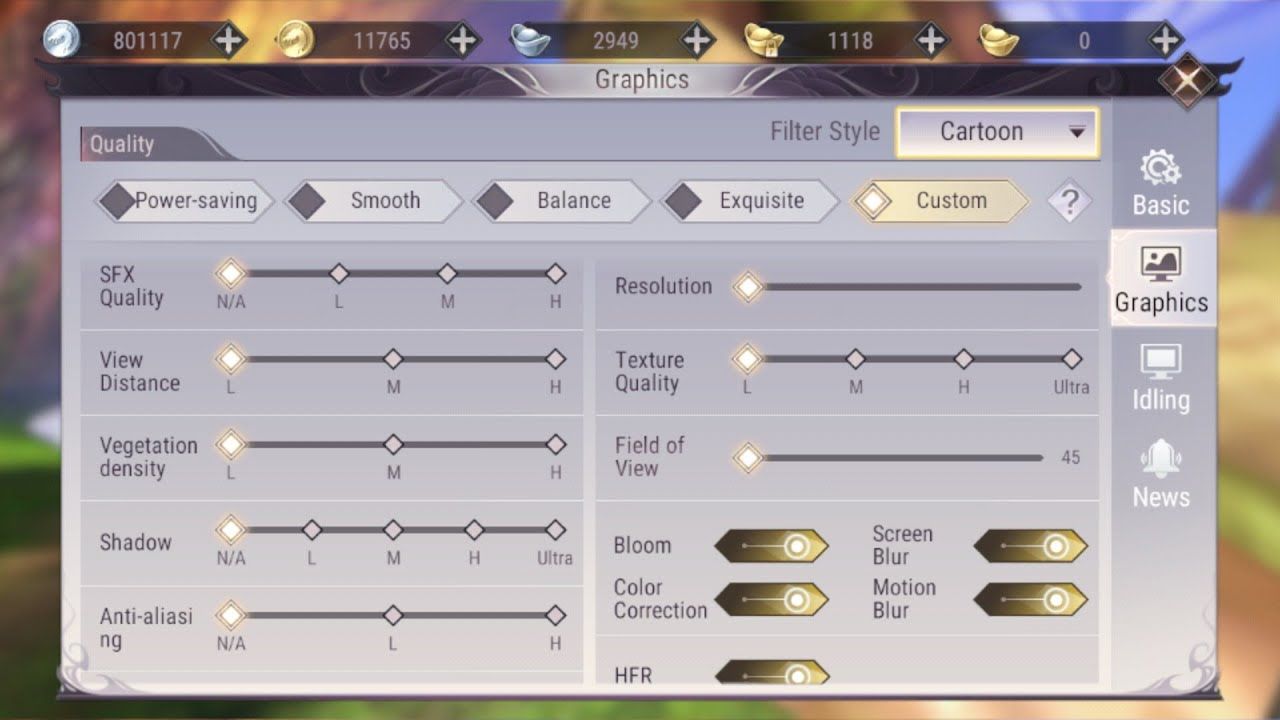
Use this priority order in the in-game graphics menu to clear input latency while stripping unnecessary rendering overhead:
- Frame Rate (HFR): Select 60 FPS (or activate HFR mode). This eliminates touch input delay.
- Resolution / Render Quality: Set to Medium (70% - 80%). Preserves character outlines while reducing GPU fill rate workload.
- Player Display Count Slider: Set to Low (or 10-15 players). Rendering dozens of player models and weapon glows overloads CPU draw call queues.
- Skill Effects: Set to Self Only or Low. Rendering overlapping area-of-effect spells causes client crashes during guild fights.
- Shadow Quality: Set to Off or Low. Dynamic ground shadows add substantial GPU load with zero tactical benefit.
- Visual Range (Draw Distance): Set to Medium. Distant mountains do not impact ground combat.
- Post-Processing & Bloom: Set to Off. Bloom blurs floor telegraphs and increases thermal load.
- Anti-Aliasing: Set to Low or Off. Avoid multi-sampling modes that choke mobile memory bandwidth.
Adjust these settings for AFK grinding. When your phone runs daily quests on a desk, set Frame Rate to 30 FPS and Resolution to Low; automated combat does not need 60 FPS rendering. Reserve 60 FPS for manual dungeons, territory wars, and arenas. To prepare character stats before high-tier content, manage resources using Perfect World M Top Up options on nxpgame.
Guild Battles: Taming the Player Display Count Slider
Territory wars and open-world PK crowd dozens of players into tight map sectors, firing abilities simultaneously. Stock client settings will overwhelm mobile hardware in these conditions.
Each on-screen model requires skeletal animation updates, unique armor textures, and particle glows. The CPU processes animation states and draw calls while the GPU handles transparency and particles. When fifty players meet, CPU bottlenecks cause severe stutter, preventing you from dodging area-of-effect telegraphs or crowd control skills.

Restricting the player display count slider solves this issue. Capping visible characters at 10 to 15 nearby targets replaces distant character models with nameplates. You can still target enemies, but your phone skips their asset geometry. Combine this with skill effects set to show only friendly buff indicators. Frame rates stay consistent inside congested capture points.
Before entering competitive territory wars with your guild, stock up on combat consumables using Perfect World M mobile top-up packages to keep your character prepared.
Mobile Operating System Tweaks and OS-Level Throttles
Optimizing in-game menus is only half the battle. Android 13 and newer releases provide Game Mode frame rate interventions that sit between the engine and the display compositor, cutting power use at the OS level.
Operating system frame caps reduce GPU power consumption by up to 50% and overall device draw by 20%. When client settings conflict with an OS cap, the system enforces the lower target. Setting the game to 60 FPS alongside an OS profile of 40 FPS locks the frame rate cleanly at 40 FPS, preventing thermal throttling.
Users with ADB access can set persistent performance profiles by package name:
# Check available Game Mode configurations for the package
adb shell cmd game list-configs com.pwrd.pwm

# Force battery saver mode with an exact 30 FPS target limit
adb shell cmd game set --mode 3 --fps 30 com.pwrd.pwm

# Force performance profile with a locked 60 FPS target
adb shell cmd game set --mode 2 --fps 60 com.pwrd.pwm
The table below outlines the system impact of these operating system interventions across usage scenarios.
| OS Mode / Command | Target Frame Limit | Target Screen Refresh | Observed Power & Thermal Effect |
|---|---|---|---|
ADB mode=2,fps=60 | Locked 60 FPS | 60 Hz / 120 Hz | Maximum responsiveness; higher sustained surface heat |
ADB mode=3,fps=40 | Locked 40 FPS | 120 Hz | Balanced power; steady pacing with ~35% less GPU draw |
ADB mode=3,fps=30 | Locked 30 FPS | 60 Hz / 120 Hz | Extreme battery conservation; up to 50% lower GPU power |
| Stock OS (Unrestricted) | Native Refresh | Variable (Up to 120 Hz) | Rapid battery drain; thermal throttling within 15 minutes |
Takeaway: Enforcing OS-level frame caps stabilizes power draw far more effectively than relying solely on in-game settings toggles.
If you prefer not to use command-line tools, built-in device gaming dashboards offer Performance, Balanced, and Battery Saver modes. Assign Balanced to Perfect World Mobile for regular play, and switch to Performance for territory wars.
Platform Comparison: Mobile Hardware vs Alternative Rigs
Perfect World Mobile boots on Android 4.2 or iOS 9.0, but base hardware struggles to keep the game playable. Handheld devices run on passive cooling, prompting many players to split playtime between phones and alternative setups.
Emulators on PC and remote cloud streaming change hardware demands entirely. Emulators run on active desktop cooling and discrete GPUs, eliminating heat throttling and battery limits. Cloud streaming runs the 3D pipeline on remote servers and transmits a video feed to your device. The phone only decodes video, keeping the chassis cool and conserving charge.
| Platform Category | Frame Rate Stability | Thermal Throttling Risk | Battery Consumption Rate | Visual Fidelity Ceiling |
|---|---|---|---|---|
| Native Mobile Hardware | Variable (Heat Dependent) | High (Requires tuned settings) | Heavy (30% - 45% per hour) | High (Native screen resolution) |
| PC Emulator Environment | Locked 60 FPS Steady | None (Active desktop cooling) | Zero (Runs on wall power) | Maximum (Ultra settings at 4K) |
| Cloud Streaming Client | Locked 60 FPS (Network bound) | None (Only decodes video) | Very Low (Standard video stream) | High (Subject to stream compression) |
Takeaway: If your phone consistently overheats during multi-hour guild sieges, offloading the game to an emulator or cloud stream eliminates thermal wear entirely.
Native mobile play remains the primary format for daily tasks and dungeon runs. Tuning client graphics settings delivers reliable stability on handheld hardware without losing mobile convenience.
Maintaining Gear and Progression Without Thermal Penalties
Tuning client settings resolves hardware lag, but clear speeds also rely on character progression. Undergeared teams cause boss fights to drag out. Extended boss battles mean prolonged visual rendering, heavier thermal buildup, and higher chances of device throttling mid-encounter.
Keeping up with character upgrades shortens encounter times. Whether refining weapons, leveling class abilities, or unlocking faster mounts, you can accelerate character growth through direct Perfect World M top up on nxpgame. Faster clears mean less grinding against spongy mobs and fewer drawn-out encounters that heat up your phone.
FAQ
How do I unlock 60 FPS in Perfect World Mobile?
Open the main settings menu, navigate to the graphics tab, activate the High Frame Rate (HFR) toggle, and select 60 FPS. If the game still feels capped at 30 FPS, check your phone's system display settings to ensure an OS-level battery saver profile is not actively restricting screen refresh rates.
Why does my phone overheat during Perfect World Mobile guild wars?
Guild wars render dozens of high-polygon player models, complex equipment glows, and overlapping spell effects in a tight space. This sudden influx of simultaneous rendering tasks overburdens your mobile GPU and CPU, causing rapid heat buildup and thermal throttling. Lowering the player display count slider and turning off other players' skill effects eliminates this issue.
What is the best display divisor for a 120 Hz phone screen in MMORPGs?
A target of 40 FPS or 60 FPS provides the smoothest frame delivery on a 120 Hz display because both numbers divide evenly into 120. Uneven targets like 45 FPS or 50 FPS introduce micro-stutter because the screen cannot distribute those frames uniformly across refresh cycles.
Does reducing render scale make the user interface blurry?
No, reducing render scaling only impacts the internal 3D scene rendering, such as terrain, character models, and lighting. The 2D user interface, text boxes, and skill icons continue to render at your screen's native resolution, preserving full clarity while cutting GPU load.
How much battery power does frame rate capping save?
Restricting your target frame rate from an uncapped state down to 30 FPS or 40 FPS can lower GPU power consumption by up to 50% and total system draw by 20%. This significantly slows battery drain and prevents your phone from warming up during prolonged auto-grinding sessions.
Can playing on an emulator or cloud service stop mobile battery drain?
Yes, running the game on a desktop emulator or streaming it through a cloud service shifts the rendering workload off your mobile hardware. Your phone only has to process basic input or video decoding, keeping device temperatures low and preserving battery life.
Final Verdict: My Everyday Configuration
I follow one rule on my device: do not run maximum graphics simply because the toggles exist. Perfect World Mobile requires sustained play sessions, not short benchmark runs. Ultra lighting and maximum draw distances only turn your phone into a hot chassis after fifteen minutes.
For regular play, lock in-game frame rates to 60 FPS, set render scale to medium, and disable shadows and bloom. For territory wars, drop the player display slider to 10 targets and disable enemy skill animations. This maintains responsive touch inputs for dodging while avoiding severe frame drops during group combat.

Community
Comments