

Tweak your Xbox cloud gaming graphics settings 2026 setup with Clarity Boost, hardware decoding, and network tweaks to kill stream blur and hold 60 FPS.
Streaming an Xbox title to your PC should feel like running local hardware. Instead, you launch a session only to find smudged foliage, macro-blocking in dark scenes, and a floaty cursor that ruins your aim. The cloud hardware in Microsoft's data center is rarely the issue. The real bottleneck sits in how your local machine decodes, scales, and renders the incoming video stream.
Optimizing Xbox Cloud Gaming (xCloud) on PC requires a different approach than tweaking standard game settings. You are not adjusting shadow cascades or ambient occlusion inside an engine. You are tuning browser render pipelines, Windows GPU scheduling, video codecs, and packet delivery buffers to decode a live feed at a steady 60 FPS without tearing or input delay.
Xbox Live Gift Card (US)
- -50%
Xbox Live Gift Card 5 USD US
Buy NowUSD 4.99
USD 7.49
- -50%
Xbox Live Gift Card 10 USD US
Buy NowUSD 9.99
USD 14.98
- -50%
Xbox Live Gift Card 15 USD US
Buy NowUSD 14.98
USD 22.47
- -50%
Xbox Live Gift Card 20 USD US
Buy NowUSD 19.98
USD 29.97
- -50%
Xbox Live Gift Card 25 USD US
Buy NowUSD 24.97
USD 37.46
- -50%
Xbox Live Gift Card 50 USD US
Buy NowUSD 49.94
USD 74.92
- -50%
Xbox Live Gift Card 100 USD US
Buy NowUSD 99.89
USD 149.83
Edge Browser vs Windows Xbox App: The Clarity Verdict
If you stream exclusively through the native Windows Xbox app, you are leaving visual fidelity behind. The native app relies on standard video presentation pipelines, whereas Microsoft Edge includes direct integration built specifically for xCloud.
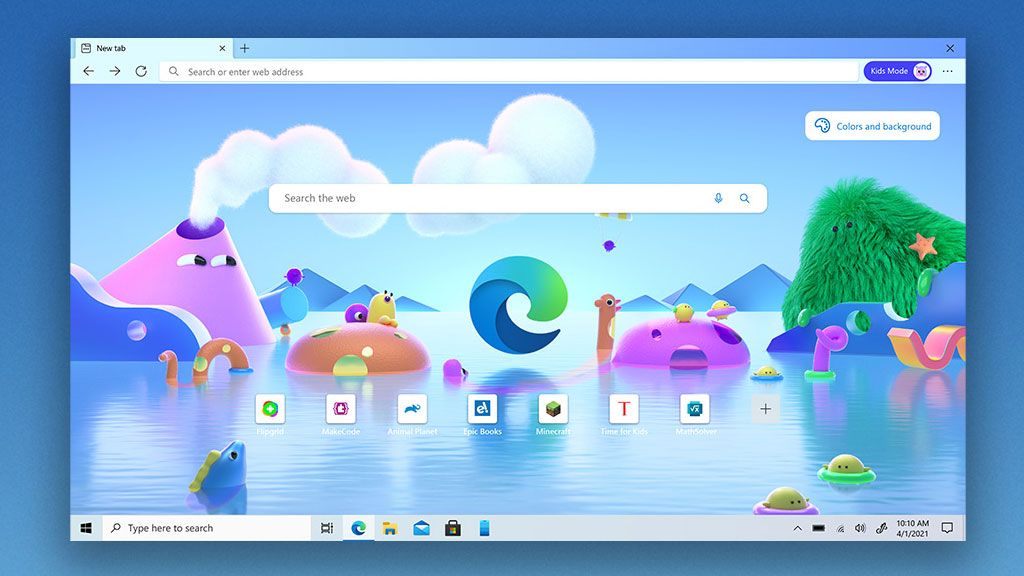
Clarity Boost is the main advantage here. Exclusive to Edge, it applies client-side spatial upscaling directly to the stream output. Instead of stretching a soft, bilinear-filtered 1080p feed across your monitor, Clarity Boost processes each frame locally on your GPU to sharpen texture edges, UI text, and fine environmental geometry. In visually dense scenes, it removes the Vaseline blur common to cloud video.
Edge also handles background resources better through its automated Efficiency mode. When you launch a cloud game, Edge throttles background tabs to free up CPU cycles and memory bandwidth for the browser's video decoding thread. This prevents micro-stutters caused by hardware interrupt spikes from background tasks.
Microsoft has also rolled out upgraded 1440p 60 FPS stream profiles with higher bitrates on select titles through Xbox Game Pass Ultimate ($22.99 monthly with unlimited streaming hours). Demanding titles like Fallout 4, Cyberpunk 2077, and The Witcher 3 benefit immediately from the higher resolution buffer when accessed through an optimized browser pipeline.
Core Video Codecs and Required Bandwidth Profiles
Video compression determines how crisp your stream looks at a given internet speed. Xbox Cloud Gaming negotiates codecs based on your client hardware and network conditions.
| Codec Format | Bandwidth for 1080p 60 FPS | Decoding Efficiency & Hardware Profile |
|---|---|---|
| H.264 / AVC | 10 – 15 Mbps | Baseline default codec; universal compatibility with highest bandwidth requirement. |
| HEVC / H.265 | 4 – 8 Mbps | Approximately 50% more efficient than H.264; lower bandwidth with hardware decode. |
| AV1 | 3 – 6 Mbps | Next-gen royalty-free open codec; lowest bandwidth requirement with excellent clarity. |
Takeaway: While legacy H.264 remains the universal fallback, modern hardware decoding on HEVC or AV1 cuts bandwidth demands in half while preserving crisp edges in motion.
Raw download speed is only part of the equation. To hold 1080p at 60 FPS without sudden resolution drops, your connection needs a baseline throughput of 15 to 25 Mbps, ping below 30 ms (acceptable up to 50–100 ms), and network jitter strictly under 10 ms.
You also need a 30% to 50% bandwidth headroom buffer above the active stream bitrate. If your stream consumes 15 Mbps and your connection caps at 16 Mbps, any local network blip—like an automated phone backup—will force the stream to drop bitrate, causing immediate macro-blocking.
Step-by-Step Fixes for Pixelation and Muddy Textures
When your stream looks like a compressed video from 2008, work through these configuration steps in order.
1. Enable Hardware-Accelerated GPU Scheduling in Windows
Windows can offload stream decoding directly to your dedicated or integrated GPU, bypassing CPU queue bottlenecks.
- Open Windows Settings (
Win + I) and select System > Display. - Scroll down and click on Graphics (or Default graphics settings).
- Toggle Hardware-accelerated GPU scheduling (HAGS) to On.
- Restart your PC to apply the driver changes.
2. Force Hardware Acceleration in Microsoft Edge
Ensure Edge actively uses your graphics card to decode incoming video rather than falling back to software rendering.
- Launch Microsoft Edge and click the three dots (
...) in the top right corner. - Navigate to Settings > System and performance.
- Turn on Use hardware acceleration when available.
- Ensure Efficiency mode is turned on to prioritize active gaming tabs.
- Relaunch the browser.
3. Match Your Monitor Refresh Rate
Frame pacing issues happen when your display refresh rate conflicts with the stream's 60 FPS frame delivery.
- Right-click your desktop and open Display settings > Advanced display.
- Set your refresh rate to either 60 Hz or 120 Hz.
- Avoid uneven multiples like 75 Hz or 144 Hz without adaptive sync, which introduce micro-stutter as 60 FPS frames duplicate unevenly across cycles.
4. Activate Clarity Boost in the Stream Overlay
Once your stream is running inside Edge, turn on the spatial upscaler.
- Navigate to
xbox.com/playand start your game. - Click the Stream Menu icon (the grid of dots in the top-left corner of the stream window).
- Locate the Clarity Boost toggle and switch it to On.
- The change applies immediately, sharpening textures and text across the screen.
5. Switch to the Windows High Performance Power Plan
Aggressive CPU downclocking on laptops can stall video decode buffers during rapid scene changes.
- Open the Windows Control Panel and navigate to Power Options.
- Select the High Performance power plan.
- This prevents CPU core throttling while decoding high-bitrate video streams.
6. Disable VPNs and Local DNS Filtering
Commercial VPNs and local filtering software add intermediate routing hops.
- Turn off active VPN connections before launching your session.
- Disable local proxy filters that intercept web socket traffic.
- Cloud gaming requires direct routing to the nearest Microsoft edge data center; proxies inflate ping and induce packet buffering.
Advanced Stream Tweaks with Better xCloud
For deeper control over your video pipeline, the open-source script Better xCloud provides granular options missing from the standard web interface. Running via the Tampermonkey browser extension, it interfaces directly with xbox.com/play.
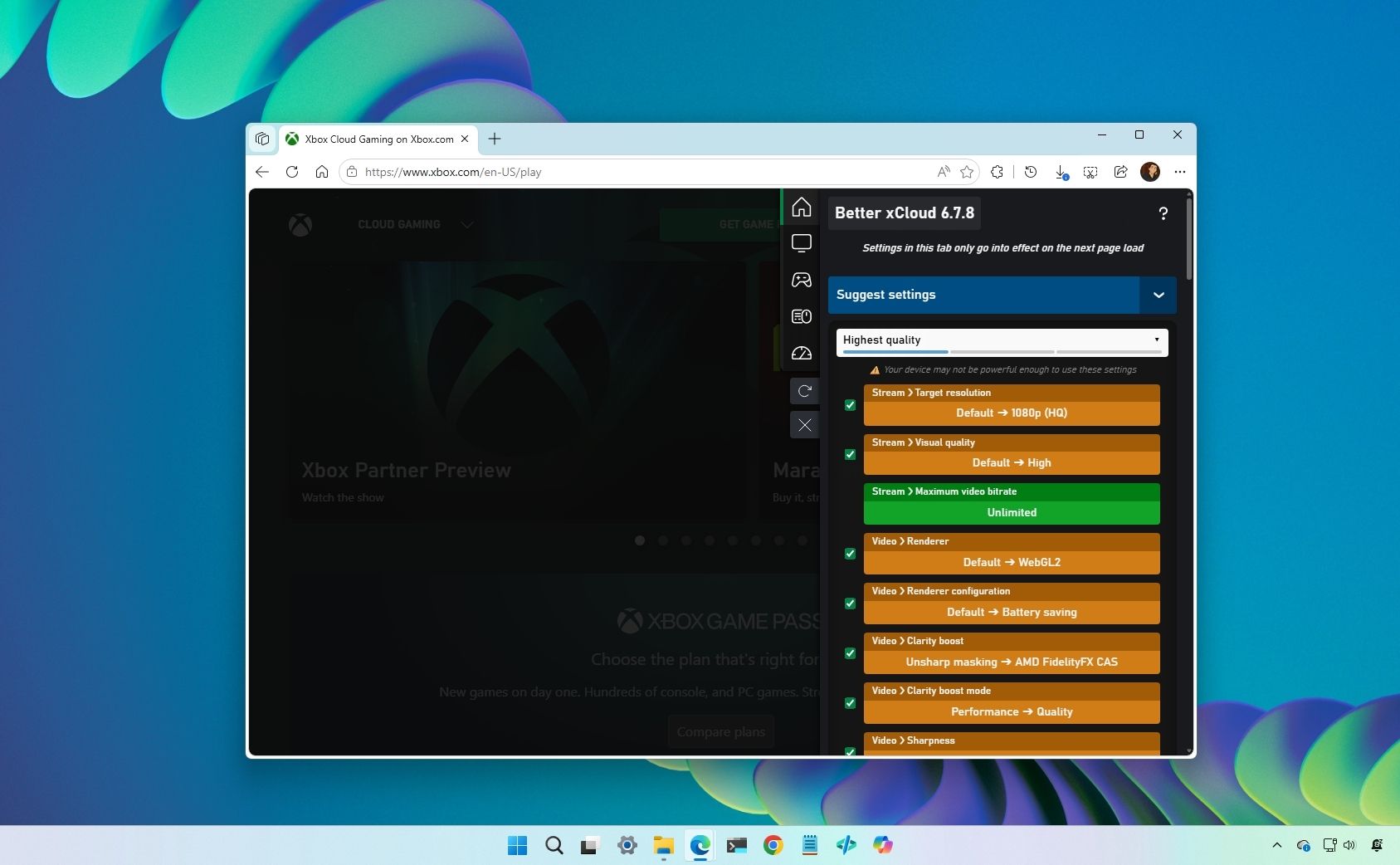
Better xCloud enables several critical controls:
- Manual Bitrate Forcing: Overrides the automatic bandwidth limiter, letting you force maximum bitrate to eliminate compression artifacts.
- Forced 1080p Profile: Prevents the stream from dynamically downgrading to 720p during minor network fluctuations.
- Server Region Selection: Allows you to connect to a specific data center if your ISP defaults to a congested or distant node.
- Real-Time Telemetry Overlay: Displays active ping, decode time, packet loss, and frame render times directly on screen.
Because Better xCloud executes client-side modifications on xbox.com/play without altering authentication tokens or violating third-party client rules, developers have confirmed it does not risk account bans.
If you plan to run extended gaming sessions on PC, you can pick up a discounted Xbox Live Gift Card (US) to extend your Game Pass Ultimate membership before jumping into higher-tier 1440p streams.
Eliminating Input Delay: Controller Polling and Display Sync
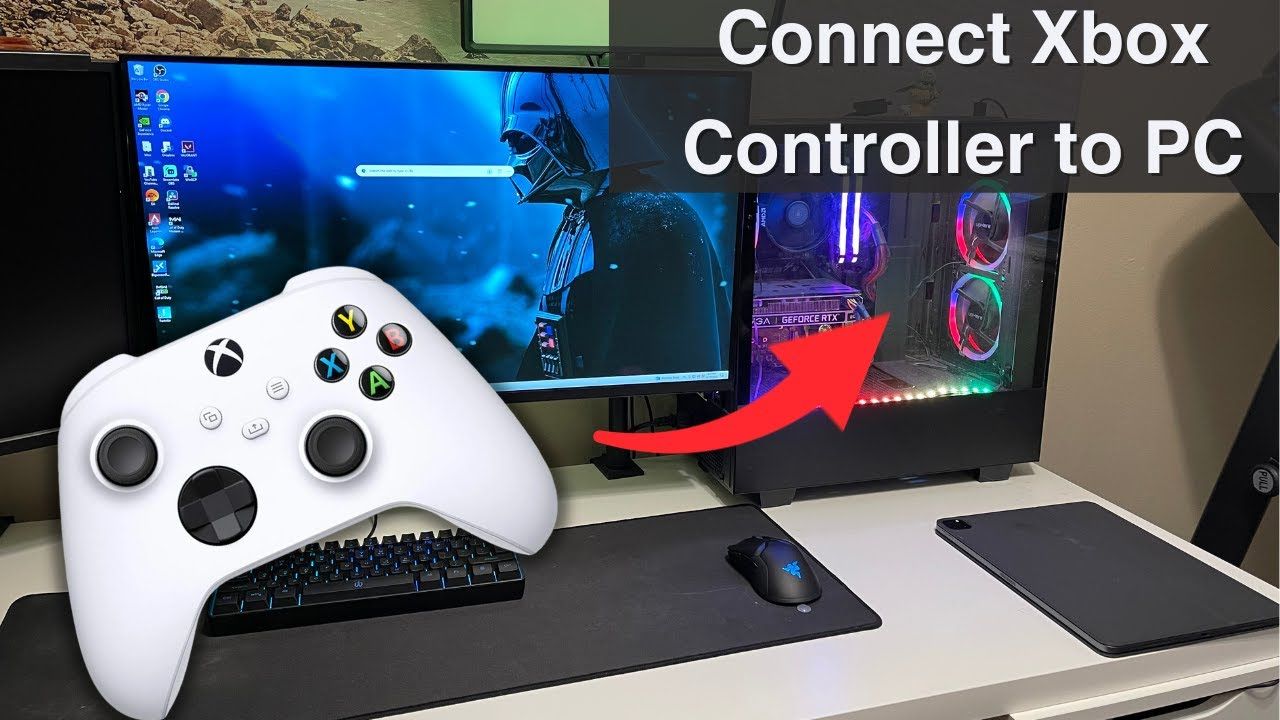
Visual clarity means nothing if the controls feel sluggish. Cloud input latency is cumulative: it combines controller hardware polling, USB processing, network transit, server frame generation, and local video decoding.
Standard Bluetooth controller connections poll at roughly 125 Hz, adding approximately 8 ms of input latency before a packet leaves your PC. Connecting via a direct USB-C cable raises the polling rate up to 1,000–8,000 Hz, slashing local input delay to sub-millisecond levels.
The table below details how controller connections and display sync configurations affect total latency.
| Connection / Configuration | Polling Rate | Hardware Input Latency | Frame Pacing Impact |
|---|---|---|---|
| Wired USB Controller | 1,000 – 8,000 Hz | < 1 ms | Near-instant signal transfer; zero packet loss. |
| Bluetooth Controller | ~125 Hz | ~8 ms | Susceptible to 2.4 GHz interference and dropouts. |
| Display at 60 Hz / 120 Hz | N/A | Lowest visual jitter | Perfect 1:1 or 1:2 frame cadence against 60 FPS stream. |
| Display at 75 Hz / 144 Hz | N/A | Stutter-prone | Uneven frame duplication causes perceived micro-lag. |
Takeaway: Switching from Bluetooth to a wired USB connection saves nearly 8 ms of latency—often the difference between an input feeling sluggish or immediate.
Always prioritize a wired controller setup for responsive cloud play. That single swap cuts local lag before network round-trips occur.
Network Optimization: Taming Jitter, Wi-Fi Bands, and Router QoS
Even with optimal browser and GPU settings, an unstable local network will destroy stream quality. A single dropped packet causes the video decoder to freeze or drop resolution while waiting for the next keyframe.
First, abandon the 2.4 GHz Wi-Fi band. It is crowded with smart home devices, microwaves, and Bluetooth signals. Connect over 5 GHz or 6 GHz instead. These frequencies offer broader channel bandwidth and lower packet collision rates. For zero packet loss, nothing beats a direct Cat6 Ethernet cable.
Second, adjust your router's traffic management. Cloud gaming requires low latency rather than massive raw download speeds. Router Quality of Service (QoS) prioritization lets you assign your PC high priority, capping background bandwidth to 80–90% of line capacity to eliminate bufferbloat.
On modern routers with Smart Queue Management (SQM), QoS effectively eliminates jitter during household downloads. On older routers with weak CPUs, basic QoS can introduce latency by bottlenecking packet processing. If your router supports SQM, enable QoS; if you use a budget mesh setup, leave it off and use an Ethernet cable instead.
Maintaining a stable connection ensures your stream never throttles mid-session. When funding your monthly access, redeeming an Xbox digital balance voucher makes it easy to maintain your active subscription without interruption.
Platform Comparison: PC Browser vs Native App vs Mobile
Graphics fidelity and tweakability vary across client devices.
Here is how the main access platforms stack up for stream customization, upscaling, and performance in 2026.
| Feature / Capability | PC Microsoft Edge | PC Xbox App | Mobile Web / App |
|---|---|---|---|
| Clarity Boost Upscaling | Yes (Native) | No | No |
| Resolution Support | Up to 1440p 60 FPS | Up to 1080p 60 FPS | Up to 1080p 60 FPS |
| Hardware Acceleration Flags | Full browser flag control | Limited Windows hooks | OS-dependent |
| Script Mod Support (Better xCloud) | Yes (via Tampermonkey) | No | Limited (Android third-party APKs) |
| Efficiency Mode Resource Throttling | Yes | No | Managed by OS battery profile |
Takeaway: Microsoft Edge on PC offers the most comprehensive set of graphics enhancement toggles, giving you full control over upscaling and stream decoding.
If you want the best visual experience, PC via Microsoft Edge is the clear choice. The native Xbox App remains convenient for library management, but Edge holds the advantage for sharpness and frame delivery.
To keep your Game Pass library active across all these devices, you can grab an Xbox network card to load up your Microsoft balance for your next month of cloud gaming.
FAQ
How do I turn on Clarity Boost for Xbox Cloud Gaming?
Launch your cloud stream inside Microsoft Edge and open the stream menu from the top-left overlay icon. Toggle Clarity Boost to On. It applies real-time client-side spatial upscaling to sharpen textures and improve text readability.
What internet speed is needed for smooth 1080p 60 FPS Xbox Cloud Gaming?
You need a stable connection providing 15 to 25 Mbps bandwidth, a ping under 30 ms, and network jitter below 10 ms. Maintaining a 30% to 50% bandwidth headroom ensures network spikes will not cause stream stutter.
Why does Xbox Cloud Gaming stutter on PC despite fast internet?
Stutter is typically caused by high packet jitter, disabled hardware acceleration, or mismatched refresh rates. Enable Hardware-Accelerated GPU Scheduling in Windows, turn on Edge hardware acceleration, and lock your monitor refresh rate to 60 Hz or 120 Hz.
Which browser delivers the best Xbox Cloud Gaming performance?
Microsoft Edge provides the best performance because it includes native Clarity Boost support and built-in Efficiency mode. Other Chromium browsers are functional, but lack Edge's exclusive spatial upscaling integration.
How can I force 1080p resolution and manual bitrate on Xbox Cloud Gaming?
Install the open-source Better xCloud userscript using the Tampermonkey extension in your browser. This tool allows you to manually force 1080p profiles, adjust target bitrates, and inspect real-time stream diagnostics.
Does using a wired controller reduce input lag on cloud games?
Yes, connecting via USB eliminates Bluetooth's 125 Hz polling rate limit and cuts roughly 8 ms of wireless input delay. Wired connections offer polling rates up to 1,000–8,000 Hz for instant responsiveness.
The Definitive 60 FPS Cloud Configuration
Getting a crisp, responsive image from Xbox Cloud Gaming comes down to removing processing bottlenecks on your end. The service sends a compressed video feed; your job is ensuring your machine decodes that feed instantly and displays it cleanly.
Ditch the native Windows app. Play your cloud games inside Microsoft Edge with Clarity Boost turned on and Efficiency mode active. Turn on Hardware-Accelerated GPU Scheduling in Windows settings so your GPU handles the decode pipeline. Connect your controller with a USB cable to shed 8 ms of input delay, lock your monitor to 60 Hz or 120 Hz, and plug directly into Ethernet or a clean 5 GHz Wi-Fi channel.
Once those tweaks are locked in, cloud streaming shifts from a blurry, delayed compromise into a sharp 60 FPS experience that feels genuinely local.

Community
Comments