

Sync your mobile Astra: Knights of Veda progress to Steam safely. Follow these steps to connect your account and avoid accidental profile wipes.
Few things induce panic quite like launching a game on PC, expecting your hard-earned squad, and seeing the opening cutscene play from minute zero. That sinking feeling hit dozens of players when publisher HYBE IM and developer FLINT launched ASTRA: Knights of Veda worldwide on April 2, 2024.
The game offers cross-progression between iOS, Android, and Steam. You can spend your commute clearing daily dungeons on a phone and transition to a desktop monitor in the evening with zero lost progress. Yet, the initial synchronization process contains a few technical quirks. If you click through prompts too fast or launch the Steam client before securing your mobile credentials, you risk trapping your Steam ID inside a blank save.
I have seen players believe their entire roster vanished into thin air. In reality, their account simply landed on the wrong regional server or generated an unlinked dummy profile. This walkthrough explains how to bridge your mobile progress to Steam cleanly, dodge common server selection mistakes, and fix an accidental blank profile without risking your data.
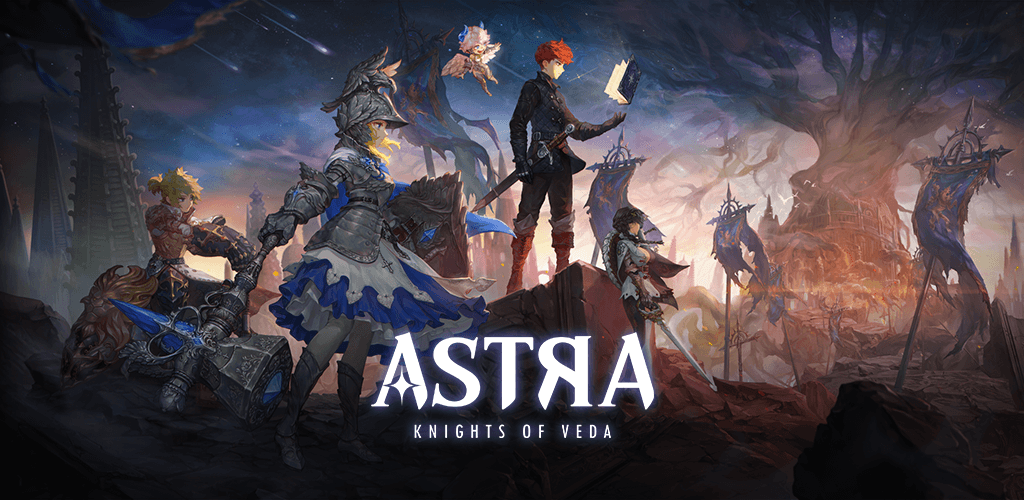

Astra: Knights of Veda
Why Steam Boots into a Blank Account Instead of Your Save
Cross-progression in ASTRA: Knights of Veda relies on cloud-side authentication handled by publisher game servers, not your local hard drive. Your characters, equipment, Starstones, and Crystals of Destiny reside on FLINT's database. Your device is merely a display terminal.
When you start the game on mobile as a guest, your progress is tied strictly to your phone's hardware identifier. If you launch the Steam version without first converting that guest save into a permanent identity, Steam cannot detect who you are. The Steam client checks for an authenticated publisher link. Finding none, it executes the default fallback: it initializes a brand-new, empty user profile.
Once that blank profile binds to your active Steam account, Steam treats that empty level-one file as your primary PC save. You are not locked out permanently, but undoing it takes extra steps. The rule is simple: never boot the Steam client cold. Anchor your mobile profile to an external credential provider first.
Pre-Flight Check: Binding Your Mobile Account First
Before downloading the desktop build, grab your phone. Cross-progression works reliably only if your mobile account is already bound to Google or Apple ID.
Open ASTRA: Knights of Veda on your mobile device and log in. Once you are past the title screen and standing in the game world, follow this preparation routine:
- Tap the main menu icon in the upper corner of the screen.
- Tap the cogwheel icon to access Settings.
- Navigate to the Account tab.
- Check your account status. If you see an option to link an email or third-party service, you are currently playing on an unsecured guest account. Bind it immediately to a Google or Apple account.
- Write down or copy your unique Account Code. You will find it right inside this Account tab.
- Note the exact regional server displayed on your mobile loading screen. Do not skip this step.
Your Account Code is your universal player fingerprint. Whether you need customer assistance, want to verify server profiles, or plan to order resources like Astra: Knights of Veda Starstones through external web portals, having that code backed up guarantees you can prove account ownership.
Step-by-Step: How to Link Astra Knights of Veda to Steam
With your mobile data safely tethered to Google or Apple, you can set up the desktop client. The PC client is a separate download that requires specific hardware overhead to run smoothly.
Follow these sequential steps to install and bridge your data:
- Open Steam, search for ASTRA: Knights of Veda, and add it to your library. It is completely free to play; you do not need to buy a separate client license.
- Install the game and verify you have at least 15 GB of available disk space.
- Launch the game from your Steam library. Let the client complete its initial patcher data download.
- When the title screen appears, the client displays a login prompt. Do not click 'Guest' and do not bypass this window.
- Select the login method that matches your mobile binding: choose Google or Apple.
- A browser overlay or authentication popup will open. Input the exact login credentials tied to your mobile save.
- Once authenticated, the game returns to the main title screen. Check the server name displayed on the screen.
- If the server matches your mobile server, click anywhere to start. Your characters, cutscene progress, and inventory will load instantly.
Taking your time on step 5 avoids 99% of synchronization tickets. If you accidentally dismiss the login prompt or authenticate with a fresh, unused email address, the system assigns a blank slate to your Steam ID.
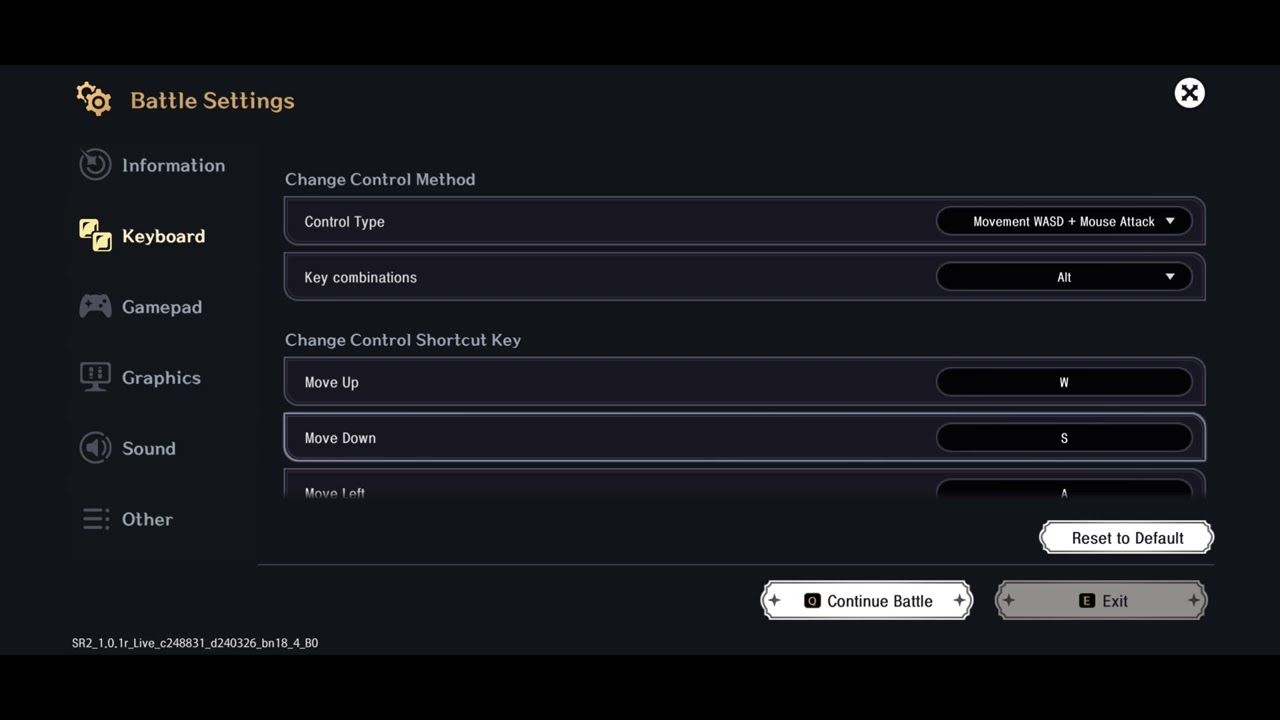
The Server Trap: Why Your Characters Might Seem Missing
Did you log in with the correct email, sit through the loading screen, and still see a prologue cutscene? Do not panic. You probably did not lose your account.
ASTRA: Knights of Veda runs five distinct regional server partitions. When the PC client launches for the first time, it checks your current network IP address and assigns a default server based on your geographic location. If you live in North America but originally joined an Asian or European server to play with friends, the PC client will override that choice and drop you into America by default.
Game databases treat each regional server as an isolated sandbox. A level 45 account on the European server does not exist on the North American server. If your client connects to the wrong region, it displays an empty character select screen.
Fixing this takes five seconds:
- Exit to the main start screen where "Tap to Start" appears.
- Look at the right side of the screen. You will see a dedicated Server button.
- Click the Server button to open the regional list.
- Select the specific server where you built your mobile roster.
- Click to enter the game.
Your save file will reappear intact. Publisher game servers preserve your state across updates, so switching regional profiles back and forth will not erase your inventory.
System Specs and Cross-Progression Platform Differences
FLINT developed ASTRA: Knights of Veda over seven years with a team of 120 artists, animators, and engineers. The game features over 200 fully rendered cutscenes, more than 1,800 standalone illustrations, and full voice acting in Korean, English, and Japanese, alongside 13 written subtitle languages. Running those detailed 2D visual assets on PC demands stable hardware.
Before troubleshooting performance bottlenecks or crashes that interrupt data syncing, compare your desktop setup against the official requirements below.
| Hardware Component | Minimum / Recommended PC Spec | Technical Note |
|---|---|---|
| Operating System | Windows 10 64-bit | Required for desktop client security and memory allocation |
| Processor (CPU) | Intel Core i5 10th generation | Recommended for smooth MORPG combat and complex effects |
| System Memory (RAM) | 8 GB RAM or higher | Prevents memory leaks during heavy 200+ cutscene playback |
| Graphics Card (GPU) | NVIDIA GeForce GTX 1050 Ti | Ensures high-frame rendering for 1,800+ 2D hand-drawn assets |
| DirectX Version | Version 11 | Essential runtime for shader rendering and audio sync |
| Free Storage Space | 15 GB available space | Base installation footprint prior to episodic expansion data |
Meeting these baseline specs prevents client crashes during authentication handshakes. If your PC falls below these thresholds, the game may drop network packets during the login handshake, failing to retrieve your cloud save from the publisher database.
Platform support also varies slightly depending on whether you play through a desktop operating system or a mobile operating system. Use the breakdown below to understand platform-specific capabilities.
| Feature / Parameter | Steam PC Client | Android Client | iOS Client |
|---|---|---|---|
| Client Purchase Cost | Free-to-Play | Free-to-Play | Free-to-Play |
| Storage Footprint | ~15 GB storage space | ~8–12 GB storage space | ~8–12 GB storage space |
| Voiceover Audio | Korean, English, Japanese (Full) | Korean, English, Japanese (Full) | Korean, English, Japanese (Full) |
| Text Localizations | 13 Subtitle Languages | 13 Subtitle Languages | 13 Subtitle Languages |
| Primary Account Hooks | Google, Apple, Steam auto-detect | Google Play, Apple ID, HYBE IM | Apple ID, Google, HYBE IM |
| Direct Account Code Access | Settings -> Account Tab | Settings -> Account Tab | Settings -> Account Tab |
While the gameplay experience remains uniform across all platforms, account linking parameters demand strict adherence to external identity rules. Never attempt to register separate accounts across different mobile operating systems using conflicting regional stores, or your cross-progression paths will split.
Fixing an Accidental Steam Overwrite Profile
What happens if you rushed, launched the game via Steam, and accidentally hit "Start" on a brand-new profile before linking your mobile credentials? You now have a blank account glued to your Steam ID.
Gaming platforms enforce a strict one-to-one restriction per manufacturer: one Steam account can link to only one publisher account at a time. Many platform identity portals also enforce a 12-month waiting period on unlinking to prevent account trading or abuse. If you try to unlink through ordinary menus, the game might tell you that your Steam profile is already claimed.
Do not delete your mobile app. Do not request account deletion through settings, either—deleting an account permanently wipes all linked progress across mobile and PC databases alike. Instead, apply the secondary provider transfer workaround:
- Launch the unwanted blank profile on Steam.
- Navigate to Settings -> Account.
- Bind this blank profile to a secondary, disposable login (such as a spare Google account you never use for gaming).
- Once the blank profile is secured to that secondary login, use the account management menu to decouple your Steam account from it.
- Log out of the PC client entirely. In late 2026, Valve updated Steam's client tools to streamline multi-profile management, warning players whenever active game sessions must close to switch account states cleanly.
- Restart ASTRA: Knights of Veda on Steam. You will encounter the clean login prompt once more.
- Select the Google or Apple login containing your primary mobile data.
- Confirm your region and log in.
This method frees your primary Steam ID from the empty profile without triggering account deletion locks.
| Account Linking State | Progress Location | Risk Level | Recommended Action |
|---|---|---|---|
| Mobile Guest Account | Local phone storage cache | High (Data lost if app cache clears) | Bind immediately to Google or Apple in settings |
| Bound Mobile Account | Publisher Game Database | Low (Safe across updates) | Ready to sync directly to Steam client |
| Unlinked Steam Profile | Temporary blank cloud ID | Medium (Blocks your primary save) | Link to dummy email, decouple Steam, sign in correctly |
| Synchronized Profile | Cloud cross-platform save | Minimal (Fully mirrored across PC/mobile) | Verify Account Code and keep credentials safe |
Categorizing these states prevents unforced errors during maintenance windows or server migrations.
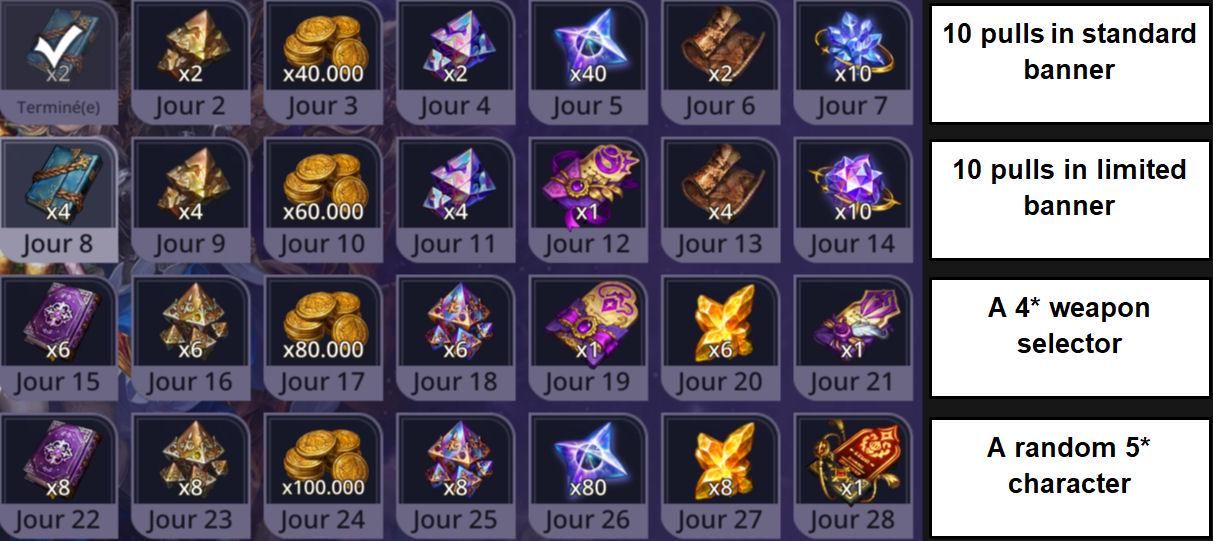
Currency Sync, Starstones, and Account Management
Once your account links cleanly between mobile and PC, your inventory synchronizes across both platforms. Heroes, materials, weapons, and currencies update simultaneously. ASTRA: Knights of Veda uses Starstones and Crystals of Destiny as primary currencies for character summons and resource refreshes. When you earn these in-game on mobile, they appear on your Steam screen immediately upon login.
Severing an external account link cuts off access to owned currencies and content on that platform until reconnected. If you decide to unlink an account down the line, remember that purchases and wallet balances remain anchored to the publisher's central database record, not your desktop client.
If you prefer stocking up on summon tickets using external platforms, verify your Account Code at Astra: Knights of Veda currency options before buying Crystals of Destiny. Most reputable stores show the total before you pay, but third-party top-ups require inputting your exact Account Code and active server region. If you supply the wrong Account Code or select America when your squad lives on Europe, your resources will land in an empty profile or fail processing entirely.
Check your Account tab twice, confirm your server name, and keep that string of digits handy. Once summon balances match on desktop and mobile, you can grab extra summons through Astra: Knights of Veda top-up packs knowing your save data is secure.
FAQ
Will I lose my mobile progress when syncing ASTRA: Knights of Veda to Steam?
No, you will not lose your progress as long as you log in using the same Google or Apple account bound on mobile. Your character data is saved on the game servers rather than locally on your mobile device.
How do I log into my existing mobile account on the Steam client?
Launch the game on Steam and choose the Google or Apple login option you originally linked on mobile. After authenticating, make sure you choose the exact server region where your character resides.
Why is my character missing after launching ASTRA: Knights of Veda on Steam?
Your client is likely set to the wrong regional server. Use the 'Server' button on the right side of the main title screen to switch to the server where your mobile character was created.
Can I link a mobile guest account directly to Steam?
No, guest accounts must first be bound to an external login like Google or Apple inside the mobile game settings. Playing as a guest leaves your data unprotected and unable to synchronize across platforms.
Where can I find my ASTRA: Knights of Veda Account Code?
Open the in-game menu, select Settings, and navigate to the Account tab. From there, you can view and copy your unique Account Code.
Do I have to pay to play ASTRA: Knights of Veda on Steam if I started on mobile?
No, ASTRA: Knights of Veda is completely free to download and play on Steam. You can download the client and sign in with your mobile credentials without repurchasing.
What happens if I accidentally create a blank account on Steam?
You must link the unwanted profile to a temporary secondary login to unlink your Steam ID, or log out completely and authenticate using your primary mobile credentials. Never delete your mobile app until you confirm your progress is intact.
The Final Verdict on Steam Cross-Progression
The cross-progression architecture in ASTRA: Knights of Veda works reliably once you understand its rules. Unlike buy-to-play PC conversions that demand repurchase fees or complicated token exchanges, FLINT built a true dual-platform pipeline. You do not need secondary client purchases, and you do not need to abandon your mobile roster to enjoy crisp 60-FPS desktop combat.
The entire system pivots on two details: binding your mobile save to Google or Apple before touching Steam, and verifying your server region on the title screen. Take thirty seconds to secure your Account Code in the settings menu, launch Steam with your existing login, and your dark fantasy campaign will carry over without a hitch.

Community
Comments