

If MapleStory M keeps crashing on startup Android devices, do not panic. Follow this diagnostic guide to repair files, fix WebView, and restore stability.
Few things are more frustrating than launching a game to check your daily guild expedition only to watch your screen flicker black and throw you straight back to the Android home launcher. I have watched this exact loop ruin double-EXP sessions more times than I care to admit. When the client cuts out before you even hear the title theme, standard advice like "just restart your phone" rarely cuts it.
Startup drops usually happen long before game engine loops render your character. The client performs an aggressive sequence of asset decompression, runtime permission checks, account handshakes, and embedded browser initialization. If any single cog in that chain fails, Android kills the process without a single error prompt.
Isolate the root failure—broken patch fragments, memory starvation, or an engine crash—before deleting and redownloading gigabytes of data blindly.

MapleStory M Crystal
Why MapleStory M Drops Out Before the Title Screen
When a mobile title terminates within the first three seconds of launch, the culprit is almost always low-level system friction rather than an in-game bug. MapleStory M relies on an initial bootstrap loader. This loader checks local asset integrity, requests runtime storage permissions, boots an embedded webview for login banners, and opens a network socket to verify server status.
If the application encounters an unhandled exception—like an unexpected null-pointer reference when querying missing local directories—the OS forcibly terminates the task. Android does not ask you if you want to wait; it simply closes the app window.

Another frequent culprit is the device memory manager. The bootstrap sequence decompresses asset packages directly into temporary memory. If your available RAM is depleted by hung background applications, the OS memory manager issues an immediate out-of-memory kill signal. Similarly, if your internal flash storage is practically full, the engine cannot allocate the temporary swap files it needs to verify downloaded archives.
Review the table below to isolate the system-level trigger behind your specific launch failure.
| Issue Vector | System Impact | Observable Symptom |
|---|---|---|
| Corrupted Cache / Patch Data | Local asset manifests do not match runtime checksums | Instant crash after Nexon logo or black screen freeze |
| Denied Storage Permissions | Game cannot open runtime directories to extract assets | Instant app drop right after tapping the desktop icon |
| Android System WebView Fault | Null-pointer memory crash in embedded authentication windows | Crash during splash art or social login transition |
| Low System RAM / Storage | Out-of-memory termination by Android OS kernel | Phone stutters heavily, followed by a silent desktop crash |
Review these common triggers to identify whether your crash happens before or during initial file decompression.
Recognizing the exact second the crash takes place helps you pick the right fix. An instant drop at the icon tap points toward permissions or memory, while a drop after the splash screen points toward corrupt patch chunks or webview conflicts.
Step-by-Step Diagnostic Routine for Android Launch Failures
Resist the urge to delete the game immediately. Redownloading gigabytes of assets over cellular or Wi-Fi will not fix underlying OS permission or memory conflicts. Work through these diagnostic steps first.
Step 1: Execute a Full Device Power Cycle
A simple soft reboot does more than clear background clutter. It unloads dangling background service workers and resets the OS process table. Hold your phone's power button, select restart, and allow the OS to complete its startup sequence before touching any game icons.
Step 2: Clear Temporary Application Cache
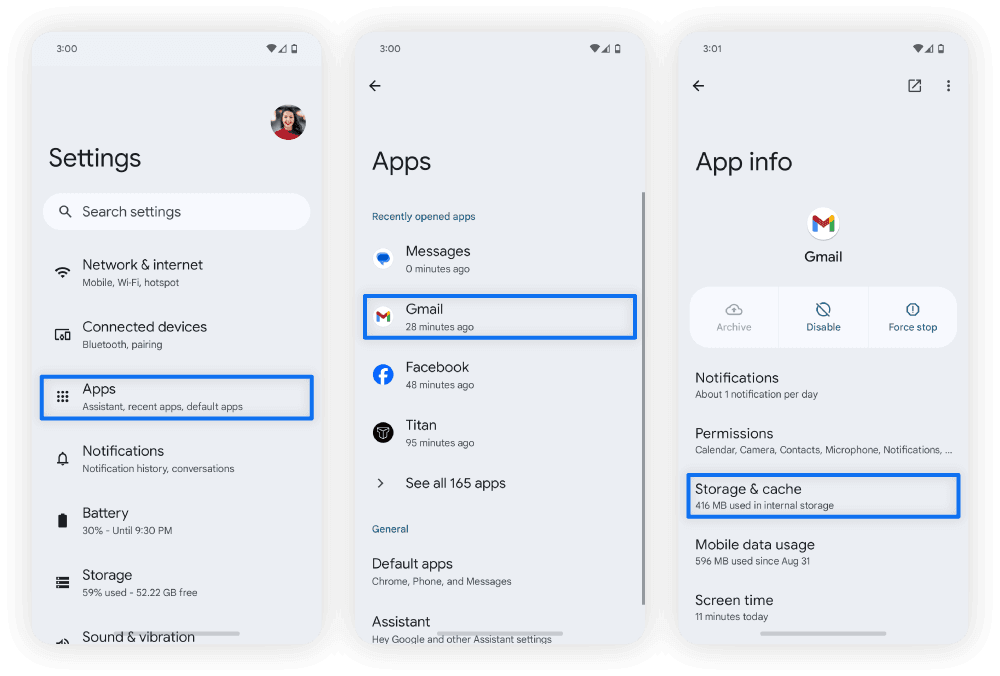
Temporary asset scraps can get tangled when patches are pushed over volatile network connections. 1. Open your Android device Settings. 2. Navigate to Apps (or App Management depending on your phone brand). 3. Find and tap MapleStory M. 4. Tap Storage & Cache. 5. Select Clear Cache (leave "Clear Storage/Data" alone for now).
If clearing the cache bypasses the crash, your files are intact and you can proceed with your MapleStory M Crystal top up without enduring a full redownload.
Step 3: Verify and Grant All Runtime Permissions
Modern Android versions isolate app file access strictly. If an update revoked file access, MapleStory M crashes the millisecond it tries reading local game data. 1. Go to Settings > Apps > MapleStory M > Permissions. 2. Locate Files and media (or Storage on older Android releases). 3. Set the access level to Allow management of all files or Allow access to media only depending on your OS build. 4. Ensure Notifications and Phone permissions are not stuck in an undefined state.
Step 4: Free Internal Flash Storage and Close Background Tasks
MapleStory M needs working room on your flash drive to extract patch files. If your phone has less than 5 GB of free internal space, the decompression utility fails silently. Clear your phone's download directory, purge unused apps, and close heavy apps running in the background before launching the game.
The Android System WebView Memory Leak
One of the most elusive causes behind a launch crash has nothing to do with Nexon's code. MapleStory M uses the native Android System WebView component to render internal news popups, terms of service agreements, and account login fields.
Upstream builds of Android System WebView have historically suffered from tile-memory budget exhaustion bugs. In older iterations such as version 149, memory leaks triggered native SIGSEGV null-pointer crashes inside system libraries like libwebviewchromium.so. When the game attempts to call the web engine to show the login prompt, the system library crashes, dragging MapleStory M down with it.
Upstream patches (such as version 152.0.7977.77 and later) resolved these specific tile-memory budget exhaustion flaws. If your WebView package is out of date, your game will keep crashing no matter how many times you wipe the game itself.
To update this core component: 1. Open the Google Play Store. 2. Tap your profile icon in the upper-right corner and select Manage apps & device. 3. Check for pending updates under the overview tab. 4. Specifically locate Android System WebView and tap Update. 5. While you are there, update Google Chrome, as some Android devices share rendering engines between both packages.
After the update finishes, restart your phone once more to ensure the OS unloads old shared library instances from memory.
Handling Corrupt Patch Data and Clearing Local Storage Safely
If basic troubleshooting fails, you are likely facing broken local patch files. This happens frequently when a seasonal patch downloads over an unstable Wi-Fi connection, leaving half-written asset packs in your device storage.
Exercise caution before clearing data. Community posts frequently tell players to wipe app storage, ignoring official warnings that doing so erases guest accounts and desynchronizes unlinked local achievements.
Link any guest account to Google Play, Facebook, or Nexon before wiping storage. Server databases protect linked accounts, making data wipes safe.
To flush corrupted patch files: 1. Open device Settings > Apps > MapleStory M > Storage. 2. Tap Clear Storage (or Clear Data). 3. Confirm the prompt. 4. Relaunch the app and allow it to re-download the core bootstrap files from scratch.
This forces the game engine to download a pristine asset package, replacing broken archives that were causing your unhandled startup exceptions.
Deep System Diagnostics: Logcat, Safe Mode, and Cloud Conflicts
When cache purges and WebView updates fail, third-party software hooks are often the culprits. Screen recorders, display tuners, game boosters, and input overlay tools frequently intercept the client's display surface, triggering immediate termination.
Isolating Conflicts Using Safe Mode
Android includes a native Safe Mode that boots the OS while keeping all third-party apps dormant. 1. Press and hold your device's physical Power button. 2. Touch and hold the on-screen Power off or Restart icon until the "Reboot to safe mode" prompt appears. 3. Tap OK. 4. Once your phone reboots, look for the "Safe mode" watermark in the lower corner.
If the client boots cleanly in Safe Mode, an active background utility is terminating the process. Return to standard mode and remove recently installed screen filters, boosters, or custom launchers.
Resolving Google Play Games Cloud Sync Corruption
Corrupted cloud profile sync data inside Google Play Games can crash startup sessions. If the game hangs indefinitely while fetching your gamer profile, clearing the sync cache will break the stall. 1. Open the standalone Google Play Games app. 2. Tap the three dots in the top corner and open Settings. 3. Scroll to Your data and select Delete Play Games account & data. 4. Locate MapleStory M under the individual app data list and delete only the local title data (do not delete your entire Play Games account). 5. Reopen MapleStory M to generate a clean cloud sync state.
Technical Diagnostic Signatures
For advanced users diagnosing crashes via Android Logcat, native crashes leave unmistakable fingerprints. The table below details exact failure signatures documented during mobile asset rendering breakdowns and webview crashes.
| Fault Type | System Signal / Location | Trigger Mechanism | Technical Resolution |
|---|---|---|---|
| Memory Access Violation | SIGSEGV (Signal 11, Code 1) | Null pointer access during bootstrap initialization | Clean reinstall to regenerate binary configurations |
| WebView Engine Crash | libwebviewchromium.so crash | Tile-memory budget exhaustion in WebView 149 builds | Update Android System WebView to build 152.0.7977.77+ |
| Late-Game Graphics Crash | High asset load / OOM | Heavy boss graphics stress (e.g. Chaos Horntail stat checks hitting 85% to 93% system load) | Lower resolution settings and clean background app cache |
| Corrupted Sync Crash | Google Play Games API Timeout | Desynchronized local cloud token | Purge individual title data under Google Play Games settings |
These low-level traces explain why apps suddenly disappear from screen without standard error dialogues.
If Logcat displays signal 11 errors originating from system renderers, your hardware is fine—the software simply ran out of assigned memory tiles or hit a corrupted pointer.

Platform Variances: Android vs. iOS vs. PC Emulation
MapleStory M runs across multiple platforms, but launch stability issues present differently depending on the operating system environment. While Android users contend with loose permission systems and modular WebView components, desktop emulator players face virtualization bottlenecks, and iOS players run into strict memory ceilings.
Each operating environment enforces different memory limits and graphics compatibility layers that dictate where crashes occur.
| Platform | Primary Crash Bottleneck | Typical Startup Symptom | Primary Remediation Action |
|---|---|---|---|
| Android Mobile | WebView memory exhaustion & storage permissions | Instant desktop crash or black screen hang | Update Android System WebView & verify file permissions |
| iOS (iPhone/iPad) | Aggressive RAM termination by OS | Game closes instantly without warning during logo load | Free system RAM by closing apps; ensure iOS is up to date |
| PC Emulators (x86) | Virtualization engine stalls & graphic API conflicts | Hangs at 0% or crashes during initial unpacking | Switch graphics renderer (DirectX/OpenGL) & enable VT |
Platform-specific memory handling dictates how each operating system treats launch bottlenecks.
Android gives you direct access to app caches and individual system components, making it far easier to fix without wiping everything. On iOS, your only real recourse for a corrupt patch is a full reinstall. On PC emulators, you usually have to toggle graphics rendering engines between OpenGL and DirectX to solve initial asset loading hangs.
With stability restored and your character safely loaded into town, a MapleStory M Crystal purchase lets you gear up for upcoming expedition bosses without further downtime.
Network Timeouts and Server Maintenance Checkpoints
A client crash can also stem from an unresponsive server rather than a local bug. During startup, the bootstrap loader sends an authentication handshake to Nexon's servers; if that handshake times out, unhandled network exceptions can close the app without an error dialog.
Before you rip your phone settings apart, check these two network-side causes:
1. Game Master Maintenance and Emergency Suspensions
Under the Nexon Global Operation Policy, game operators reserve the right to suspend or restrict game access partially or completely during abnormal service conditions or scheduled emergency maintenance. If the servers are pulled offline while the client tries to initialize, the app can lock up on the title screen or crash outright.
Check official community notices or server status channels to see if an emergency maintenance window is currently active. If it is, no amount of troubleshooting on your phone will fix the crash until the maintenance period ends.
2. DNS and Latency Drops
Mobile network routing can occasionally fail during the patch verification handshake. If your Wi-Fi router has an aggressive firewall or if your cellular provider experiences high latency, the connection drops before the title screen renders. - Switch from Wi-Fi to mobile data (or vice versa). - Toggle Airplane Mode on for 10 seconds to refresh your device's radio towers. - Avoid using free public proxies or unstable VPNs, which often trigger security checks that force the client to disconnect immediately.
Clean Reinstall: The Last Resort
When system updates and file verifications fail, a corrupted base binary leaves a clean reinstall as the only remaining solution. Interrupted OS upgrades or failed storage migrations can damage core client libraries beyond the reach of normal in-app patchers.
Follow this sequence to ensure no broken folders survive: 1. Open Settings > Apps > MapleStory M. 2. Tap Storage, hit Clear Data, then tap Clear Cache. 3. Return to the previous screen and tap Uninstall. 4. Reboot your phone (critical step: this clears temporary Android package manager records). 5. Open the Google Play Store and download a fresh copy of MapleStory M. 6. Connect to a stable, high-speed Wi-Fi connection before launching the game to download the bulk expansion patch.
Once the fresh installation verifies and your account reconnects, visit your preferred MapleStory M Crystal store to resume character progression without missing daily resets.
Frequently Asked Questions
Why does MapleStory M crash immediately after tapping the icon?
This instant crash typically stems from denied storage runtime permissions, an outdated Android System WebView component, or depleted system RAM. Verify that file permissions are granted under your device app settings and update WebView through Google Play. If the OS denies storage access during bootstrap, the process terminates immediately.
Will clearing app data delete my MapleStory M characters?
Your characters remain completely safe as long as your game account is linked to Google, Facebook, or Nexon. Cloud-linked character progress is stored safely on remote game servers rather than your local phone. However, if you play using an unlinked guest account, clearing app data will permanently erase your local credentials.
How do storage permissions affect the startup of MapleStory M?
The bootstrap engine must decompress and read local asset archives before the title screen can load. If the Android operating system denies storage or file management access, the engine hits an unhandled null-pointer exception. Granting storage permissions in system settings allows the game to verify and unpack these files without crashing.
Can an outdated Android System WebView crash MapleStory M?
Yes, outdated versions of Android System WebView suffer from tile-memory budget exhaustion bugs that cause native memory faults. When MapleStory M attempts to open its embedded login or event notices, the webview crashes and closes the game. Updating WebView through the Google Play Store resolves this conflict.
What should I do if MapleStory M crashes after a system update?
Clear your application cache and reinstall the game if your crash started right after an Android OS update. Major operating system updates often alter shared runtime libraries, which can break existing local game files. A fresh installation forces the app to rebuild its local dependencies correctly.
How does restarting in Safe Mode help troubleshoot startup crashes?
Booting Android in Safe Mode temporarily disables all third-party apps and background services. This lets you determine if an external app, custom launcher, or overlay tool is forcing MapleStory M to close. If the game launches properly in Safe Mode, you should remove recently installed background utilities.
Final Diagnostic Verdict
Avoid blind, multi-gigabyte reinstall loops. The vast majority of Android startup drops stem directly from an unpatched Android System WebView component or revoked storage permissions following an OS update.
Verify runtime permissions, update WebView via Google Play, and confirm your account is linked before wiping local data. A systematic check restores stability in minutes without risking lost account progress.

Community
Comments