

Tired of random video stuttering on your phone? Apply this Viu stutter fix Android 2026 guide to balance your buffer, cut heat, and stabilize frame rates.
You sit down to stream the latest Korean drama or anime episode on Viu Premium. Your fiber broadband speed test shows 200 Mbps down. Yet, five minutes in, the video hitches every eight seconds. The audio plays smoothly, but the actor's face locks in place, jumps forward ten frames, and drops cadence again. Then your handset turns uncomfortably warm beneath your fingers.
Fast home internet does not protect you from rendering stalls. Android handles media streaming through a strict chain of system components: network buffers, the Stagefright media framework, hardware decoders, and thermal governors. When any link in that chain chokes, the stream stutters.
Tracking down the exact bottleneck eliminates stutter across the 16 countries in Asia, Africa, and the Middle East where Viu operates.

Viu Premium Subscription Code (MY)
Why Viu Video Stutters on High-End Android Hardware
Most people blame their internet provider when a video freezes. That diagnosis is usually wrong. If your speed test registers solid numbers, the problem almost always traces back to Android memory management, display refresh synchronization, or thermal throttling.
Streaming high-definition video is not a passive task. Your phone must pull compressed data packets, decompress them using specific video decoders, render the raw frames across a graphics surface, and sync those frames to your screen refresh rate. When your phone runs low on available working memory, Android initiates memory swapping. If you have less than 4GB RAM available, the operating system aggressively moves background processes between active memory and internal storage. That momentary input/output delay causes video frames to stall in the buffer.

There is also a stark conflict between video encoding and mobile hardware. Video players on Android rely on native decoding drivers to process video streams. If a media stream feeds data faster than the chip decodes it—or if the system thermal governor clocks down the GPU because the battery is burning hot—the decoder drops frames to keep the audio track from falling behind. The result is an irritating micro-stutter that ruins high-tension drama scenes.
Bandwidth Demands: Viu Bitrates Versus Standard Video
Streaming services do not process video bitrates identically. A common point of confusion among users is why services like YouTube play flawlessly at 1080p, while Viu hitches on the exact same wireless connection.
The difference lies in the compression profiles and server delivery architectures. Official technical connection baselines for standard platforms require just 5 Mbps for 1080p and 2.5 Mbps for 720p. Viu, however, requires significantly higher continuous bandwidth overhead to sustain its Full HD stream without dropping frames.
The following table outlines the real-world connection requirements and data footprint for Viu playback across standard resolutions.
| Resolution Tier | Minimum Viu Bandwidth | Industry Baseline (YouTube) | Data Consumed Per Hour | Recommended Use Case |
|---|---|---|---|---|
| SD (480p) | 5 Mbps | 1.1 Mbps | 500–700 MB (at 1250 Kbps) | Mobile data saving, unstable cellular connections |
| HD (720p) | 10–15 Mbps | 2.5 Mbps | ~1.2–1.6 GB | Everyday mobile streaming on small phone screens |
| Full HD (1080p 30fps) | 25+ Mbps | 5 Mbps | 2.05–3.3 GB | High-clarity viewing on tablets and larger displays |
| Full HD (1080p 60fps) | 25+ Mbps | 7–10 Mbps | Up to 3.04 GB (at 6000 Kbps) | High frame rate action sequences and sports |
Takeaway: Viu's 1080p pipeline demands at least 25 Mbps to safeguard against buffer depletion, a full five times higher than standard video baseline requirements.
If your local network speed hovers around 15 to 20 Mbps, a platform built around conservative bitrates will glide along without issue. Viu will struggle on that same line if set to 1080p, triggering aggressive frame drops whenever minor network jitter occurs. For viewers who want the best possible picture quality without interruption, setting up uninterrupted access through a secure a Viu Premium Subscription Code (MY) ensures your account maintains access to higher-tier servers with uncapped streaming bitrates.
Taming Android Battery Saver and Background Memory Throttling
Android's built-in Battery Saver is great for eking out an extra hour of messaging at five percent charge. It is terrible for video playback.
When Battery Saver activates, Android immediately dials back CPU clock frequencies, cuts down display background rendering processes, and throttles network data handling. For text-based apps, you will never notice the difference. For high-bitrate video, it is disastrous. The hardware decoder suddenly lacks the clock headroom required to decompress continuous 1080p video packets in real time. The app drops frames, causing the audio to desynchronize or the picture to jitter.
To ensure Android gives the Viu app full hardware access, make these two immediate adjustments in your device settings:
- Open your device Settings and head to Battery.
- Ensure Battery Saver (or Low Power Mode) is toggled Off while streaming.
- Navigate to Apps > See all apps > Viu.
- Tap App battery usage (or Battery on older versions).
- Switch the setting from Optimized to Unrestricted.
Selecting Unrestricted stops the Android operating system from killing background buffer tasks or starving the network card when the screen has been running continuously during a long drama marathon.
In-App Resolution Locking: Ditching the Broken Auto Bitrate
The single biggest cause of intermittent stutter during Viu playback is the in-app "Auto" quality setting. The auto-bitrate engine continuously monitors your ping and throughput. In theory, this allows the app to dynamically ramp up or scale down image quality without stopping the video.
In practice, it creates a visual mess. Every time your Wi-Fi dips momentarily—perhaps someone in your house opened a social media app or your microwave turned on—the adaptive bitrate engine changes stream chunks. Switching between stream profiles requires the media pipeline to re-initialize video segments, recalculate decoding parameters, and swap frame buffers. You see this as a split-second pause or a sudden drop in frame pacing.

Stop letting the app guess what your connection can handle. Open any video, tap the gear icon inside the player, and manually select 720p or 1080p.
I recommend locking playback to 720p on screens smaller than 6.7 inches. On a smartphone display, the visual difference between 720p and 1080p is virtually imperceptible to the human eye at normal viewing distances. Yet, 720p cuts bandwidth consumption by more than half (down to 10–15 Mbps) and keeps data usage around 1.2 GB per hour. That leaves massive headroom for your connection, eliminating micro-stutters completely.
If you have verified line speeds well over 25 Mbps and want razor-sharp rendering, lock it to 1080p. Avoid Auto at all costs unless you are traveling on a moving train with constantly fluctuating cellular towers.
App Versus Browser: The Mobile Decoding Divide
A surprising number of Android users access Viu through Chrome, Samsung Internet, or Brave instead of downloading the native client. Doing this guarantees frame pacing issues.
Web browsers are bloated software environments. When you stream video inside a mobile browser, the media stream is wrapped inside a web rendering engine layer. The browser must manage web scripts, DOM elements, site trackers, and page styles alongside decoding the video feed. This incurs massive processing overhead, rapidly drains the battery, and causes inconsistent frame delivery.
The native mobile app communicates directly with Android's underlying media libraries. It optimizes memory allocation, uses native hardware video decoding, and manages local cache far more effectively than any browser tab can.
| Performance Metric | Viu Native Android App | Mobile Web Browser (Chrome/Samsung) | | :--- | :--- | :--- | :--- | :--- | | Video Decoding Pipeline | Direct MediaCodec / Hardware API | WebKit / Blink sandbox translation layer | | Memory Consumption | Low to Moderate (isolated instance) | High (engine tabs + JavaScript overhead) | | Frame Pacing Stability | Stable (synced to display refresh rate) | Frequent micro-drops and jitter | | Battery Consumption | Optimized for long-session decoding | 25–40% faster battery drain | | Buffer Cache Control | Dedicated local storage directory | Shared browser temp cache (volatile) |
Takeaway: The native Viu Android app minimizes rendering layers, giving hardware decoders direct access to the stream and preventing browser-induced micro-stutters.
If your subscription credentials aren't syncing across platforms or you are setting up a fresh Android device, using a Viu Premium Subscription Code (MY) redemption allows you to log into the dedicated native client immediately on your phone or tablet without dealing with browser workarounds.
MediaCodec and Hardware Driver Stalls on Android
Under the hood of Android sits a technical division that causes fierce debate among developers: hardware-accelerated decoding versus software rendering. Android uses the MediaCodec API to talk directly to your phone's System on Chip (SoC)—whether that is a Qualcomm Snapdragon, MediaTek Dimensity, or Samsung Exynos.
Here is where the contradiction appears in practice. Most general media player guides tell you to force hardware acceleration on everything to maximize performance. However, Android platform bug reports show that direct hardware rendering can trigger severe frame freezes on specific chipsets.
Android MediaCodec lacks completely unified surface formats across heterogeneous GPU architectures. Media pipelines handle data through Stagefright, and discrepancies between how different chipsets render YUV 420 pixel surfaces versus RGB display surfaces create driver-level OpenMAX (OMX) stalls. When this mismatch happens, the video decoder locks up for several milliseconds, waiting for the GPU to release the display surface. The audio continues playing because audio decoders run on a separate, lightweight software thread, but your video hitches.
While you cannot rewrite your phone's SoC kernel drivers, you can minimize these OMX driver stalls by disabling forced hardware overlays inside your phone's hidden settings:
- Open Android Settings > About phone.
- Tap Build number seven times until a prompt announces that Developer options are unlocked.
- Go back to Settings > System > Developer options.
- Scroll down to the Hardware accelerated rendering category.
- Toggle on Disable HW overlays (this forces the system to use the GPU directly for screen compositing, preventing driver-level surface lockups during video playback).
If your video stuttering began right after a major system update, this single toggle can instantly smooth out the frame delivery.
Step-by-Step Viu Playback Settings Android Optimization
Configure your device settings in this exact sequence to eliminate playback stalls and stabilize delivery.
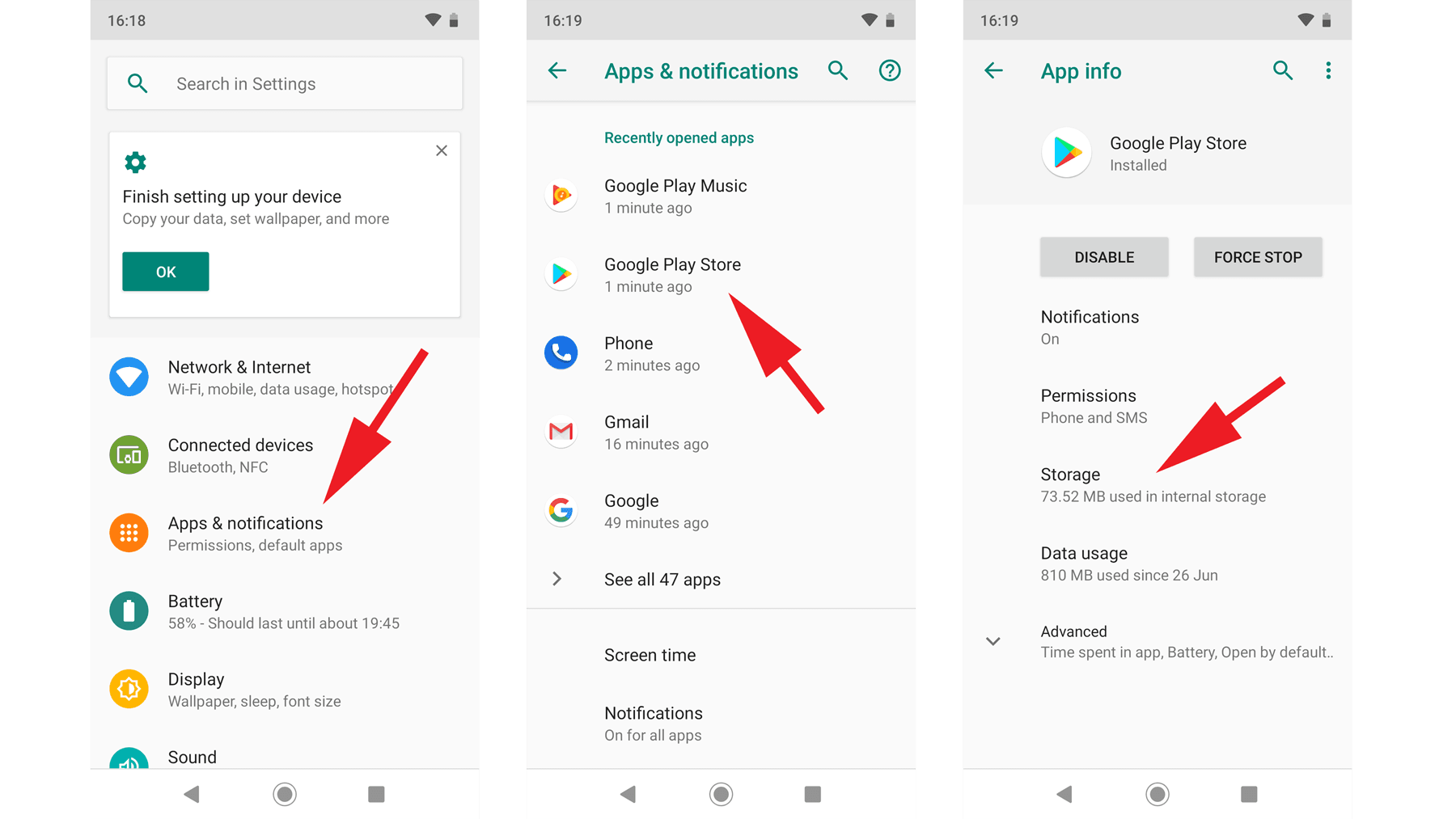
1. The Force Stop and Cache Flush Routine
Temporary files become corrupted when streams drop unexpectedly, leaving broken buffer segments in storage that cause future playbacks to loop or stutter.
- Go to Settings > Apps > Viu.
- Tap Force stop to clear stalled background tasks and clean up memory leaks.
- Tap Storage & cache.
- Tap Clear cache.
Warning: Do not tap "Clear storage" or "Clear data" unless you are prepared to log in again and lose all your offline downloaded episodes. Clearing the cache wipes only temporary playback buffers while leaving your user account and downloaded media untouched.
2. Network Priority Setup
Ensure your device is not competing with legacy wireless bands in your home:
- Open your Wi-Fi settings and connect to your router's 5GHz band instead of the older 2.4GHz band.
- Turn off Wi-Fi power-saving options in Android Developer settings to prevent the wireless antenna from sleeping during low-interaction video streaming.
3. Display Refresh Rate Alignment
Many modern Android phones run high refresh rate displays (90Hz, 120Hz, or 144Hz). Video content on Viu is mastered at 24fps, 25fps, or 30fps. When a 24fps video plays on a fixed 120Hz panel that does not support dynamic LTPO switching, the phone must perform a 3:2 pull-down frame cadence. This creates noticeable visual judder that feels identical to video stuttering.
- Navigate to Settings > Display > Smooth Display (or Motion Smoothness).
- If you notice persistent micro-stutters during panning camera shots, try switching from dynamic high refresh rates to standard Standard (60Hz) while watching long shows. Standard 60Hz evenly multiplies 30fps video frames (2:2 cadence), resulting in a noticeably smoother image.
Storage Caching, Thermal Throttling, and RAM Boundaries
Your phone needs physical breathing room to handle high-bitrate video decoding. Neglecting available memory and physical temperatures will derail even the most carefully optimized app settings.
Streaming high-definition video requires a baseline level of system RAM. If your device has 4GB of RAM, Android has to work hard to balance the OS overhead, messaging background services, and the Viu stream. Once you drop below 1GB of free RAM, the system swaps data to internal storage. If you multitask or stream 4K content, 6GB of RAM is the realistic operational threshold.
Internal storage space also plays a critical role. When an Android device's internal storage is filled past 80 percent of capacity, flash storage read/write operations drop sharply in speed. The system struggles to create temporary buffer files. Always maintain at least 10 to 15GB of free storage space on your device to let Android manage system caches and swap tasks without bottlenecking your stream.
| Hardware Metric | Danger Zone (High Stutter Risk) | Safe Operational Baseline | Optimal Performance Ceiling | | :--- | :--- | :--- | :--- | :--- | | Total System RAM | Under 4GB (heavy memory swapping) | 4GB to 6GB | 8GB+ (zero swap latency) | | Free Storage Space | Less than 10% free (under 5GB) | 10–15GB free space | 20GB+ free high-speed flash | | Internal SoC Temp | Above 42°C (triggers CPU throttling) | 35°C to 40°C | Under 35°C (steady max clock) | | Wi-Fi Band | 2.4GHz congested frequency | 5GHz clear line-of-sight | 5GHz/6GHz Wi-Fi 6 close to router |
Takeaway: Stuttering often occurs when low free storage degrades I/O speeds or high device temperatures force the processor to throttle down its decoding cores.
Thermal throttling is the most overlooked factor in video lag. Android 14 introduced system-level thermal management profiles specifically designed to curb runaway CPU temperatures, but when your phone's SoC crosses 42°C, the operating system forcibly throttles processing cores to prevent hardware damage. When the processor throttles, the video decoder cannot keep pace with high-bitrate streams.
If you stream in a warm room or keep your phone in a thick, insulating case, heat builds up rapidly during long viewing sessions. Strip off bulky protective cases during playback marathons, keep the screen brightness at a reasonable 50 to 60 percent, and never charge your phone while streaming 1080p video simultaneously.
Network Tweaks: Taming Wi-Fi Frequency Congestion
If you have locked your resolution, cleared your cache, and controlled device heat, but the stream still stalls, your wireless local area network is the culprit.
Most modern home routers broadcast two separate bands: 2.4GHz and 5GHz. The 2.4GHz band carries signals over longer distances and penetrates walls easily, but it is congested with interference from smart home devices, neighboring routers, and Bluetooth accessories. This frequency band is notoriously prone to packet loss, which wrecks high-bitrate video buffers.
The 5GHz band operates on a much wider spectrum with significantly less interference and dramatically higher data throughput. While its signal does not reach as far through concrete walls, its packet delivery is pristine. If your phone sits within reasonable range of your router, always manually connect to the 5GHz SSID.
For viewers who share a family internet connection, background downloads will instantly spike your latency. If someone on your network begins downloading a massive game update or backing up files to cloud storage, your Viu buffer will drain immediately. Setting up Quality of Service (QoS) on your router to prioritize your media streaming device ensures that other household devices do not starve your drama stream of the required 25 Mbps bandwidth.
To bypass ad-tier server congestion during high-traffic simulcasts, picking up a Viu Premium Subscription Code (MY) on nxpgame routes your stream through priority content distribution networks.
Frequently Asked Questions
Why does Viu stutter even though my internet connection is fast?
Playback stutters often stem from device-level bottlenecks like thermal throttling, a cluttered app cache, or adaptive bitrate shifts rather than raw line speed. Hardware decoding stalls and background apps hogging system RAM can also cause dropped frames on an otherwise fast connection. Locking your stream resolution and freeing up working memory usually resolves the issue.
Does clearing the Viu cache delete my downloaded dramas?
No, clearing the app cache only wipes temporary playback files, media chunks, and corrupted buffer data. Your downloaded videos are preserved safely on your storage. Offline downloads are only deleted if you select the separate "Clear Data" or "Clear Storage" option in Android settings, or if you reinstall the app.
What minimum internet speed do I need to stream Viu in Full HD?
Smooth 1080p Full HD streaming on Viu requires a stable connection of at least 25 Mbps to handle bitrate spikes. For standard HD (720p), a 10 to 15 Mbps connection is sufficient to prevent buffering drops. Standard definition (480p) requires a baseline of at least 5 Mbps.
Should I set Viu video resolution to Auto or select a fixed quality?
You should always select a fixed resolution like 720p or 1080p instead of leaving it on Auto. The Auto setting frequently triggers micro-stutters because the adaptive bitrate engine constantly pauses the stream to recalibrate quality whenever minor network fluctuations happen. Manually locking to 720p provides the ideal balance between picture quality and buffer stability.
Why does my Android phone heat up while streaming on Viu?
Streaming high-bitrate video forces the internal processor and GPU to continuously decompress video frames, generating substantial internal heat. When the device temperature spikes, Android triggers thermal throttling, which cuts processor speeds and causes video stuttering. Removing thick protective cases and keeping screen brightness below 70 percent will help the device remain cool.
Does Android Battery Saver mode affect streaming performance on Viu?
Yes, enabling Battery Saver actively degrades video smoothness by capping CPU clock speeds and throttling background network data transfers. This leaves the hardware video decoder without enough computing power to maintain steady frame pacing. Turn off Battery Saver and set Viu's app battery usage to "Unrestricted" for smooth playback.
How much internal storage should I keep free on Android for streaming?
You should keep between 10 and 15GB of internal storage space free to prevent I/O bottlenecks. When internal storage fills beyond 80 percent of capacity, Android's flash memory read/write performance drops, which directly hampers the app's ability to cache upcoming video segments. Maintaining adequate free space ensures uninterrupted buffer caching.
The Verdict on Silencing Android Viu Drops
Video stutter on Android is an engineering issue, not bad luck. If your connection delivers at least 25 Mbps, you do not have to settle for jittery video, out-of-sync audio, or constant buffer wheels.
The fix is straightforward: drop the unpredictable Auto quality setting and lock your stream manually to 720p or 1080p. Turn off Android's aggressive Battery Saver, grant the native Viu app unrestricted background battery permissions, and migrate your phone onto a clean 5GHz Wi-Fi channel. Finally, clear out accumulated temporary cache files and keep at least 10GB of storage space free so Android never has to fight for memory swap space. Once those settings are locked in, your phone will stay cooler, your frame rates will stabilize, and your dramas will play cleanly from opening credits to the finale.

Community
Comments